Suppose you open your storage settings and find 2 TB free. Would one complete copy of the listed Kimi K3.1 Pro files fit? On paper, yes. Would that leave 500 GB for everything else? No. This case answers a first storage question and estimates transfer time. Downloading the weights, loading the model and generating an answer on a home computer remain untested.
The case used AIPOCH Open-Science to calculate the first two answers from published file metadata. The project started with Moonshot’s file list, added up the bytes, and compared the result with several disk and network scenarios. Its .science package preserves the totals alongside the figures, so you can follow the calculation and change one assumption you control: how much of your free disk space you are willing to allocate.
How did AIPOCH Open-Science work out the download size?
Start where the project started: the file listing for a specific revision of Moonshot’s checkpoint. The weights are split across 96 files called shards. If you clicked just one shard to judge the size of the download, your estimate would depend heavily on which one you happened to pick. In this release, the smallest is about 92 MB and the largest is nearly 17 GB. Both belong to the same checkpoint. Moonshot checkpoint file listing
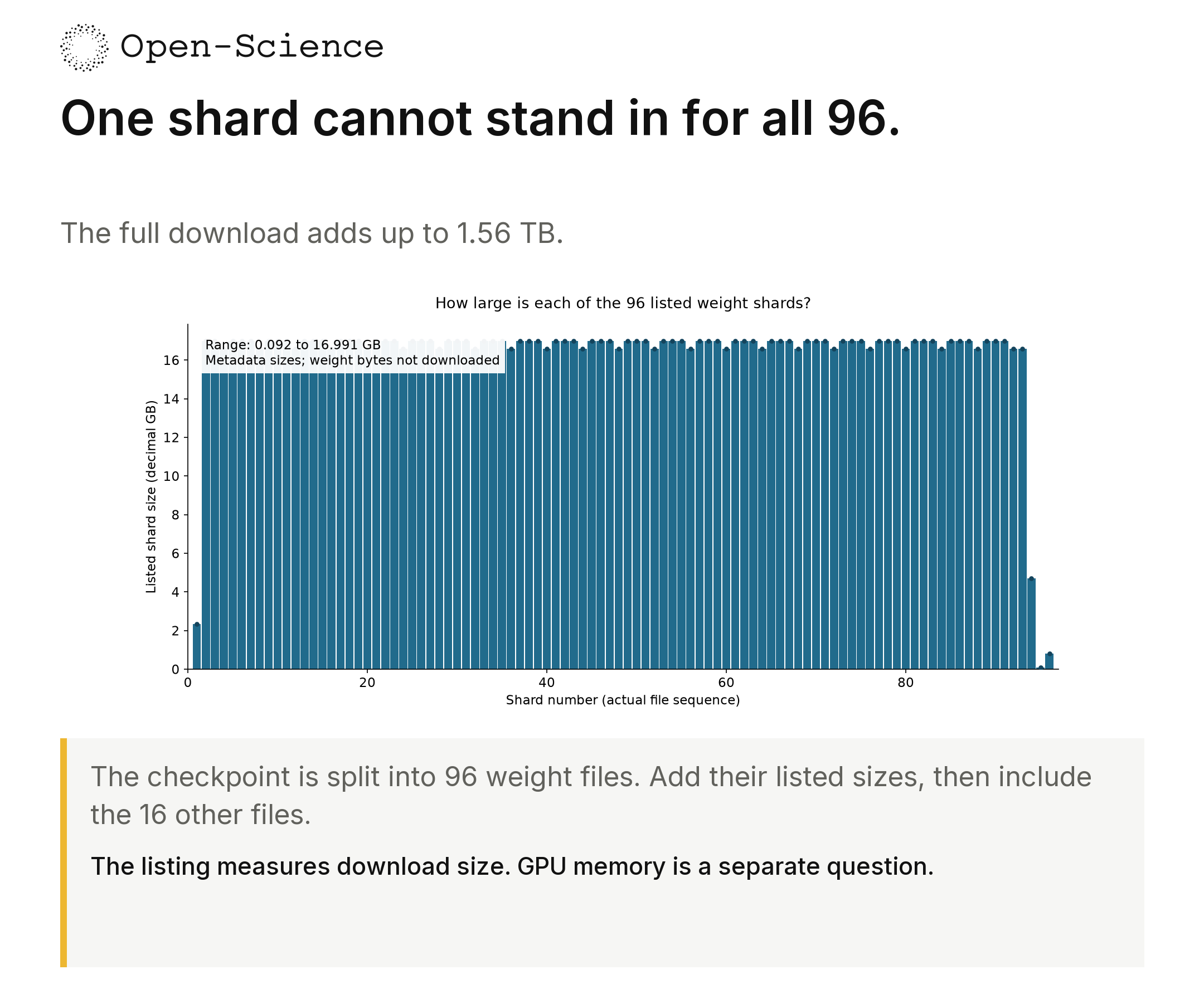
Read the first chart for the spread in shard sizes. Picking the smallest file as “typical” would give a particularly poor estimate of the total.
The project used the size of every listed file. You can inspect the result in payload_totals.csv: the 96 weight shards add up to 1,561,293,160,568 bytes, and the other 16 files add another 62,806,395 bytes. Together they come to 1,561,355,966,963 bytes, or about 1.56 TB. The extra files barely move the rounded headline number, but counting them tells you exactly what the estimate covers. It also gives the next reader a way to check the arithmetic against the release. Moonshot file manifest with byte sizes
Why does the answer change with the same 2 TB of free space?
Look at the middle row below. The project’s first calculation gives the download the entire 2,000 GB available. Subtract 1,561.36 GB for the release and 438.64 GB remains. The second calculation sets aside 500 GB for your other work. That leaves a download budget of 1,500 GB, and the same checkpoint now exceeds it by 61.36 GB.
These figures cover one copy of the listed files. Any cache, temporary files or extra copies required by your download workflow would need additional space. The 500 GB reserve is a planning choice for other work.
| Space already free | After storing all listed files | If you also keep 500 GB free |
|---|---|---|
| 1,000 GB | Short by 561.36 GB | Short by 1,061.36 GB |
| 2,000 GB | 438.64 GB left | Short by 61.36 GB |
| 4,000 GB | 2,438.64 GB left | 1,938.64 GB left |
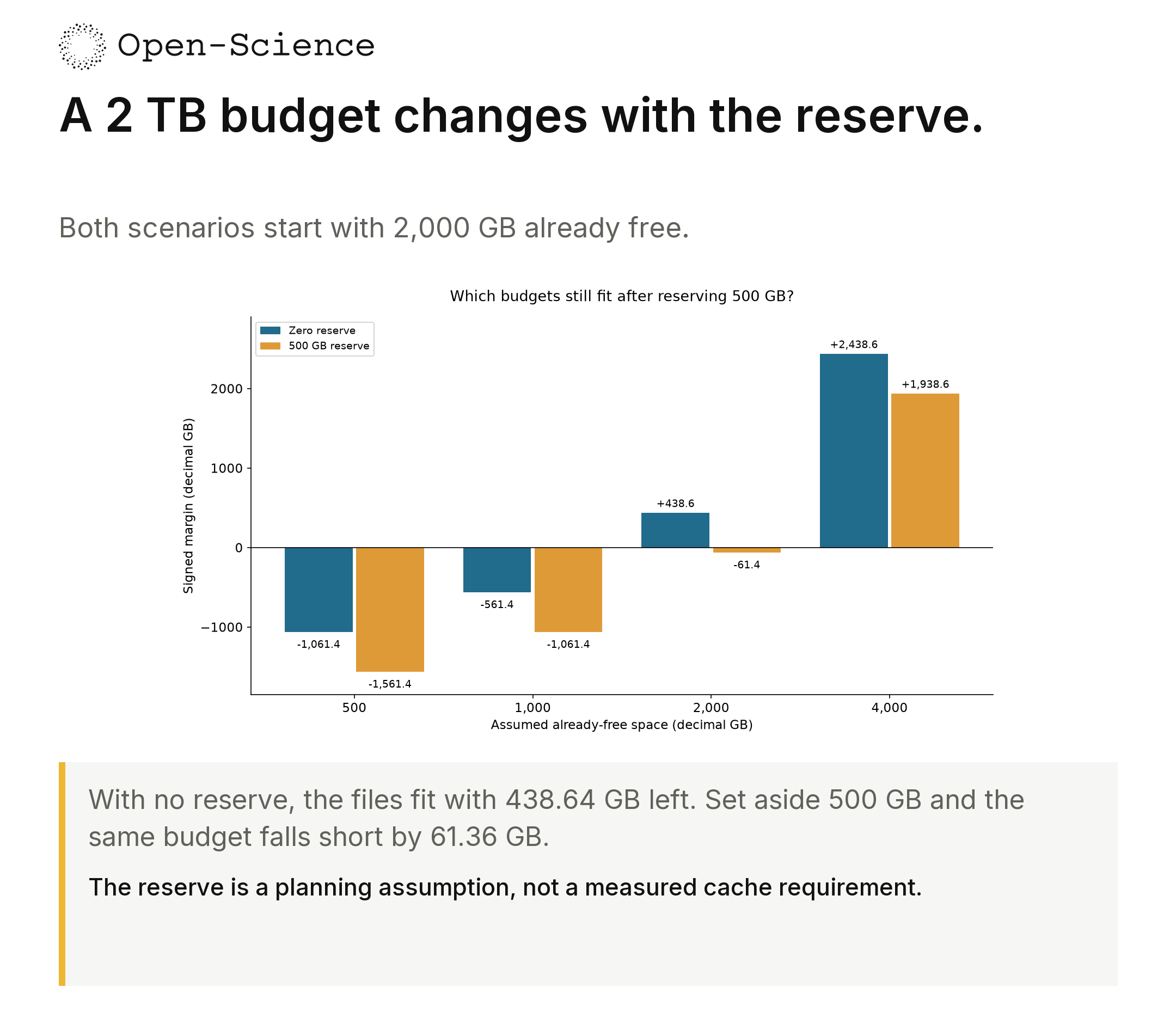
Read across the 2,000 GB scenario in the second chart. The file total stays fixed. Reserving 500 GB reduces the available budget from 2,000 to 1,500 GB, below the 1,561.36 GB file total.
That second chart answers a question a model download page cannot answer for you: Would I be comfortable giving up this much of my disk? The 500 GB reserve is the case’s planning example. If 250 GB would be enough for your work, the same 2,000 GB of free space would accommodate one copy of the files, preserve your reserve, and leave about 188.64 GB before any download-workflow overhead. This 250 GB scenario is an additional calculation for this article. If your drive has “2 TB” on the box, look up how much is free today before choosing a row. The table uses decimal GB, with 1,000 GB to a TB.
If the files fit, how long would the transfer take?
The Open-Science case used the same byte total to estimate how long a transfer could occupy your connection. Assume an effective file-transfer rate of 100 megabits per second, equivalent to 12.5 megabytes per second. At that rate, the listed files would take about 34 hours 42 minutes. Start at 9 a.m. on Monday and the transfer would finish around 7:42 p.m. on Tuesday.
Now suppose the connection is advertised at 100 Mbps but averages 70 Mbps during the download. The case estimate rises to 49 hours 34 minutes. The same Monday start now points to about 10:34 a.m. on Wednesday. These are estimates from the listed bytes and an assumed speed. For your own calculation, use the effective rate sustained during a large transfer. If it already reflects protocol overhead or slowdowns, use it directly. Allow separately for interruptions or retries beyond that assumption.
What would show that my computer can actually run Kimi?
The next step requires different evidence. A machine can store every shard and still lack the memory or compatible inference software to load the checkpoint. Start by comparing a deployment configuration in the vLLM guide with the hardware you actually have. To establish that your particular PC can run Kimi, the useful record would identify the checkpoint, hardware, software version and memory use, then show the model loading and producing its first answer. The Open-Science case reached the storage and transfer estimates. Local inference on a home PC remains untested in this record. vLLM deployment guide
What can I inspect in the .science package?
If you have received this case’s .science package, import it into AIPOCH Open-Science and locate kimi_verified_analysis.zip. Start with report.md for the scope and assumptions, then compare two artifacts. Find the full-release total in payload_totals.csv and open 05_reserved_comparison.png to locate the scenario closest to your available space. You can make the decision in decimal GB with one line:
Free space on your drive − space you want to keep − 1,561.36 GB = room left in your download budget.
A negative result tells you the shortfall for one copy of the files under your chosen reserve. A positive result is the first storage check before planning the download. Next, account for the chosen download tool’s disk overhead and examine deployment evidence for your hardware. AIPOCH Open-Science keeps the report, totals and charts together so you can inspect the assumptions behind that first check before committing a day or two to a transfer. AIPOCH Open-Science package guide