Research PDFs often contain useful evidence inside plots, image panels, and complex tables. Copying that material by hand is slow, and a normal text extractor may lose captions, merged headers, or page relationships. AIPOCH Open-Science provides an optional local workflow that turns those PDF elements into results you can inspect and export.
AIPOCH Open-Science is an open-source, local-first, model-agnostic, self-hosted AI research workbench for reproducible scientific discovery. PDF extraction helps prepare evidence for review; it does not decide whether a result is scientifically valid.
What does local PDF figure and table extraction do?
The feature analyzes a Literature PDF and builds a separate Figures and tables view. It can reconstruct figure crops with captions and convert detected tables into structured content while keeping source text, footnotes, and review warnings when available.
The v0.29.0 release documents local analysis in an isolated process, progressive page results, support for cross-page content and merged headers, and table export as HTML, TSV, or Markdown. Results are cached, so reopening a completed analysis does not require another full run.
How do you install the local PDF parser?
Open Settings → Model → Local parsing models, find PDF figures and tables, and install the listed resource. The download has progress and cancellation controls. AIPOCH Open-Science checks the resource before using it.
Screenshot: actual AIPOCH Open-Science product interface.
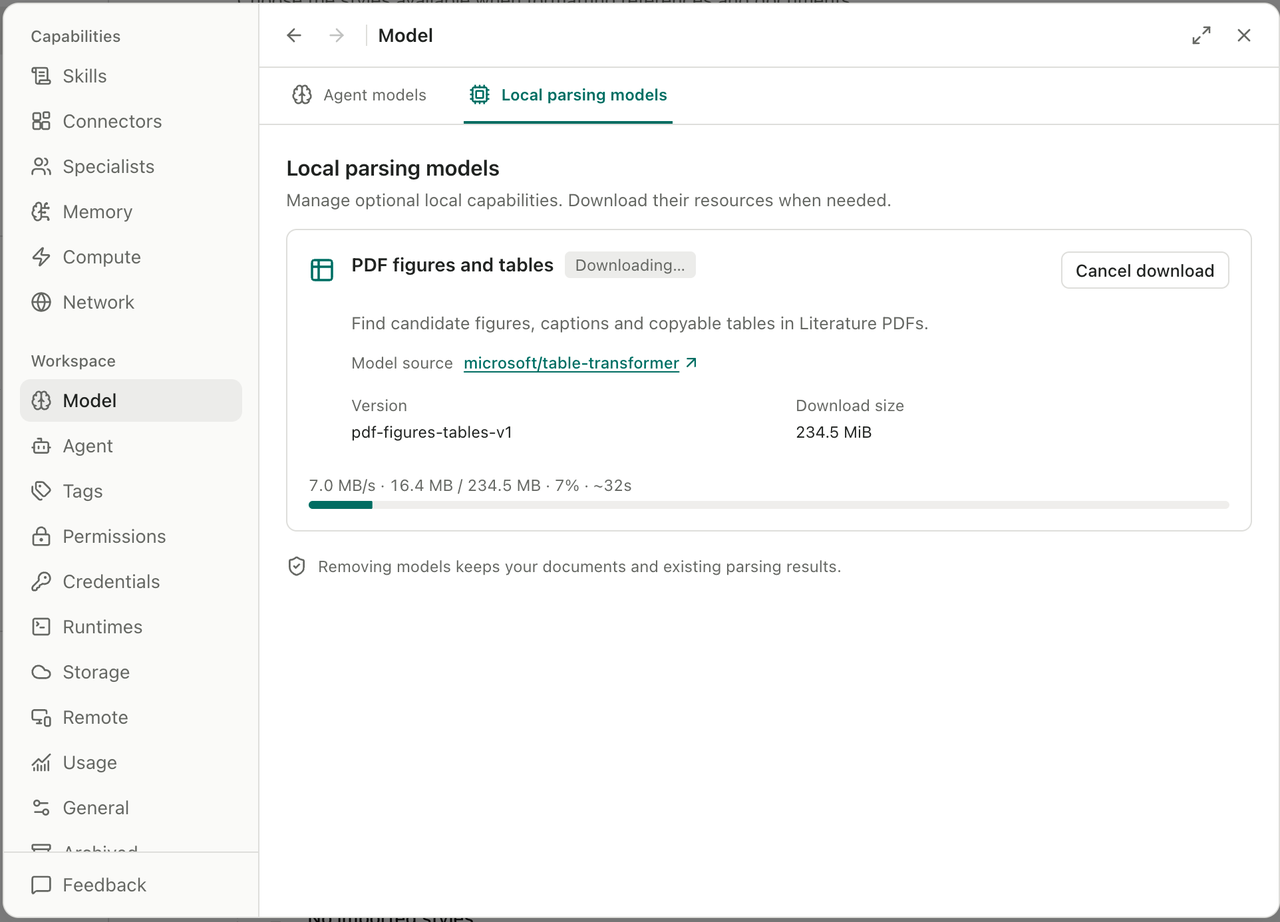
The model is optional and uses local storage. Install it before starting your first analysis. If your connection is interrupted, check the model panel before trying the PDF again.
How do you extract and review figures and tables?
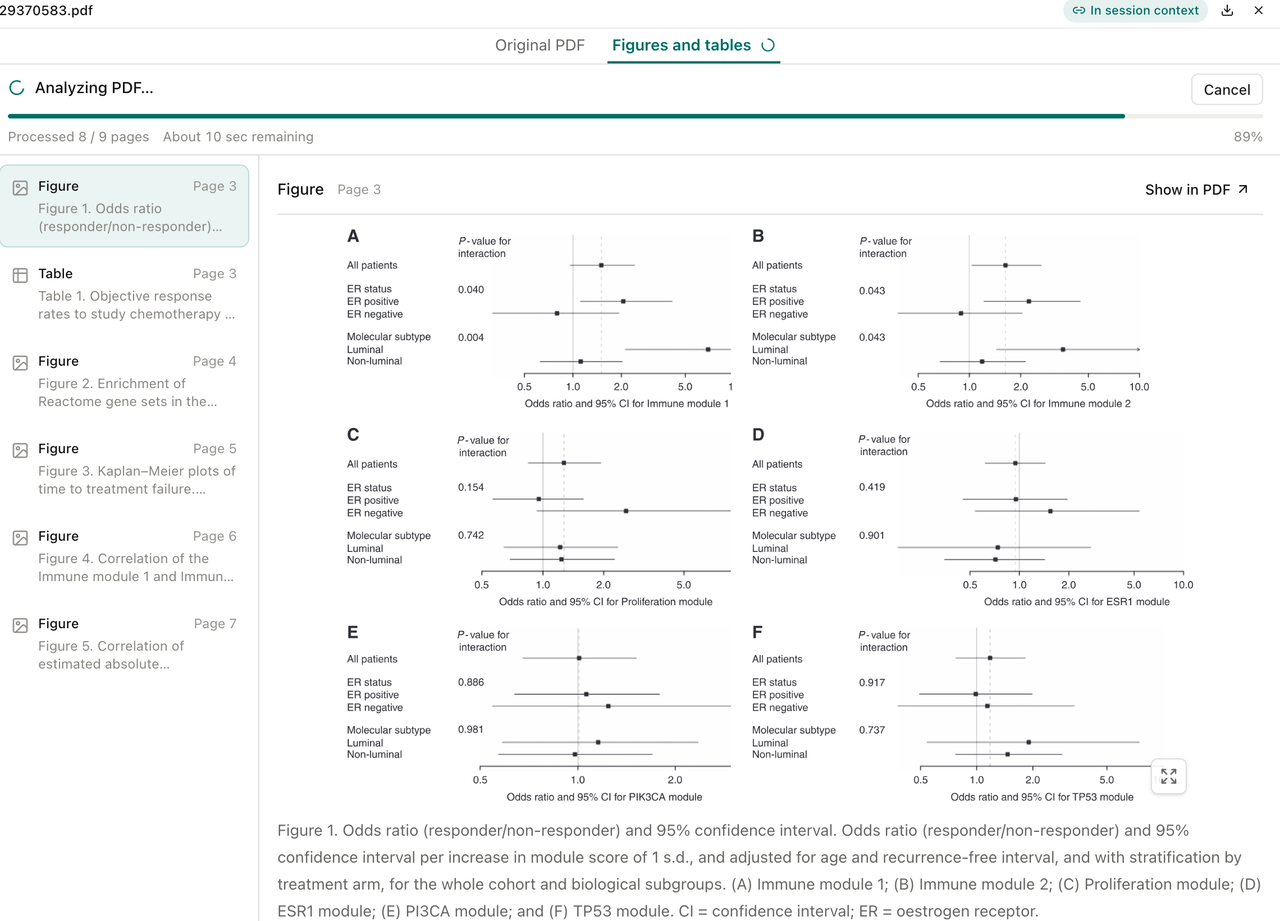
Open a PDF in the Literature workspace, then switch from Original PDF to Figures and tables. Start the analysis and keep the PDF open while pages are processed. Available results appear progressively, so you can begin reviewing earlier pages before the whole document finishes.
Use the left list to move between detected figures and tables. For a figure, check the crop, page number, and caption together. Use Show in PDF to compare the extracted item with its original page. For a table, compare the structured result with Source Image, especially when the paper uses merged columns, multi-line cells, or footnotes.
Screenshot: actual AIPOCH Open-Science product interface.
When the table structure looks correct, export it as HTML, TSV, or Markdown. TSV is useful for a spreadsheet or analysis script; Markdown is convenient for research notes; HTML can preserve a richer table structure. Keep the original PDF beside any exported result so another reviewer can check it.
Can the agent use extracted PDF elements?
Yes, with a linked PDF and completed extraction. The v0.30.0 release added agent access to already extracted figures, tables, and algorithms. This can help the agent discuss a plotted trend or a table value using more than the caption alone.
Ask focused questions and name the figure or table you want examined. Then compare the response with the extracted item and the original page. Agent access makes the material easier to use in a session, but it does not remove the need to check labels, units, statistical notes, and study context.
What are the limits of PDF extraction?
PDF layouts vary, and extraction can be incomplete or incorrect. Scanned pages, unusual typography, nested tables, overlapping panels, and low-resolution images may need extra review. The v0.30.1 release improves recovery and layout handling, but it does not guarantee perfect recognition.
Treat extracted content as a working copy. Return to the source PDF before citing a number, interpreting a plot, or using a table in analysis. Follow the paper's license and your organization's data rules when copying or exporting content.
Start with one paper and one table
Install the local parsing resource, open one familiar paper, and compare a single extracted table with its source image. Export it only after the headers, values, units, and footnotes match. This small check shows how the workflow behaves before you use it on a larger literature set.
FAQ
Does AIPOCH Open-Science upload my PDF for figure and table extraction?
The documented extraction workflow runs locally in an isolated process. Other model or connector actions may have their own data paths, so review the settings for any additional service you use.
Which table export formats are available?
Extracted tables can be exported as HTML, TSV, or Markdown.
Can I review a figure while the PDF is still being analyzed?
Yes. Results appear progressively as pages are processed, although later pages will not be available until their analysis finishes.
Can the agent read an extracted table?
Yes. Starting with v0.30.0, agents can list and read already extracted figures, tables, and algorithms from linked PDFs. Researchers should still verify the result against the original page.
Disclaimer
PDF extraction can misread layouts, labels, values, and footnotes. Check exported content against the original paper before citing it or using it in analysis, and follow the paper's license and applicable data rules. AIPOCH Open-Science supports research workflows; it does not replace researcher judgment or expert review.