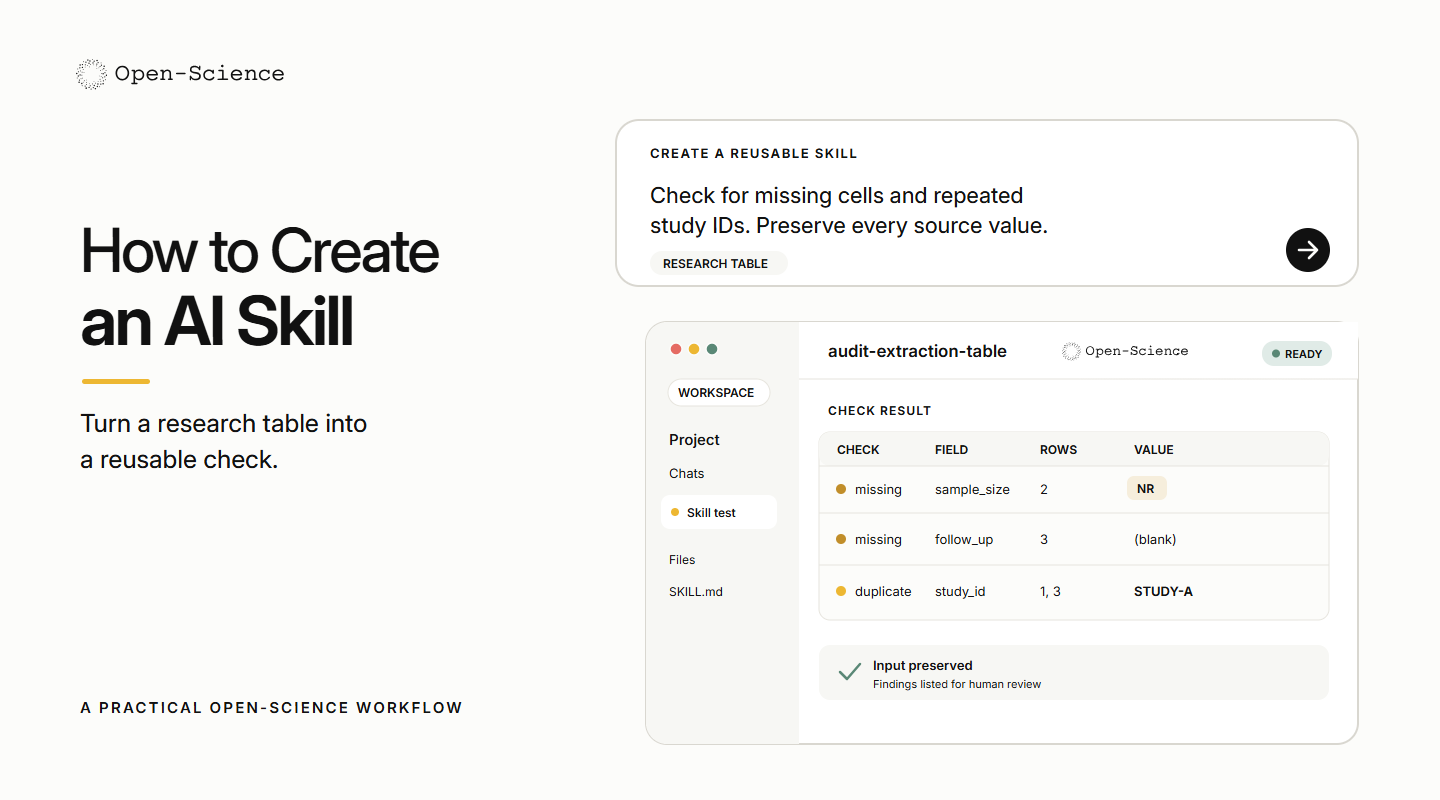
To learn how to create an AI skill, start with a task whose answer you can check by eye. In AIPOCH Open-Science, we gave an agent three rows from a fictional research extraction table and asked it to write a reusable check. A missing sample size, an empty follow-up field, and a repeated study ID gave us three ways to tell whether its instructions worked.
By the end of this tutorial, you’ll have a complete SKILL.md, a test with a known answer, and a documented route for saving the method as a Personal Skill.
We created and checked the instructions in three Open-Science Agent runs across six synthetic table inputs. The first run created the draft and checked one table. The second run tested two new tables with the generated instructions. The third run tested a revised file with one valid table and two invalid inputs. The screenshots show the app conversations associated with those runs. We did not publish or invoke a saved Personal Skill. The desktop save steps below come from the official documentation.
How do you turn a repeated task into an AI skill?
Choose one decision you make repeatedly, give the agent a small input that forces it to make that decision, and write down what a correct answer looks like before asking the agent to create a skill you intend to use on another dataset.
The 2026 AIPOCH Skills overview describes a Skill as a repeatable method with a trigger, inputs, procedure, and output checks Skills overview. The 2026 creation guide asks authors to define a stop condition for the procedure Create a Skill and its supporting files.
Step 1. Give the skill a narrow job
Imagine you are about to send an extraction table to a second reviewer. You want to flag fields that need attention while preserving what the first reviewer recorded. For this exercise, a missing value means an empty cell or the exact text NR. A duplicate means the same nonmissing study ID appears more than once after trimming surrounding whitespace. Capitalization matters.
| study_id | sample_size | follow_up |
|---|---|---|
| STUDY-A | 24 | 6 weeks |
| STUDY-B | NR | 8 weeks |
| STUDY-A | 31 |
Write down the answer first. Row 2 needs a sample size. Row 3 needs a follow-up value. Rows 1 and 3 share an ID. The last finding belongs in one report row listing both locations. A repeated study ID might represent two arms of the same study, so the reviewer decides whether either record needs changing.
Step 2. Ask the agent to write instructions someone else can reuse
Start a new conversation. Paste the table and the following creation prompt, adapted for the desktop workflow from our CLI run.
Create a skill named
audit-extraction-table. Write a completeSKILL.mdwith a name, a triggering description, and instructions for reviewing a Markdown table with the columnsstudy_id,sample_size, andfollow_up. Treat blank cells and exactNRas missing. Trim surrounding whitespace, preserve case, and number data rows from 1. Report each duplicated study ID once with all affected rows. Preserve the source table. Return the fieldscheck,field,rows, andvalue, or the sentenceNo issues found.Apply the instructions to the example and show the result separately.
“Check this table” asks for one answer. “Write the instructions and apply them” gives you two things to inspect. In our first Open-Science run, the agent returned both in the conversation. The session had no artifact-writing tool, so we saved its returned text as SKILL.md and result.md. The run did not publish a Personal Skill.

Step 3. Read the file before you save it
Here is a revised version of the generated file. It keeps the original missing-cell and duplicate-ID rules, then adds explicit stop conditions for a missing column and a malformed row. This is an editorial revision, not a verbatim copy of the first-run output. We tested the revised file in a separate third run.
---
name: audit-extraction-table
description: Validate a Markdown extraction table, then report missing cells and duplicate study IDs without modifying or inferring input values.
---

Given a pipe-delimited Markdown table with columns `study_id`, `sample_size`, and `follow_up`:

1. Validate the header before auditing. Each required column must appear exactly once. If a required column is absent, stop and return `Input error: missing required column(s): COLUMN_NAMES.` List missing names in this order: `study_id`, `sample_size`, `follow_up`.
2. If a required column is duplicated, stop and return `Input error: duplicate required column(s): COLUMN_NAMES.` List duplicated names in the same order.
3. Check every data row against the three required columns. If a row cannot be parsed into exactly three cells, stop and return `Input error: row ROW_NUMBER has CELL_COUNT cells; expected 3.` Number data rows starting at 1.
4. For valid input, trim surrounding whitespace from every cell and preserve case.
5. Report each empty cell or cell exactly equal to `NR` as missing.
6. Group nonmissing `study_id` values by exact, case-sensitive equality after trimming. Report each group appearing more than once once, listing all its row numbers.
7. Never infer values or edit the input.

For invalid input, return only the specified `Input error` sentence. Do not return `No issues found.` or an issue table for invalid input.

For valid input, return only a Markdown issue table with columns:

| check | field | rows | value |
| --- | --- | --- | --- |

List missing-cell issues first, in data-row order and then column order (`study_id`, `sample_size`, `follow_up`). Use `missing` for check, the column name for field, the row number for rows, and `(blank)` or `NR` for value.

Then list duplicate groups in order of first occurrence. Use `duplicate` for check, `study_id` for field, all group row numbers separated by commas for rows, and the trimmed study ID for value. Escape Markdown table delimiters in displayed values.

If valid input has no issues, return exactly:
No issues found.
Compare the returned report with your three expected findings.
| check | field | rows | value |
|---|---|---|---|
| missing | sample_size | 2 | NR |
| missing | follow_up | 3 | (blank) |
| duplicate | study_id | 1, 3 | STUDY-A |
All three findings matched. The first two point to individual cells. The third links records. That distinction is a reason to keep the rows field even if a shorter report looks cleaner.
How do you save and test a skill in AIPOCH Open-Science?
When you already have a complete skill file, paste it into the Open-Science editor, check the name and instructions, publish it to Personal Skills, and then call it by its saved name in a fresh conversation with a table whose answer you already know.
The 2026 AIPOCH creation guide says the manual editor can populate Name and Description from the file’s YAML header Create a Skill and its supporting files. The 2026 Skills overview describes how to inspect a Skill’s files and availability before using it in a conversation Skills overview.
Step 4. Choose the save route that fits your starting point
| What you have | Where to start | What to inspect |
|---|---|---|
| The file from Step 3 | Resource center → Skills → Add skill → Write from scratch | Paste the entire file into Skill body. Check the populated name and description, select Publish, and reopen the Personal entry. |
| A completed conversation where you refined a method | Select the successful branch, then + → Save as skill | Read the extracted procedure. Keep corrections that should apply next time and remove details specific to the first dataset. Review the draft before accepting publication. |
| A method you can describe but haven’t written | Add skill → Chat with agent | Ask for the inputs, rules, and expected output. Give the draft a worked example before you accept it. |
| An existing skill package | Use Upload skills or the applicable import option | Inspect the instructions and any supporting files, then confirm which saved name to invoke. |
For this example, the first route preserves the exact wording you tested. After publishing, search for audit-extraction-table under Resource center → Skills, open Files, and check the saved SKILL.md and Main Agent availability. If you use Save as skill, allow the agent to finish on the selected branch first. A disabled menu item has a tooltip identifying the blocking condition. AIPOCH creation guide
Step 5. Try a clean table and a fresh error
In a new conversation, select the saved Skill, supply the following table, and ask: “Use audit-extraction-table to check these records.” Leave the duplicate and missing-value rules out of the request. This gives you a way to test whether the saved Skill supplies them.
| study_id | sample_size | follow_up |
|---|---|---|
| Study-X | 17 | 6 weeks |
| STUDY-X | 21 | 8 weeks |
The expected response is exactly No issues found. The IDs differ in case, and every cell contains a value. An agent that lowercases IDs before comparing them would raise a false alarm here.
Now try one more table.
| study_id | sample_size | follow_up |
|---|---|---|
| STUDY-Q | 10 | NR |
| STUDY-R | 12 | 1 week |
| STUDY-Q | 15 | 2 weeks |
What happened in our second run. We supplied the generated skill text directly to a fresh Open-Science run with these two tables. It returned No issues found. for the first. For the second, it flagged the missing follow-up in row 1 and the repeated STUDY-Q in rows 1 and 3. It printed the row list as 1,3. Both row references were correct. The row positions matched semantically, although the comma spacing differed from the earlier example.

The second run tested the original instructions on two new tables. We then added the validation rules shown in the revised SKILL.md and tested that revision in a third run. For the revised test, we supplied one valid table with a repeated ID, one table missing follow_up, and one row with only two cells. The valid table returned a duplicate finding for rows 1 and 2. The missing-column case returned Input error: missing required column(s): follow_up. The malformed row returned Input error: row 2 has 2 cells; expected 3. These results test the revised instructions, not Personal Skill installation. The documented publishing steps still require a separate desktop check AIPOCH creation and reuse guide.
Common questions
Do I need code to create skills like this one?
For this three-column check, the file above contains all the instructions, and all three agent runs used text inputs. You can create the instructions in a conversation, then save and test the Skill in the product where you intend to use it.
What happens if a column is missing?
The revised file stops with an input error if a required header is missing or a data row does not contain three cells. In our third run, the missing follow_up column produced the error Input error: missing required column(s): follow_up. An absent column and an empty cell remain different input conditions.
What should I change for my own team?
Decide what one row represents. If your table has one row per study arm, a study ID can legitimately repeat. Change the duplicate rule to compare the study and arm IDs together, then create a test with two different arms of the same study. Keep the original three-row fixture so you can explain what changed.
Start with the three-row table, save the method under a recognizable name, and try the case-sensitive pair in a new conversation. A colleague who receives the skill should be able to tell when to use it, what it will flag, and how to check the answer. Create your first Skill in AIPOCH Open-Science
Sources and verification. The AIPOCH Skills overview and Create a Skill and its supporting files were retrieved live on November 27, 2026. Both pages identify November 11, 2026 as their last update. The desktop publishing steps in this article are documented steps and were not exercised in our three runs. The two in-app screenshots were supplied for this article and reviewed before use.
All study IDs and values in this tutorial are synthetic. The checks flag table entries for human review and do not assess the underlying studies.