A colleague sends you a .science package ahead of a lab meeting. Inside are the research question, the conversation that shaped the analysis, and the files and figures behind the result. You can open the package and explore the work yourself. With Research Film in AIPOCH Open-Science, you can also turn a completed branch of that same research into a short, narrated presentation and play it for the room.
That gives the work a second audience. The researcher taking over the project can open the record and follow a decision in detail. The colleague joining the discussion for the first time can watch the question unfold on screen, hear what the figure compares, and arrive ready to talk about the result.
Start with the research you already have
In the Open-Science desktop app, drag the .science file onto a project’s New conversation page, confirm the import, and open the imported session. Choose the completed branch you want to present. Then select Session actions → Generate research film. You can start from that imported branch directly, without first making a writable copy. Research package guide
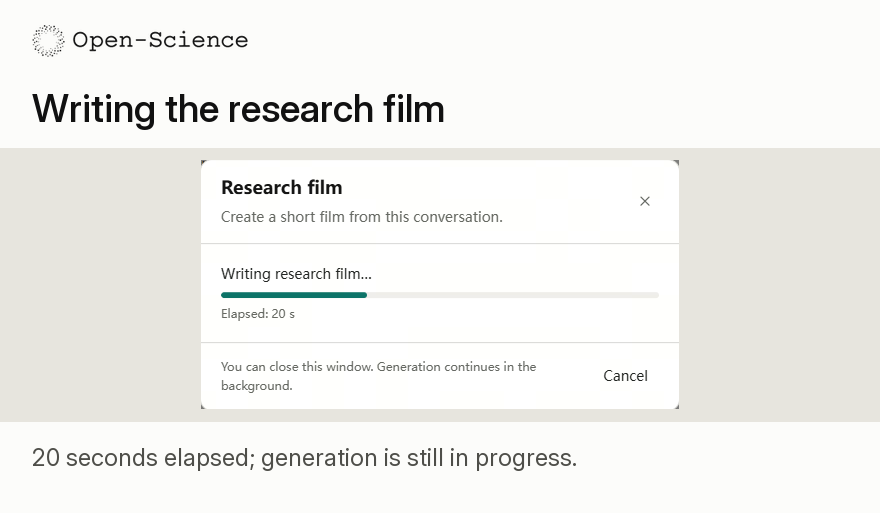
The conversation already contains the material for the presentation. Your configured model uses the recorded session to compose the film, and the local speech engine produces the English narration. If you are making your first film, the app can prompt you to install the narration resources. Once generation starts, you can close the progress window and keep working in the app. Research Film guide
Give the audience a question they can see
Consider the opening frame in the example below. A broad topic, Weight-Space Programming, becomes a question someone can follow on first hearing: Did every math problem actually improve? Two answer sheets appear side by side. One is labeled Baseline, the other Edited. Before a single score appears, the audience knows which comparison to watch.
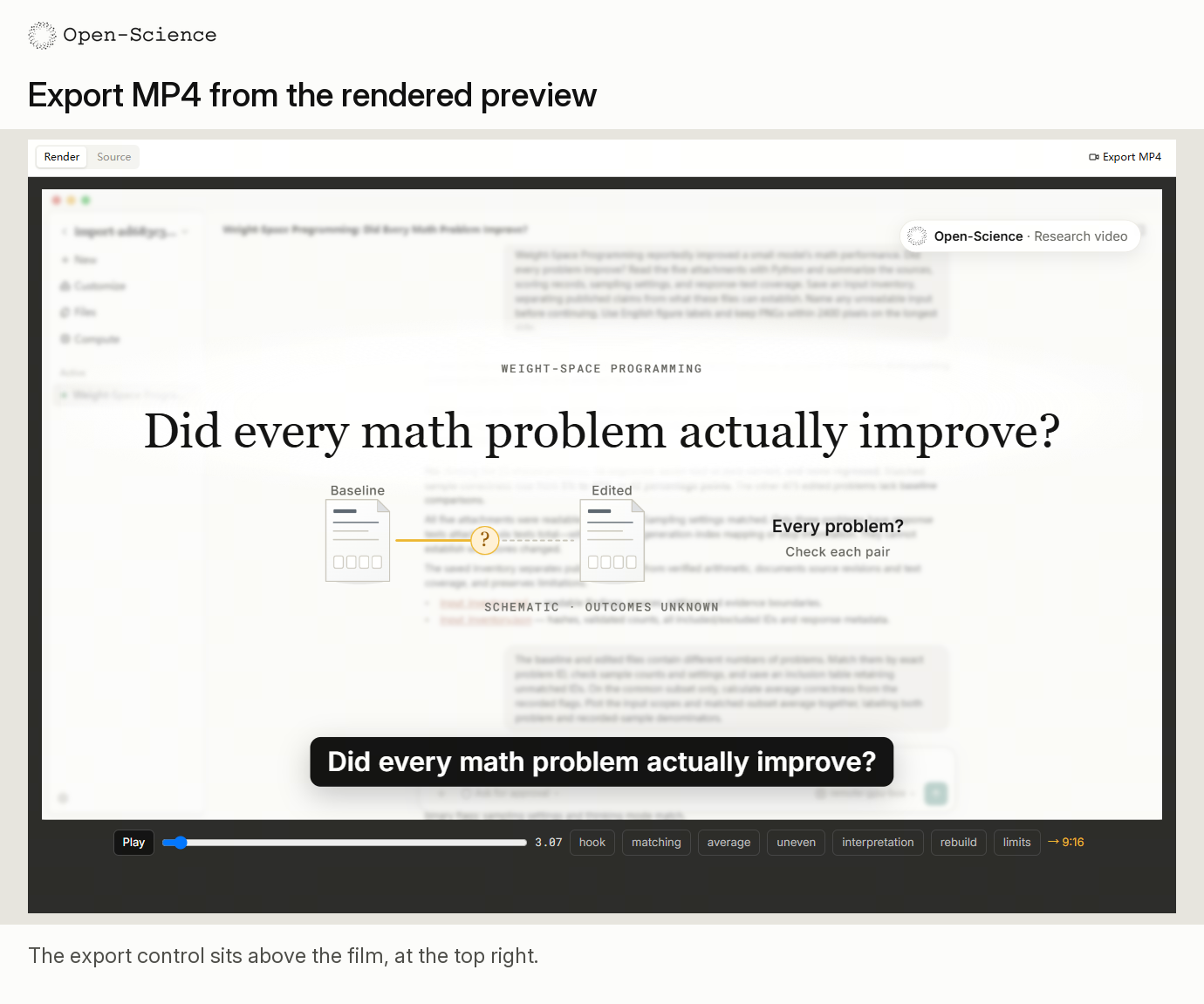
The caption carries the question while the graphic establishes the comparison. Along the timeline, chapter labels such as matching, average and uneven give the discussion a place to go next. If someone asks whether an average hides differences between individual problems, the presenter can return to that part of the film while everyone is looking at the same frame. The original case article gives readers the detailed analysis.
Think of a figure from your own project that usually takes a few sentences to introduce. In a film, the figure can stay on screen while the voice introduces the groups and explains what changed. A collaborator watching later gets to hear the explanation that would otherwise have stayed in the meeting room.
Bring the film into the conversation
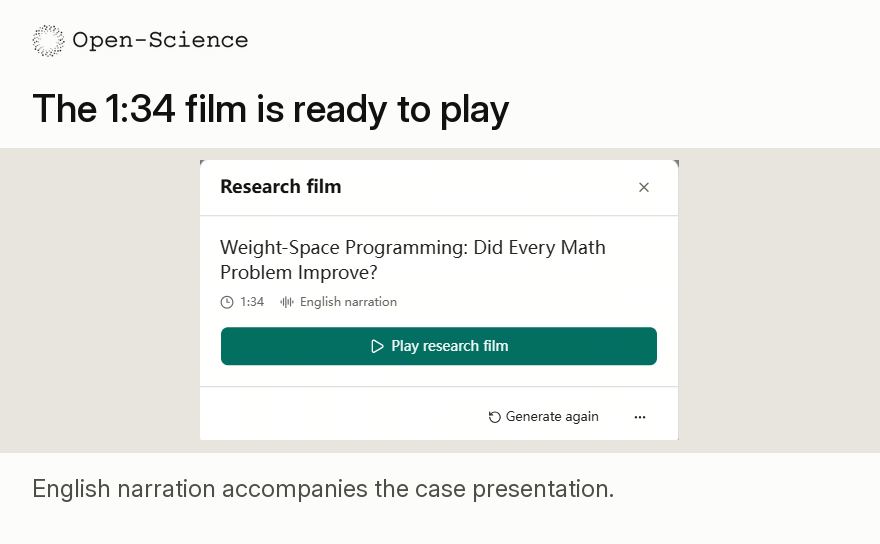
When the film is ready, its card shows the title, running time and narration language. The example pictured here runs 1 minute 34 seconds. Select Play research film to show it in Open-Science. At a lab meeting, that opening question can do the work of an introductory slide. Pause on the comparison, hear what the room wants to explore, and open the imported research record when the discussion turns to a specific figure or decision.
For a collaborator in another time zone, choose Export MP4 in the rendered preview and send the saved video ahead of the meeting. For browser viewing, More actions → Download saves a portable HTML player. Share the .science package alongside the film when someone wants to explore the underlying work. They can watch your explanation first, then open the same research you started from and bring a specific question to your next conversation. Film export options