Create and share a research film
Turn a completed conversation into a short narrated presentation for a group meeting or project handoff. Open-Science builds the film from a frozen record of the session and generates English narration locally. Film authoring still uses your configured model. The result explains existing work; it does not run the analysis again or certify its conclusions.
Prepare the session and narration
- Use the desktop app and open the session and branch you want to present. Finish the current response first. A blank session or one still awaiting a reply cannot generate a film.
- Check the recorded inputs, results and limitations. Remove sensitive material from the source you intend to share before starting; review the generated film separately before distributing it.
- In Settings → Model, confirm a compatible Main model and working credentials. An existing Codex subscription can remain selected with the Codex runtime.
- Open Local capabilities → Research narration → Install. Wait for Installed. These resources provide English speech and are reused for later films. Alternatively, the film dialog offers Install and generate when narration is missing.
The speech engine runs locally after installation, but model-based film authoring uses the selected provider. Keep the computer running and enough free storage available for generated media.
Generate and watch
- Open Session actions → Generate research film. In replay, the same action is available under More actions.
- Read any preparation message. Resolve a missing model, credential or narration resource before retrying. If narration is ready, generation starts from this action.
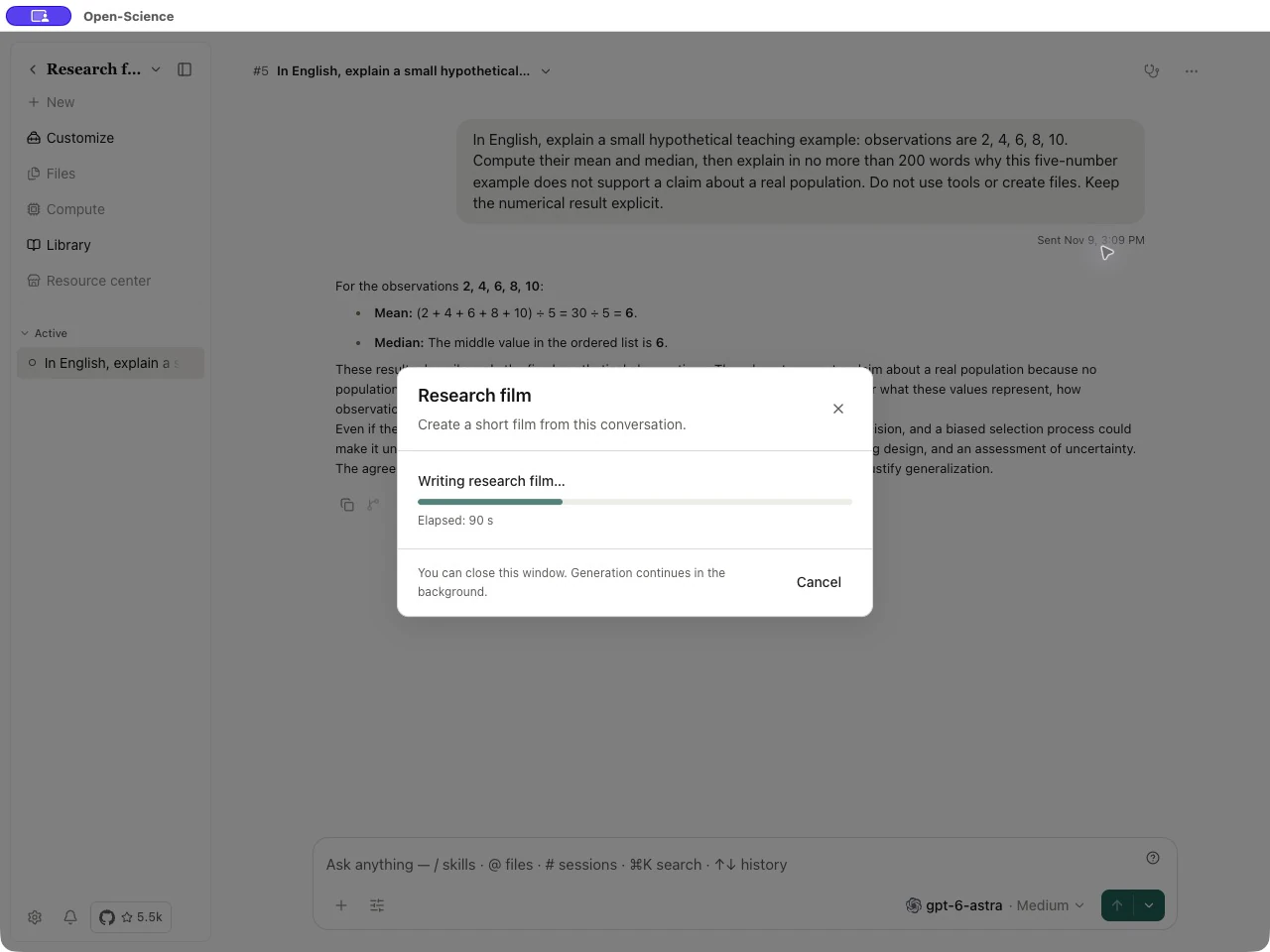
- Follow the writing and media-generation stages. You can close the dialog while generation continues, then reopen View generation progress. Cancel stops the film job, not the source conversation.
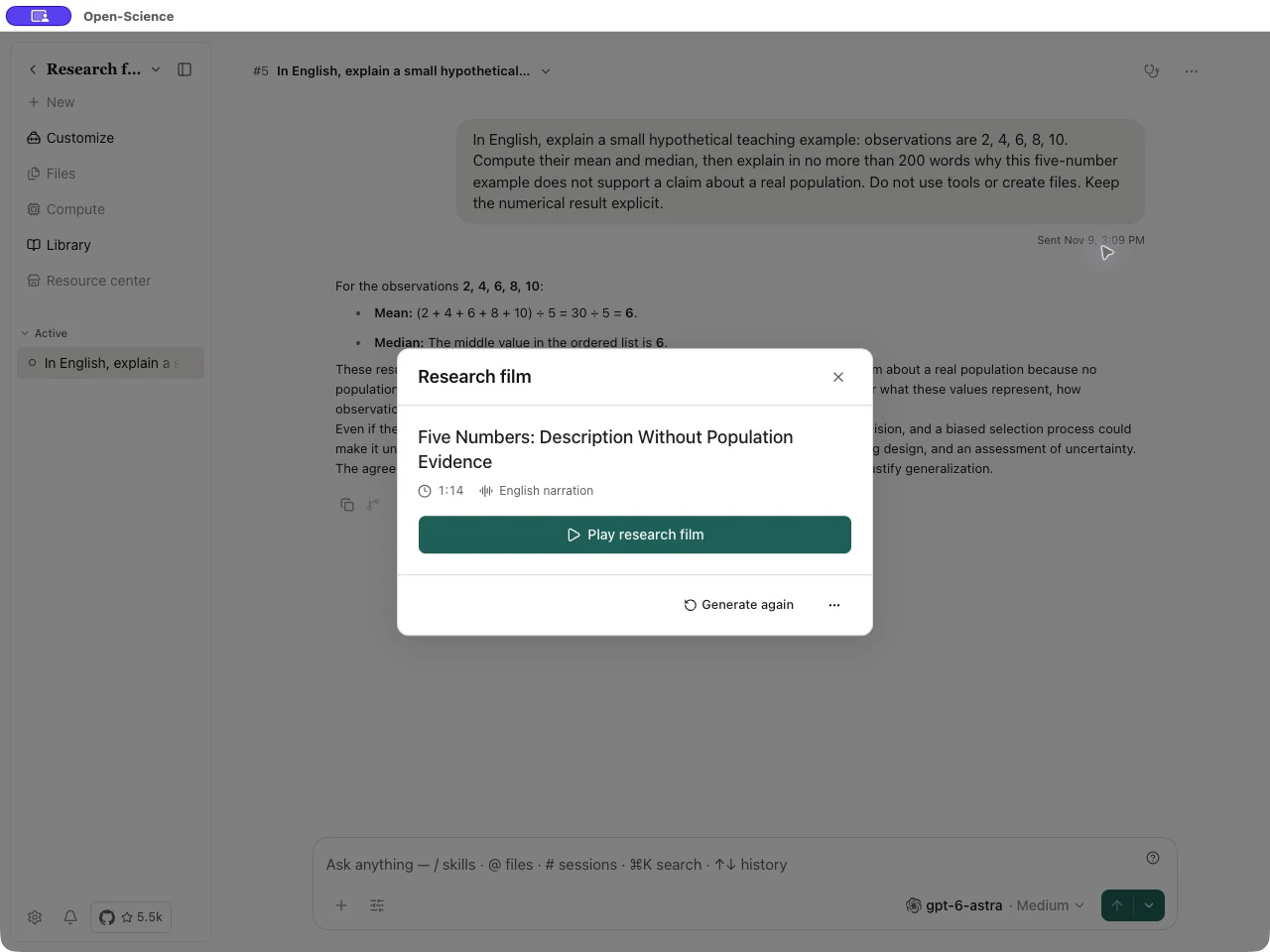
- When Research film ready appears, inspect the title and duration, then choose Play research film.
- Watch the entire film. Check numbers, units, explanations, visuals, narration and the stated limits against the source session. Pay particular attention to whether hypothetical examples or preliminary results are still described as such.
Worked example Explain a five-number teaching example
Start a conversation with Codex and send:
In English, explain a small hypothetical teaching example: observations
are 2, 4, 6, 8, 10. Compute their mean and median, then explain in no more
than 200 words why this five-number example does not support a claim
about a real population. Do not use tools or create files.
Keep the numerical result explicit.
The completed answer gives a mean and median of 6 and explains the absence of a defined population or sampling design. Check those points before selecting Generate research film. This is a teaching example, not an empirical study.
Export a reviewed film
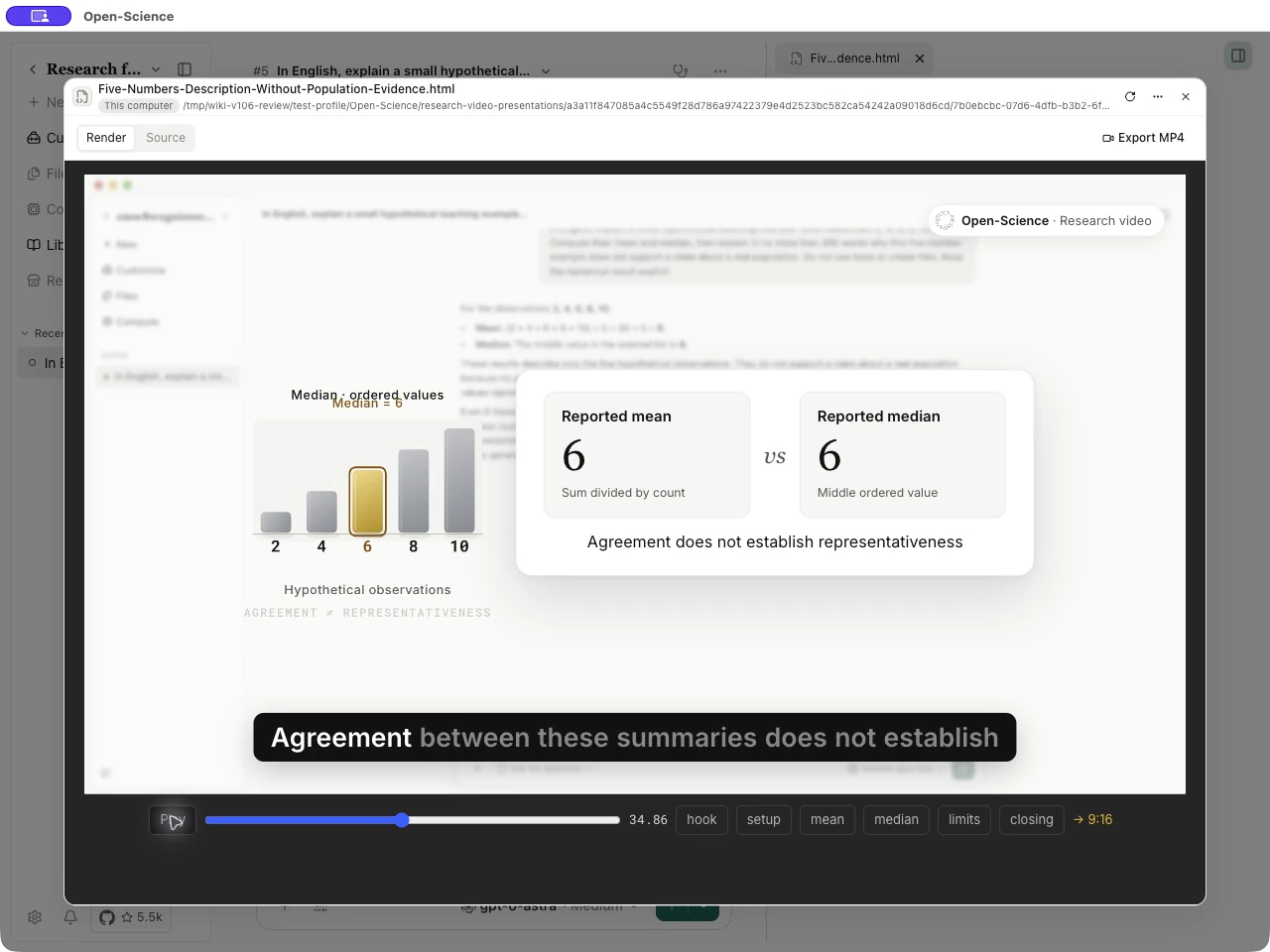
Open the generated player in the preview. Select More actions → Download to save the portable HTML player for browser playback. To create a video file, select Export MP4 in the rendered preview. If prompted, choose Install and export, then select a destination in the desktop save dialog. Narration resources and the MP4 export component are separate downloads.
Wait for export to finish, then reopen the saved file outside Open-Science. Check playback, sound, captions and the ending. Cancelling a save dialog does not produce an exported file. Keep the original session or .science research package when recipients need to inspect the underlying evidence; an MP4 alone is a presentation.
Regenerate or recover
- If generation asks you to select a model or check credentials, fix that requirement in Settings → Model, then return to the session.
- If the narration download fails, use Retry and wait for Installed before generating again.
- Use View research film → Generate again after changing the session or when the result needs another attempt. Confirm the new generation; it may take several minutes and use model capacity again.
- Use the film dialog's More actions → Delete research film only when you want to remove this branch's local film files. The confirmation explains that conversation content and separately saved copies are kept.
See session replay for inspecting the retained steps and reproducibility for executing a separate verification.