Create Your First Project
Home page
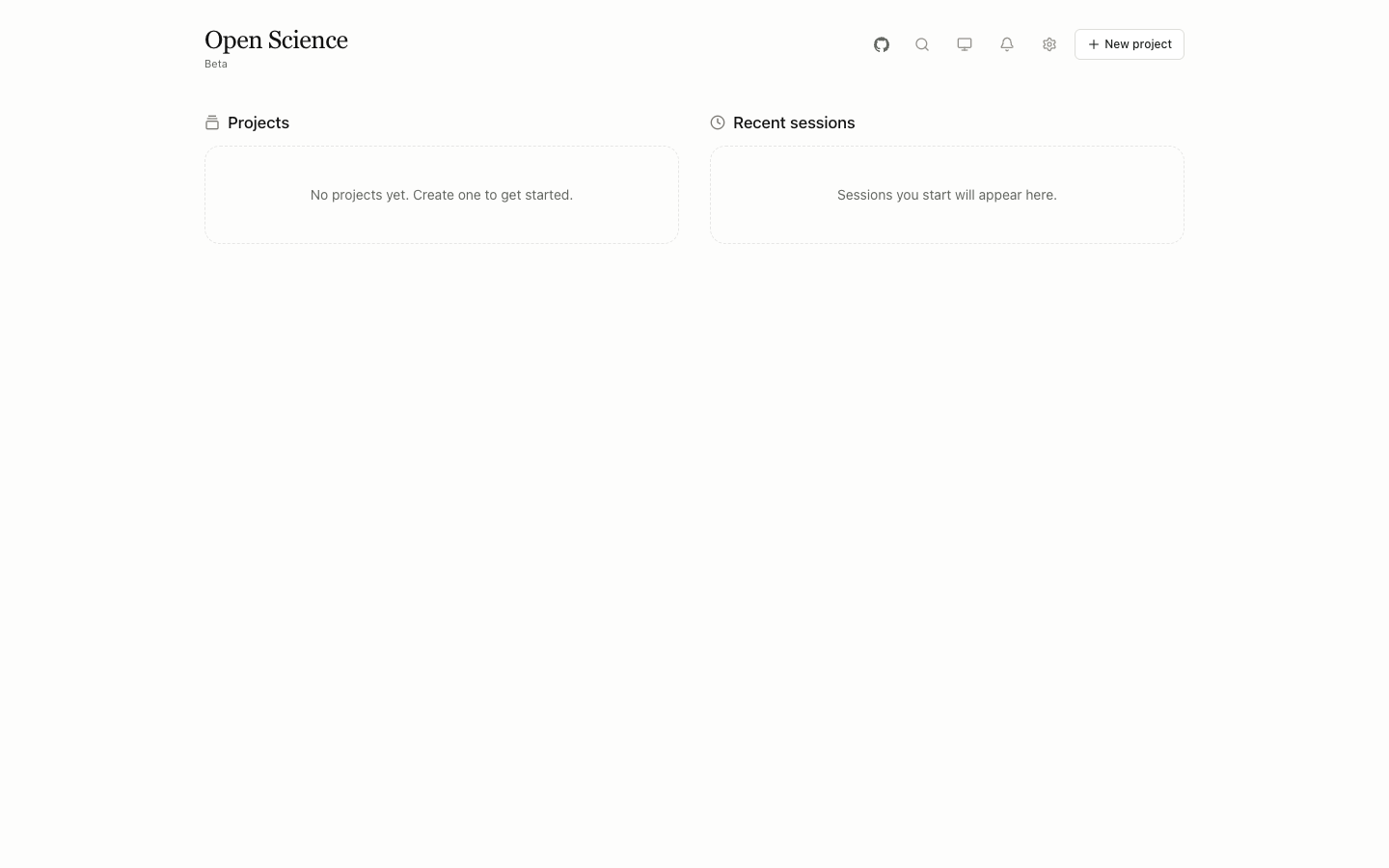
The top bar contains GitHub, global Search, Theme, Messages, and Model settings. New project creates a project. Existing projects and recent sessions appear as selectable cards.
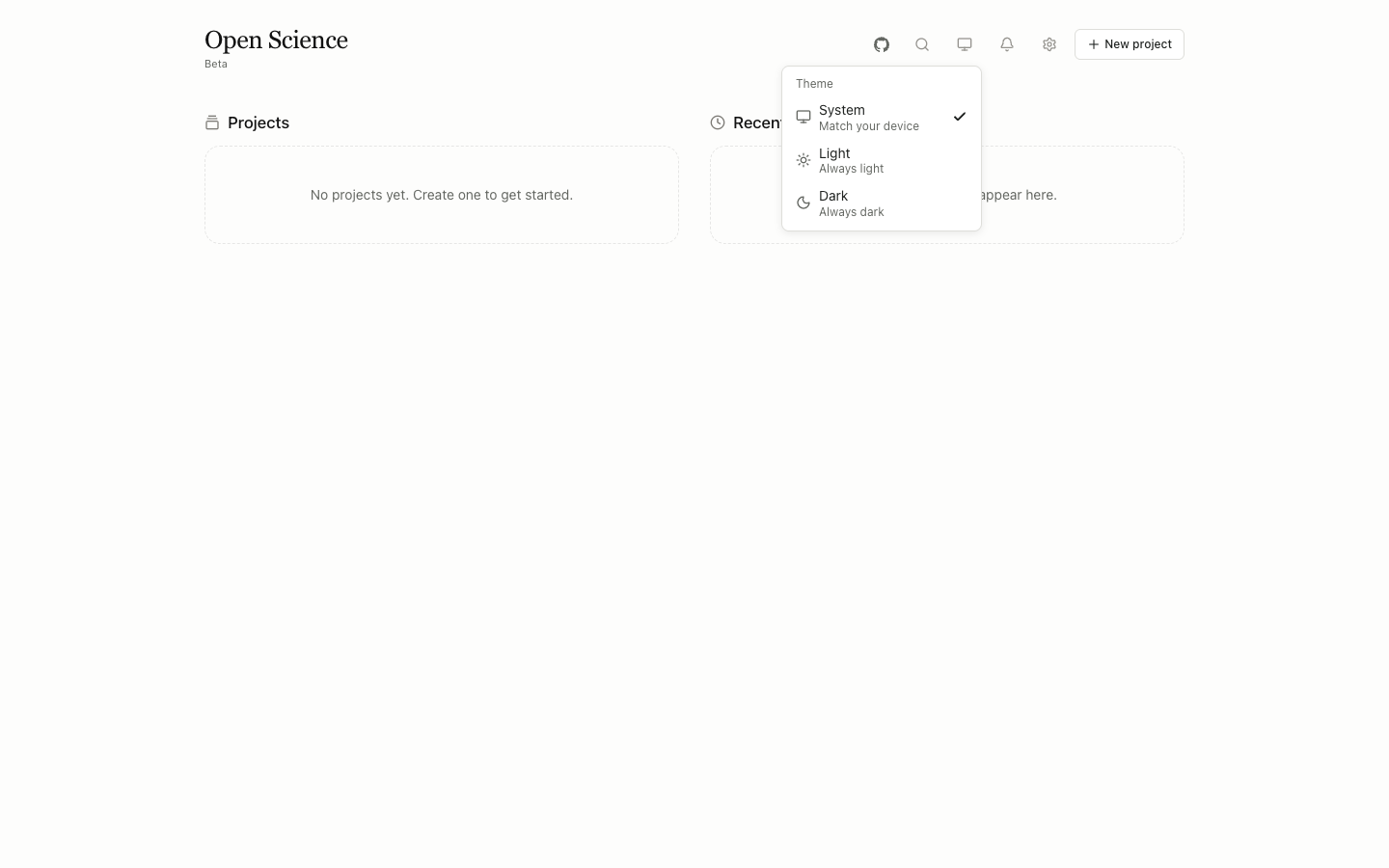
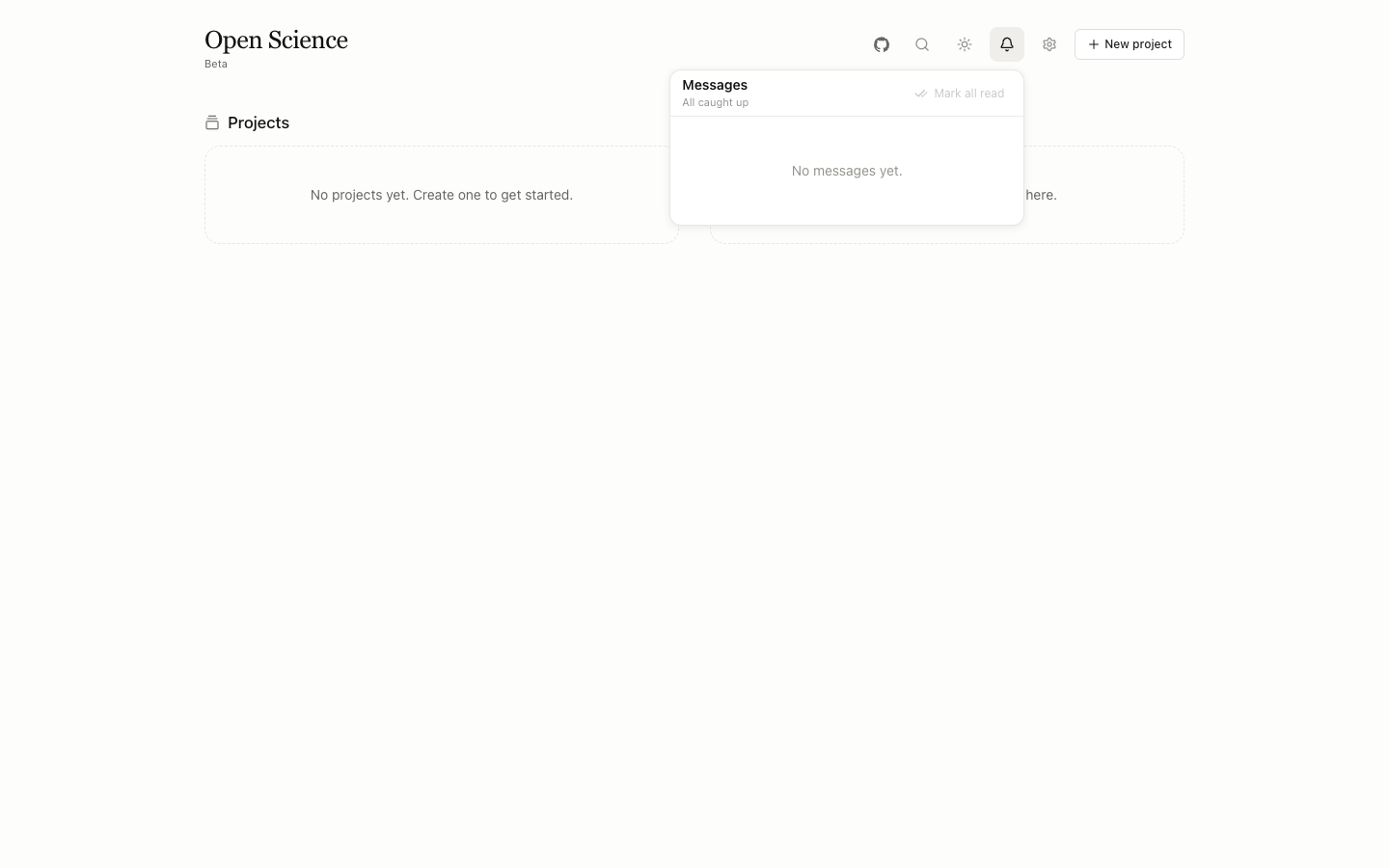
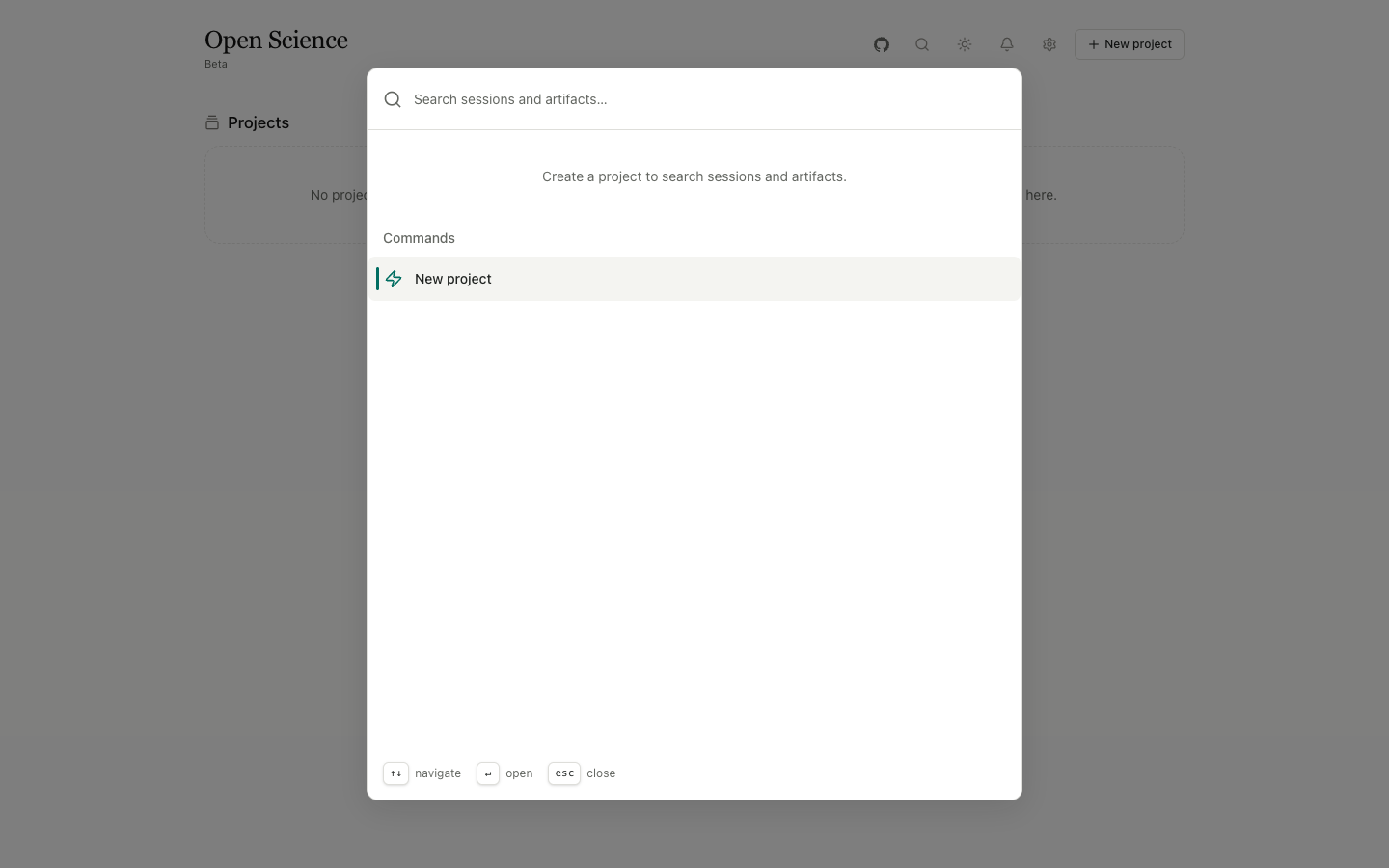
Search: search across projects, sessions, and files. In the workspace,⌘KorCtrl+Kopens it.Theme: choose System, Light, or Dark.Messages: read completion, permission, error, and background-task notices, then manage their read state.Model settings: open Settings → Model directly.- GitHub: open
aipoch/open-science.
Create the project
Select New project to open the form.
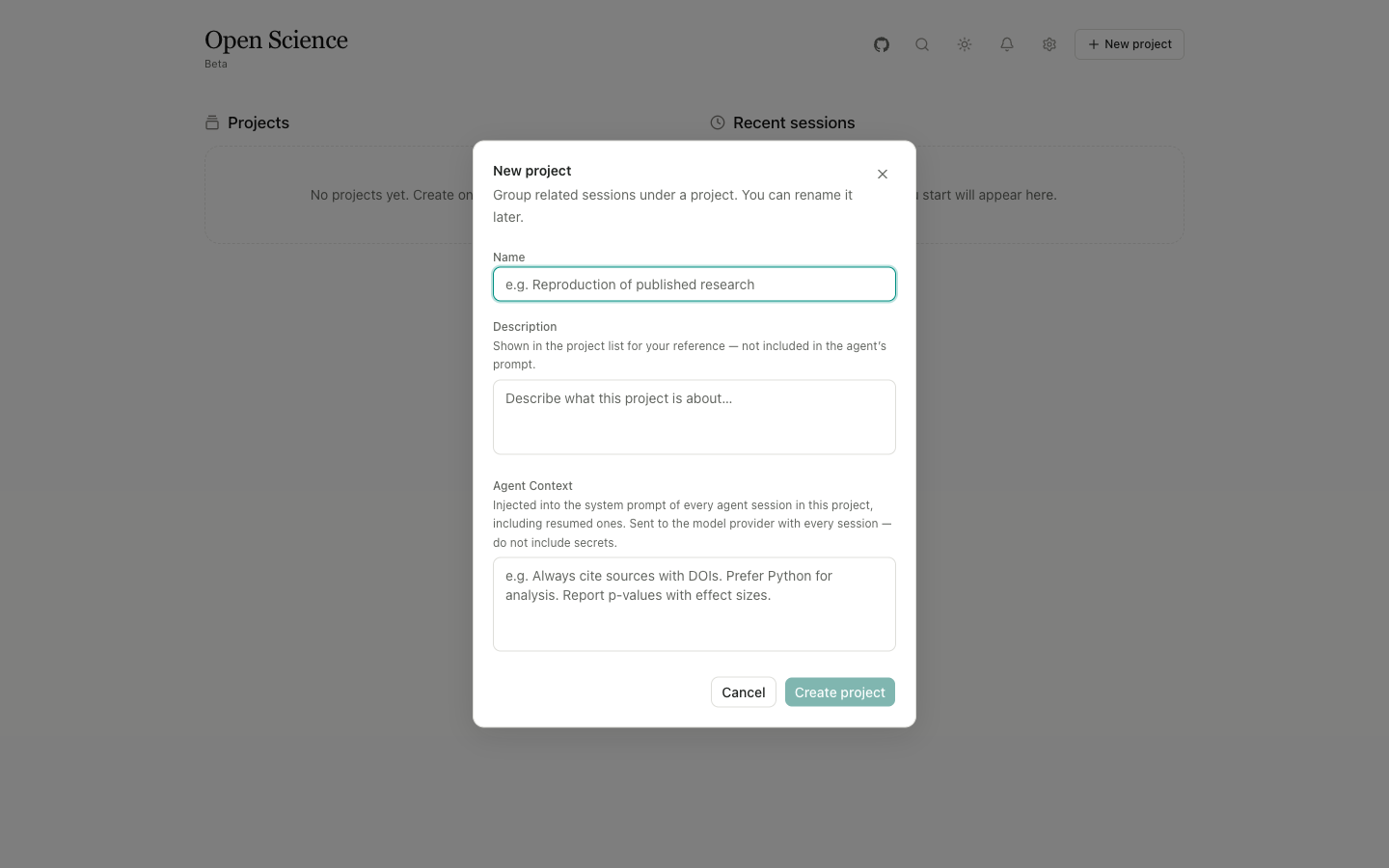
| Field | Required? | Guidance |
|---|---|---|
Name | Yes | Use a recognizable research question or experiment name; it appears in the sidebar and search |
Description | No | State the objective, sample, or expected deliverable rather than pasting the full prompt |
Agent Context | No | Record durable constraints such as statistical rules, citation policy, output structure, and protected paths |
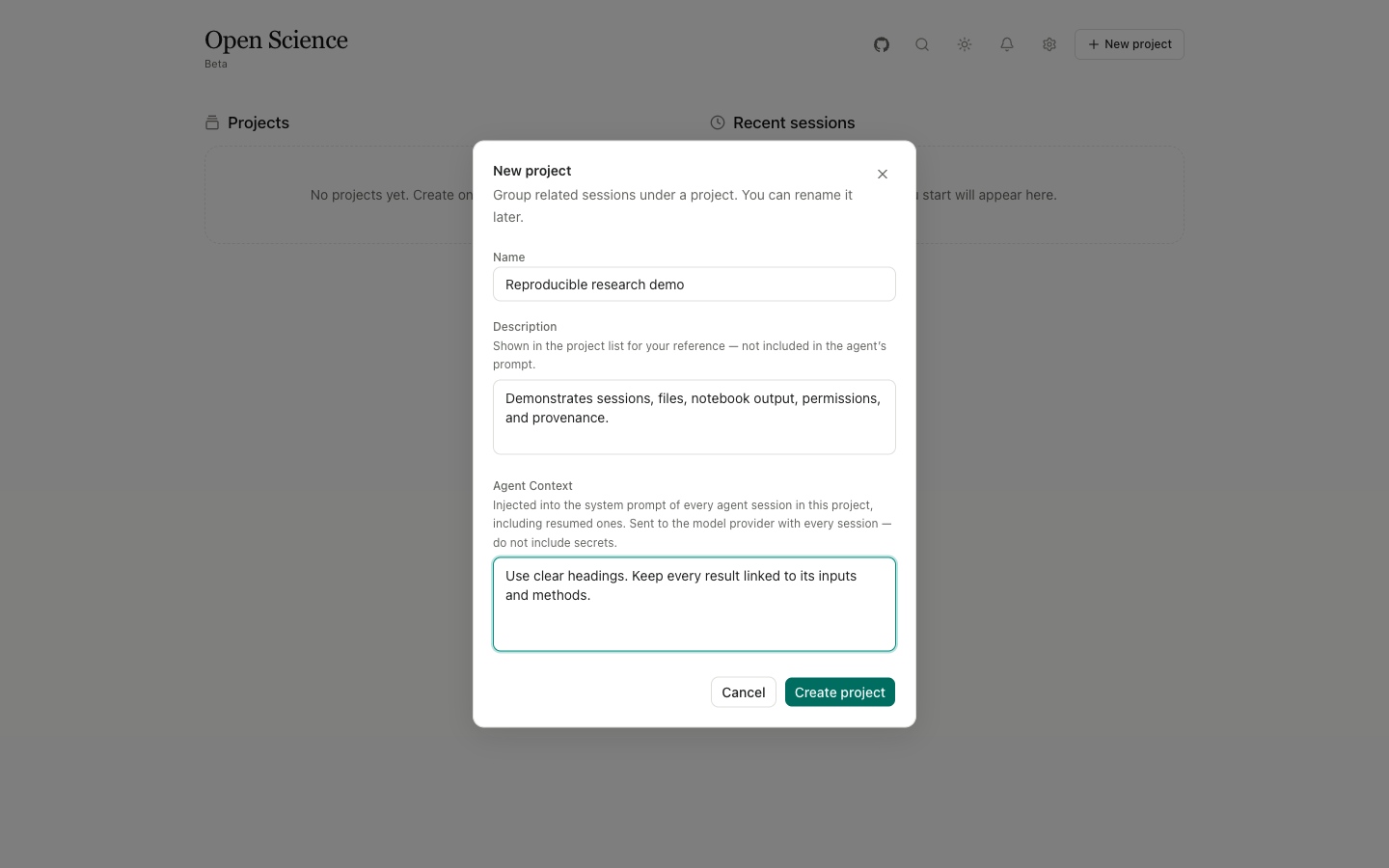
Cancel closes the form without creating anything. Create project saves the project and opens an empty workspace. The project menu can later edit the same metadata. Project deletion runs through a confirmation flow and removes managed project records, so download any needed artifacts first.
Send the first request
- Enter a specific goal in
Ask anything. - Select the model button and check the Active model and Reasoning effort.
- Open Agent controls and choose Ask, Auto-approve edits, or Full access.
- If the request needs source material, select
+, then Attach files or Your files. - Select the send arrow. Its adjacent menu offers
Plan firstand other send modes.
After the first message, Open Science creates a session and names it from the opening text. See Conversation and composer for the rest of the controls.