Conversation and Composer
The middle of the workspace contains the Conversation log and Composer. After a request starts, agent text, plans, tool calls, searches, files, and provenance results enter the same time-ordered record.
Composer input
Ask anything accepts multiple lines. If the field is empty and the cursor sits at the beginning, ↑ and ↓ move through prompt history. / suggests Skills, @ references a project file or artifact, and ⌘K or Ctrl+K opens search. During a request, the composer may become unavailable or change to a stop control so that another prompt can't modify the active turn.
The + menu
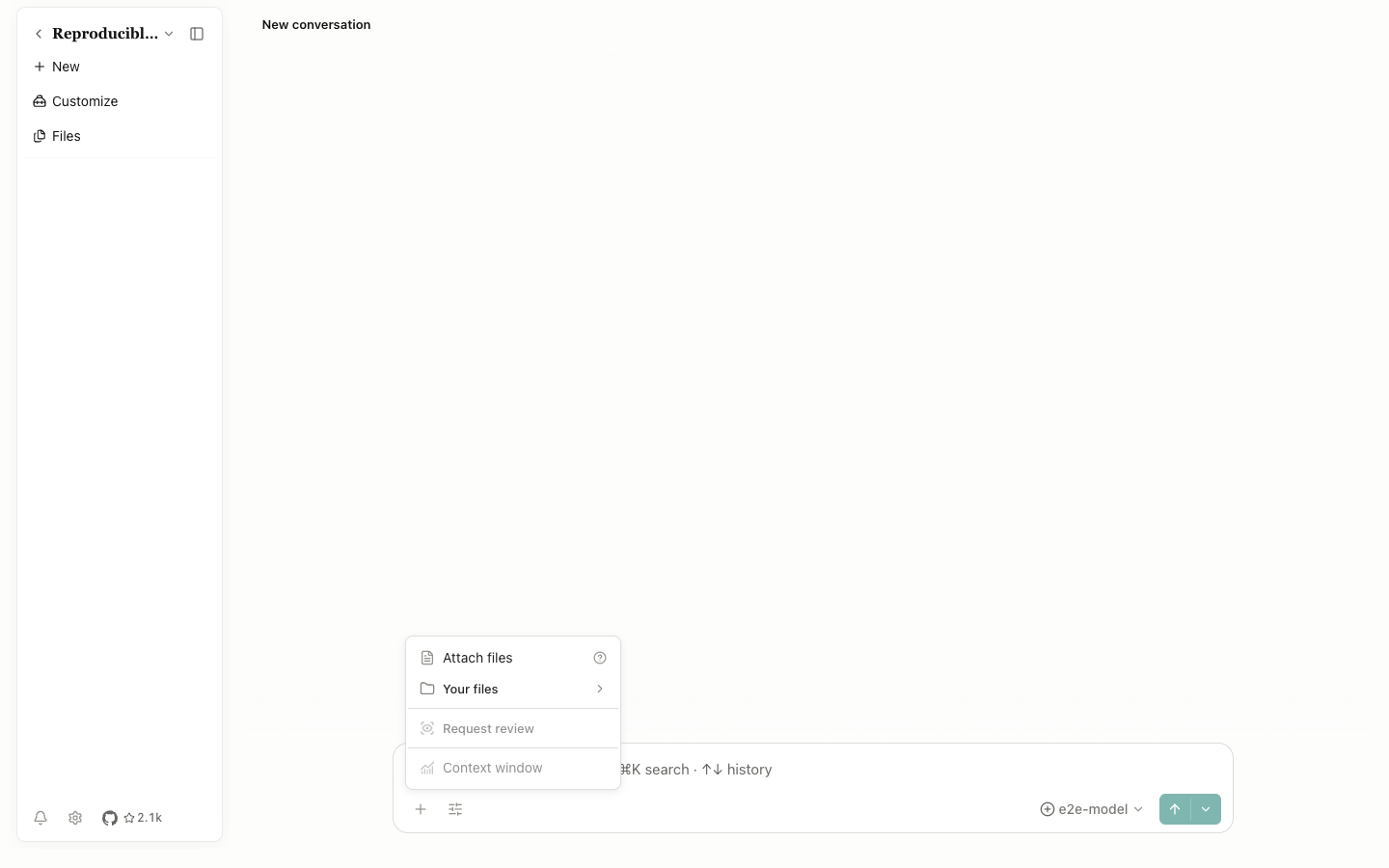
Attach files: choose and upload new files from the operating system.Your files: select existing uploads or generated files in the current project; search and filters remain available.Review: request a reviewer when a reviewable run exists; otherwise the item stays disabled.Context: inspect context-window contents and trends. It stays disabled until a session exists.
Agent controls
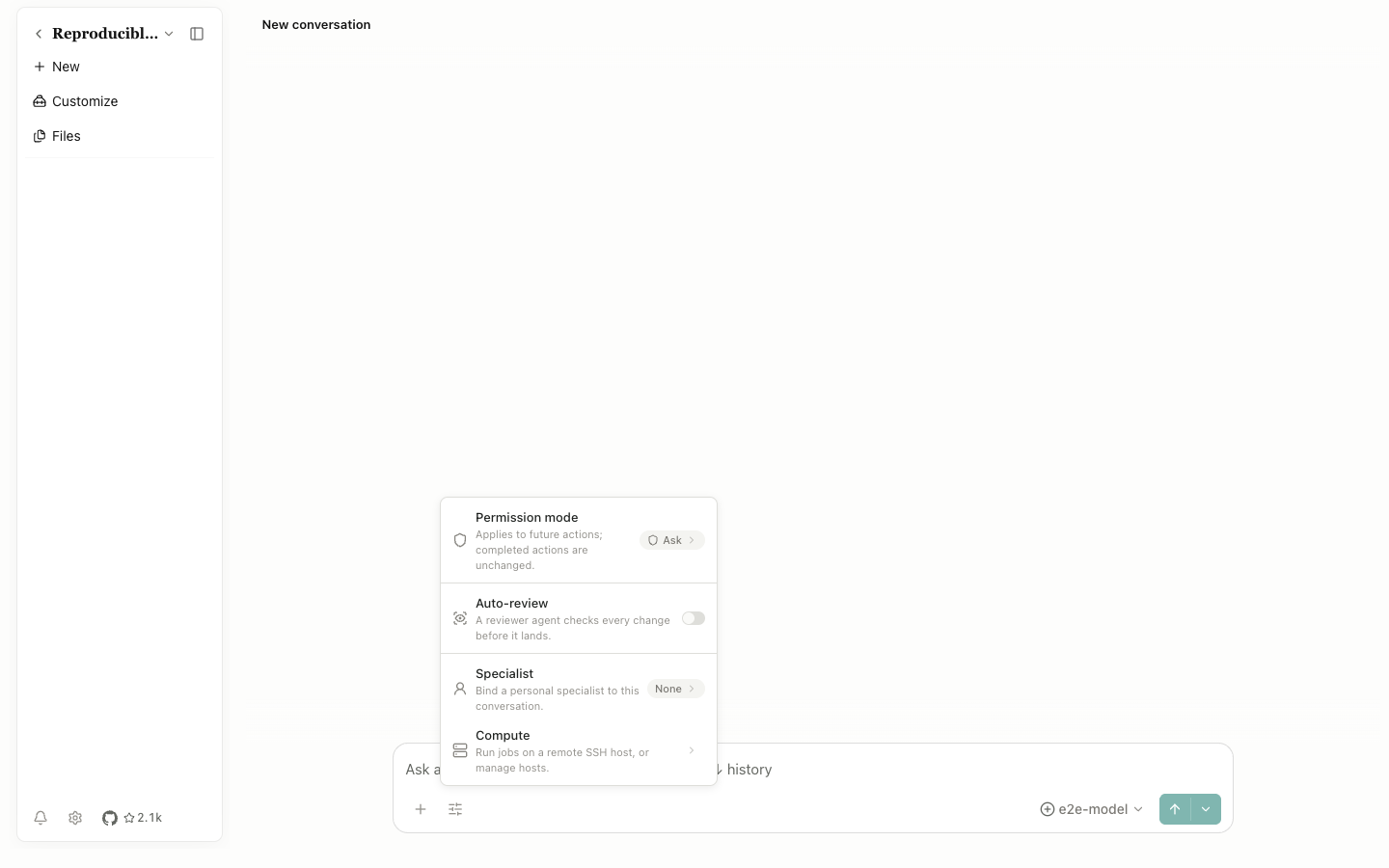
This menu groups the permission mode, Auto-review, Specialist selection, and Delegation controls. A change applies to later requests. A request already running keeps the policy with which it started.
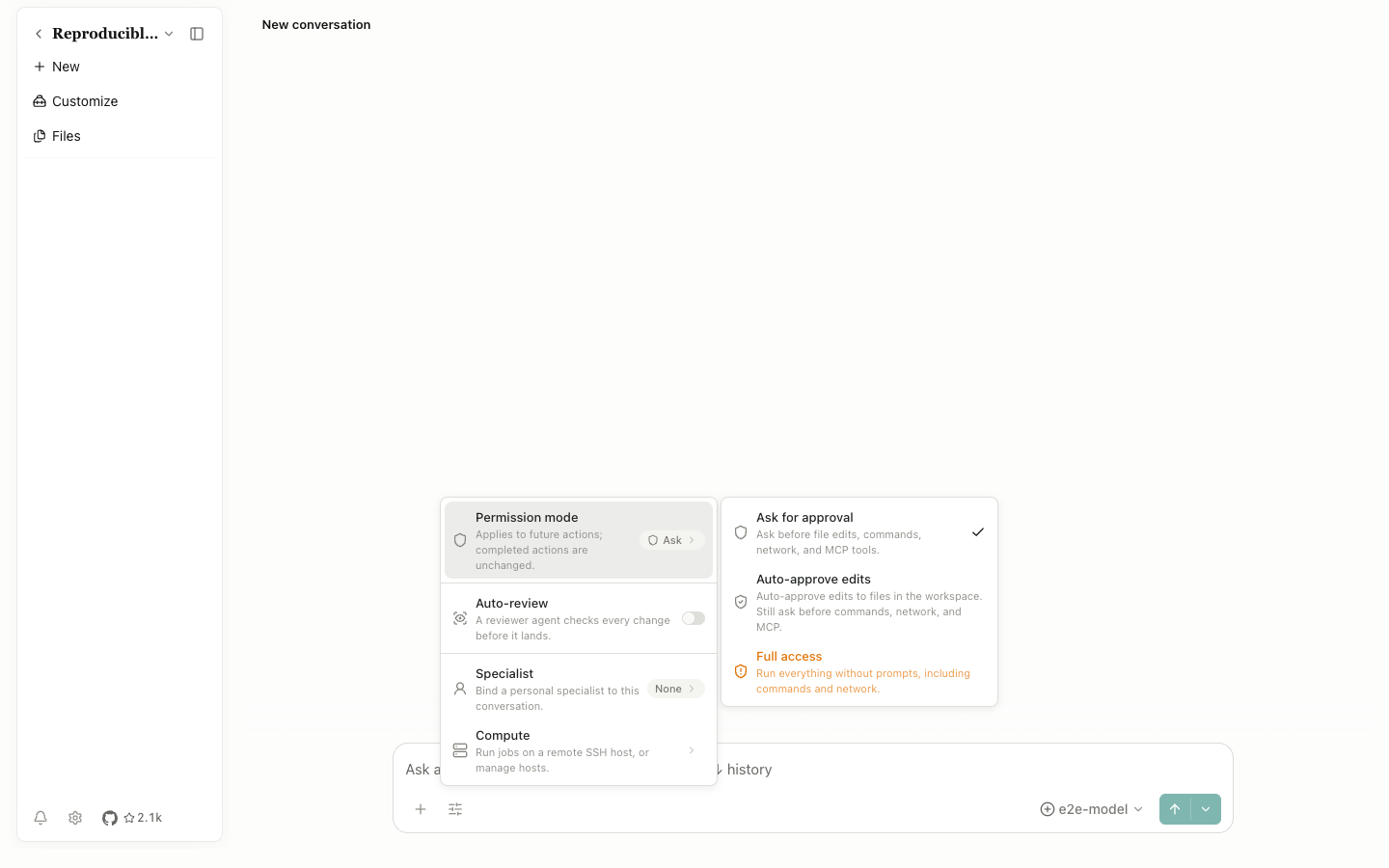
| Mode | Behavior |
|---|---|
Ask | Show Allow or Deny before risky tool calls; this is the default and safest general setting |
Auto-approve edits | Approve edits inside the managed workspace, but continue asking about other sensitive actions |
Full access | Approve most operations automatically; use it briefly and only in an isolated, recoverable project |
Model and reasoning effort
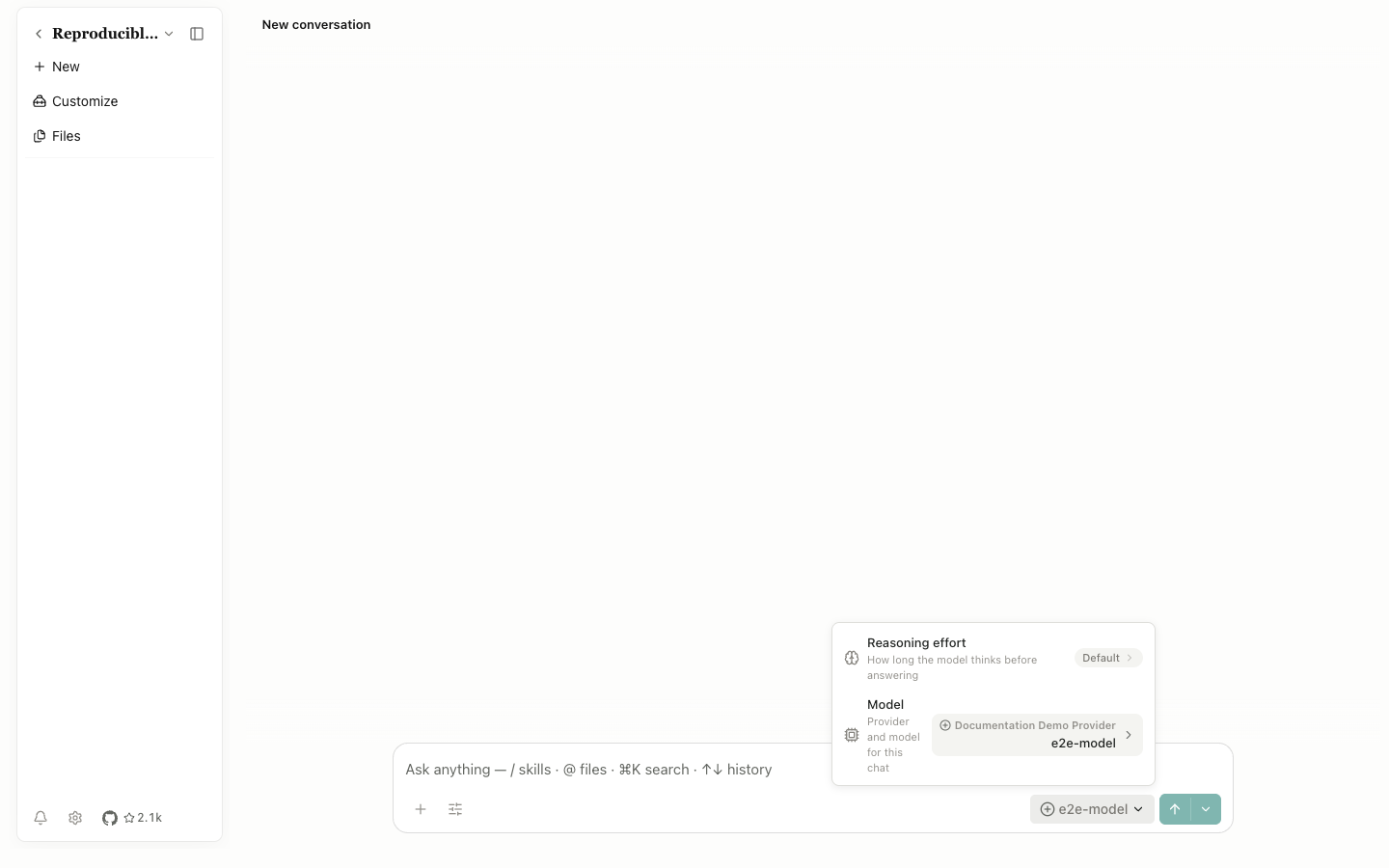
The model button shows the current model and reasoning effort. Models come from Settings → Model, and a change applies to later requests. If the model doesn't work with the selected agent framework, Open Science warns you or prevents the selection.
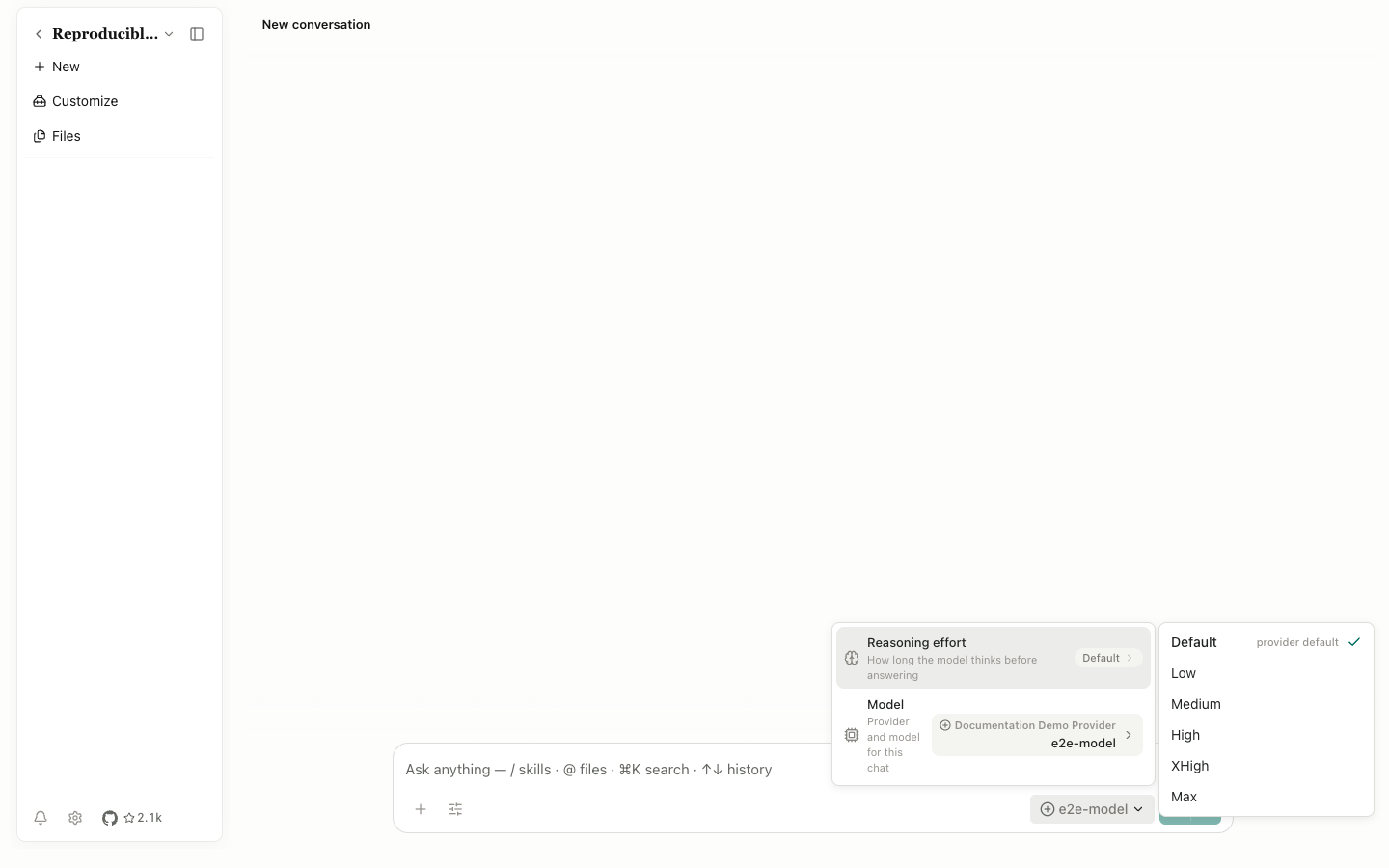
Available levels are Default, Low, Medium, High, XHigh, and Max. Provider support varies, and an agent framework may approximate a level it can't pass through exactly.
Send controls
The main arrow sends immediately. More send options opens the menu below.
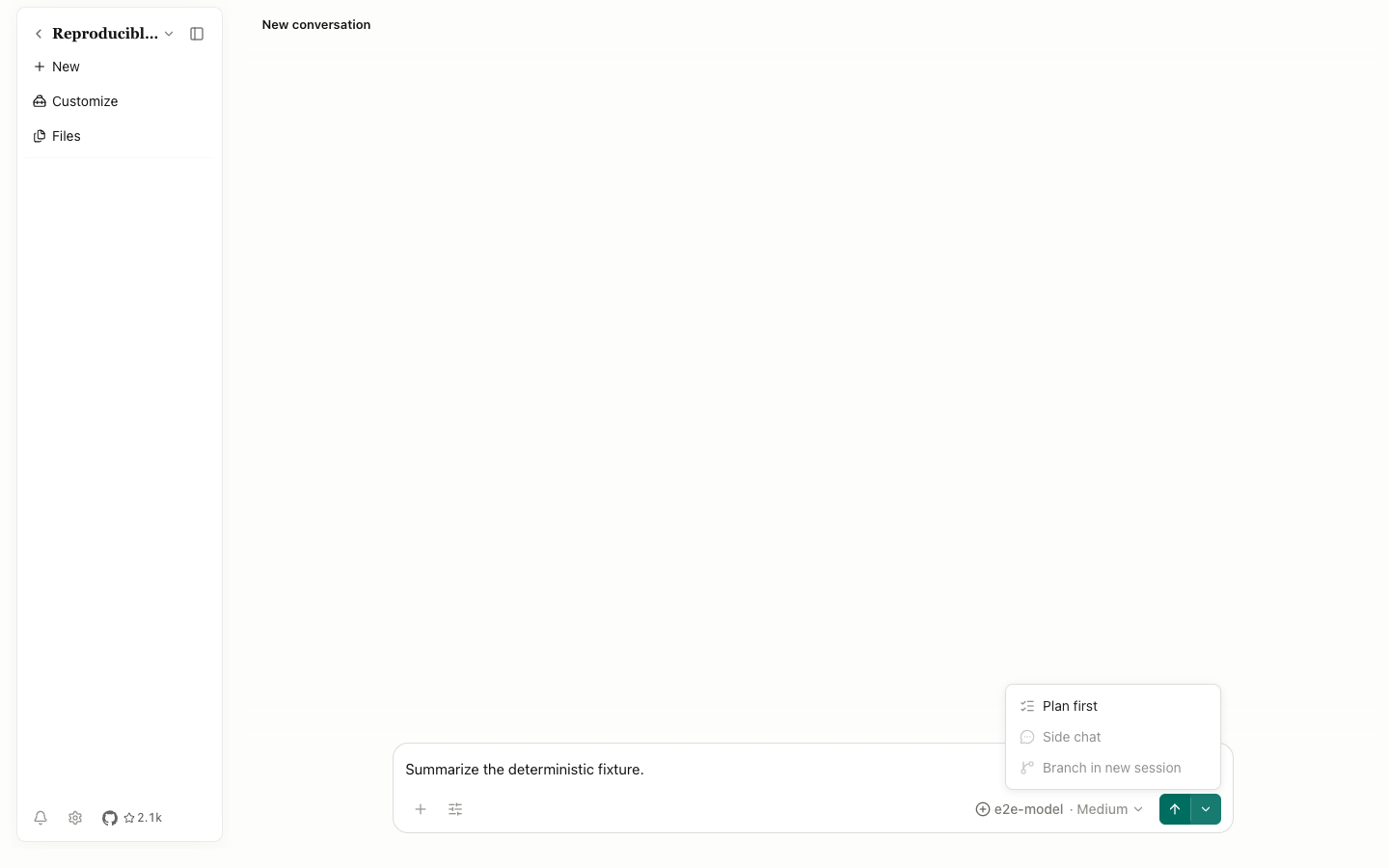
Plan first: ask the agent for an approval-ready plan before execution.Side chat: send to a parallel discussion that doesn't alter the main path; it stays disabled without branchable context.Branch: continue from the current message or revision on a new branch; it stays disabled in a new or unsupported state.
Message actions
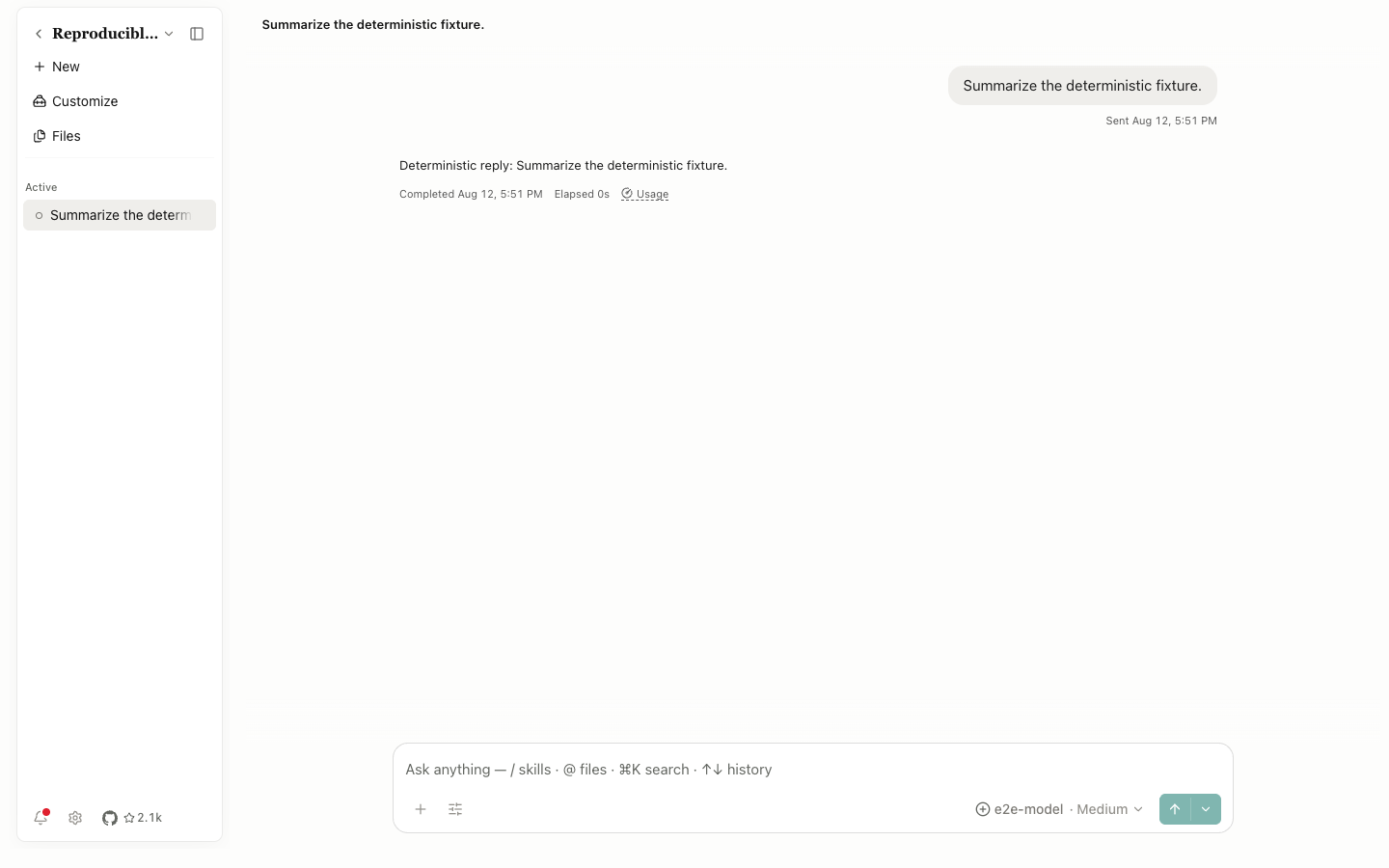
User messages provide Copy message and Edit message. Editing and confirming creates a revision instead of erasing the earlier text. Use Previous/Next message revision and the 2/2 indicator to inspect each revision.
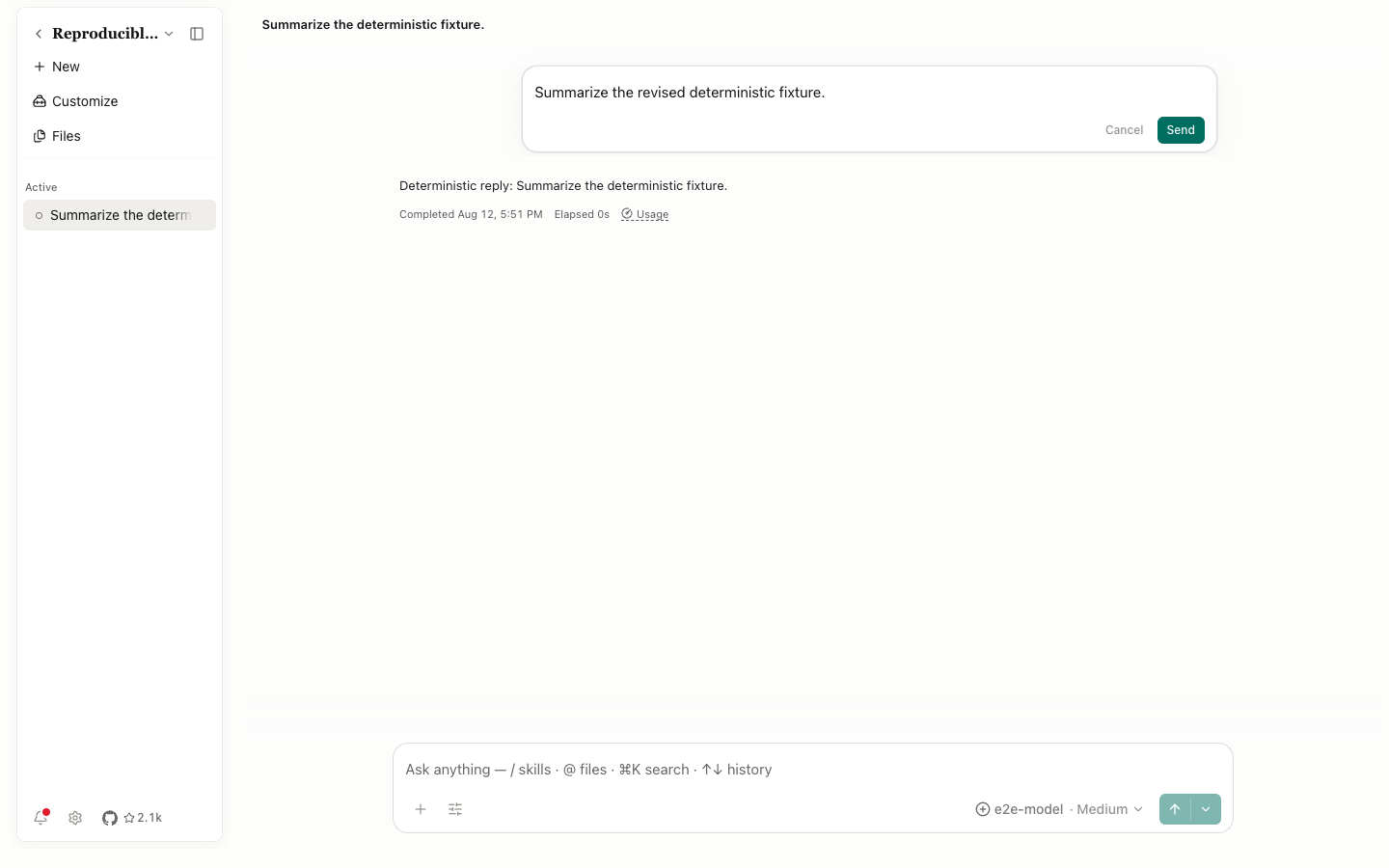
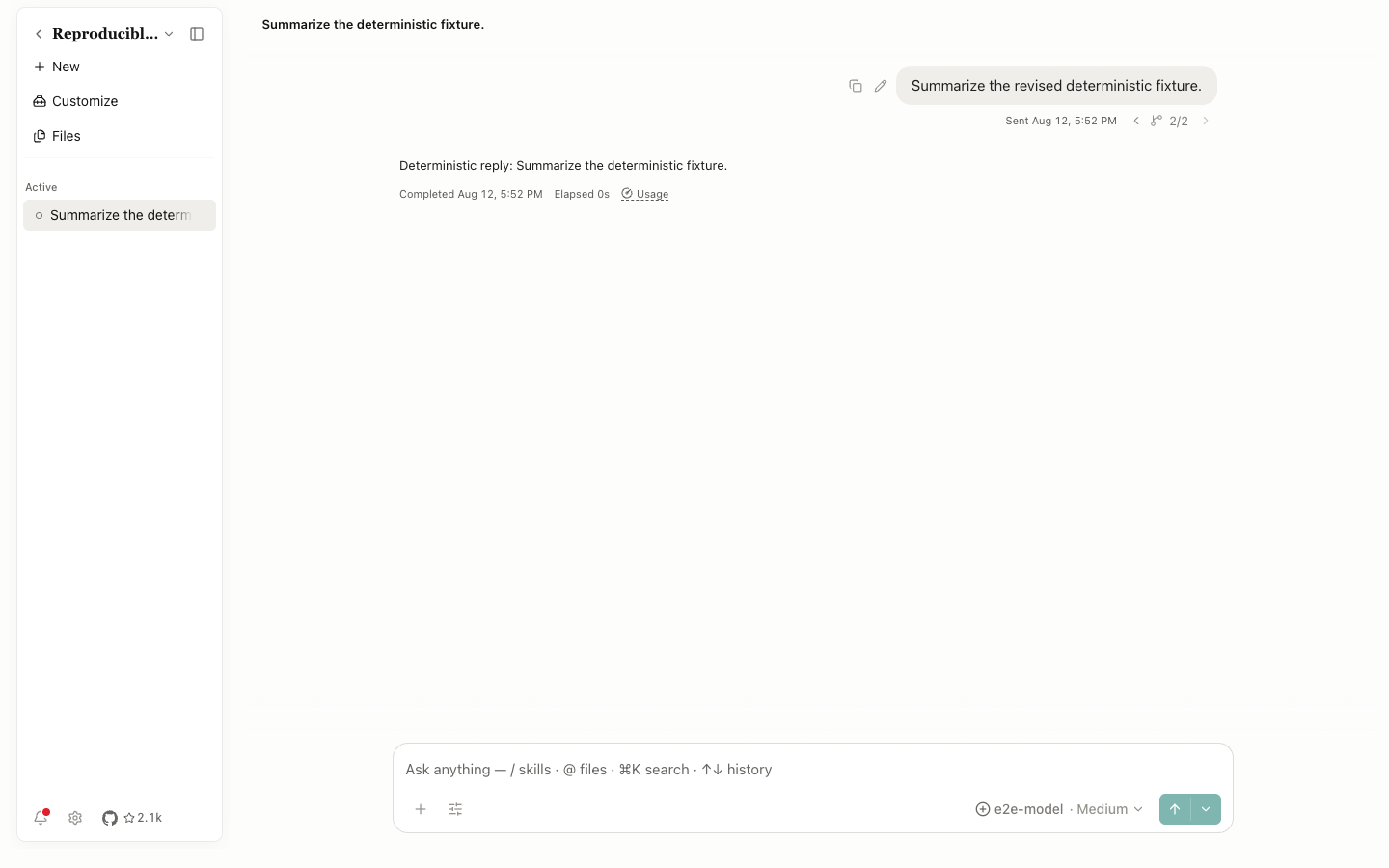
Assistant messages show completion time, Elapsed, and Usage. If usage data exists, the control reports token and context figures. A fixture or provider that omits usage marks it unavailable. Scroll to end returns a long conversation to its newest event.
Run activity
The timeline can show tool names, commands or code, parameter details, diffs, output, web searches, plan progress, context compaction, handoffs, subagents, and elicitation. Select a collapsed row to open it. Copy controls copy code or output, while an error row can open Report error. When an execution result looks uncertain, inspect its details before approving the next request.