A colleague opens your final chart. Their first question is simple: “How did you get this result?” Answering it may require the input dataset, the code that ran, the conversation where you changed an assumption, and the output version you actually reviewed.
AIPOCH Open-Science brings that context into a portable .science package. It can carry selected conversation branches, file versions, Notebook records, and verification evidence into another project or computer for review, handoff, and archiving.
The imported record stays read-only. In v0.32.0, you can fork it into a writable continuation or start a separate normal session that references the imported history. Either route requires checking the files, dependencies, services, and permissions needed for further work. See the v0.32.0 limitations.
Choose your starting point:
- Not installed yet? Download AIPOCH Open-Science for your operating system.
- Already installed and ready to work? Follow the official .science package export and import instructions.
This guide covers handing an analysis to a collaborator, preserving a review checkpoint, and moving selected session records between projects or computers.
What is a .science file in AIPOCH Open-Science?
A .science file is Open-Science’s portable research-session format. It packages saved conversation context, available supporting records, and selected file contents so a recipient can inspect how the work developed.
The transfer unit is a research session, with contents determined by the available records and export selection. For the broader workspace, read What Is AIPOCH Open-Science?.
The feature first shipped in v0.29.0. v0.30.1 subsequently added selected literature PDFs to session packages.
This guide was checked against v0.32.0 and public documentation on September 23, 2026. The screenshots show earlier demonstration sessions; their filenames, sizes, and surrounding conversations are examples. Version-specific steps below retain that scope; consult the linked official guide for instructions matching your installed version.
Why research handoffs need context
Consider a figure prepared for a lab meeting. Your collaborator may want to know which input version you used, whether the code completed, why one analysis branch was abandoned, and which checks apply to the displayed result. Sending the figure alone leaves those questions open.
This supports three practical workflows:
- Collaborator review: share an analysis with a specific question about its assumptions, methods, or results.
- Research checkpoints: retain the record associated with a figure, report, or intermediate decision before starting another stage.
- Workspace transfers: bring a session’s saved history into another project or computer and prepare the next phase there.
The sender’s most useful contribution is a clear review question. “Check the preprocessing behind figure version 3” gives the recipient a more actionable starting point than “Here is my project.”
Inspect an existing public .science package
The 2,000 Natural Products — How Diverse Are They? case examines structural diversity in a bounded sample of public COCONUT records and how representative-selection methods affect coverage.
The case page links to the research session for inspection and to its published .science package for download. Its archived materials include analysis code, results, and figures. Use them to examine how the recorded question, method, and outputs connect.
This is an existing public case, added as an illustration rather than a new experiment or an extension of this guide’s v0.32.0 verification scope. Downloading the package does not guarantee an immediate rerun: check included files, required inputs, software, services, and access before continuing the work.
What can a .science research package contain?
Package contents depend on what the session recorded, what remains available, and your export selection.
| Material | Contribution to the handoff | What to check |
|---|---|---|
| Conversation history and branches | Research questions, decisions, and alternative directions | Identify the branch relevant to the review |
| Uploaded files and artifact versions | Inputs, outputs, and their version relationships | Confirm the necessary file contents are included |
| Notebook and execution records | Evidence of recorded computational work | Match the run and inputs to the selected result |
| Provenance and verification records | Available links between results and recorded checks | Read the version and scope of each check |
| Captured environment locks | Dependency evidence associated with supported work | Check availability before planning restoration |
| Literature metadata and selected PDFs | Sources used in the session | Inspect which PDF contents will travel |
Optional file contents and required evidence are handled separately. Selecting fewer files does not erase their mentions from the saved conversation, and evidence dependencies can make a file mandatory. The released content-selection implementation enforces these distinctions.
Use the preview to answer a practical question: will the recipient have the materials needed for this particular review?
Choose the right export: .science, PDF, Markdown, or ZIP
Choose the format according to what your collaborator needs to do.
| Recipient’s goal | Export to use |
|---|---|
| Read the conversation as a document | Conversation PDF |
| Edit or reuse conversation text | Conversation Markdown |
| Work with selected output files | Individual downloads or an artifact ZIP |
| Inspect branches, files, and recorded evidence together in Open-Science | .science package |
A collaborator preparing a presentation may only need the final figure. Someone investigating the analysis behind it benefits from the session package. A short report alongside that package can provide an overview and identify where to begin.
Open-Science also provides a distinct artifact-level option: v0.32.0’s complete RO-Crate export packages a verified artifact version with its exact inputs, using RO-Crate 1.1. This has a different scope from a .science session package and does not constitute complete session replay.
How to export a .science package
1. Finish the work you want to hand over
Wait until the session is idle. Complete or stop its active work, including relevant Task or Compute activity. The released export checks prevent exporting while associated Task or Compute work remains active.
Save a short handoff note in the conversation or a report. Identify the result, relevant branch or version, and next question. Side Chat conversations and private reading bookmarks and their notes are excluded from package exports, so put essential context somewhere that will travel.
2. Open the session export menu
Open the Session menu and select Export → Export Session package.
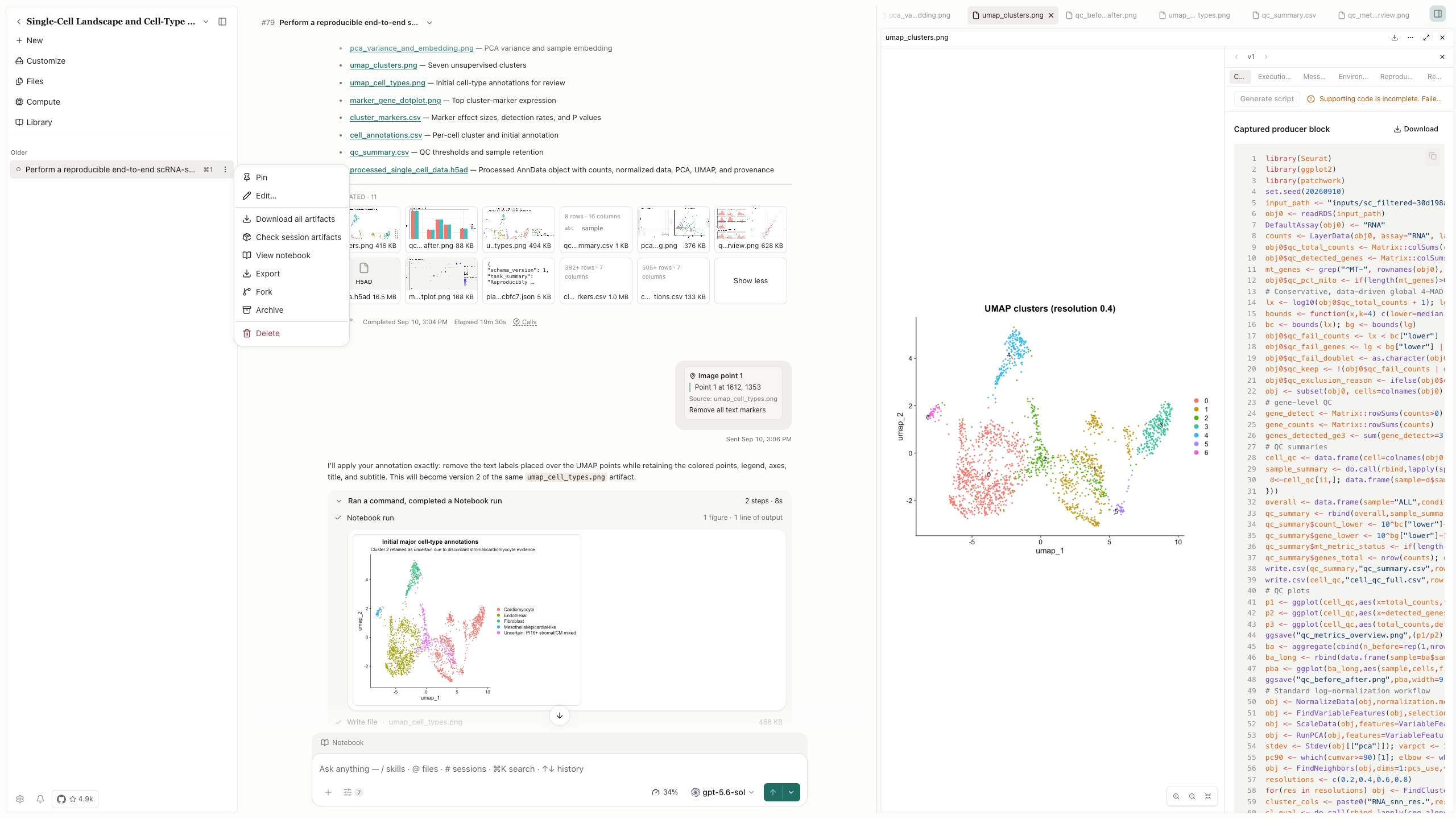
Figure 1. A completed single-cell analysis session in AIPOCH Open-Science. Open the Session menu and choose Export → Export Session package to prepare a .science handoff. The visible files, annotations, and UMAP output illustrate research context that should be reviewed before selecting package contents.
3. Compare Essential export and Full export
Essential export retains research history and required evidence while omitting optional content. Full export selects the available file contents within the supported package scope. Customize contents lets you inspect individual files and versions and adjust optional selections.
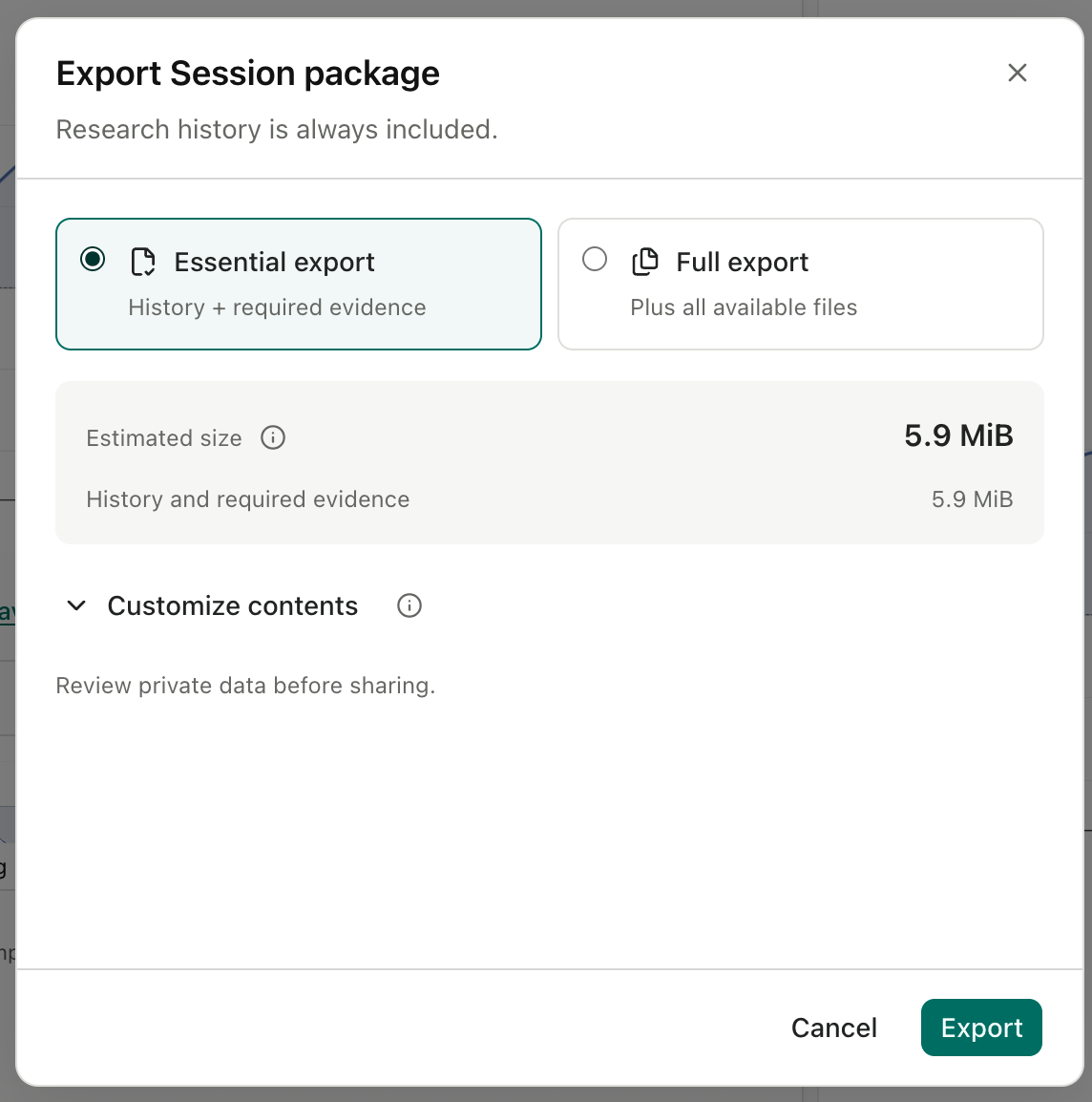
Figure 2. The export dialog shows presets, content controls, and an estimated size. The displayed 5.9 MiB belongs to this demonstration.
For literature, the selection rules are:
- Literature metadata is always included.
- Essential export omits optional literature PDFs.
- Full export includes available literature PDFs; Customize contents allows individual selection.
- If a literature PDF is required evidence, Essential export is unavailable. Use Full export or a custom selection that retains it.
These rules are documented in the official package guide and reflected in the v0.32.0 export interface implementation. Full export does not fetch missing full texts or remove size limits.
For a focused review, choose the smallest selection that preserves the necessary materials. For a broader handoff, include relevant inputs and output versions alongside the main result. Review the contents rather than relying on the preset name alone.
4. Save the package and wait for completion
Confirm your selection, choose a destination, and save the file with a recognizable name, such as figure-review-2026-09-23.science.
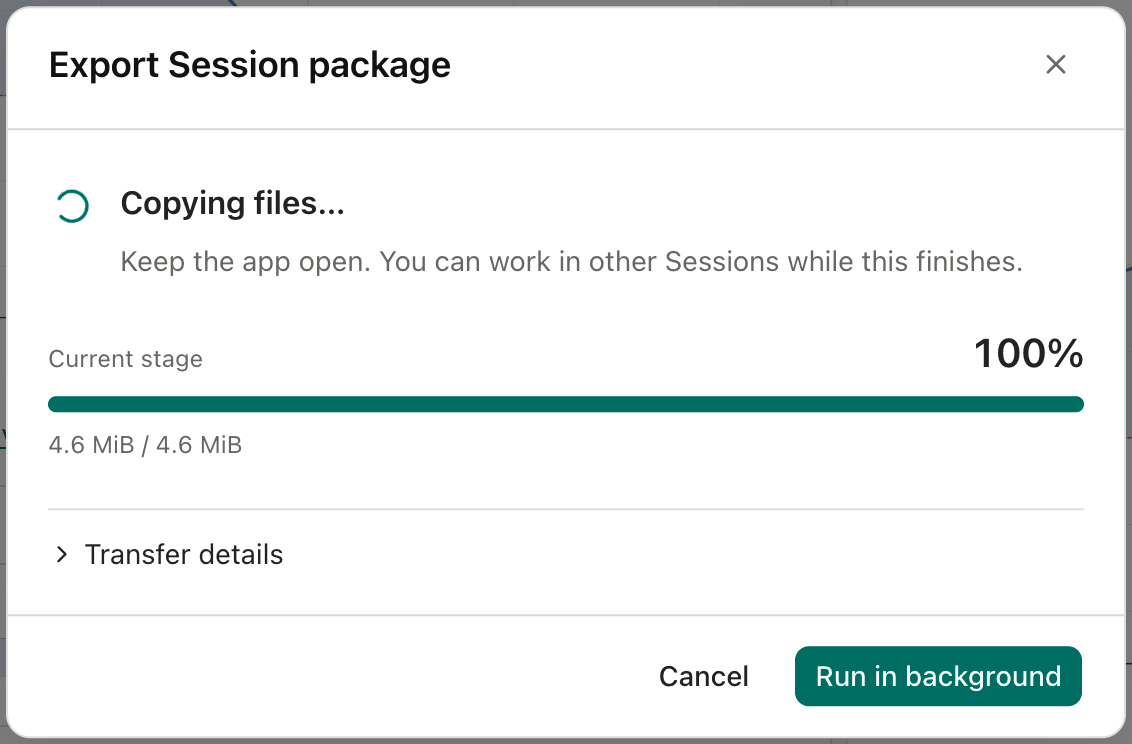
Figure 3. “Copying files” at 100% describes the current stage, not necessarily completion of the entire export.
Keep the app open during the transfer. Run in background hides the progress window while work continues; Cancel stops the operation. After completion, use Show in folder to locate the package.
How to import a .science file into another project
Open the destination Project menu and choose Import Session package…. Alternatively, drop a .science file into the project. When file association is registered, opening the file directly starts the import workflow and asks for a destination.
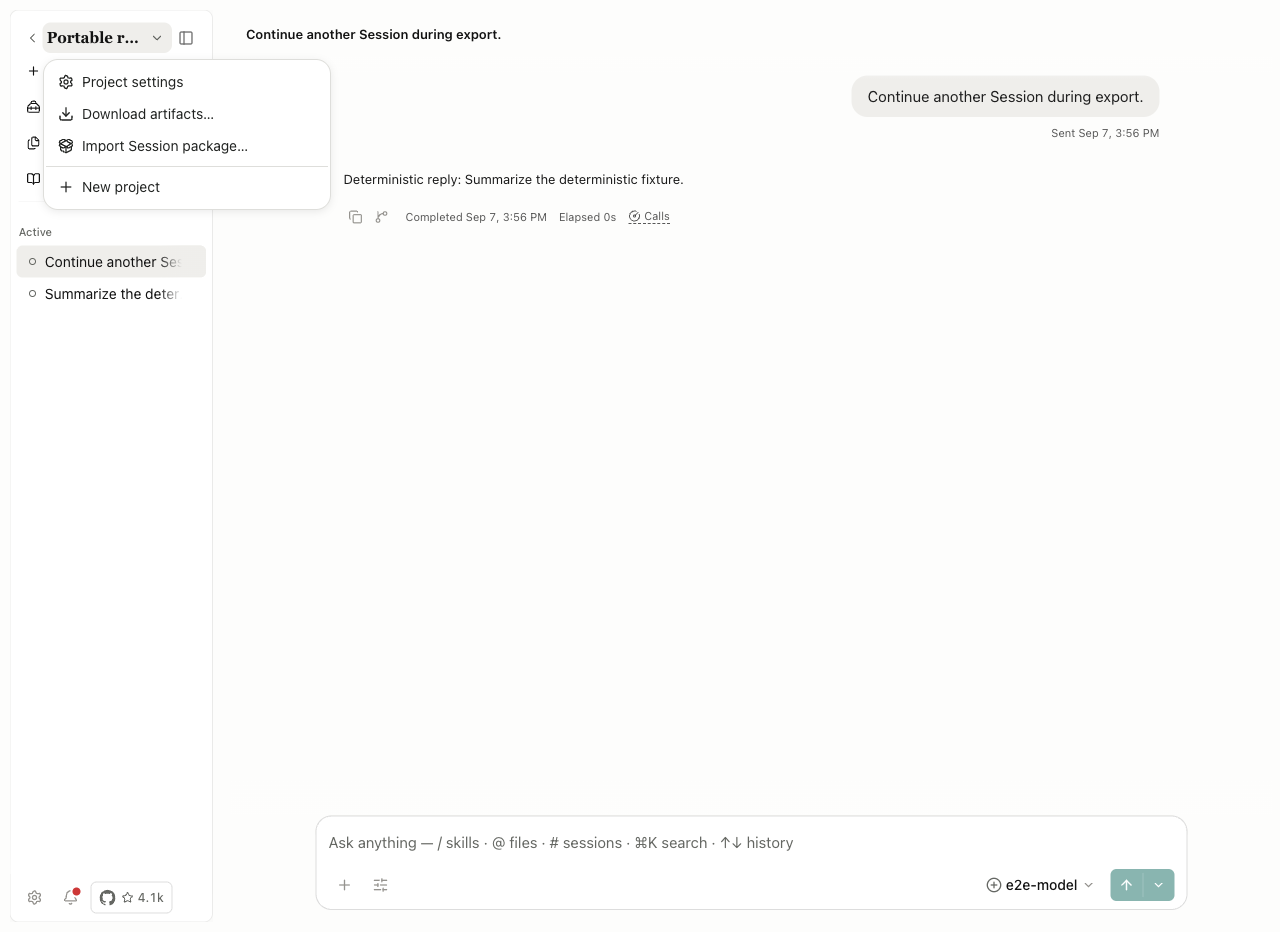
Figure 4. The destination Project menu provides the Import Session package entry.
Before confirming, check the package title, destination project, and included or omitted contents. When import completes, select Open imported Session.
Then perform an acceptance check: locate the relevant branch, open the main result, and find the inputs needed for your task. This is where you establish whether the handoff contains enough material for the intended review.
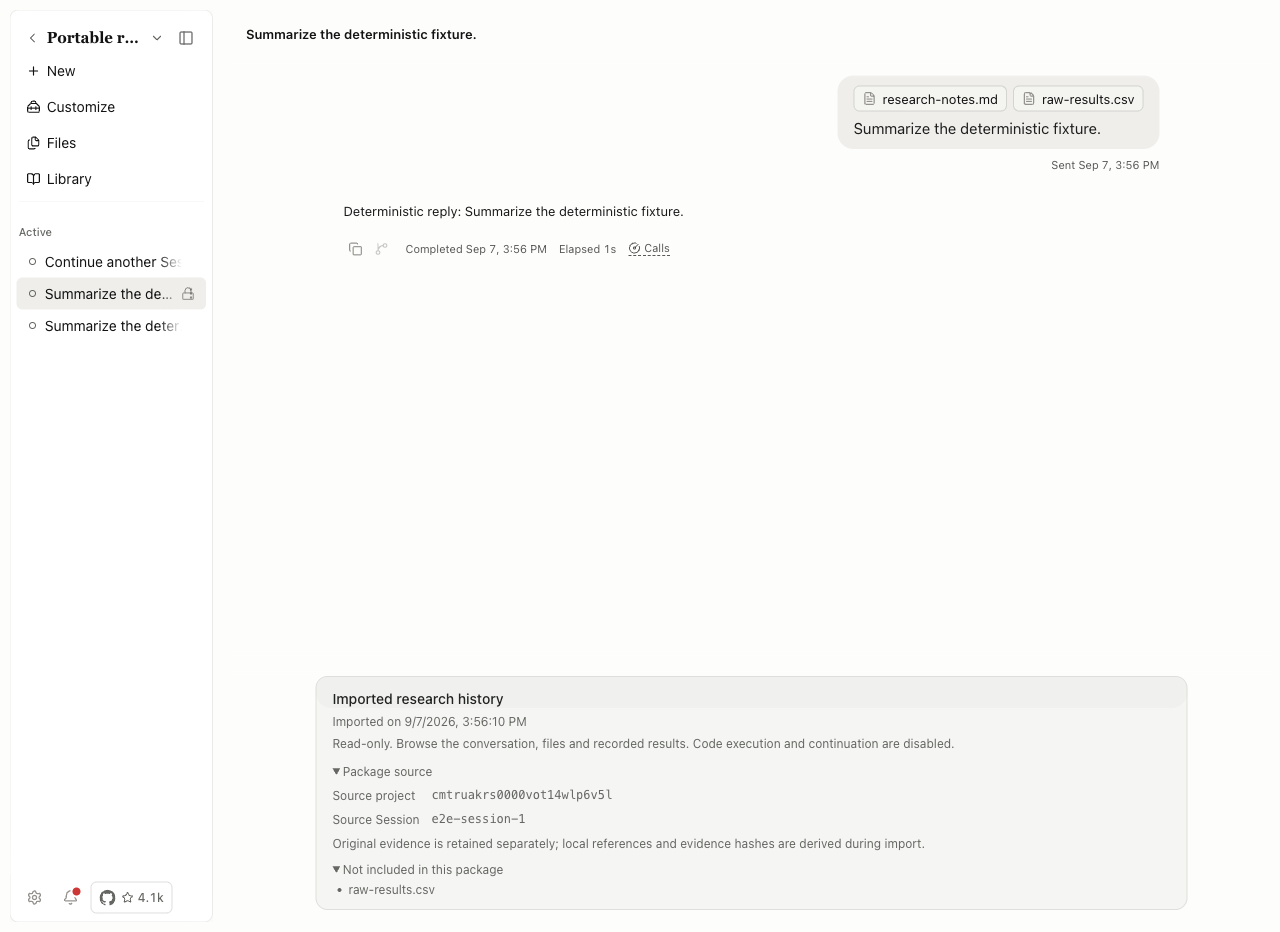
Figure 5. The imported-history notice identifies the source and lists raw-results.csv under “Not included in this package.” A historical attachment reference can remain visible without its file contents.
If a required file is absent, request that version from the sender or obtain a revised package. Keep its identity and version associated with the imported record.
How to continue research after importing a package
The imported record itself remains read-only, with execution and in-place continuation disabled. In v0.32.0, you have two routes for further work: fork it into a writable continuation, or create a separate normal session that references the imported history. The release limitations explicitly preserve the fork option.
| Route | When it is useful | What to prepare |
|---|---|---|
| Fork into a writable continuation | Develop the imported work further in a new writable session | Confirm inputs, model configuration, dependencies, services, and permissions |
| Start a separate session and reference the history | Use the earlier research as background for a distinct question | Select the session reference and provide the files needed for the new task |
Forking creates a writable continuation; it does not turn the imported original into an executable session. The released fork implementation also resets execution state and treats imported configuration as belonging to another installation.
Whichever route you choose:
- Identify the result and decision you want to revisit.
- Confirm that the required files, dependencies, services, and permissions are available.
- State the intended change and save new outputs separately.
An illustrative follow-up request is:
Inspect the input table and the code behind the selected figure. List missing dependencies or inputs before proposing a new run. Save any new outputs separately and explain what changed.
For the separate-session route, first select the imported history using the session reference picker. See how session references work for the context-access workflow.
What does a package tell you about reproducibility?
A package makes recorded evidence available for inspection. Determining whether a result reproduces requires examining the checks and, where necessary, performing a new execution and comparison.
| Question | Evidence to examine |
|---|---|
| Did the expected files arrive? | Included and omitted contents, versions, and integrity information |
| What did the sender check? | The verification record, its target version, and comparison conditions |
| Does a new run reproduce the result? | A separately completed execution and output comparison |
A received verification record describes checks supplied by the source installation. Import is not a fresh verification on the receiving computer. A checksum establishes byte-level integrity; it does not validate scientific claims or authenticate the sender. These distinctions are stated in the package implementation.
If another check is needed, follow the reproducibility workflow. It requires supported captured evidence, relevant inputs, and an available environment. Read the output comparison as well as the execution status. Researchers remain responsible for assessing the method and interpreting the result.
A practical handoff checklist
Use this checklist to make the package understandable to someone who did not participate in the original work.
| Sender checks | Recipient checks |
|---|---|
| Name the question, result version, and intended review | Locate the corresponding branch and result |
| Include the materials required for that review | Open the files and inspect omissions |
| Save essential context in the conversation or report | Read the handoff note before beginning |
| Check whether conversation text, files, and evidence may be shared | Handle the materials under applicable permissions |
| Identify completed checks and unresolved issues | Distinguish source checks from any new verification |
| Explain external inputs or services still needed | Prepare them before additional analysis |
A brief note might say: “Please review figure version 3 against the included input table. The selected branch explains the preprocessing change. Check the method before deciding whether another run is needed.”
Package export excludes account credentials, permission grants, and provider continuation identities, as recorded in the export implementation. Still review the actual research content before sharing: text and files may contain information that should remain private.
A sent package is an independent copy. Deleting the local session does not remove copies already distributed.
Common questions about .science packages
Which application opens a .science research package?
Use AIPOCH Open-Science’s package-import workflow. Open the destination Project menu and choose Import Session package…, or drop the file into the project.
Does Full export include my entire project?
No. Full export selects available files within the session-package scope, subject to export limits. Review the contents shown in the export preview.
Are Side Chat and private bookmarks included?
No. Save information the recipient needs in the conversation or a report before exporting.
Does the recipient inherit my API keys or permissions?
No. The package does not transfer account credentials or permission grants. Review the conversation and files for sensitive research information before sharing.
Can I run the code directly inside imported history?
No. The imported record itself remains read-only. In v0.32.0, you can fork it into a writable continuation or create a separate session that references it. Neither route automatically restores omitted files, credentials, services, or the original environment.
Why is a file visible but unavailable to open?
Its contents may have been omitted while the historical reference was retained. Check the import notice and omitted-file list, then obtain the needed file version from the sender.
What should I do if a transfer fails?
Read the error and cleanup state. Use Retry cleanup when cleanup is pending. Try again retries the original file and destination; select another package separately. The official research-package guide explains these controls.
Prepared by AIPOCH from feature documentation, supplied product screenshots, public guides, and released source code. This is a documented workflow guide, not a report of a newly executed research experiment or transfer performance test.