Reproducibility
Use Reproducibility to rerun the procedure recorded for a saved result and compare the new output with that file version. The check connects inputs, execution records, environment information and output comparisons so you can inspect how a result was produced.
When to use it
- Before sharing a result, check whether its captured procedure produces a matching output.
- When reviewing a result, inspect differences between the saved file and a new run.
- When handing work to a colleague, retain a verification record alongside the relevant files and versions.
Choose the action that answers your question:
| Action | Purpose |
|---|---|
| Reproducibility | Rerun a captured procedure and compare its outputs with saved versions. |
| Review | Assess the selected evidence and report review findings. |
| Generate script | Reconstruct code for use outside the original Notebook. |
Before starting
Open the saved result and select the version you want to check. Go to File actions → Provenance → Reproducibility and inspect the captured input files, Notebook runs and environment locks.
Resolve any Areas needing attention first. A check depends on the evidence recorded for that version. If an earlier execution failed or required evidence is missing, successfully run the required code and generate a new result version; an old version’s missing record is not filled retroactively.
Starting a check requires the desktop interface. Supported execution records are required: this feature does not replay an entire conversation or verify every kind of file.
Prepare the environment
For a first check, use an app-managed Python or R environment. Open-Science captures supported dependency locks when the code runs. A package list or pip freeze output alone is not enough to restore exact package sources.
- Open Settings → Runtimes. Under the required language, prepare the App-managed environment and confirm Ready and Enable. See runtime setup.
- Ask the Agent to select that environment for the session and inspect the original code's dependencies. Install missing packages through the supported package-management flow, restart the kernel if prompted, then verify their imports in the same Notebook. Check the active interpreter before continuing.
- Rerun the necessary preparation and producer code using the original inputs, then save a new result version. Keep the original result for comparison; changing settings alone does not update its captured evidence.
- Open the new version's Provenance → Environment, inspect its lock and any missing-package diagnostics, then return to Reproducibility. Continue when Check reproducibility is available and the required inputs and runs are present.
If the existing environment still lacks exact locks, enable Settings → Runtimes → Let the Agent create environments and ask for a separate app-managed environment with the original analysis dependencies. Have the Agent select it and verify the required imports, then repeat steps 3–4. Keep the existing environment; do not change the analysis method just to make the check available.
If the new version still shows Unavailable, retain View details, the package names/versions and the selected runtime. Resolve any reported package-source connection error before rerunning. If the lock still cannot be captured, stop and use Troubleshooting; leave the result unverified.
Worked example Inspect a sample QC summary
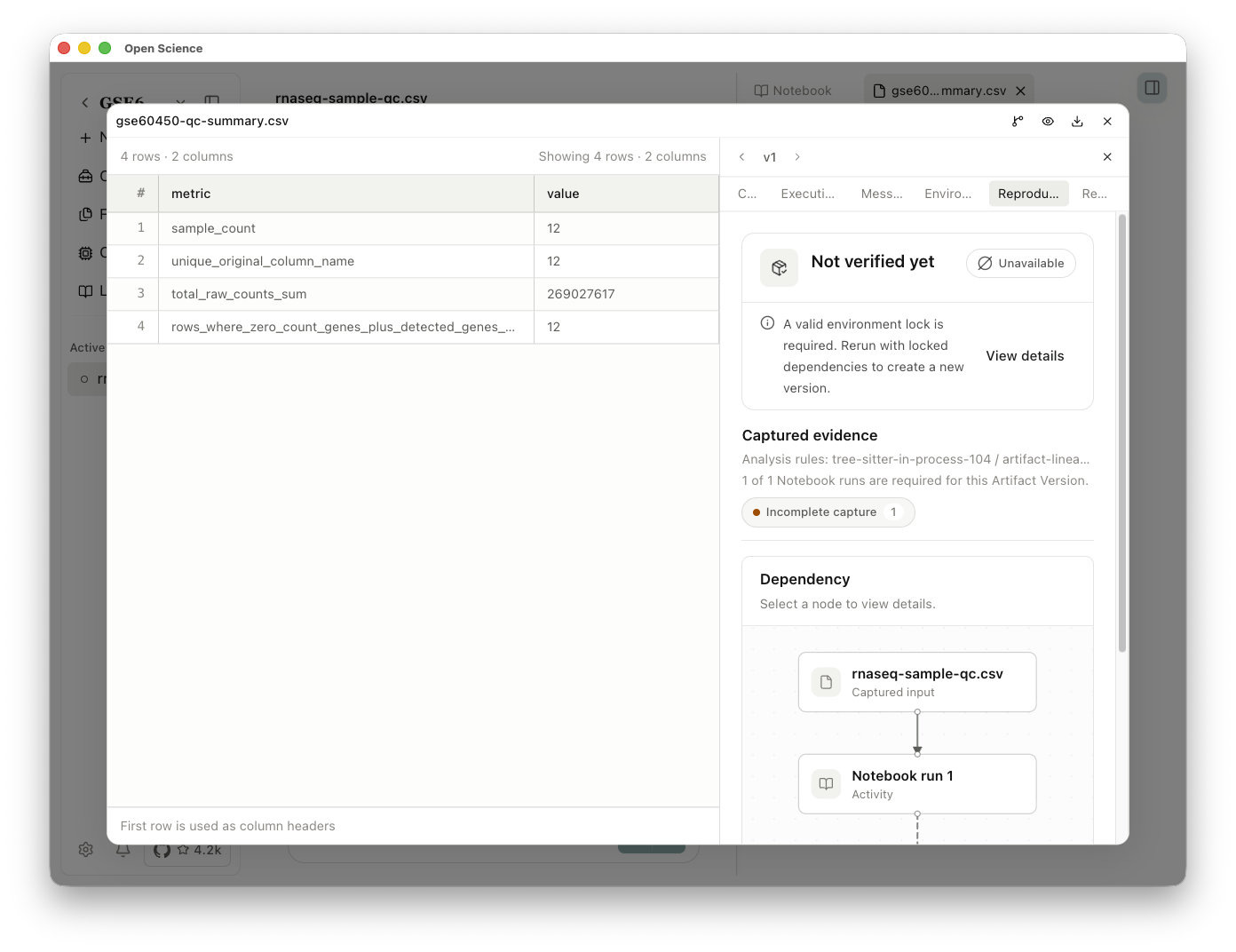
The screenshot shows a summary generated in Notebook from the GSE60450 sample QC table. Open the file’s Provenance → Reproducibility tab to inspect its captured inputs and run. Here, Not verified yet and Unavailable indicate that an exact environment lock is missing. Use View details, then follow the environment preparation steps to create a new version. This screen does not show a successful reproduction.
Run a check
- In Reproducibility, confirm the selected result version and its inputs.
- Choose Check reproducibility, or Check again for another attempt.
- If choosing a saved starting point with Check from here, inspect Files to restore and Runs to execute, then choose Start check. Earlier preparation may still be required when a step depends on previous Notebook state.
- Follow progress and the log. The check restores the recorded inputs and environment in isolation. Use Cancel if you need to stop.
- When the check finishes, open each output’s comparison details before deciding whether the result matches.
The session menu also offers Check session artifacts for checking multiple captured result versions. Inspect the eligible versions and their individual outcomes; a session-level action does not establish that every result was checked.
Read the comparison result
| Result | What to do next |
|---|---|
| Result reproduced | Inspect the recorded comparison criteria and retain them with the conclusion. |
| Result differs | Inspect the differing files and comparison details before deciding whether the difference affects your work. |
| Not verified yet | No completed check establishes a match for this version. Review the available evidence and start a check when ready. |
| Check stopped / Check cancelled | Read the log, resolve the reported cause if needed, then retry. Cancellation is not a comparison result. |
A completed run alone does not establish that outputs match. Byte equality, bounded image/table comparisons and scientific criteria answer different questions. A matching output under the recorded criteria does not validate the scientific method.
Save and share the verification record
- Choose Export verification record and save the record.
- Reopen the downloaded file and check which source file, version and comparison result it describes.
- Retain the relevant source files and versions with that record. Before clearing reproduced outputs, inspect retention controls and save the files you need.
To hand over conversation branches, files and evidence together, use a .science research package. A record supplied by the sender does not mean the receiving computer has rerun the check.
When a check cannot finish
Inspect Areas needing attention and the first relevant log message. Missing inputs, incomplete evidence or unsupported operations can prevent verification. Large RDS/H5AD files are not loaded for content comparison; the absence of a comparison does not establish a match.
v0.30.2 fixes replay of inputs created earlier in the same turn and supported Python standard-library imports, plus Windows verification-environment pip entry points. If an older version stopped at one of these steps, update and retry the same captured result, then inspect the new log and comparison. These fixes do not supply a missing environment lock or make every historical run replayable.
If preparation depends on an earlier Notebook state, inspect the execution evidence and rerun the necessary preparation before generating a new result. Keep stopped or incomplete checks distinct from completed comparisons.
If you already have a supported lock bundle and need to restore packages outside the application, follow the runtime restoration conditions. That procedure does not create a missing lock or replace the preparation above. Restoring dependencies alone does not establish that outputs reproduce.
Inspect the history before rerunning
Use Session replay to inspect the recorded order of messages, tool activity and file versions. Replay displays saved evidence with reconstructed presentation timing; it does not rerun code, query databases again or establish that a result reproduces. Use Reproducibility above when you need a new execution and output comparison.