Home, Projects, and Navigation
Open Science has three navigation levels: home → project → session. A project stores long-lived context and files. A session stores one conversation together with its execution records, notebook runs, permission events, and artifact versions.
Workspace sidebar
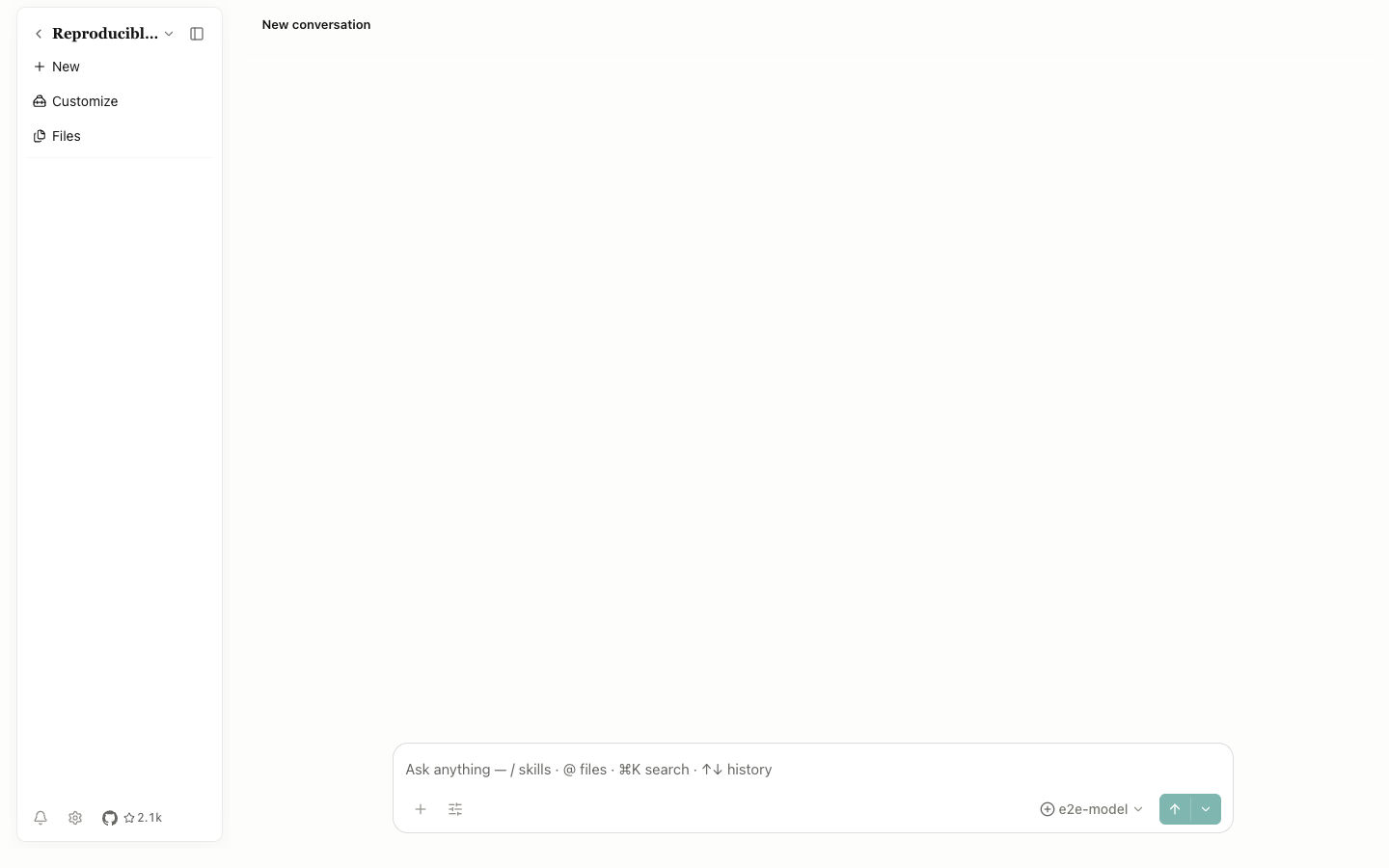
| Control | Behavior |
|---|---|
All projects | Return to Home; unsent drafts remain associated with their current session |
| Project name | Open the project menu or project context entry |
Collapse sidebar panel | Hide the left panel to make room for the conversation and preview; select it again to restore the panel |
New | Create an empty session without deleting or replacing the current session |
Customize | Start a customization conversation for creating or changing a Skill or Specialist |
Files | Open or close the project files panel on the right |
| Session row | Switch sessions; the status can read Idle, Running, Waiting for permission, and so on |
Session … | Open Pin, Rename, View notebook, Archive, and Delete |
Messages | Open the notification center; the badge shows the unread count |
Settings | Open Settings |
| GitHub star | Open the official repository in a browser |
Drag Resize left panel or Resize right panel to change panel widths. The right-edge Collapse/Expand preview panel button controls the preview area separately. On narrow screens, the same content appears in a drawer or sheet.
Session states and actions
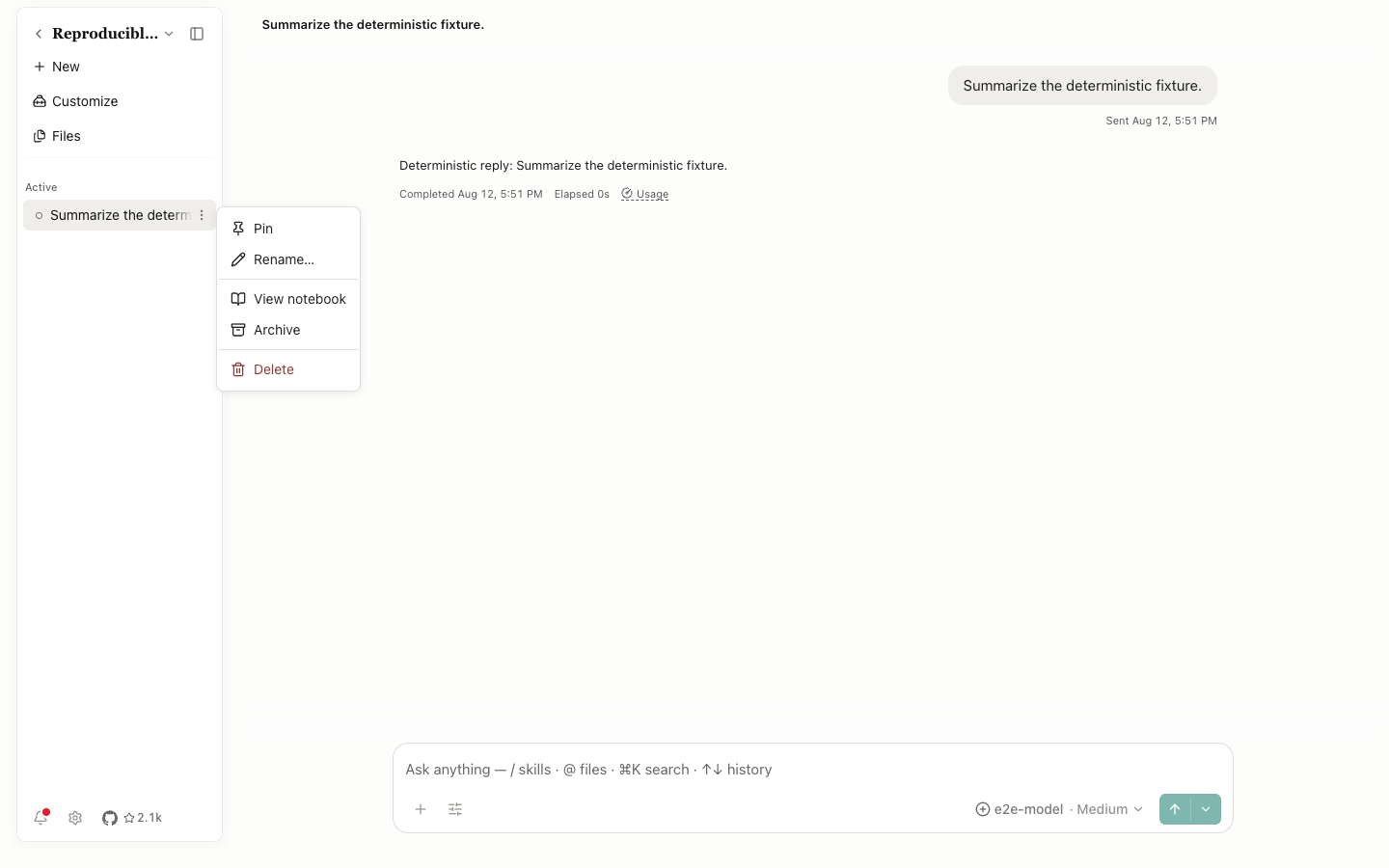
Pin: keep the session near the top of Active; select the action again to unpin it.Rename…: open a name field. Confirming changes the display title but leaves the messages intact.View notebook: open the Python, R, and shell runs for this session.Archive: move the session out of Active and into Settings → Archived, where it can be restored.Delete: show a confirmation before permanent deletion. It may be unavailable while the session runs or waits for permission.
Before a project or session switch, Open Science coordinates the current agent, draft, and unresolved requests. If a pending-switch or interrupted notice appears, answer the permission or plan request, or confirm the interruption first.
Search and notifications
Global Search matches projects, sessions, and files. Selecting a result opens its project or file preview. An empty search shows recent items; Esc closes the dialog. The notification center collects completion, permission, failure, and background-task notices. Select a notice to open its session, and use the available read-state actions to clear its badge.