Attachments and Project Files
Project files fall into Your uploads and Generated files. Uploads enter the project through the user. Generated files retain links to the session, message, and artifact version that produced them.
Attach a new file
- Select
+at the lower left of Composer, thenAttach files. - Choose one or more files in the system picker.
- Wait until every attachment chip finishes transferring; don't send while a transfer remains active.
- Select a chip to preview it. Its remove control only cancels the reference from this Composer draft.
- Enter the request and send it. The sent message keeps an immutable record of its attachments.
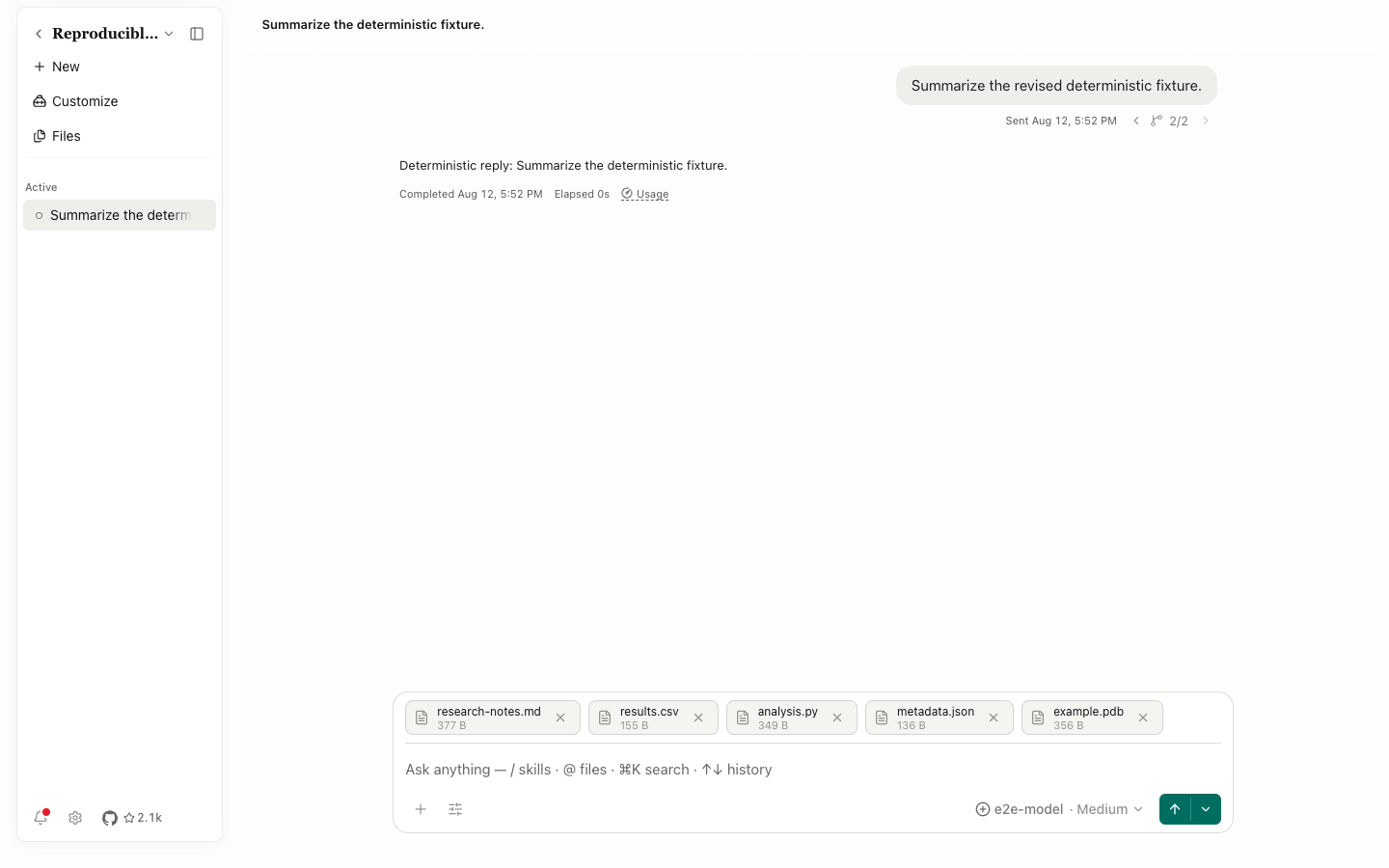
If the model doesn't accept images, Open Science rejects an image attachment and asks you to choose an image-capable model. Other files that uploaded successfully remain available. Duplicate-file handling follows the project file policy; the display name isn't the internal storage identifier.
Your files references a file already in the project without uploading another copy. An @ mention inserts an explicit file or artifact reference into the text, which works well for requests such as “run this method against that version.”
Files panel
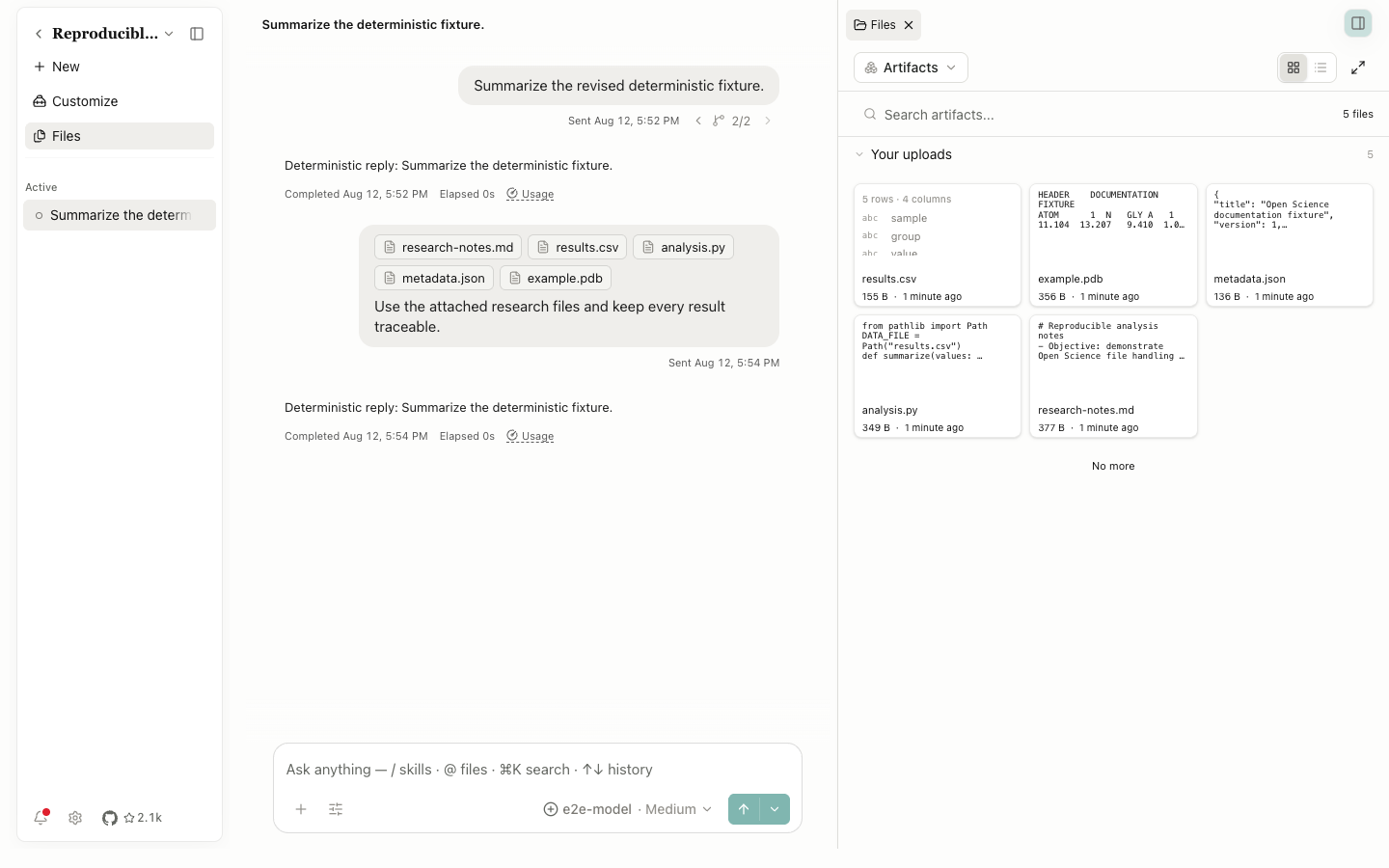
| Control | Behavior |
|---|---|
Filter project files | Filter by All, Artifacts, or another available range |
Search project files | Search the current project by file name |
Grid view / List view | Choose thumbnail cards or a compact list |
Expand files | Make the file library full screen; Exit full screen files returns to split view |
| Category heading | Expand or collapse Your uploads or a session's Generated files |
| File body | Open a modal preview |
Download | Save the file; the browser entry point uses a download flow |
Open … in split view | Open the file in a right-side tab while the conversation stays visible |
No more | The current category has finished loading; it isn't an error |
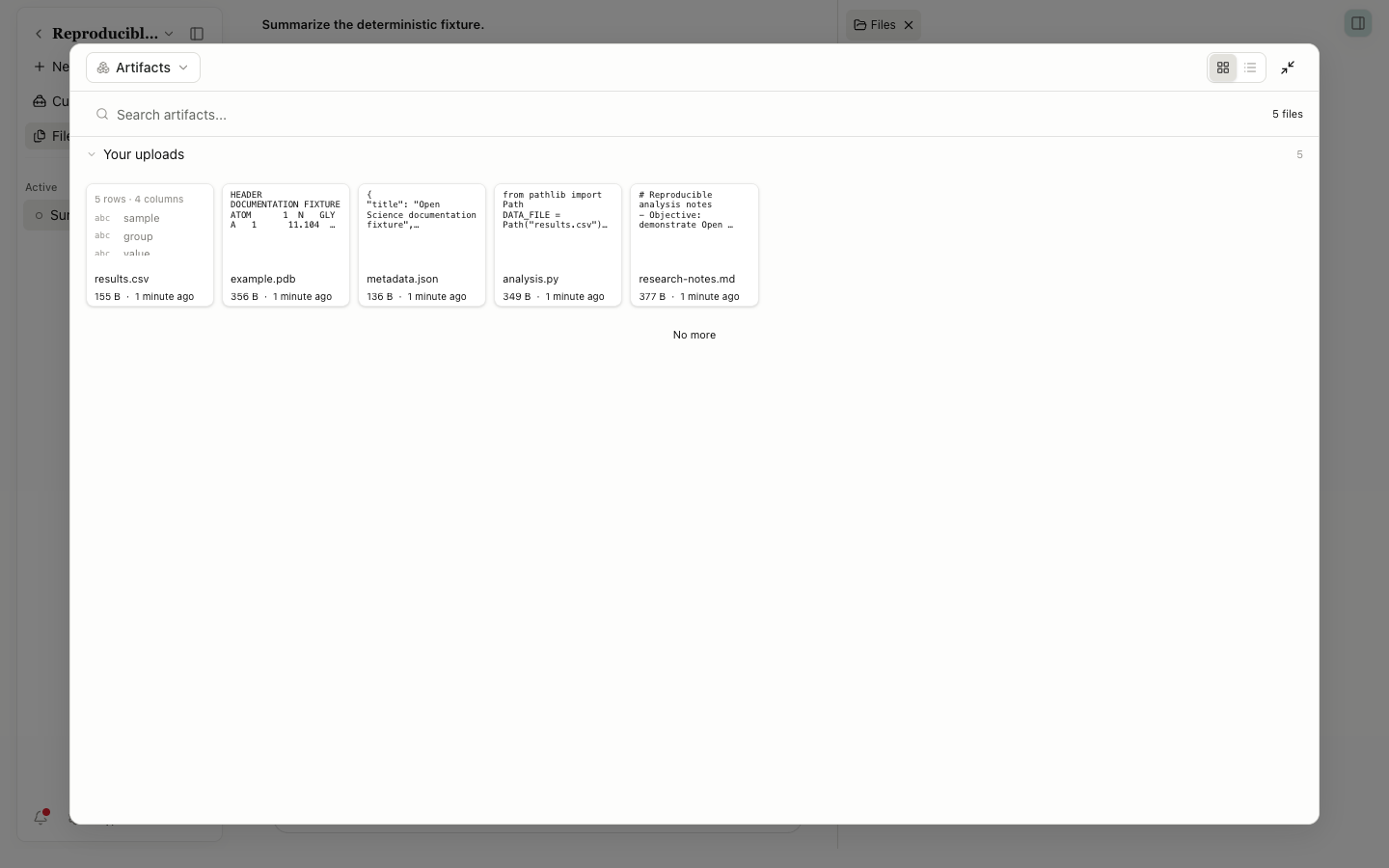
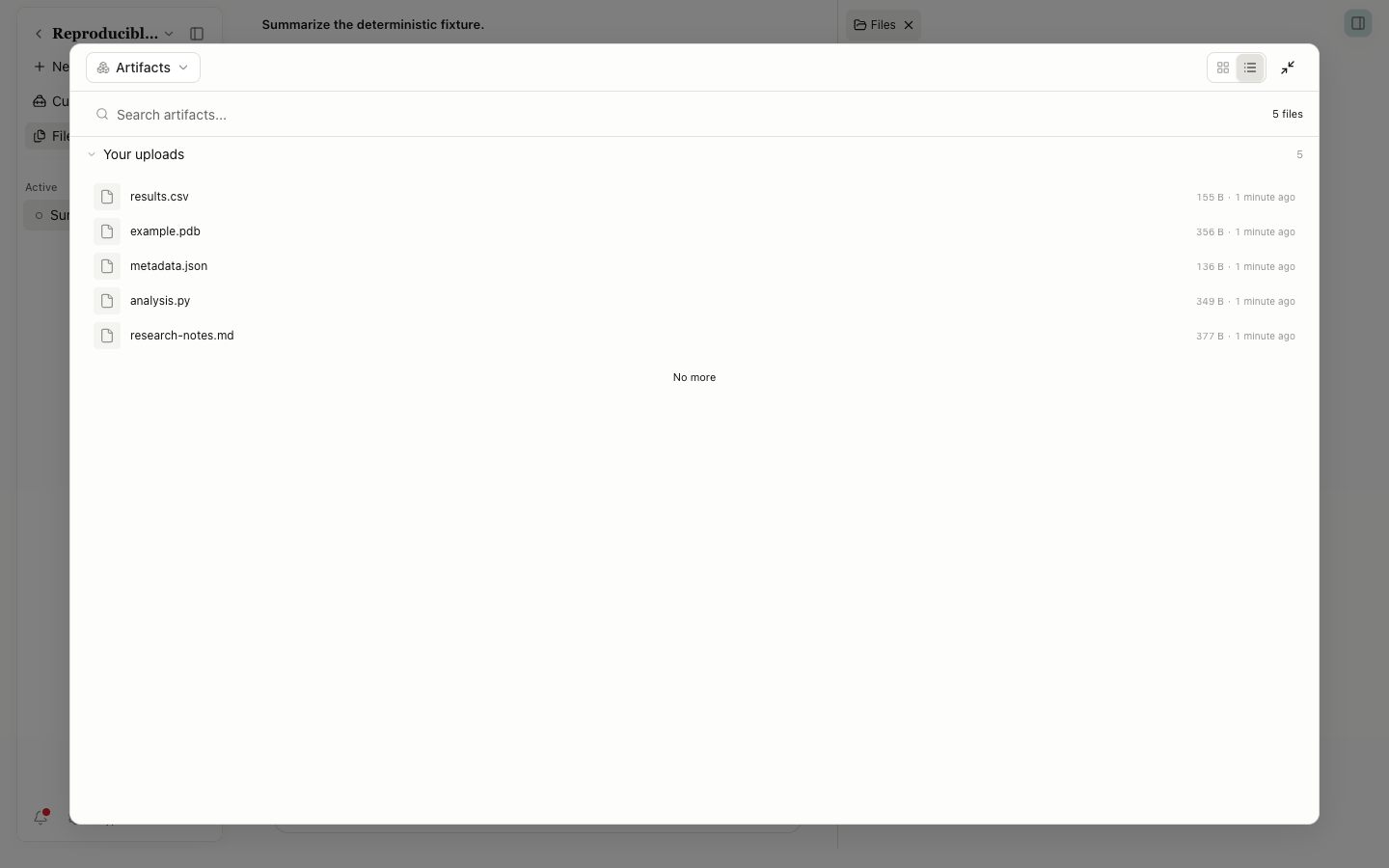
Open previews uses tabs for multiple files. Select a tab to switch, Close preview to close one file, or the edge button to collapse the entire preview panel. Open Science retains the Files tab and preview state where practical.
Download and trace a result
A Generated file can offer Provenance in its file actions. A normal upload has no production chain, so Open Science doesn't invent one. Project and session artifact download dialogs let you choose a range and prepare a saveable bundle. Moving or deleting the downloaded copy doesn't change the managed project file.