Manage and validate Skills
Import a tested method from local files or GitHub, export copies and maintain installed Skills. Export a method first if you need to retain its current version.
In batch management, review the selected count in the bottom action area before applying an operation. Read completion or failure feedback there, then check the resulting items. Selecting an entry alone does not enable, install or delete it.
Install from the marketplace
For catalog browsing, installation and updates, follow the Skill marketplace guide. This chapter covers local and GitHub imports, exports and maintenance of installed Skills.
Export and import a local package
Example Export and reimport an RNA-seq Skill
- Find
rnaseq-count-qcin Settings → Skills and choose Actions → Export. Save the ZIP. - Select Add skill → Upload skills → Upload skill files and choose that ZIP.
- In Confirm import, inspect the source filename and diagnostics. Candidates are unchecked initially.
- Open Preview rnaseq-count-qc. Read SKILL.md and the file list. The actual export preserved
references/sample-metric-schema.md. - Close preview, select the candidate and choose Import selected (1).
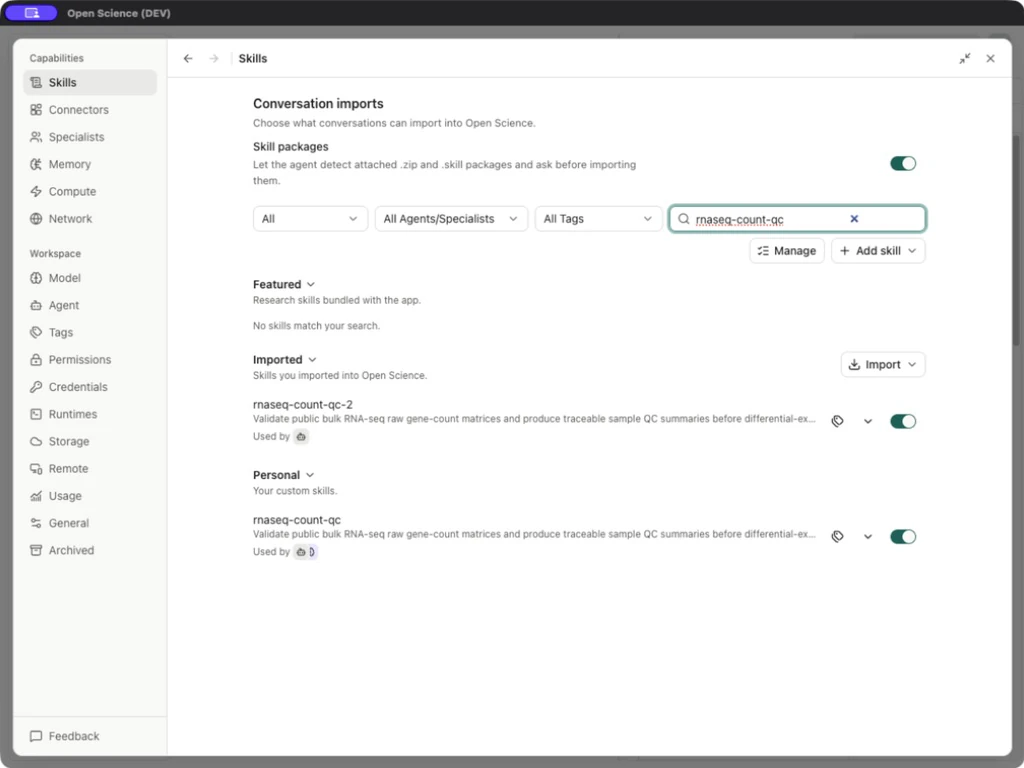
- Search the imported row and inspect its final name and source.
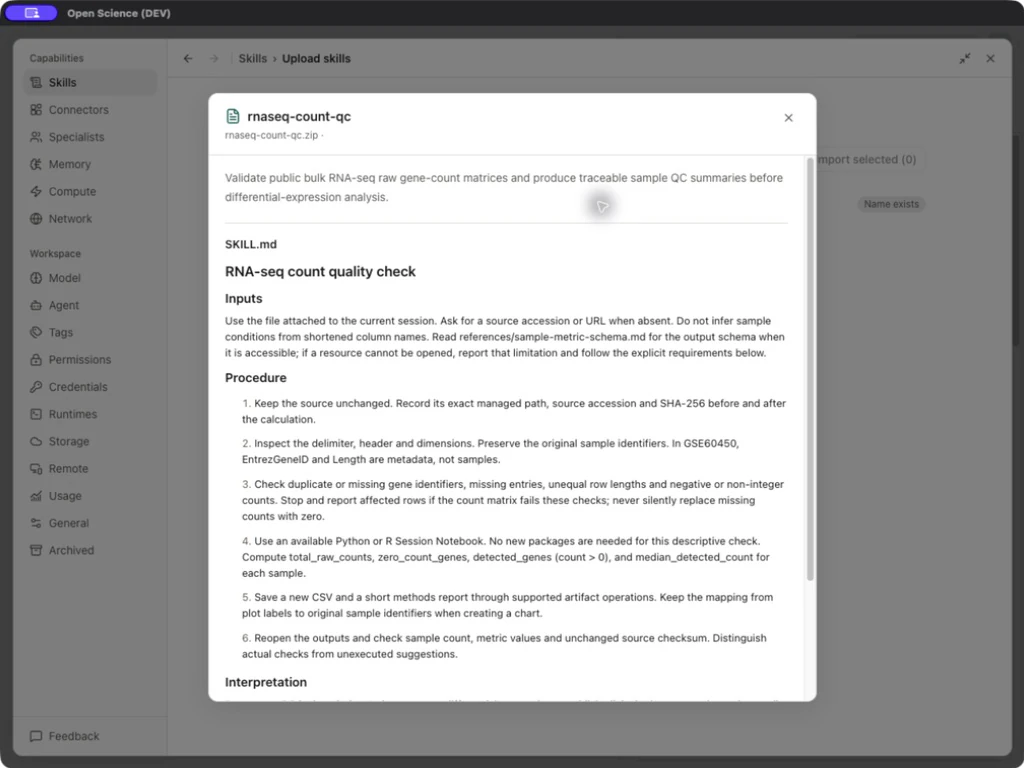
In this example, the original Personal Skill already existed. The preview displayed Name exists, and import created a separate Imported rnaseq-count-qc-2. The original and its Specialist binding remained. Do not assume every import updates the existing package; inspect the candidate's source and update/replace diagnostics.
| Import control | Purpose |
|---|---|
| Select all / Invert / candidate checkbox | Chooses which discovered packages to import; one archive can contain several Skills. |
| Preview / Close preview | Reads instructions and files before installation. |
| Name exists / diagnostics | Warns about identity or content problems. Check the resulting name after importing. |
| Choose different files | Replaces the current candidate selection. |
| Import selected | Performs the selected imports and reports successes, unchanged packages or failures. |
A Markdown upload needs YAML name and description; a ZIP/.skill bundle needs SKILL.md. Local upload does not fetch missing files from URLs embedded in instructions. Unsupported formats, missing metadata, archive-size limits and unsafe archive paths are validation failures, not reasons to disable validation.
Import an already installed local Skill
Example Import the local peer-review package
Add skill → Import installed skills scans ~/.agents/skills and ~/.codex/skills. In this example, the local scan found 68 candidates, initially all selected. Clear Select all installed skills, then choose the specific method; use Invert only after checking what is currently selected.
- Open Preview peer-review and inspect its source folder, instructions and referenced files.
- Choose Close preview, select only
peer-review, then Import selected (1). - Wait for Imported 1 skill. The candidate is then labelled Imported and cannot be selected for the same import again.
- Return to Skills, search
peer-reviewand inspect the Imported row. The source folder stays in place; Open-Science uses an imported copy. - Use Rescan after changing installed folders. Recheck origin, selection and status before importing again.
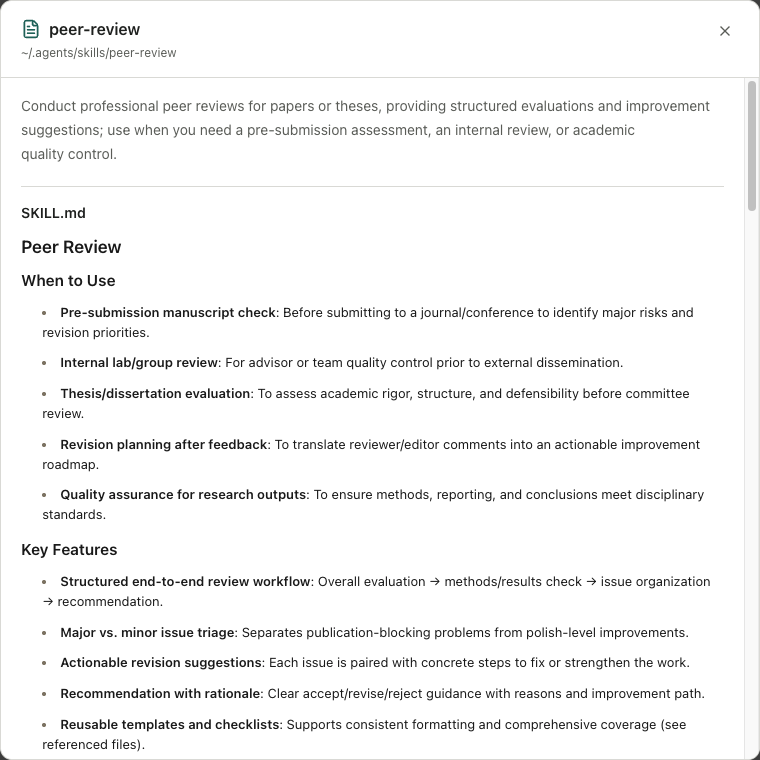
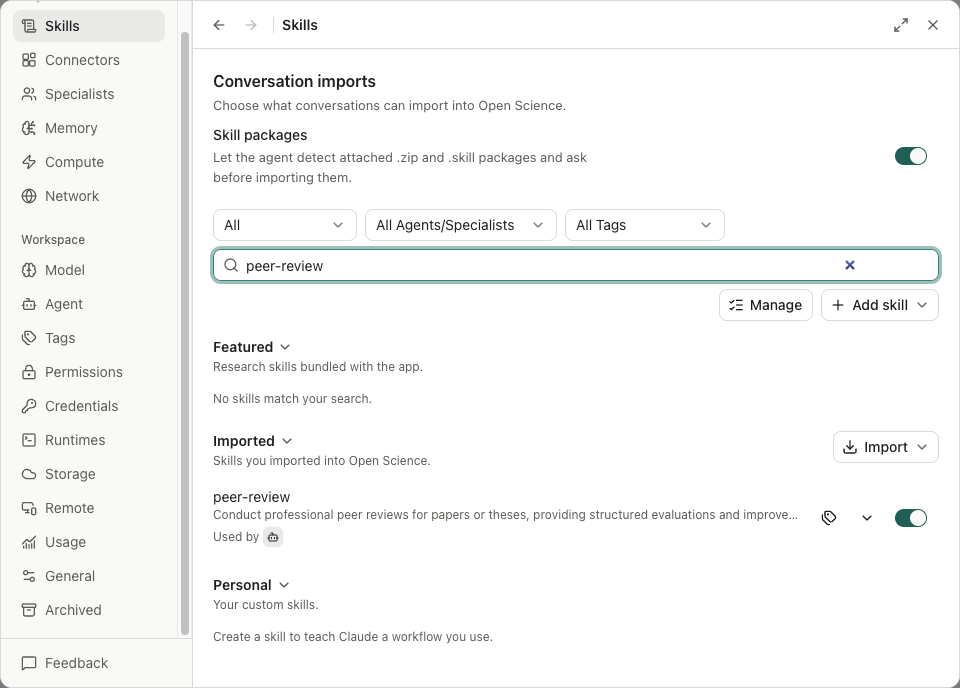
After import, inspect the template and reference files in the Skill detail. Before using a method from another assistant, check that its required tools and runtime features are available in this session.
Import and update from GitHub
Example Import and update an ESM-2 Skill
- Choose Add skill → Import from GitHub. Enter a keyword,
owner/repo,owner/repo@refor GitHub URL, then select Find skills. Use a fixed ref for a reproducible package source. - Read the repository and candidate count. This scan initially selected every candidate; clear Select all before choosing only the required method. It differs from the unchecked ZIP confirmation screen.
- Open Preview and check the resolved commit, folder, instructions and files. A repository scan can discover internal folders as well as user-facing Skills; its count is not the app's bundled Skill count.
- Close preview, select the intended candidate and choose Import selected (1). Wait for the result and check its name under Imported skills.
- Return to Skills and search that name. Inspect its source and availability before using it.
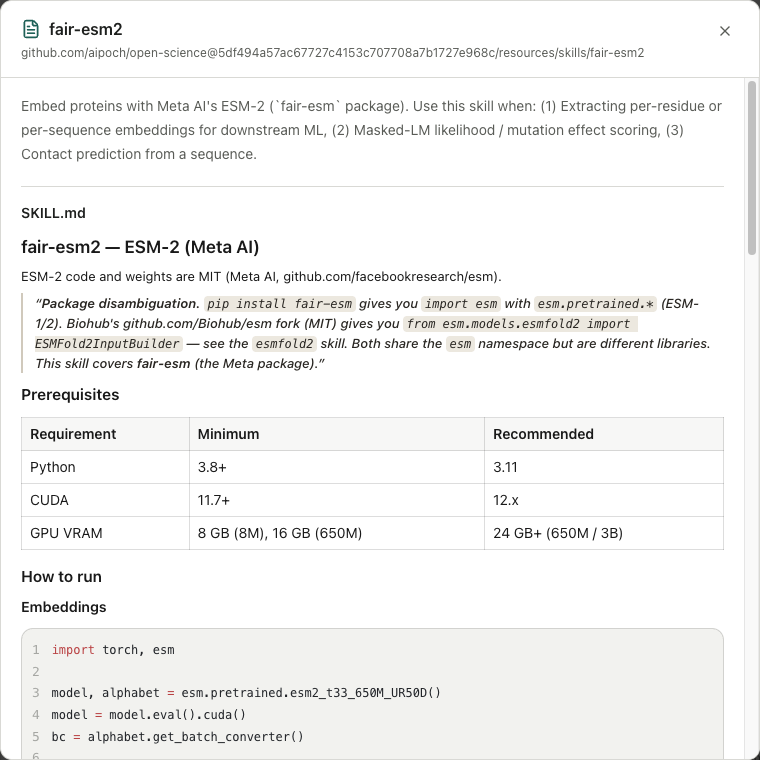
Importing fair-esm2 from the product repository created fair-esm2-2 because the built-in name already existed. The built-in package remained. Importing instructions does not install model weights or establish that inference works.
Apply an upstream revision
Scan the same repository with the intended newer ref. The existing candidate can show Update available. Select only that candidate and import it; inspect the existing imported row and preview afterward. In the ESM-2 check, the same fair-esm2-2 copy was updated, and scanning that ref again showed Imported. The updated instruction body matched the repository source. The importer rewrites frontmatter and the collision-safe name, so whole-file bytes need not match the original SKILL.md.
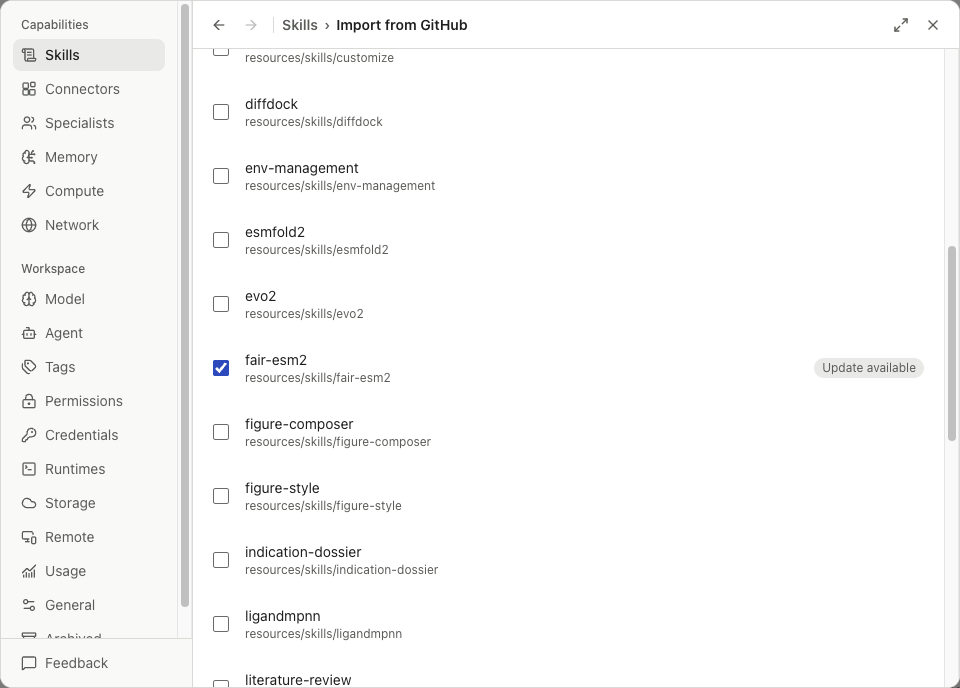
Recover from GitHub rate limiting
For GitHub request was rate-limited, open Manage GitHub credential, enter a usable token and select Verify and save. After Token verified and saved, retry the scan. Cancel leaves without saving. Keep tokens out of screenshots and issue reports.
Enable, disable and delete
Open Manage, filter by source/status, and search a specific method. Select the result before applying an action. Selected (n) shows the selection; Clear selection empties it. Review the full selected set when filters change.
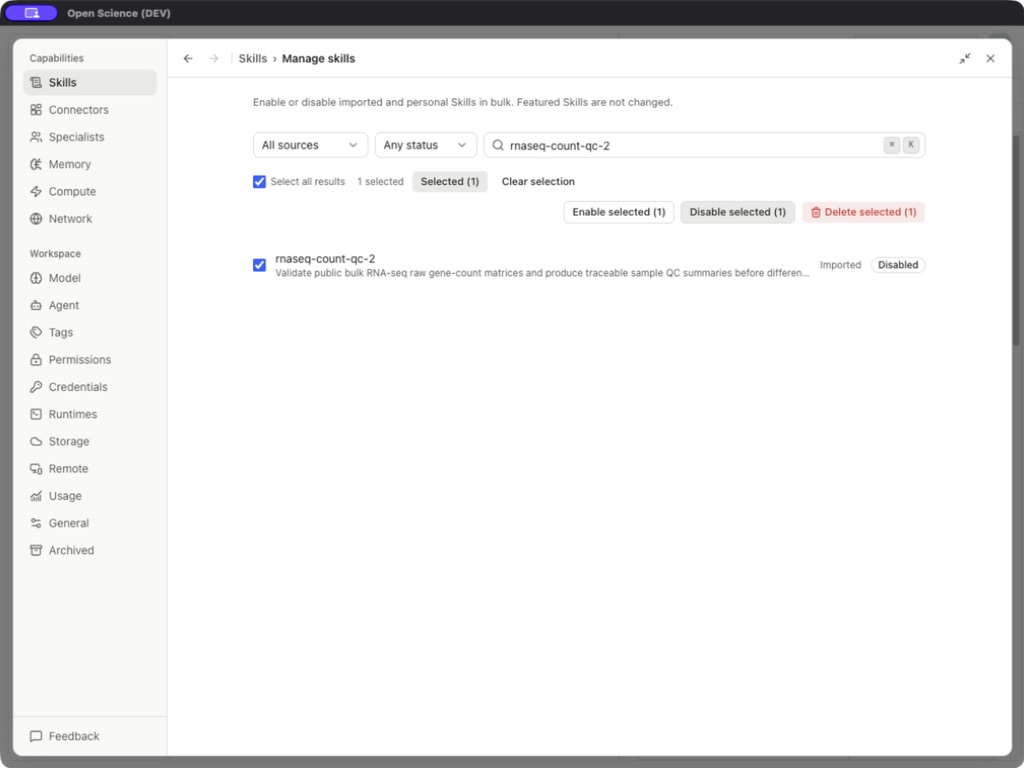
After changing availability, reopen the Skill detail to confirm its state. Keep an export of a method you need before deleting it.
| Action | Expected result |
|---|---|
| Enable selected | Makes selected eligible packages available again. Check the row status. |
| Disable selected | Retains eligible user-controlled packages but removes Main Agent availability for later requests; application-required Skills cannot be disabled. |
| Delete selected | Opens a confirmation with the exact selected names and deletability results. |
| Delete n Skills | Removes the eligible local packages after confirmation. There is no Skill trash/restore workflow. |
| Cancel | Leaves the packages installed. |
Featured and Specialist-linked packages can be protected from deletion. Remove an obsolete binding or disable a user-controlled package when appropriate. Application-required Skills stay enabled; see activation rules. After deleting, confirm the selected package is absent from the filtered list.
Update and diagnose
| Symptom | Check and next action |
|---|---|
| Imported but absent from the list | Clear source, agent and tag filters; search the resulting name, including suffixes. |
| Files missing after import | Inspect the package file list and re-export; a single Markdown file cannot include a separate reference file automatically. |
| Revision conflict during edit | Reopen the latest version, compare changes and save deliberately. |
| Skill loads but a function is unavailable | Check whether the package actually provides a kernel helper; ordinary instructions are not Notebook functions. |
| Missing package / runtime | Use Scientific tools and the selected runtime's package manager. |
| GitHub/authentication error | Retain the actual HTTP status and sanitized source URL; see Troubleshooting. |
Implementation reference: SkillUploadView.tsx, SkillBulkManageView.tsx, SkillImportView.tsx.
Import and edit Skills safely
Large installed-Skill selections are imported in batches. Wait for the final result and inspect the imported list before repeating the import. An external Skill with a reserved name prefix is assigned a safe local name; use the name shown in the local catalog. When editing the body, save it and verify that the separately edited name and description remain correct. Images attached to the current message can also inform Skill selection; check the selected Skill's scope before letting it act.
Save a GitHub repository for later
After Import from GitHub → Find skills scans a repository, choose Save repository. Next time, select it under Saved repositories to scan again, then preview and import the intended Skills. A saved ref is retained; a default branch can change. Saving does not install or automatically update Skills, and removing the bookmark keeps installed Skills.