Skill marketplace
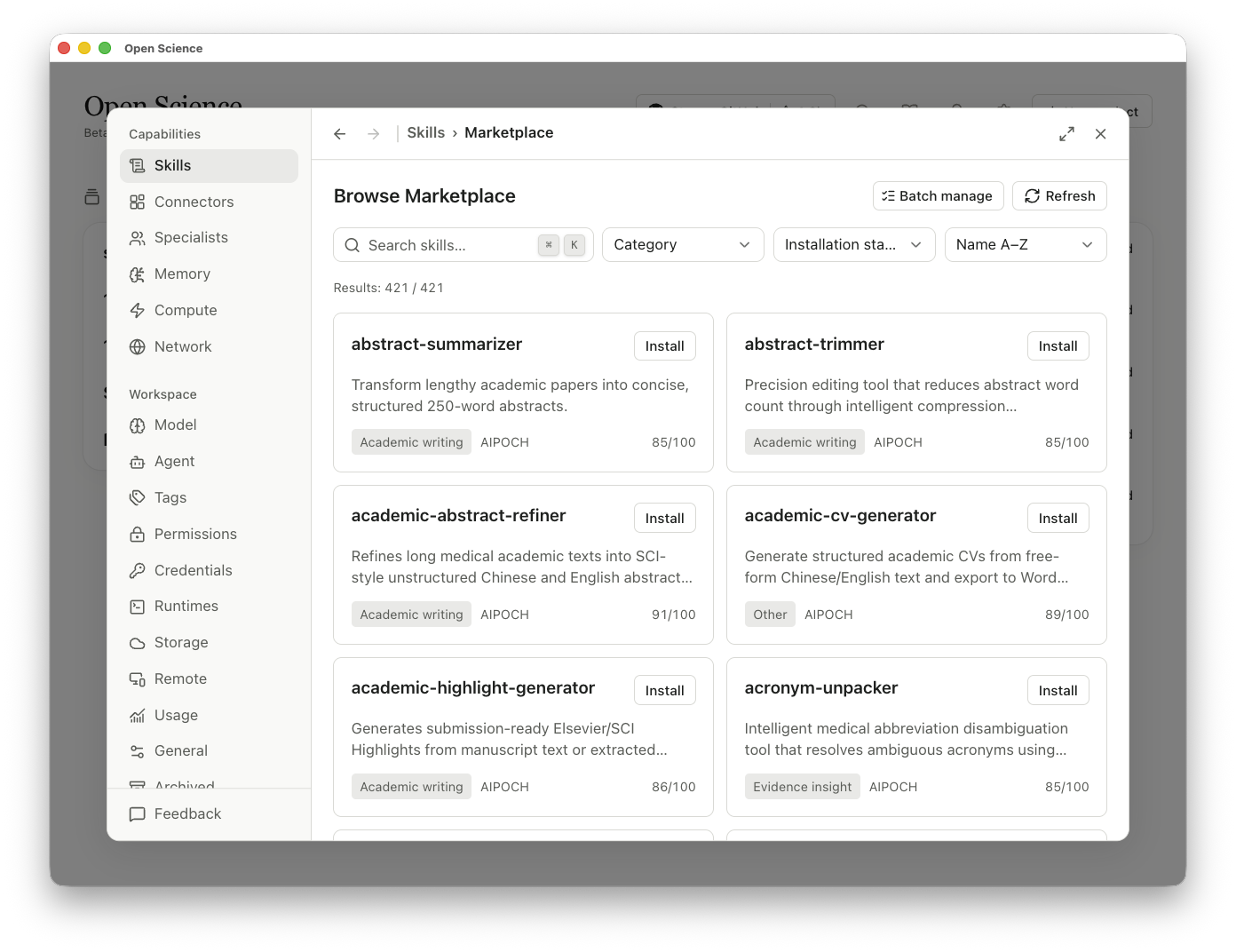
Use Settings → Skills → Browse Marketplace to find and install research methods without locating and importing their repositories yourself. You can inspect a method before installing it, choose which methods to use and apply updates when ready.
To bring in a ZIP, local Skill or a specific GitHub repository, use Skill import and management. For an overview of research methods and their inputs, see the Skill directory.
Find a suitable method
- Open Marketplace and search or filter by category.
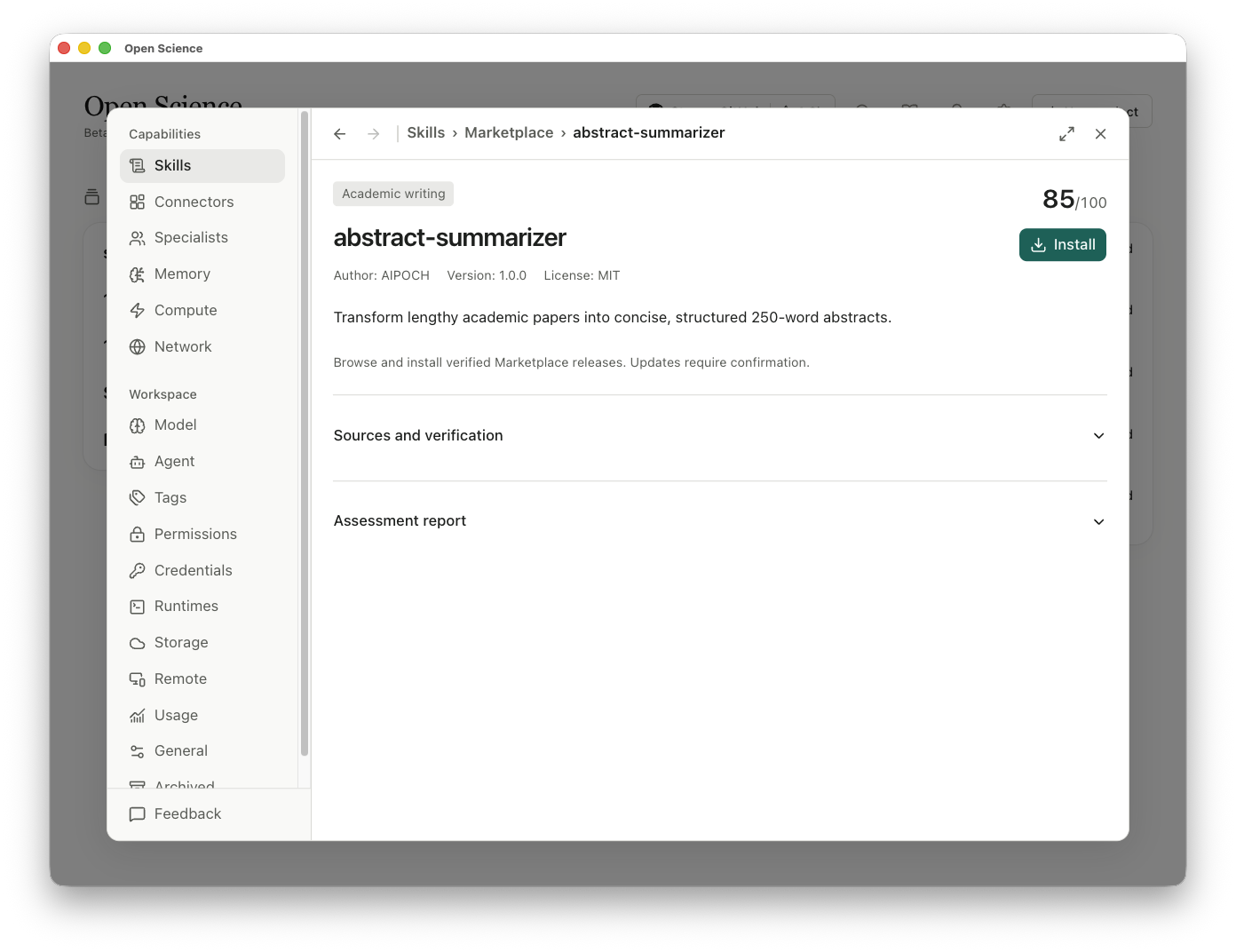
- Open a Skill’s details and read its purpose, author, source, license information and any assessment details.
- Compare its inputs, required tools and runtime dependencies with your project before installing.
A catalog signature confirms distribution identity. It does not establish that a method suits your research question or that your computer has its dependencies.
Install and use a Skill
- Select Install on the chosen card and wait for Installed.
- Open the installed Skill and confirm its availability for Main or the intended Specialist.
- Prepare an input that meets the Skill’s requirements, then use it on a bounded task.
- Open the generated files and check the result against your request. Installation alone does not establish that a research run succeeded.
For selecting a Skill in a conversation, see Using Skills. Configure a Specialist’s methods through Skills and Connectors.
Install or update several Skills
- Choose Batch manage, then Not installed or Updates.
- Filter the catalog and select the intended entries. Select all filtered results selects the filter’s full result set.
- Open Review selection and check the list before choosing Install selected or Update selected.
- Wait for the operations to finish and inspect each result. Installation runs sequentially; stopping allows the current item to finish.
- Review failed or stopped entries and retry only what is needed.
Update or remove a method
When an update is available, open Review Skill update before confirming. Check the old and new versions, affected Specialists, and files to be added, changed or removed. The diff shows line numbers, red deletions and green additions. For binary, oversized or unreadable comparisons, use the listed file changes; an unavailable diff does not mean the files are unchanged.
If the dialog reports local edits, updating replaces them. Export a copy first if you need to keep them. Choose Update existing Skill only after review; this preserves the Skill identity and its Specialist relationships. For Local conflict, open View installed Skill and follow the review action when offered. If it remains blocked, preserve the message instead of deleting the local method to force installation.
Use the installed Skill’s detail actions to change availability or uninstall it. After a change, confirm the intended method is available to Main or the Specialist that will use it; a downloaded package and an available method are separate states.
If installation or use fails
For a catalog or package verification error, retain the message and retry through the normal marketplace entry. Do not replace the package with an unverified download. Marketplace browsing uses the official distribution service and does not require a GitHub login.
If installation completes but a task cannot run, inspect the missing dependency or tool named in the error. Follow runtime setup for software dependencies or Connector setup for required services, then retry the task with the intended input and check the saved result.
Submit your own Skill to the marketplace
Marketplace submissions use a GitHub source repository and maintainer review. Upload skills imports a method into your local application; Publish in the personal Skill editor saves a local Skill. Neither action lists it in the public marketplace.
Prepare the Skill
- Create and test the Skill, including the scripts, references and other files it needs.
- Upload those files to a subdirectory of your GitHub repository, such as
skills/your-skill-name/, withSKILL.mdinside. Keep the required license notices with the source. - Commit the complete content and copy that commit’s full SHA. The submission must identify a fixed revision, not a moving branch.
SKILL.md needs name, description and a license declaration at license or metadata.license. The declaration and included notices must describe the actual content you are submitting.
Prepare the submission file
Start with the official release.config.json template. Replace its placeholders with your Skill’s information:
| Field | What to supply |
|---|---|
id | The lowercase, hyphenated name used in SKILL.md. |
version | A package version such as 1.0.0. |
category | One of Academic Writing, Data Analysis, Evidence Insight, Protocol Design or Other. |
source.repository, source.commit, source.path | Your HTTPS GitHub URL, full 40-character commit SHA and Skill directory. |
license_files | Repository-relative paths to the applicable license files at that commit. |
The template’s all-zero commit is a placeholder and cannot be published. Check the current submission format before submitting.
Request inclusion and check the published result
Follow the marketplace repository’s contribution instructions to prepare a pull request. If you do not have write access, use a fork. Provide the submission file, source location, purpose and your local test result; the payload remains in your source repository. Maintainers can track the reviewed configuration under authoring/submissions/<id>/release.config.json; confirm its placement during review.
Maintainers review and register eligible submissions before publication. A submitted file or merged pull request does not itself make the Skill available in the app. The authoring guide describes the review and publication stages.
After publication, return to Browse Marketplace → Refresh, search for the Skill, check its source and version, and install it. When updating a published Skill, submit a new package version with the new source commit; do not assume edits to the upstream repository update installed copies automatically.