Manage and share Specialists
Use a package to move a configured role, and complete its local setup after importing. Skills, Connector references and local permissions have different portability rules.
In batch management, review the selected count in the bottom action area before applying an operation. Read completion or failure feedback there, then check the resulting items. Selecting an entry alone does not enable, install or delete it.
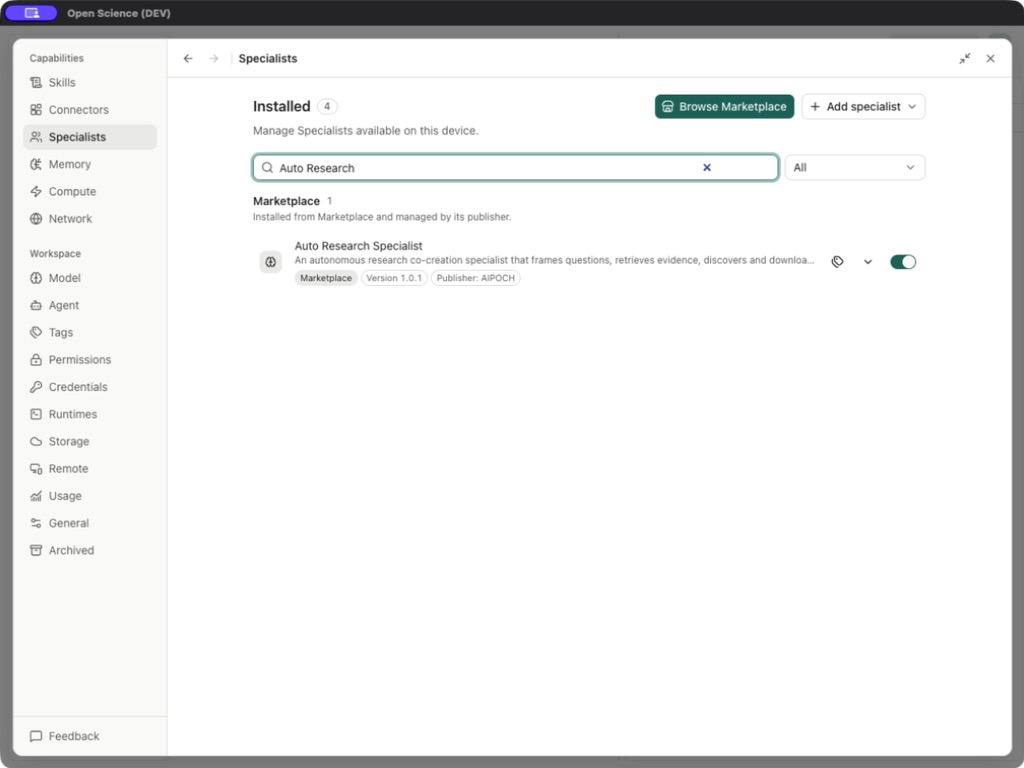
List controls
| Control | Operation and expected result |
|---|---|
| Search specialists / category filter | Narrows installed rows; clear filters if a saved role appears missing. |
| Edit / role name | Opens the existing editor. Save changes and reopen to verify. |
| Change appearance | Changes icon/color without changing instructions. |
| Manage Tags | Assigns organizational labels. |
| Toggle | Enables/disables the role without deleting it. |
| Actions → Duplicate | Opens a new-role draft with copied instructions/bindings and a Copy name. Create specialist is still required. |
| Actions → Export ZIP | Opens export selection and saves a portable package. |
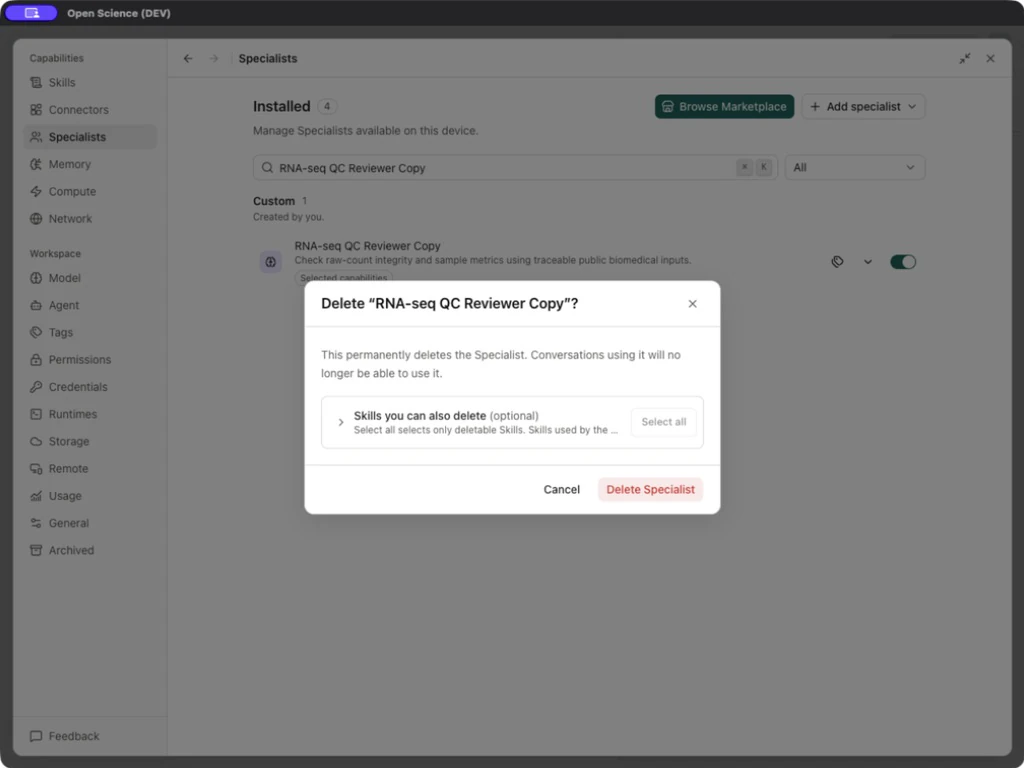
| Actions → Delete | Opens a permanent-deletion confirmation; inspect optional Skill deletion separately. |
Before deleting a role, inspect the option to delete its Skills. Keep shared Skills if other roles still use them. Deleting a duplicate does not require deleting the original role.
Share and import a package
Export with the required Skill files
Example Share a reviewer role with its Skill
- Choose Actions → Export ZIP on RNA-seq QC Reviewer.
- In Choose Skills to include, explicitly select
rnaseq-count-qcif the recipient needs its files. An installed personal/imported Skill is not necessarily included by default. - Export and inspect the archive before sharing.
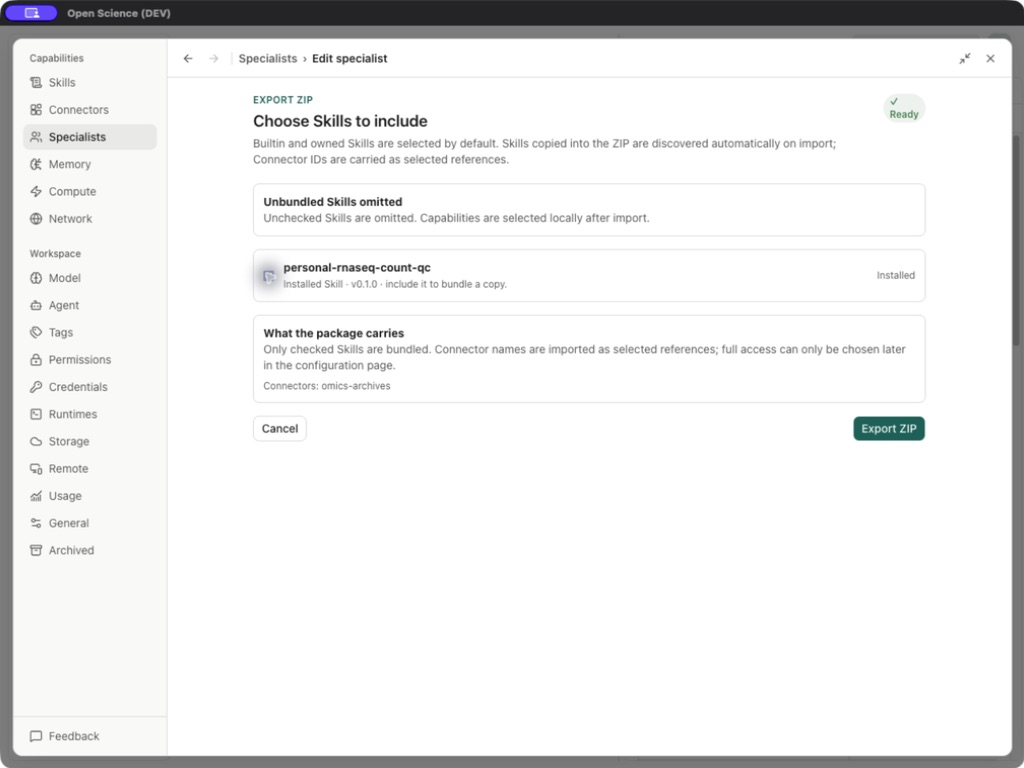
The actual package with Skill contains manifest.json, specialist.json, skills/rnaseq-count-qc/SKILL.md and its reference schema. A minimal export can contain just the two JSON files. Connector IDs are references; credentials, local trust and Full access are not transferred as ready-to-use authorization.
Import, resolve conflicts, finish setup
- Select Add specialist → Import ZIP → Choose ZIP. One package contains exactly one Specialist. Download template provides the application package template.
- Inspect the name, immutable ID, version, bundled Skills, archive limits and diagnostics.
- For each Skill conflict, choose Keep installed Skill or Use package Skill. The second choice replaces files for every current user of that Skill; read Affected now.
- For an existing Specialist ID, choose Review overwrite, inspect current/incoming versions and export the current version first if needed. Overwrite and continue is a separate confirmation.
- The imported role is saved disabled / SETUP INCOMPLETE. Inspect instructions and capability bindings in the editor, choose the intended access scope, then Save changes to complete setup and enable it.
- Reopen the installed role and run a small, scoped task.
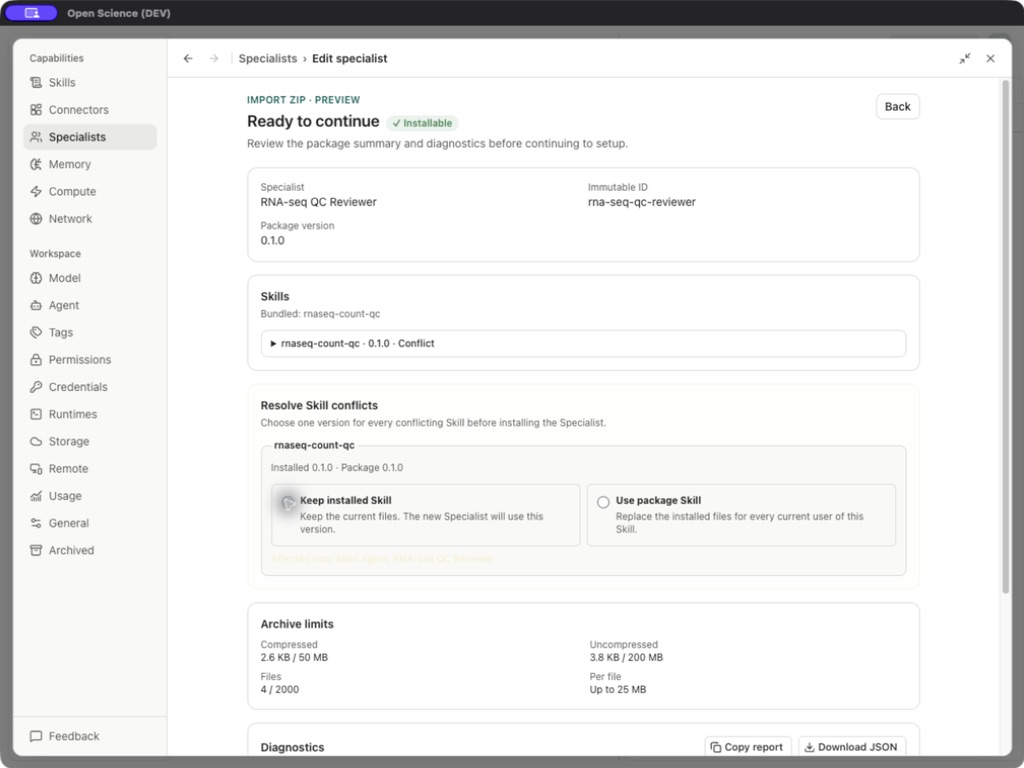
Version unchanged can still accompany a Skill conflict. Choose the intended Skill source explicitly, then reopen the imported role to confirm its bindings and access scope.
| Preview control | What to inspect |
|---|---|
| Bundled Skill expansion | Version, disposition, reason and file list. |
| Archive limits | 50 MB compressed, 200 MB uncompressed, 2,000 files, 25 MB per file in this UI. |
| Diagnostics | Blocking errors, warnings and information; a warning may require an explicit choice. |
| Copy report / Download JSON | Exports diagnostics for troubleshooting. Review the report before sharing it. |
| Cancel | Leaves the preview without installing. |
| Next / Review overwrite | Continues only when required choices and validation permit it. |
Import from a browser: select Import ZIP → Choose ZIP, then inspect the package, resolve conflicts and complete local setup before enabling the role. Credentials and trust configuration must be set up on the destination device. If upload fails, retain the error and follow Troubleshooting.
Browse the marketplace
Open Browse Marketplace, search a role and choose View details. Check publisher, source, version, license, download size and included Skills/Connectors. Refresh Marketplace updates the catalog; Manage Marketplace sources controls the configured sources. All/Official/Community filters concern catalog origin, not runtime readiness.
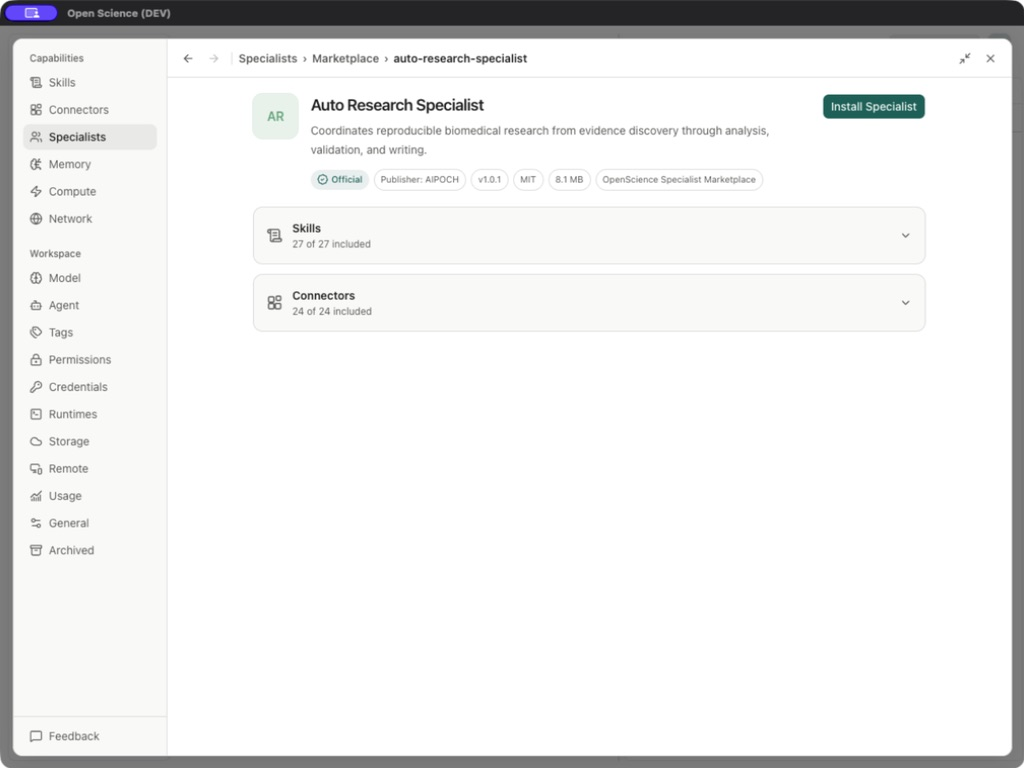
Select Install Specialist, then confirm the role appears in Marketplace and inspect its enable state and bindings. Catalog package counts describe that package, not all application capabilities. Installation does not execute a research task or prepare every external dependency; finish any required setup before use.
Verify before sharing
After importing or changing the role, run a small task using its assigned capabilities and inspect the saved output. Follow Extend an analysis with an installed Specialist for existing Methods, PCA and matrix examples. Check the required inputs and unresolved limitations for the selected route.
Implementation reference: SpecialistsPanel.tsx.