Assign Skills and Connectors
A Specialist's capability list determines which Skills and Connectors it can reach. A globally enabled Connector is not automatically available to every restricted Specialist.
Configure explicit access
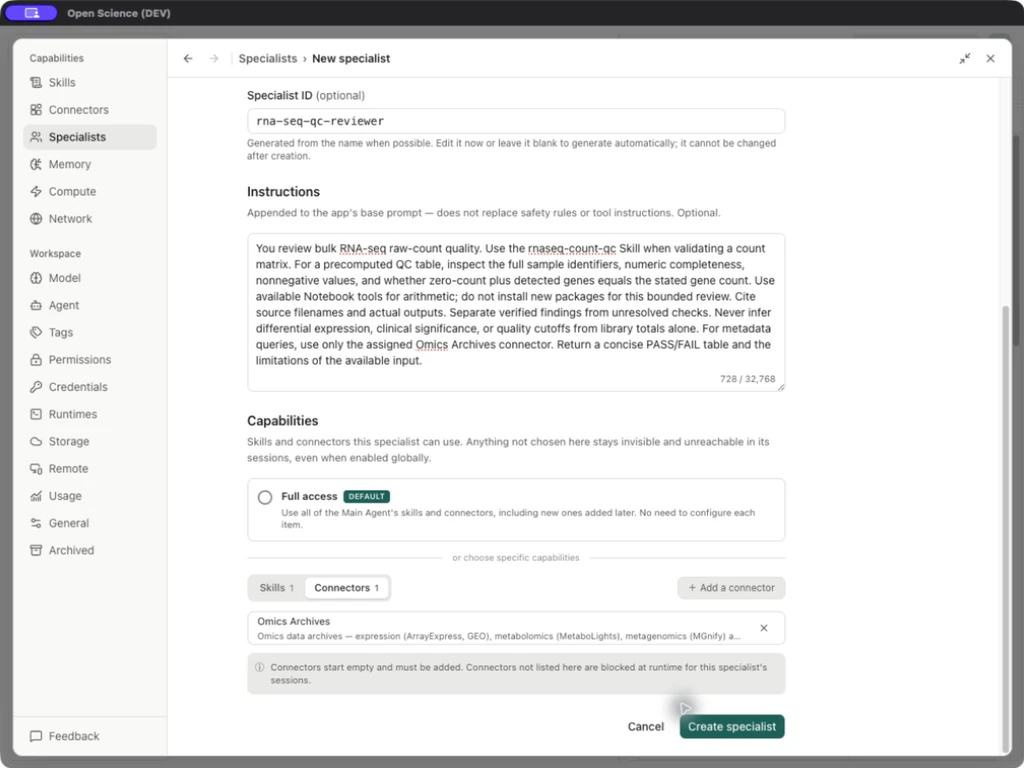
Example Assign capabilities to RNA-seq QC Reviewer
- Open Settings → Specialists, then edit RNA-seq QC Reviewer.
- Turn Full access off.
- In Skills, select Add a skill, search
rnaseq-count-qc, and add the saved Personal package. Confirm Skills 1. - In Connectors, select Add a connector and choose Omics Archives. Confirm Connectors 1.
- Open a capability's detail to verify that you selected the intended resource. Save and reopen the role to confirm persistence.
| Control | Effect |
|---|---|
| Full access On | Uses the inherited capability scope with any explicit per-resource exclusions. Check the resolved list after changing Manage access. |
| Full access Off | Uses the explicit lists; a missing binding cannot be supplied merely by naming a tool in the prompt. |
| Add a skill / Add a connector | Opens a selector for that capability type. |
| Capability detail | Inspects the resource; it does not run its scientific workflow. |
| Remove | Removes this binding without uninstalling the resource. |
| Save changes | Persists the selected scope. |
Application-required Skills stay globally enabled. This does not replace the Specialist capability list or turn Full access on. If Customize is unavailable to this role, inspect its binding and resolved resource. See Skill activation.
Adjust access from a resource
Under Settings → Skills or Connectors, open a resource’s Manage access popup to inspect Main Agent and Specialist associations together. It updates the selected role’s binding, not the role’s enabled state. Full-access roles can have per-resource exclusions; restricted roles use explicit selections. Marketplace bindings can be read-only in this popup. See the illustrated access controls.
After changing a binding, confirm the role is enabled, its service credentials are ready and its intended operation is permitted. Used by shows assignments rather than completed runs.
Four separate readiness checks
| Layer | What to verify | Example failure |
|---|---|---|
| Role | Installed, enabled, setup complete | An imported role remains disabled until setup is saved. |
| Capability | The intended resource is assigned and resolved by the runtime | A display name/short name does not resolve to the assigned catalog resource. |
| Service/runtime | Connected server, required credentials, available kernel/dependencies | Missing required service credential or package. |
| Operation | Current input version and an approved action | An unavailable file handoff fails before child execution. |
The local role retained its Skill and Omics Archives bindings after creation and package import. The first delegated child did not resolve the Skill by the short name it attempted, but completed the explicitly supplied table checks in Python. That verifies delegation and arithmetic, not a successful child Skill load. When this happens, ask the agent to inspect its available catalog and use the exact assigned resource ID; do not broaden Full access just to conceal a naming problem.
Capability access is not permission mode
Full access does not mean “allow every action without asking.” Approval mode, filesystem/network boundaries and runtime rules still apply. A child can surface its own permission request in the parent conversation; inspect the requesting role and operation before responding.
When exporting a role, Connector IDs are references, not portable connections or secrets. Selected Skill files may be included explicitly. On another device, confirm each binding, configure credentials and run one small check before relying on the role. See Manage and share.
Implementation reference: SpecialistEditor.tsx, SpecialistsPanel.tsx.