Connectors and credentials
A Connector makes a service's tools available to an agent. A Credential supplies authentication when that service requires it. Installing a Skill or assigning a tag does not connect the service.
In batch management, review the selected count in the bottom action area before applying an operation. Read completion or failure feedback there, then check the resulting items. Selecting an entry alone does not enable, install or delete it.
Use a built-in Connector
Find tools for a gene-expression project
Open Settings → Connectors, search Omics Archives, and open its detail. This built-in family includes GEO, ArrayExpress, MetaboLights, MGnify and PRIDE tools. Expand a tool row before choosing it.
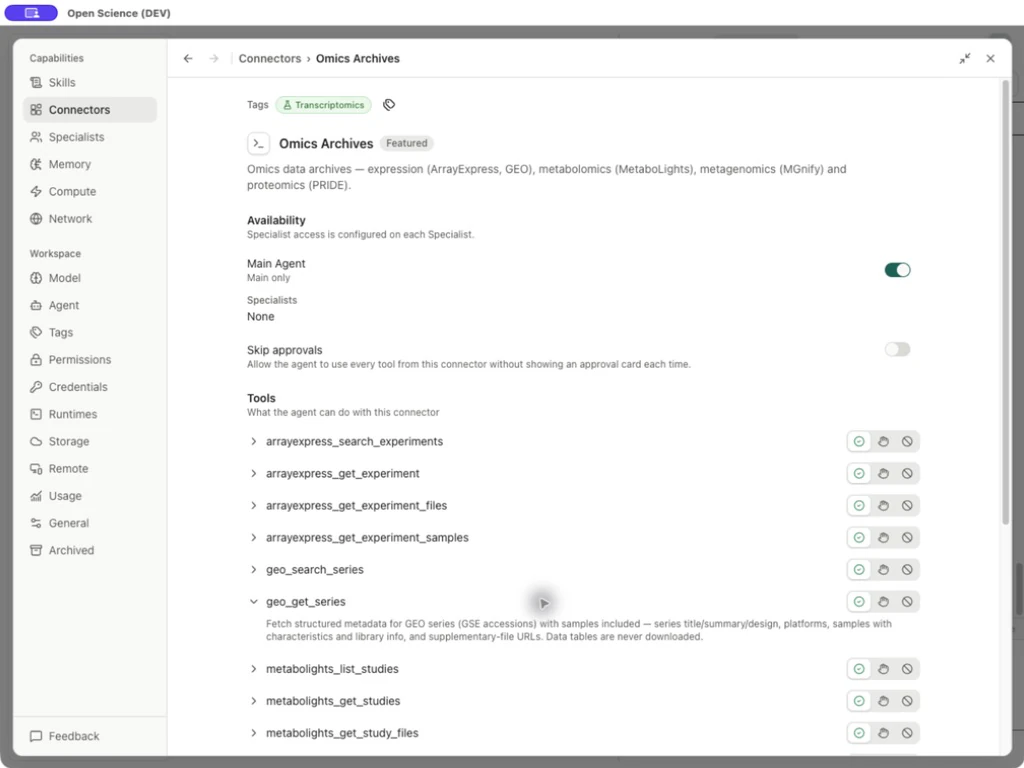
geo_get_series returns GEO series metadata, samples, platforms and supplementary-file URLs. Download the required data table from the returned source and attach it to your project before requesting a calculation.
Assign a tag such as Transcriptomics to a Connector, then find it under Settings → Tags. Tags organize resources without changing access or tool approval.
| State | What it establishes | Next check |
|---|---|---|
| Listed in Directory | The app knows a Connector definition | Read its actual tool descriptions |
| Used by | Agent availability | Confirm the intended agent and capability binding |
| Credential selected | A named binding exists | Test authentication against the intended service |
| Tool policy | Whether calls are allowed, requested or blocked | Inspect remembered permission precedence |
| Successful tool result | That particular call completed | Validate its returned identifiers/data and source |
Built-in Connector controls
Use Search connectors to find PubMed under Directory; the list also contains Featured and Custom groups. Filtering applies per group, so another group can say No connectors match your search while a matching result remains visible below.
Use Filter connectors by group, Filter Connectors by agent, and Filter by Tag together with search. Manage credentials opens the shared contact-email/credential settings. Used by shows availability; Manage Tags organizes a Connector. Use the resource’s Manage access control to review and adjust access for Main Agent and Specialists in one place.
Manage access for each agent
- Find a Connector under Settings → Connectors and choose its Manage access control.
- Review Main Agent and the listed Specialists. Search the role list when available. Change only the intended association; the role editor remains another way to manage its capability list.
- Reopen the popup and check Used by. A binding can remain assigned to a disabled Specialist; assigning it does not enable that role.
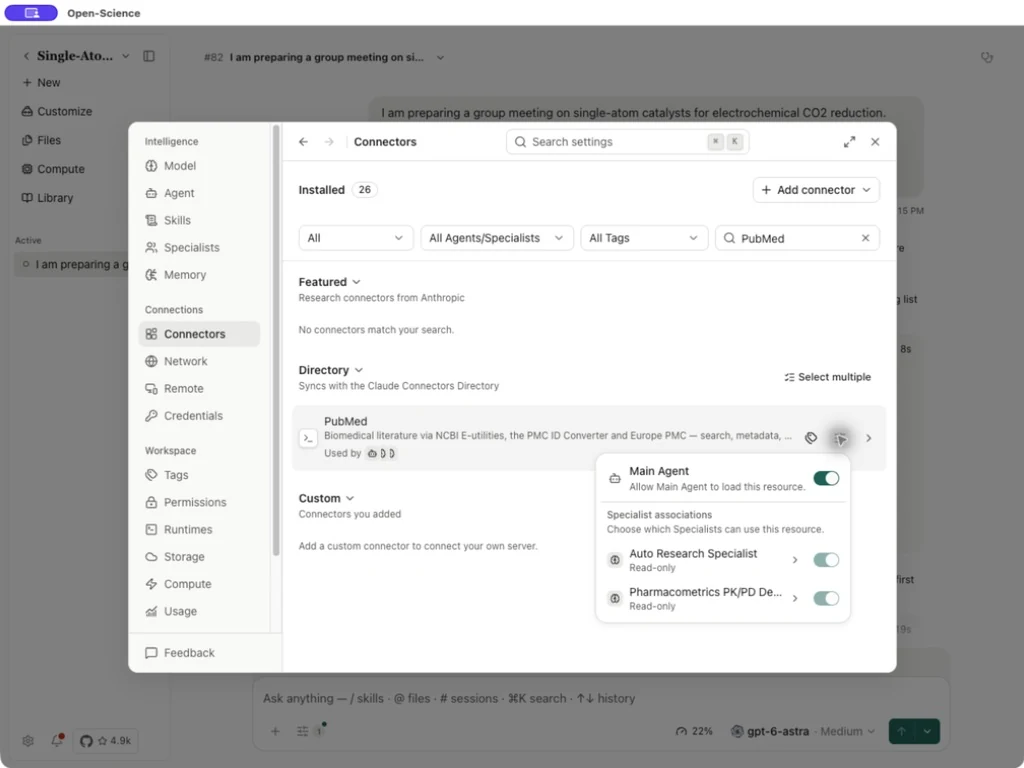
For a role with Full access, excluding this Connector creates a per-resource exception. A role with selected access uses its explicit list. Marketplace role bindings may be read-only here. Credentials, server readiness and operation approval are separate from these associations; assigning a Connector does not complete those steps.
Enable or disable several Connectors
Open Settings → Connectors, filter the list, choose Select multiple in the relevant group and select the intended Connectors. Review the selected count before enabling or disabling them, then check each returned state. Keep only the services needed for your work enabled. Bulk availability changes do not supply credentials, change per-tool approval policies or grant a Specialist access; configure those separately.
PubMed: availability, tools, and approval policy
- Search PubMed and open its detail.
- Expand search_articles to read its description. It returns a count and page of PMIDs and supports PubMed query tags, Boolean operators, dates, and sorting.
- Choose Require approval, Block or Always allow for the access you intend to permit. Require approval displays Ask when no Session, Project, or Global permission applies.
- Use Manage access to enable Main Agent for PubMed, then inspect Used by. Check each intended Specialist separately in the same popup.
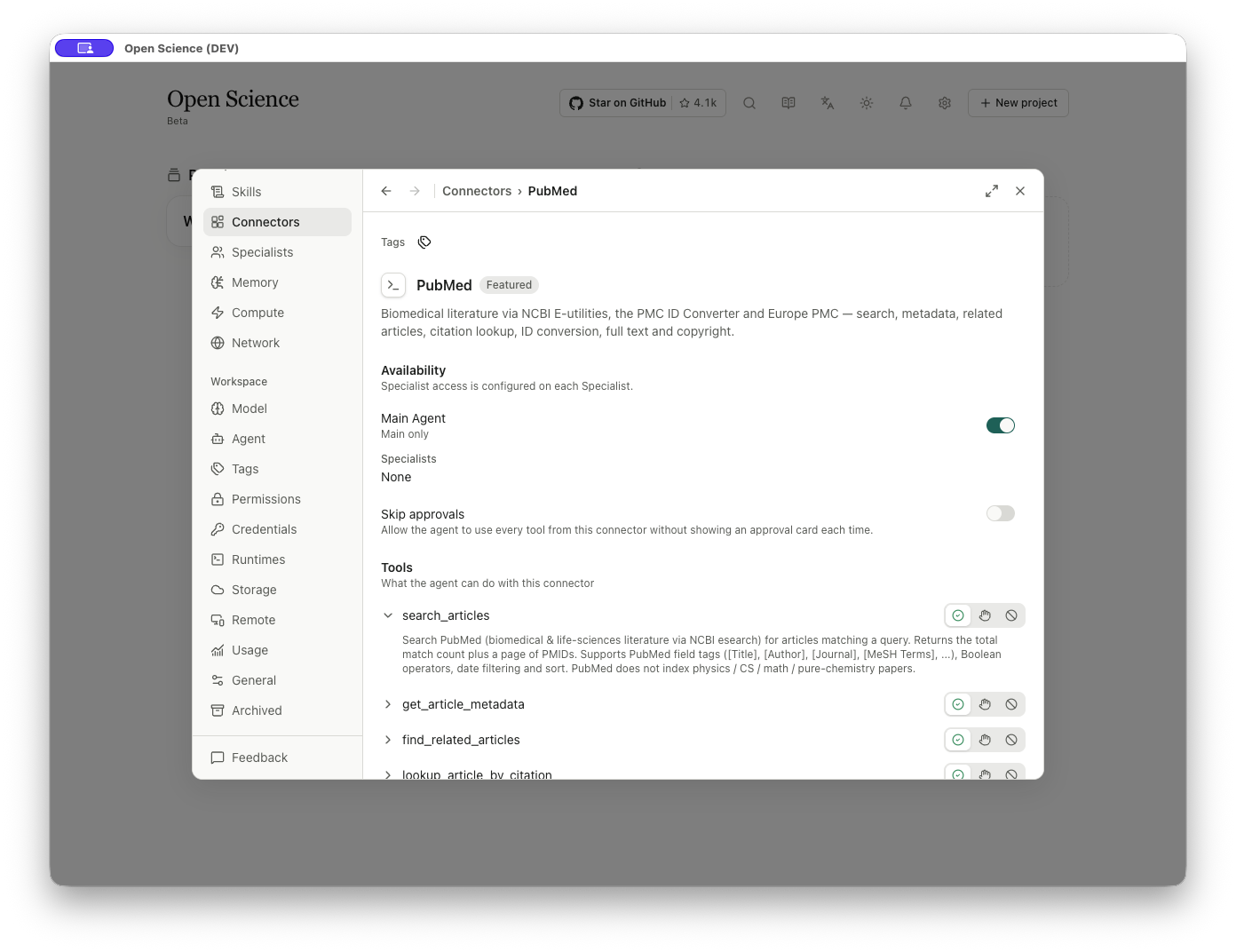
The detail lists search_articles, get_article_metadata, find_related_articles, lookup_article_by_citation, convert_article_ids, get_full_text_article and get_copyright_status. Choose Always allow, Require approval or Block per tool. Review the separate Connector-wide Skip approvals switch before enabling it. Opening a description only displays the tool's instructions.
The directory placed PubMed under Directory, while its detail displayed a Featured badge. Directory placement and badges do not indicate account connection status.
Run a small GEO metadata lookup
Run a small GEO metadata lookup
Worked example Look up GSE60450 sample metadata in GEO
- Return to the research session and confirm a working model and Omics Archives availability.
- Ask:
Use Omics Archives geo_get_series to retrieve GSE60450 metadata. Report the title, organism, sample count and source-identified sample characteristics. Do not download count tables or run a new expression analysis. - Inspect the requested Connector/method and arguments before permitting it. The tool expects an
accessionsarray; a guessed singular field is incorrect. - Review the actual result. For this accession, check the returned GSE60450, Mus musculus, 12 samples, and the title “Transcriptome analysis of luminal and basal cell subpopulations in the lactating versus pregnant mammary gland”.
- Keep the returned GSM identifiers with their characteristics. Do not infer a mapping to the matrix's MCL1 column names from resemblance alone.
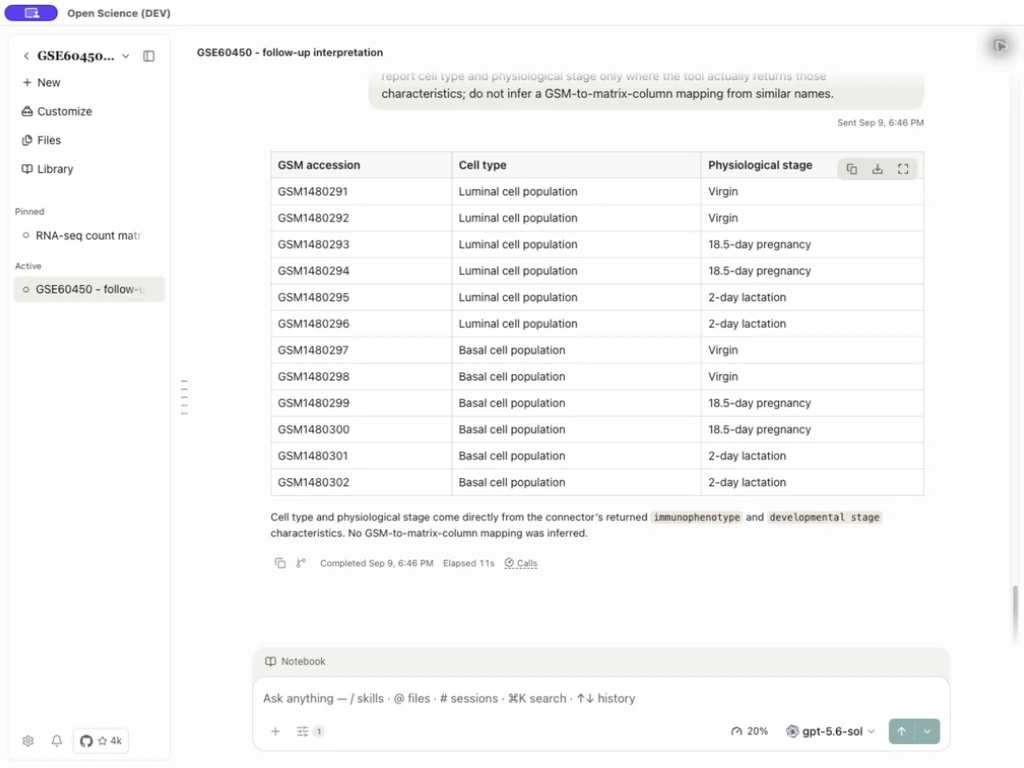
The returned sample range was GSM1480291–GSM1480302, covering luminal/basal populations and virgin, 18.5-day pregnancy and 2-day lactation stages. These are returned metadata, not labels inferred from the count totals. The full twelve-row response table was downloaded as geo-sample-metadata.csv. This is a conversation-table export, separate from the managed QC artifacts.
If the Connector instruction file cannot be read, retain its EPERM error and check the enabled Connector and current session. Confirm operation fields in Connector parameters before retrying. A valid metadata query returns structured records; it does not download the underlying source table or perform an analysis.
Add connector: shared identity fields
Add connector offers Local command, Remote server, and Import configuration. The first two open an editor with a type selector, and Advanced settings exposes additional fields. The screenshots use an illustrative endpoint; connect a server you actually intend to use.
| Field | Purpose |
|---|---|
| Connector type | Switch between a local process and a remote endpoint. |
| Display name | Name shown in the UI. |
| Advanced → Connector name | Callable name used by host.mcp, Specialist bindings, and the generated MCP Skill; generated from the display name where possible. |
| Connector ID | Optional stable ID, generated where possible. Editable before creation, immutable afterward. |
| Description | Optional explanation of the data/actions provided. |
| I trust this connector | Required trust acknowledgment before adding a custom Connector. It does not validate the service or make its code safe. |
| Cancel / Back to connectors | Leave the form. It does not save the draft. |
| Add connector / Add and sign in | Save the valid configuration and, for OAuth, start sign-in. The button remains disabled while required fields, bindings, or trust are missing. |
Local command
Command offers npx — Node package, uvx — Python (uv), node — script file, python3 — script file, docker — container, and Other…. Other exposes Custom command for an absolute executable path.
| Advanced input | Operation |
|---|---|
| Arguments | One argument per line; spaces and blank lines are preserved. Clear the field to remove all arguments. Do not assume a space-separated shell command is parsed into multiple arguments. |
| Variable name | Name an environment variable, then select/create its Credential. |
| Add variable / Remove variable | Add or remove a named binding. |
| Fields / Text | Enter names as structured rows or one KEY= per line; secret values live in Credentials. |
| Command preview | Inspect the launcher shown after the bindings. |
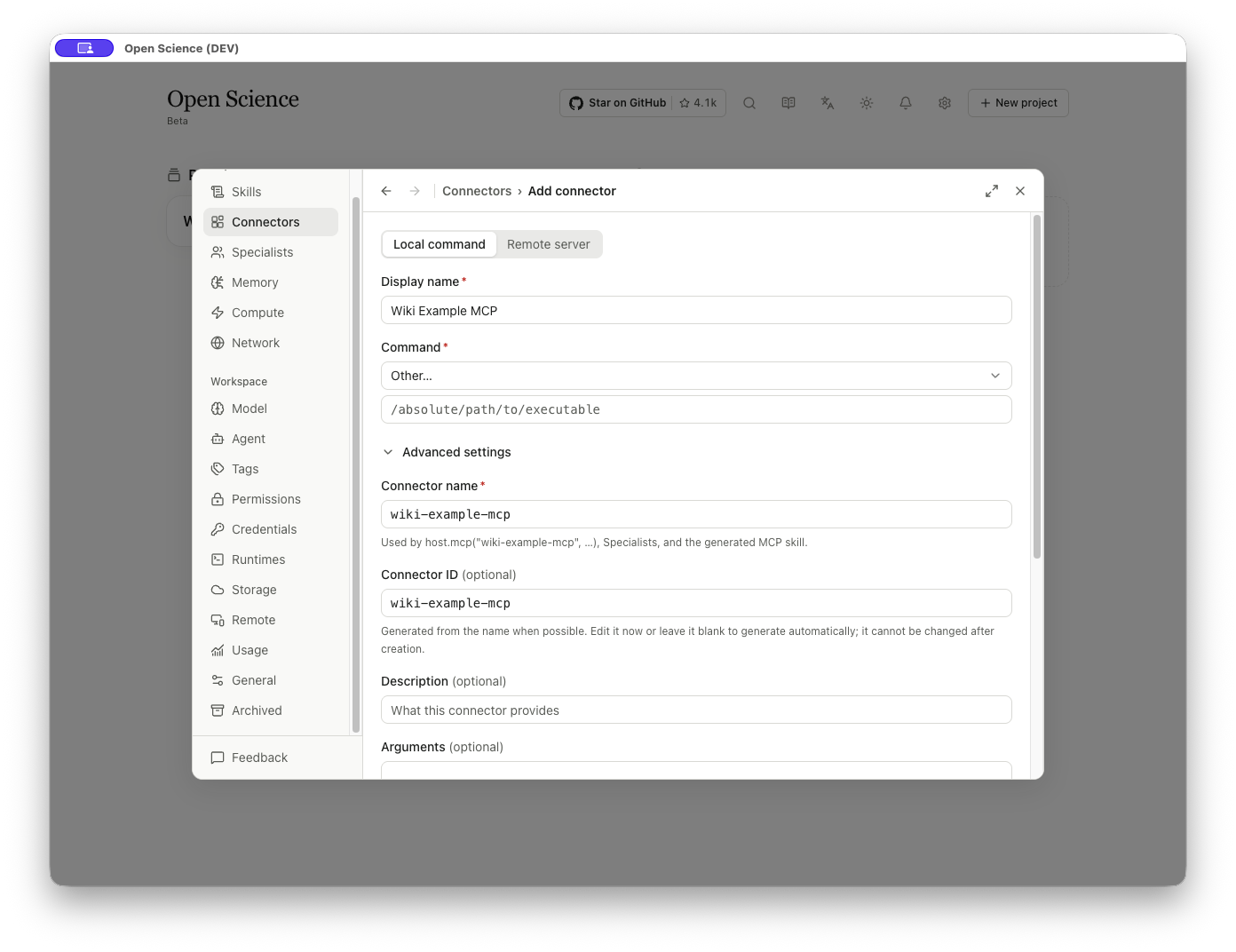
A launcher entry alone does not prove that its executable or service is operational. Use the invocation below to check the imported local command.
Remote server
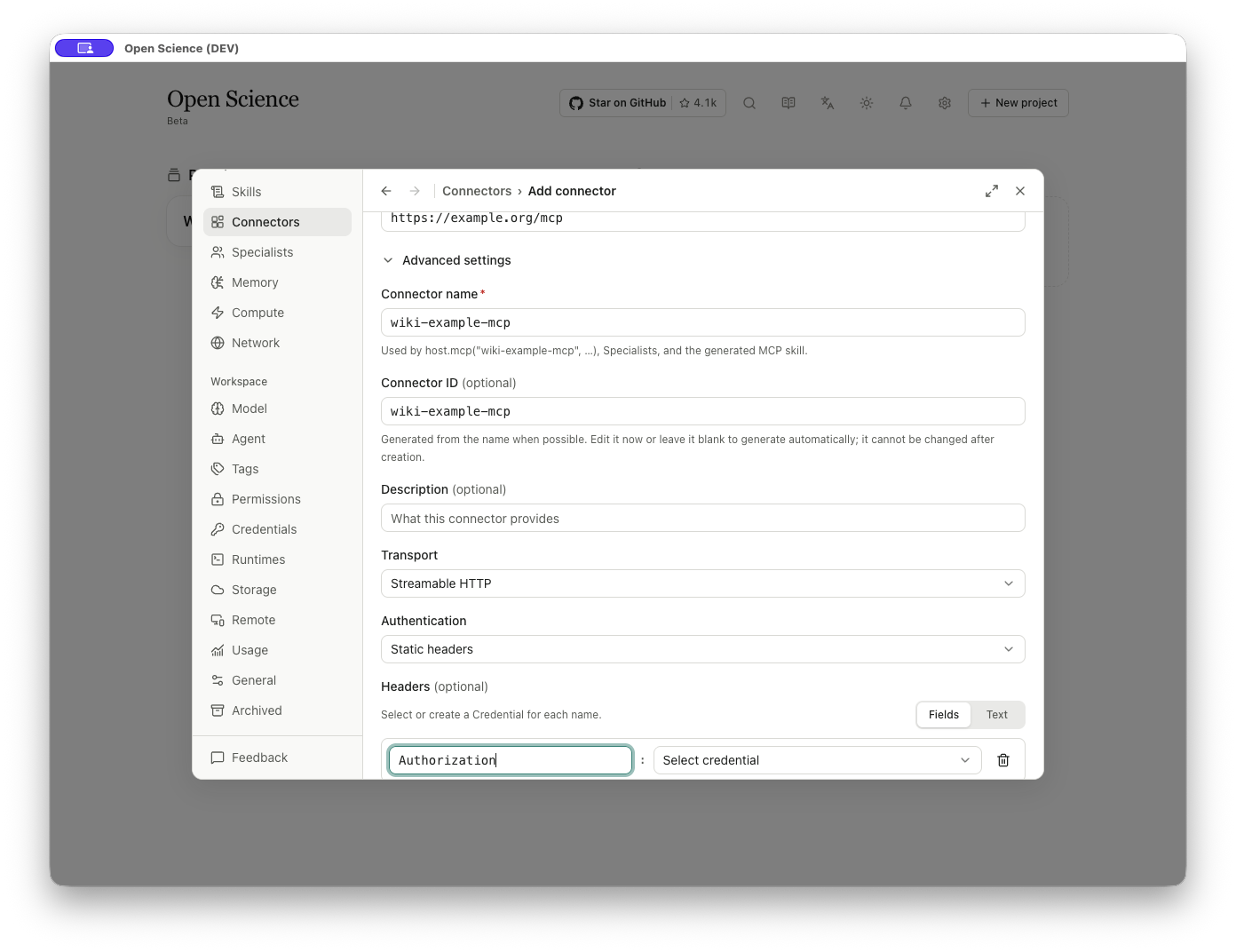
Enter the real Server URL supplied by the server operator. https://example.org/mcp in these screenshots is an illustrative reserved-domain address, not a working MCP endpoint.
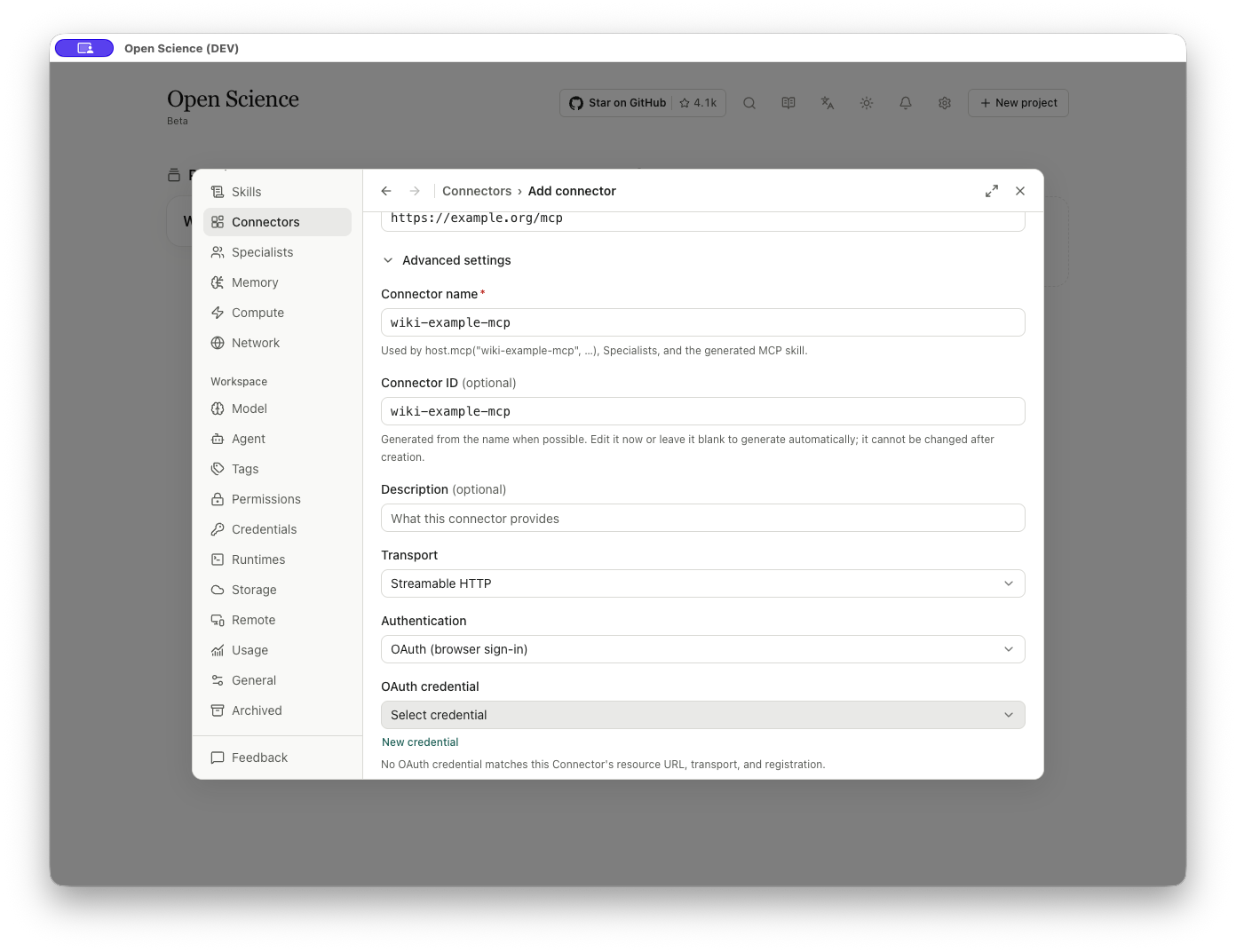
Advanced → Transport defaults to Streamable HTTP. Authentication offers None, OAuth (browser sign-in), and Static headers.
Static headers
The current editor binds named credentials; it is not a plain secret-value text area.
- Choose Static headers.
- Enter a Header name, such as
Authorization. - Select or create the corresponding Credential. The selector is disabled until the header has a name.
- Use Add header for another row or Remove header to discard a row.
- Fields / Text changes how names are entered. Text mode expects one header name per line as
Name:; credential values are managed separately.
OAuth binding
Choose an OAuth credential matching the resource URL, transport, and registration. New credential opens the credential editor. In this empty profile, the form reported No OAuth credential matches this Connector's resource URL, transport, and registration. The final action changes to Add and sign in.
Import, export, and connection tests
Choose Add connector → Import configuration and select one JSON file up to 256 KB. The importer accepts an Open-Science Connector configuration or an MCP client file containing mcpServers.
- For a multi-server file, choose an entry in MCP server. You review and add one server at a time. Check its name, ID, transport and command arguments after switching entries.
- Read the diagnostics. Absolute paths may need changing on another computer; credential values are excluded from import.
- Choose Use configuration to open the prefilled editor. Review every field, bind the required local credentials and select I trust this connector.
- Choose Add connector, inspect connection state in the list, then invoke a small read-only tool.
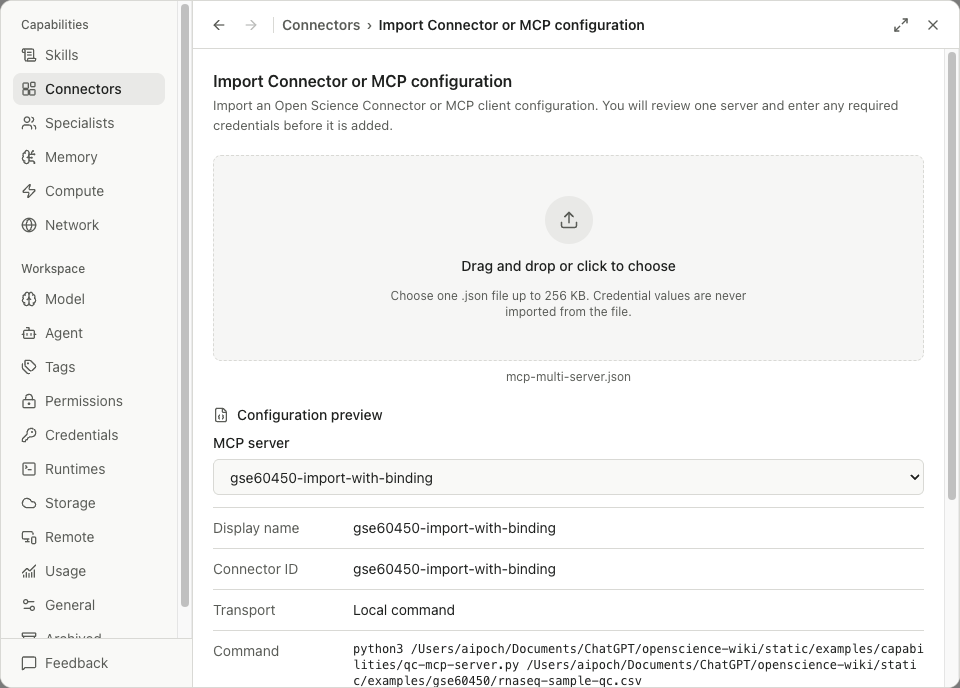
When an imported server references an environment variable such as QC_EXAMPLE_TOKEN, bind that name to a credential stored on this device. Add remains unavailable until required bindings are complete. After adding, check Connected and execute the intended tool; a saved binding alone does not validate remote authentication.
Call get_dataset_summary, then pass one returned full sample ID to get_sample_qc. Compare the response with the QC baseline. This server returns saved summary values; it does not recompute the original matrix. Server implementation is covered in Create a custom tool.
Export and reimport
Choose the row's Actions → Export, select Open Science Connector or MCP client config, inspect the preview, and choose Save configuration.
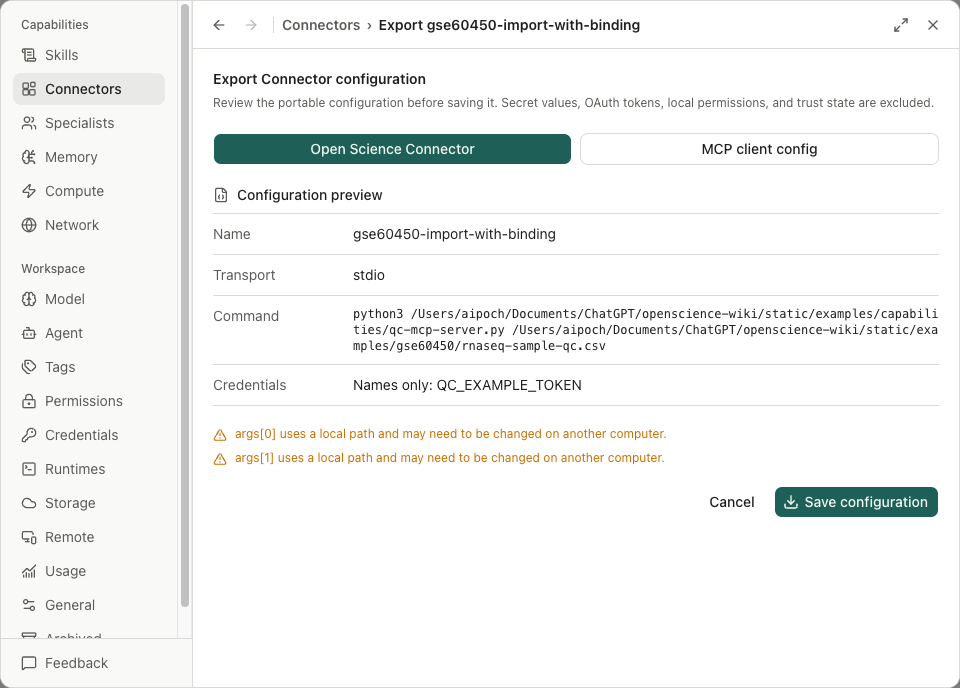
The actual exported file retained the variable name in required_secrets.environment. It contained no demonstration credential value, local trust or permissions. Reimport requires local credential selection and trust again.
When the same ID already exists, the preview reports A custom Connector with ID … is already installed, and Use configuration is unavailable. Use Edit to change an existing connection; import is not an overwrite operation.
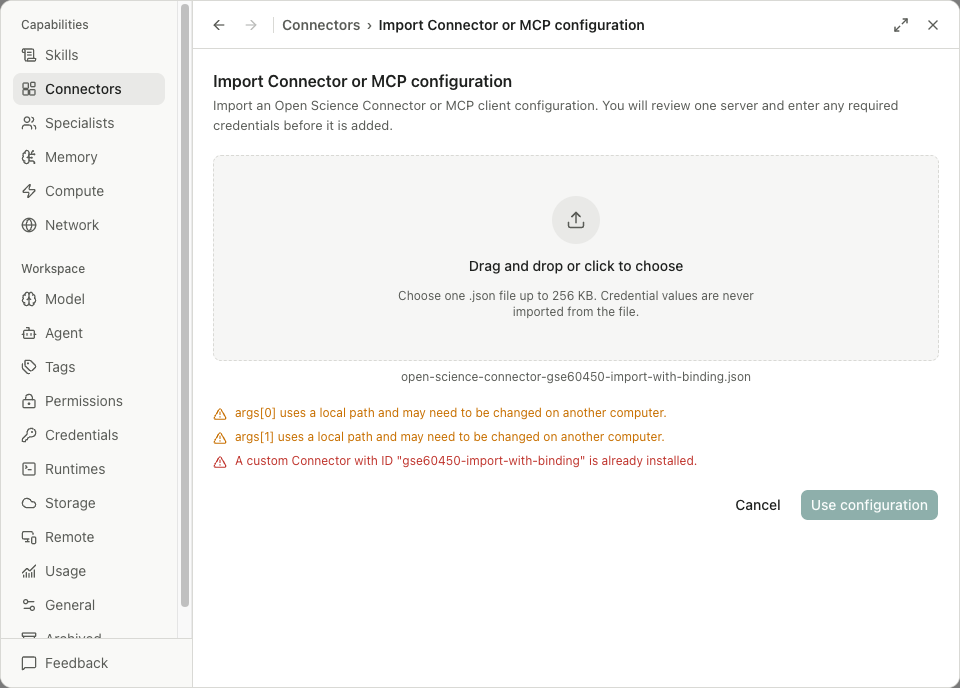
When restoring an exported connection, inspect the prefilled fields and bind the required named credentials again. Complete trust and test a bounded call before using it in research. Import does not overwrite an existing Connector with the same ID.
Credentials: services and reusable secrets
Create and manage secrets in Service credentials, then select their names in environment, header or OAuth bindings. On a new device, restore these bindings and complete that service's sign-in before testing the connection. Exports contain configuration references, not usable secrets or local trust.
HTTP error lookup
For 400, 401, 403, 404, 429 or 5xx responses, use the HTTP troubleshooting table. Keep the responding service and its detailed message with the status code.
Reconnect after an OAuth credential error
For a custom OAuth Connector, open its settings and use the offered authorization flow again if the saved credential is rejected. Credentials are bound to the authorization server that issued them; changing a server address is not a way to reuse a token issued elsewhere. Keep unsaved form changes until the save finishes, then test the connection and retry the intended query. A successful connection test does not establish that the query returned data.