Python and R runtimes
Open Settings → Runtimes to select the Python and R environments available to notebooks and the Agent. An environment's Ready status indicates successful detection/setup; its Enable switch separately controls availability to the Agent.
Choose an app-managed environment or an existing interpreter. Inspect its path, version, Ready state and Enable switch before use. System R and app-managed R can coexist.
Choose an environment for your project
Record the interpreter name, path and version. For a first Python analysis, prefer the isolated app-managed environment so package changes do not alter an unrelated research environment. Inspect Packages for required libraries before requesting installation. A successful package listing is a read-only check; it does not grant the agent permission to modify an external interpreter.
After an execution failure, distinguish an unavailable interpreter, a missing package, a denied request and a code error. Reinstallation is appropriate for a broken managed runtime, not for every failed analysis. If you need to reproduce a result, retain the input version and the code together with the runtime details.
Understand the main controls
| Control | Purpose and boundary |
|---|---|
| Recheck | Refresh discovered interpreters and their status. The panel shows the last-check time. Unavailable during conflicting setup work. |
| Network settings | Open configuration for Notebook network protection. The banner explains whether sessions and package downloads are restricted to approved domains. |
| Let the Agent create environments | Control whether the Agent may create environments and set up missing runtimes. Turning this off does not remove explicit user setup or repair controls. |
| Add interpreter… | Open the system executable picker for an existing interpreter. Select the actual executable, then confirm its detected path and Ready status. |
| Download and set up | Prepare an app-managed environment when it is missing. |
| Cancel during setup | Request cancellation of the running setup. Wait for the operation to settle before starting another one. |
| Retry setup | Reattempt an unsuccessful setup after resolving its cause. |
| Enable [environment] | Make the environment available for agent selection. Disabling an in-use environment can require an impact confirmation. |
| Allow package install | Separate consent for an enabled external Python or R environment. R consent is limited to a selected personal library. Listing packages does not require installation consent. |
| Packages [count] | Open the installed-package inventory for that interpreter. |
| Reinstall | Open confirmation before rebuilding an app-managed environment. |
Install an app-managed environment
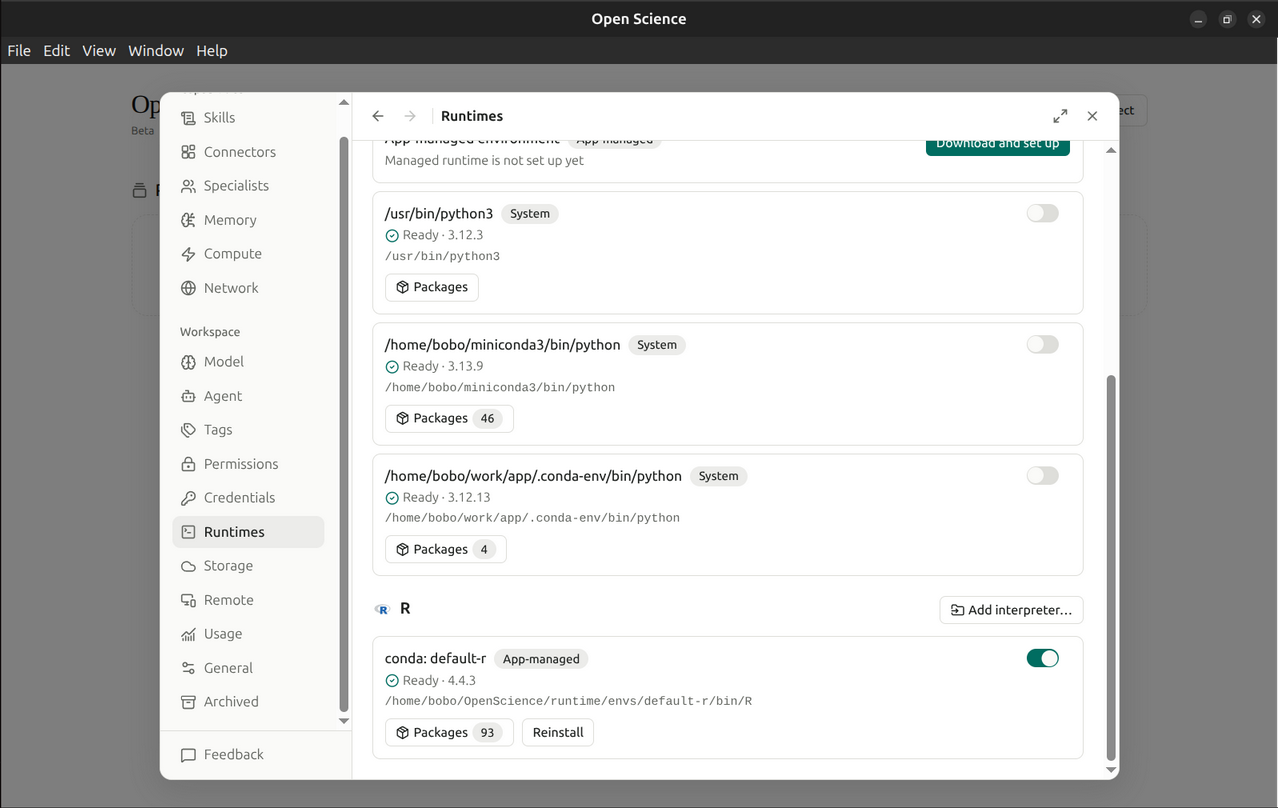
Check both language cards in Settings → Runtimes. Each has its own Ready status, version, Enable switch and Packages button. The cards below show Python and R enabled; the warning above them concerns Notebook network protection, which is configured separately. Personal paths are hidden in these screenshots; inspect the complete paths on your own computer.
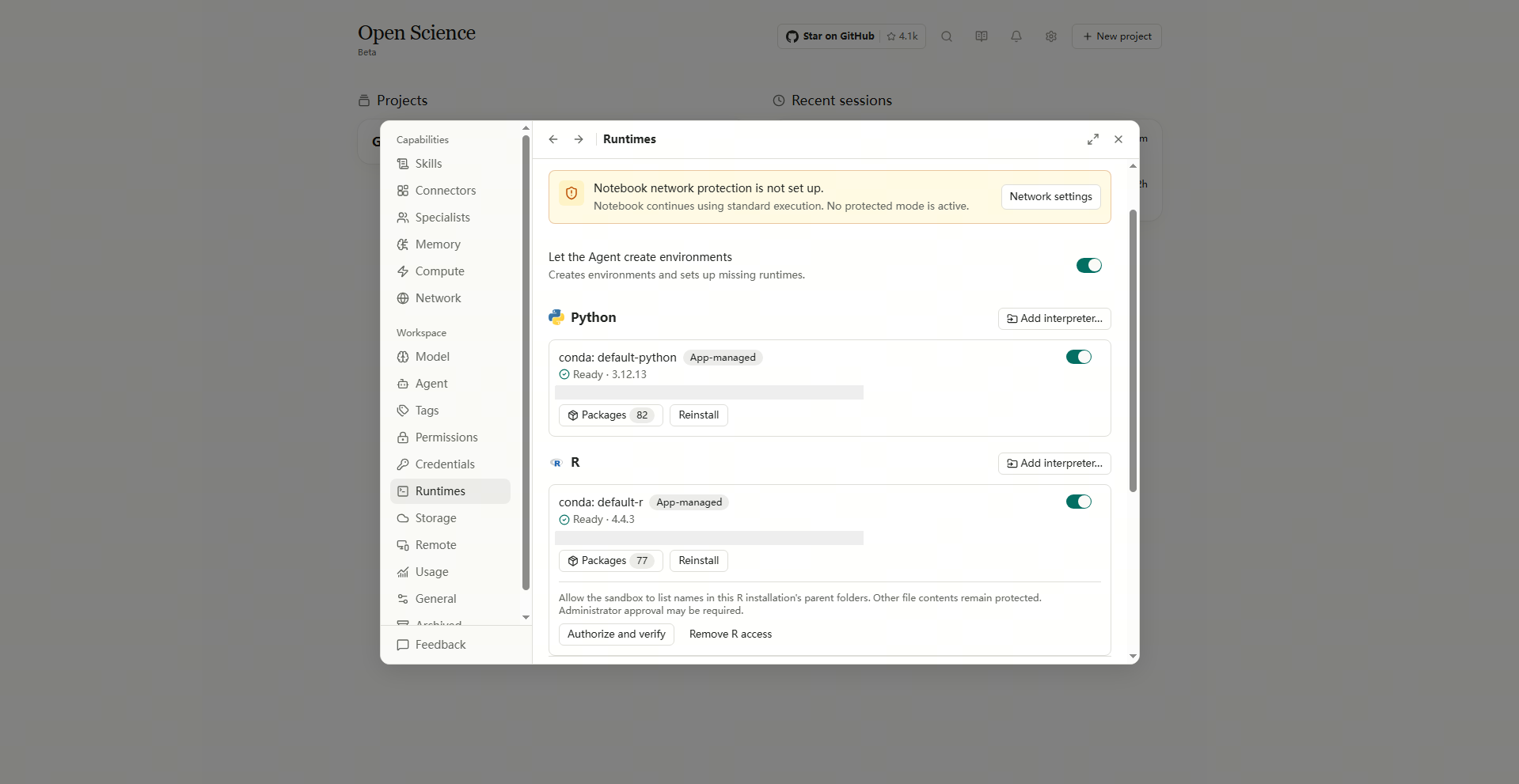
Install app-managed Python
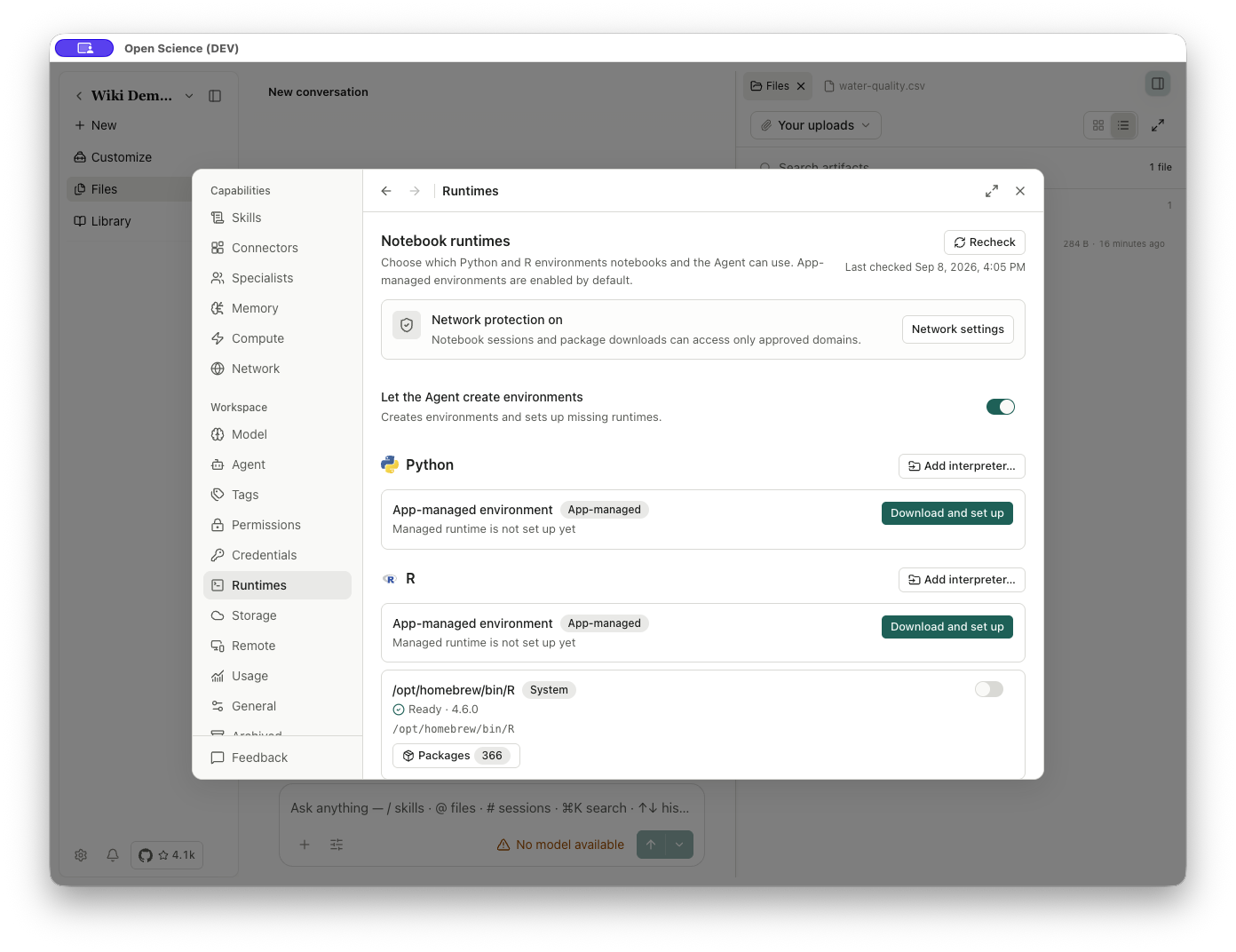
- Find Python → App-managed environment.
- Select Download and set up.
- Read the progress message and wait. Cancel becomes available while setup is running.
- On success, confirm conda: default-python, App-managed, and Ready.
- Check the interpreter path and the Enable conda: default-python switch.
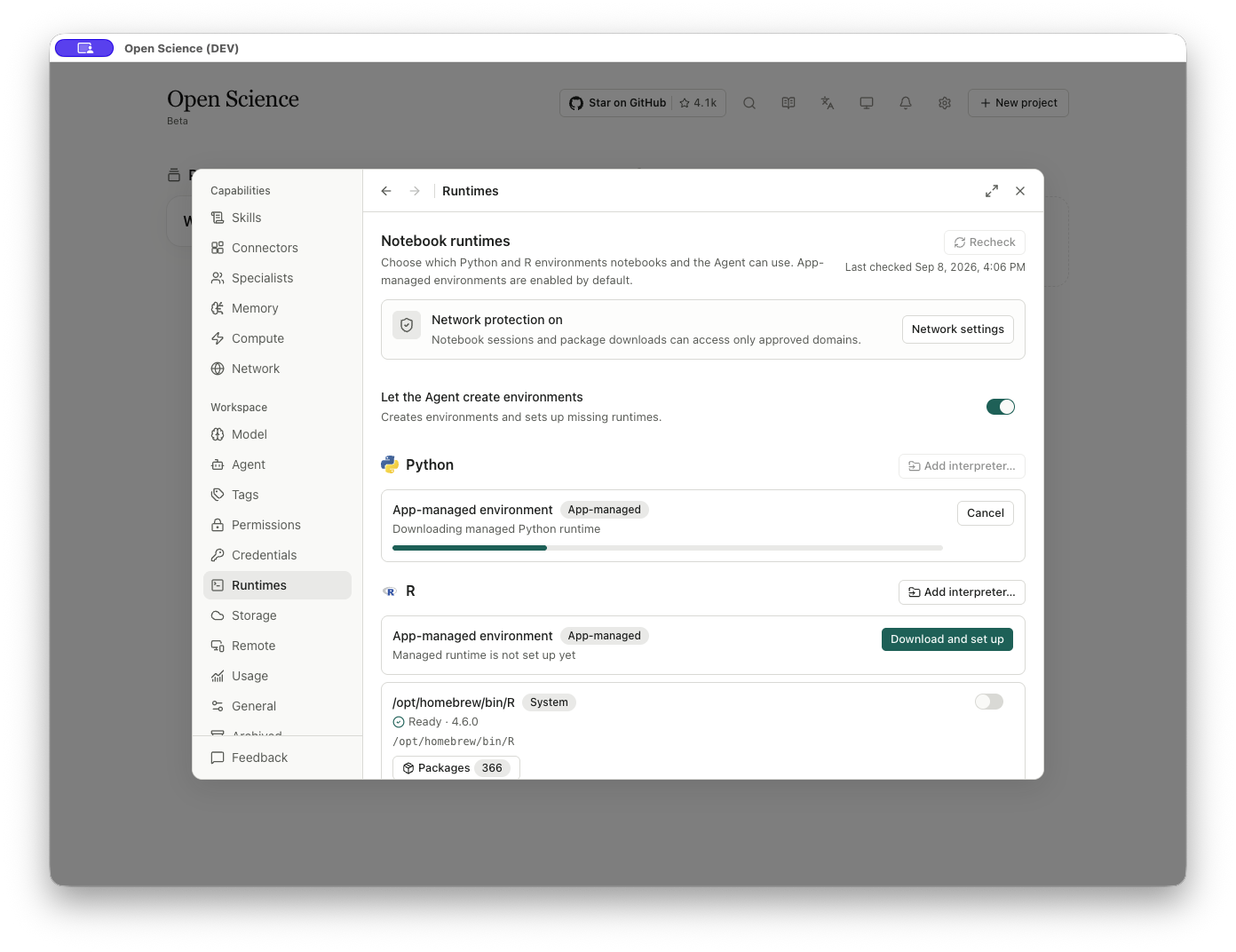
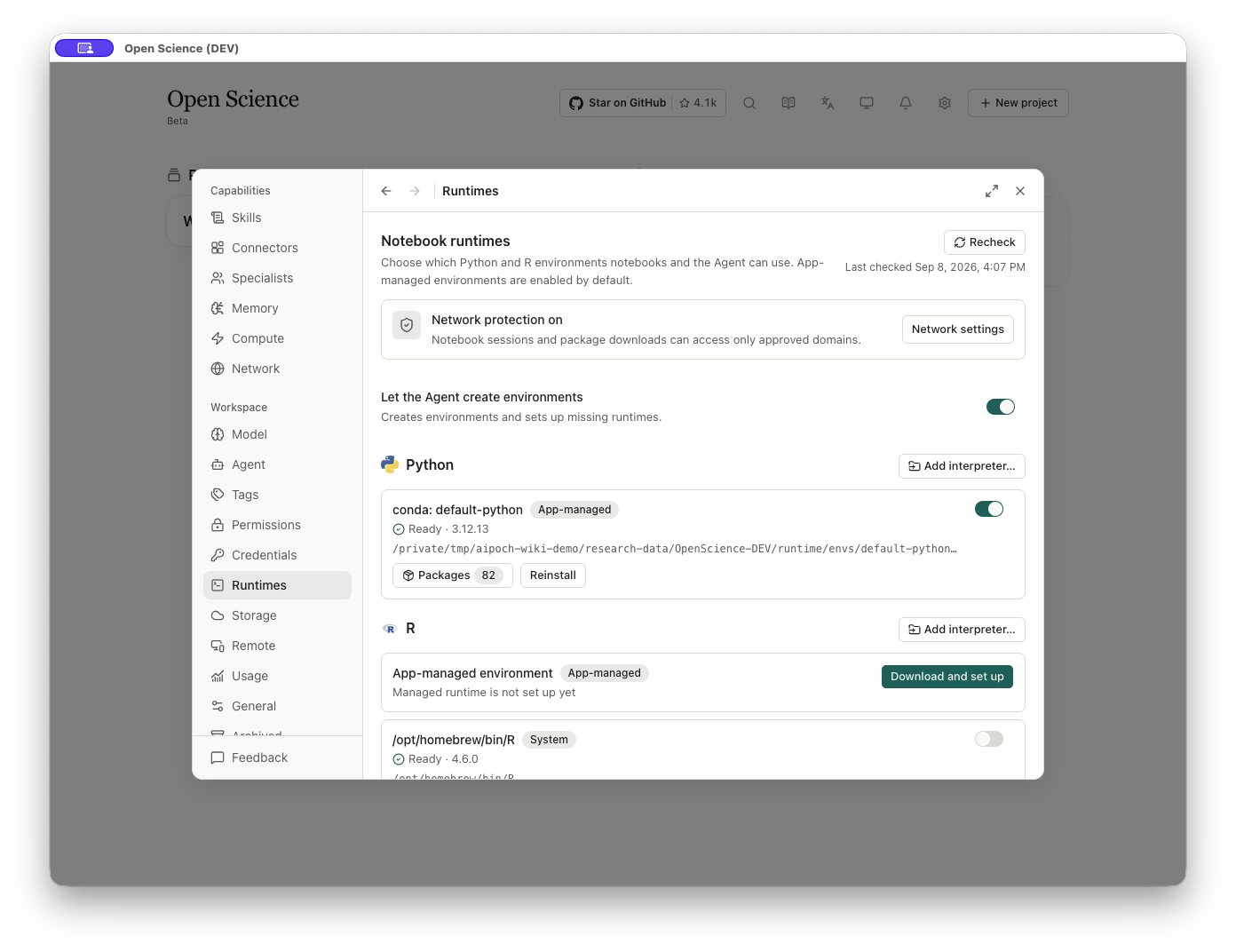
Confirm Ready, the selected interpreter path and the enabled state. Package counts and versions can vary with the installation source; do not use the screenshot’s temporary path as a permanent environment location.
Install app-managed R
- Open Settings → Runtimes and scroll to R.
- Under App-managed environment, select Download and set up. An existing system R does not prevent you from installing this separate environment.
- Wait for download and environment creation to finish. Keep the application open and read any error before retrying.
- Confirm conda: default-r, App-managed, Ready, and an enabled switch.
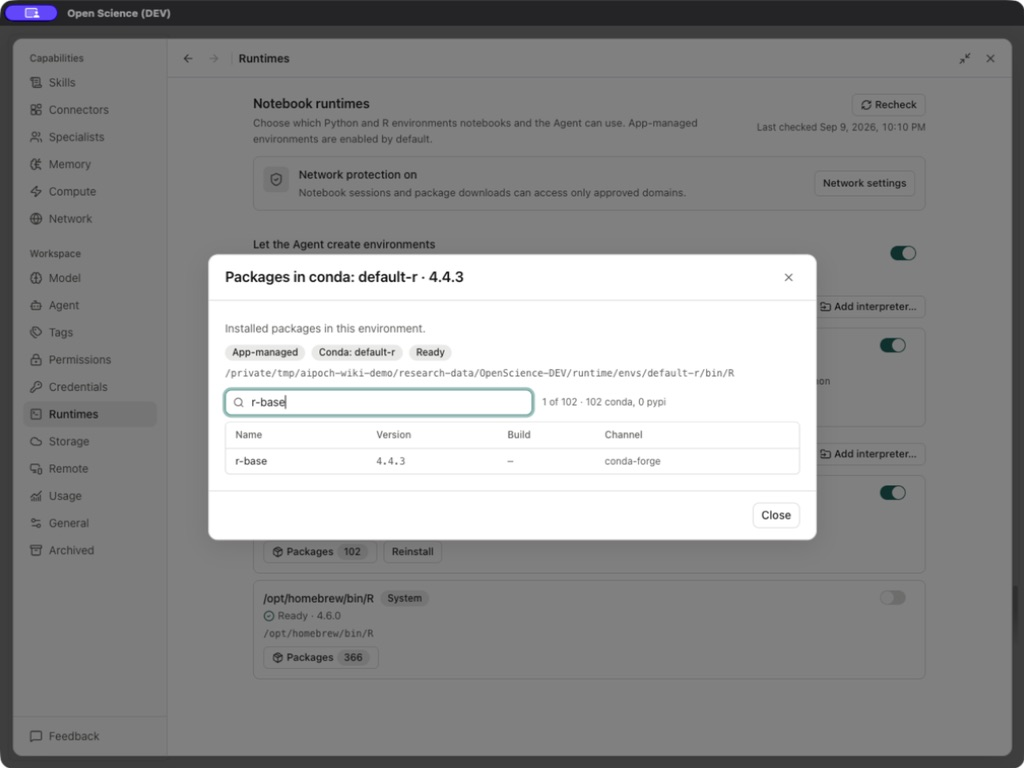
- Open Packages. Enter
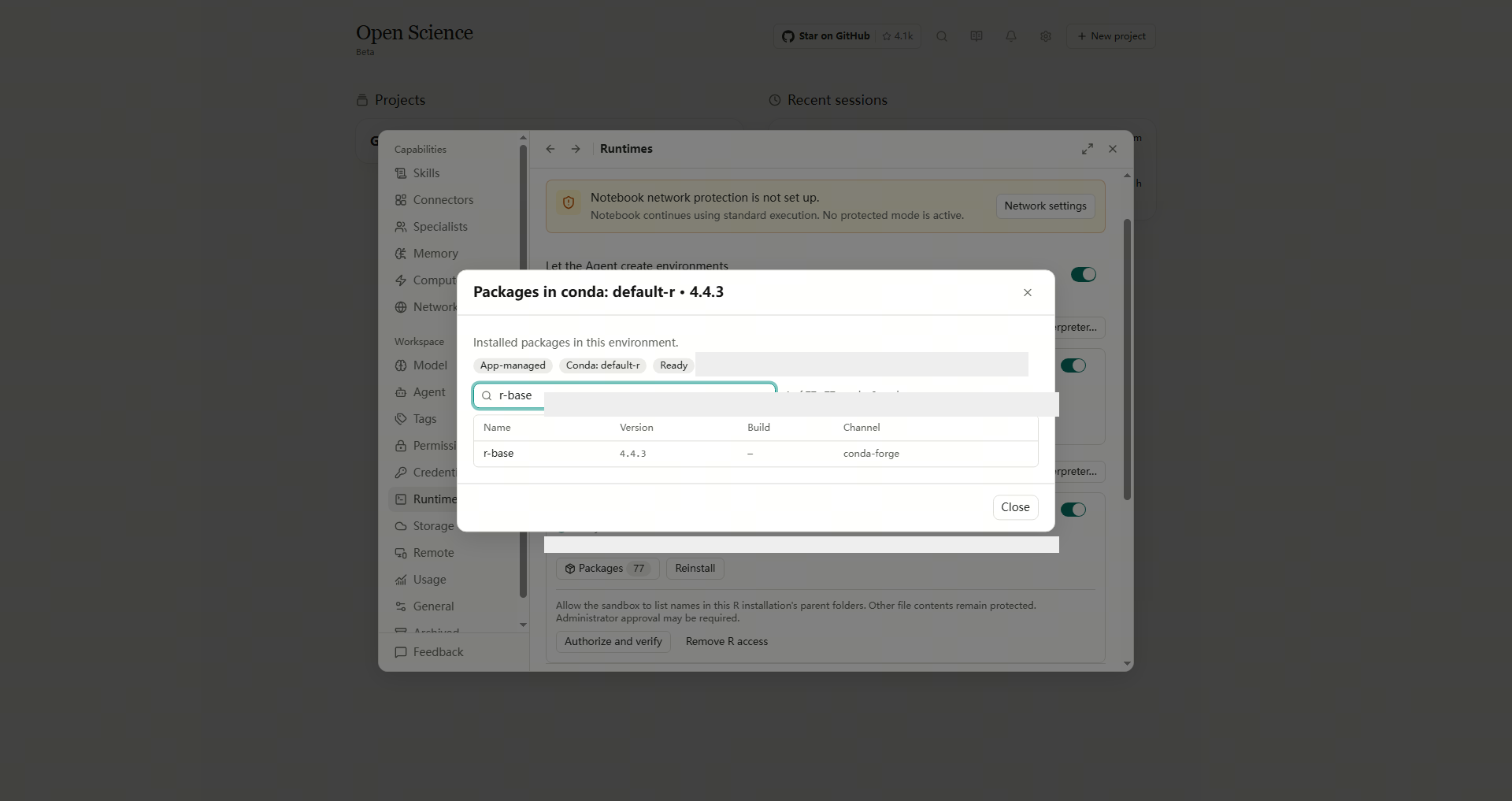
r-basein Filter packages to check the installed R version and channel; clear the filter to see all packages.
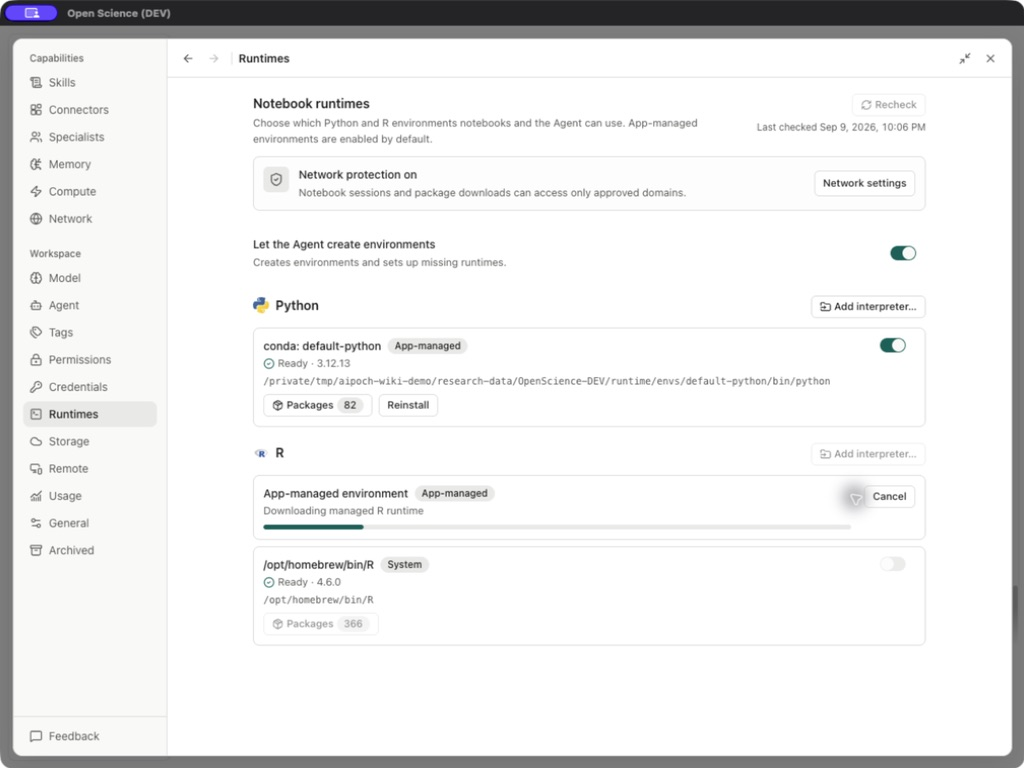
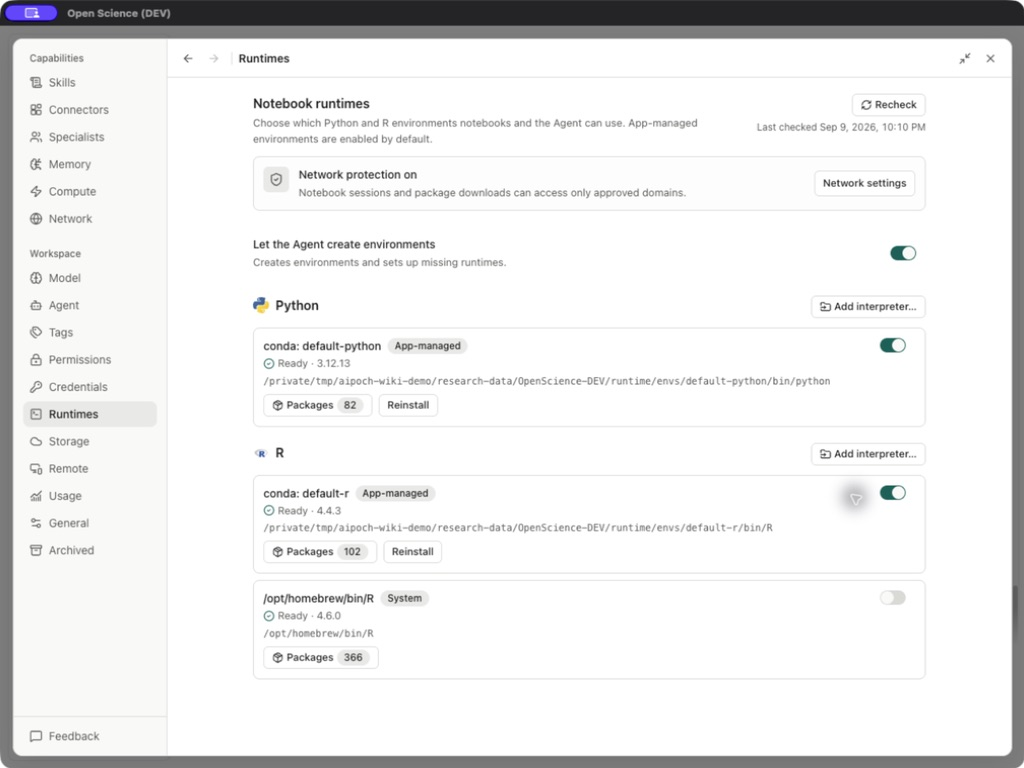
Confirm that filtering r-base returns the installed R package, with its version and channel. Package totals reflect your environment and may differ from the screenshot.
Connect an existing interpreter
Use Add interpreter… under the intended language to open the Windows file picker. Select the installed environment's actual python.exe or R.exe, then choose Open. For a path containing spaces, use the file picker or its File name field. Back in Runtimes, check the detected path and version, select Recheck, and enable that environment. An open picker alone does not mean an interpreter has been added.
Use R already installed on your computer
Select Recheck and inspect the detected R path and version. If your interpreter is absent, use Add interpreter… to select its executable. Ready and Enable have different meanings: detection confirms that the interpreter is available; enabling makes it selectable by the Agent.
In an R Notebook, check R.home() to confirm the environment in use. To install dependencies, authorize a personal library using the external R installation steps.
A detected path such as /opt/homebrew/bin/R identifies a system installation.
Register and use external Python
A system interpreter such as /usr/bin/python3 may already appear as Ready. Enable the environment you intend to use before asking the Agent to select it. The detected Python interpreters below are disabled, and the app-managed Python environment has not been set up. To prepare a managed environment, use Download and set up.
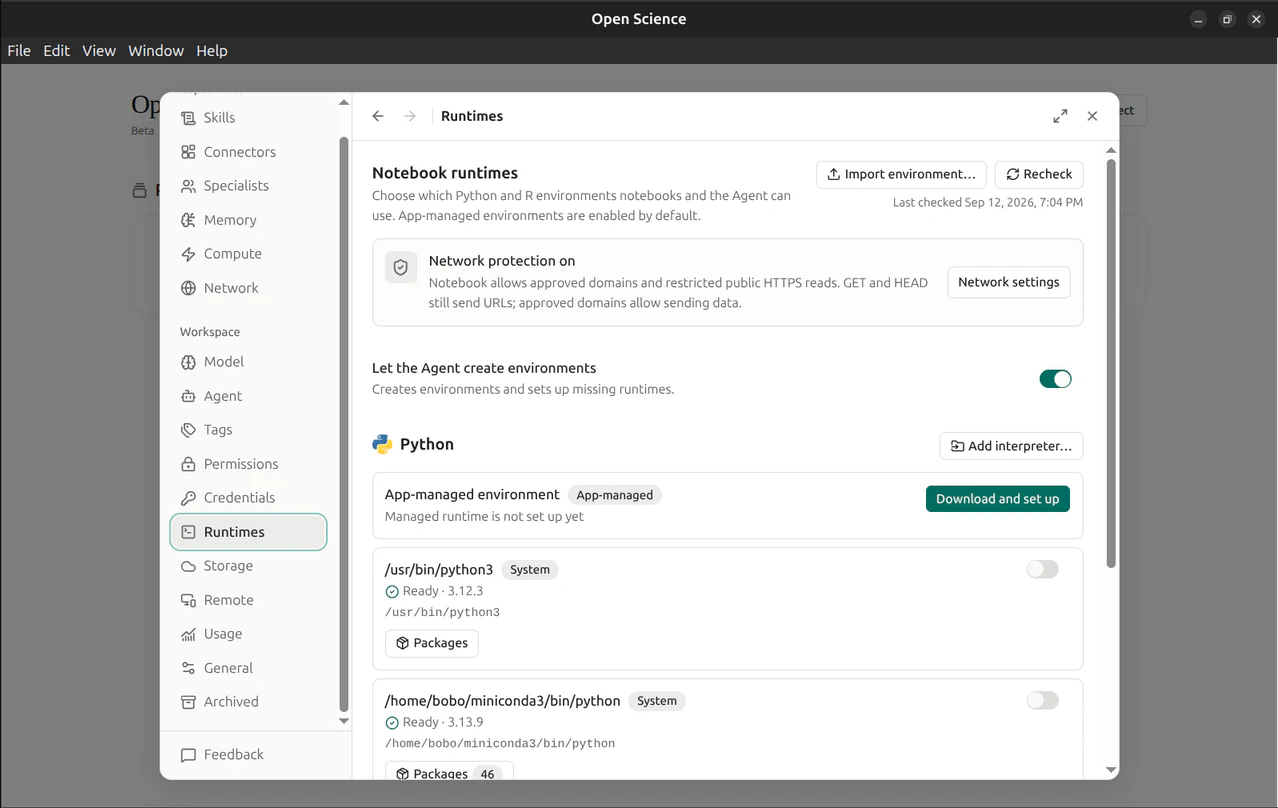
- Prepare the Python environment you intend to use.
- Select Add interpreter…, choose its Python executable, and check Ready, the path and version.
- Use Recheck to verify detection, then enable that specific environment.
- Ask the Agent to select it explicitly for the Notebook.
- Print
sys.executableand the Python version before relying on its installed libraries.
If a symlink interpreter cannot be selected in the macOS file picker, select the actual executable of the intended environment. Confirm sys.executable after binding it. Use a stable installation path rather than the screenshot’s temporary example path.
Package permission and installation outcome
For a new package in an external Python environment, check Allow package install first. After granting permission, wait for installation to finish and verify the import in the same environment before continuing.
If installation reports 403 Forbidden or destination resolves to a non-public network address, inspect the affected hostname and follow Network before retrying. These errors concern network access and do not prove that the package is unavailable. Keep network protection enabled.
Disable an environment used by a Notebook
Select its Enable switch and read the active/idle kernel counts before confirming. Disabling can close the kernel; after re-enabling, select an available runtime for the session again. This panel provides enable/disable controls rather than a separate Remove interpreter action.
Install packages in external R
Use this when your existing R interpreter works but needs an additional package. The app grants installation access to one existing personal library, not to system or site libraries.
- In Settings → Runtimes, enable the intended external R environment and confirm its path/version.
- Under Personal R package library, inspect the detected location or select an eligible library. If none is detected, use Advanced options → Choose library folder… to select an existing writable personal library visible to that R interpreter. This action does not create a folder.
- Enable Allow package install. Read the selected path before authorizing: other projects using this library may see the installed package changes.
- Request the required package through the app’s package-management operation, naming this R environment. Follow the installation result and any kernel-restart instruction.
- Run
R.home(),.libPaths(),library(PACKAGE_NAME)andpackageVersion("PACKAGE_NAME")in that environment, replacing the package placeholder. Confirm that the intended library is used before continuing the analysis.
Turn off Allow package install to revoke future installation consent. It does not uninstall packages already written. Revoke consent before choosing another library. If no eligible folder exists, prepare a personal R library outside the app or use an app-managed environment; do not choose the system library to bypass a failed check.
Restore packages from captured locks
For a saved result, open Provenance → Environment and inspect the captured lock. Use Download bundle when offered. Read the bundle’s instructions and prerequisites before restoring anything.
External R requires an available renv installation and a supported renv.lock; external Python needs an existing supported requirements lock with pinned hashes. An interpreter path and a list of package names alone are not sufficient. The captured interpreter, platform, architecture and package-manager requirements must match the restore environment.
Extract the bundle, choose a new writable destination that you own, and run its included restore-packages.py with the actual interpreter and destination paths, following the bundled instructions. The script checks prerequisites and checksums before restoring packages, then checks their effective versions and paths. If a check fails, resolve that condition instead of editing the lock to force success. Open-Science does not adopt or delete this external destination.
This is conditional package restoration, not a full environment clone. Reopen the result and use Reproducibility when a supported captured recipe is available to compare outputs.
Inspect installed packages
Select Packages on the intended Python card. The dialog shows that environment’s path, package source and status.
Enter a package name such as numpy in Filter packages, inspect its version and channel, then clear the filter to restore the list. Use Close to return.
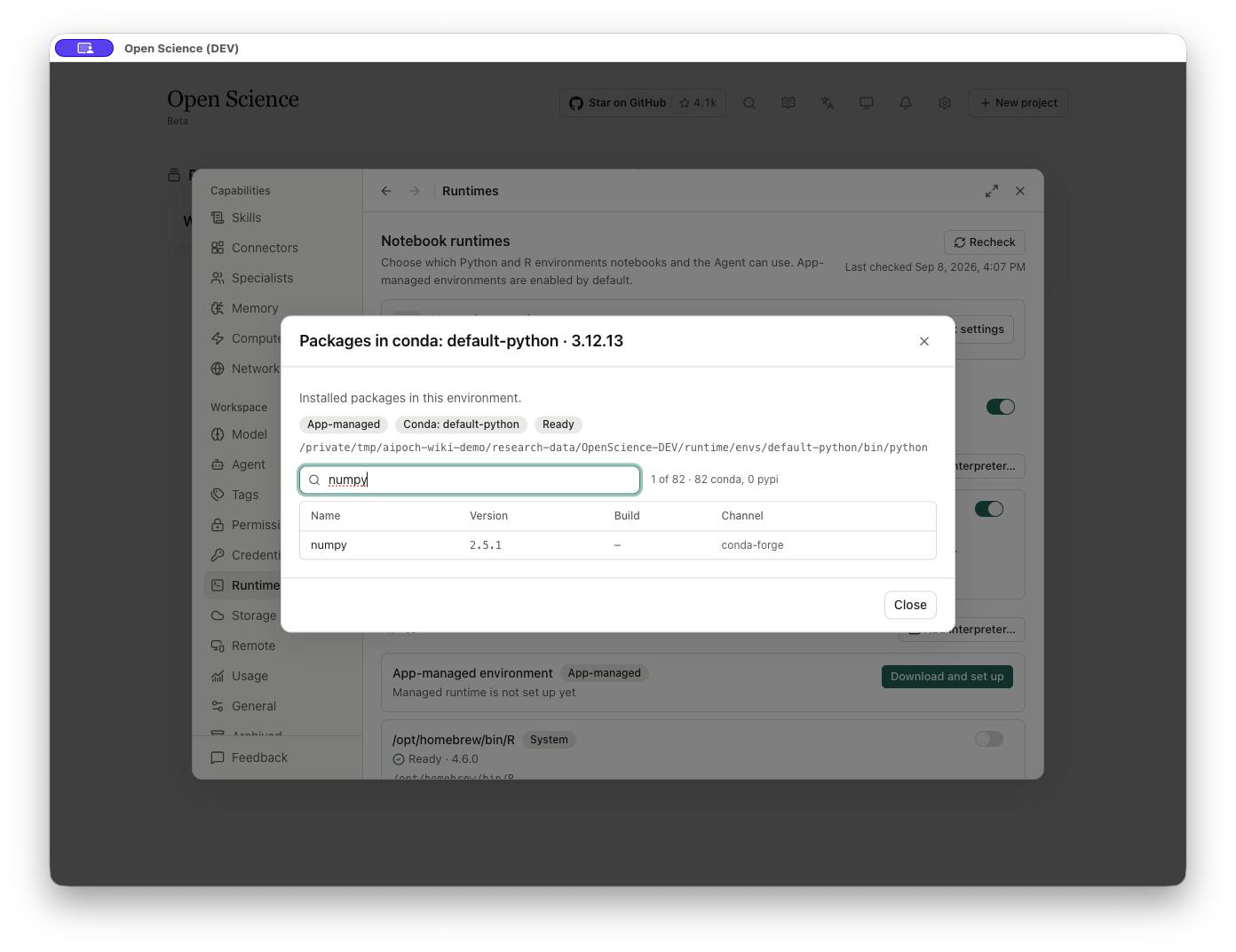
The table columns are Name, Version, Build, and Channel. A dash in Build means no build value is shown. This dialog is an inventory: it has no package-install or uninstall buttons. Do not look for an “Install package” field inside this dialog.
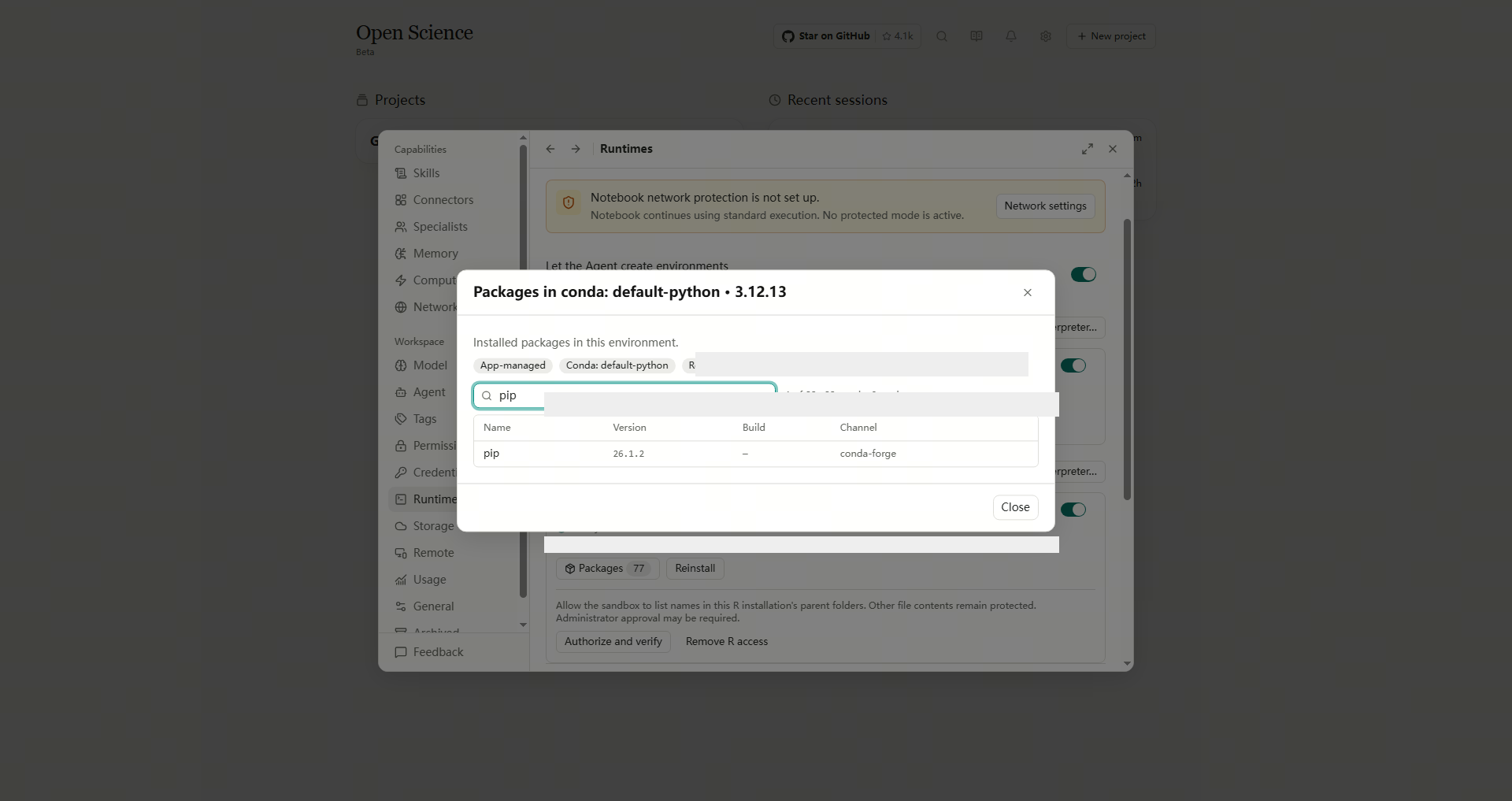
On the Python card, select Packages and filter for pip. On the R card, filter for r-base. Check the environment named in the dialog title before comparing versions. These screenshots show installed packages; they do not show a new package installation.
Verify the environment with a real analysis
Run a small calculation in the chosen environment, reopen its output and compare it with the shared baseline. Follow R Notebook for execution and export.
The data-quality workflow provides a Python route using existing dependencies. A successful calculation does not demonstrate that new packages can be installed or a kernel restarted.
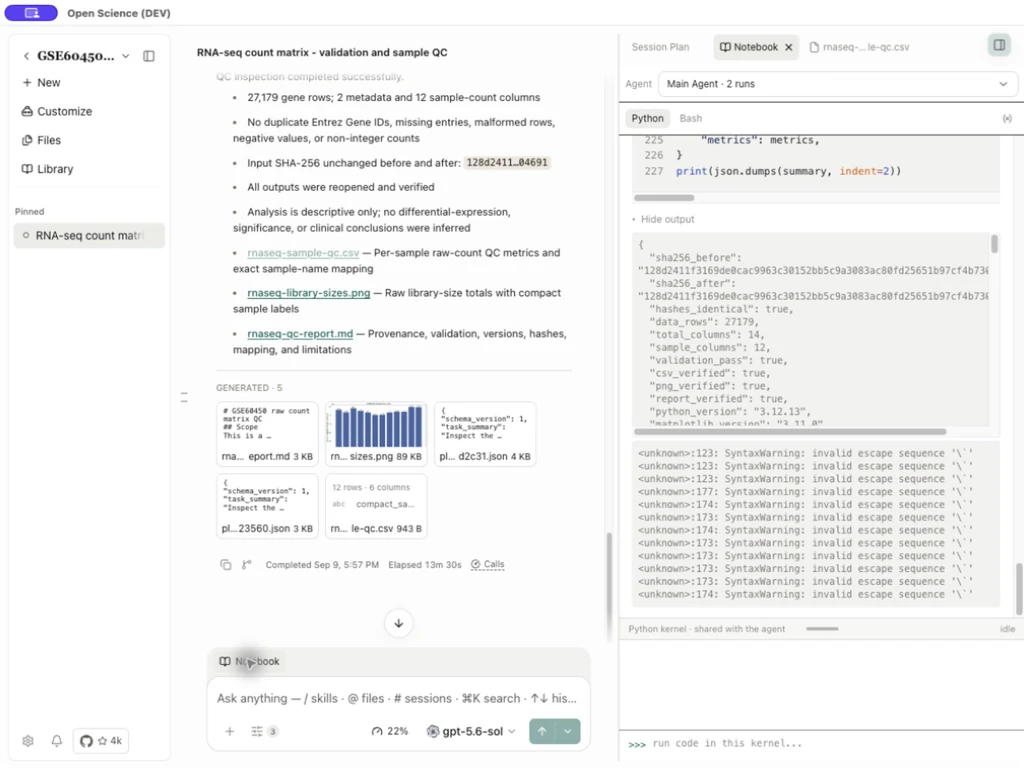
If an import fails, inspect the selected runtime and its installed packages. For a download rejected because a hostname resolves to a reserved address, follow Network. Running code with existing packages does not establish that additional packages can be installed.
Before another analysis, inspect its required packages in the selected environment. Use the supported package-management operation if necessary, read the actual result, follow any restart requirement, and verify the import. A permission approval, progress card or Ready interpreter is not an import test.
For a saved result with incomplete environment or execution evidence, open Provenance and inspect the missing information. To prepare a new version for a reproducibility check, follow environment preparation. Matching a numeric result does not fill missing provenance.
Confirm the active interpreter
After preparing Python or R, run the following commands in the corresponding Notebook language to check its actual version and path. Settings may list several environments; use the current run's output to identify the one in use.
Python:
import sys
print(sys.version)
print(sys.executable)
R:
R.version.string
R.home()
Next, read a small project table, check its row count and save the result. After reopening the app, run the check again before continuing an analysis. A readable historical report does not mean the previous in-memory variables still exist. See Notebook and execution evidence for Notebook controls.
Worked example Check the active Windows Python interpreter
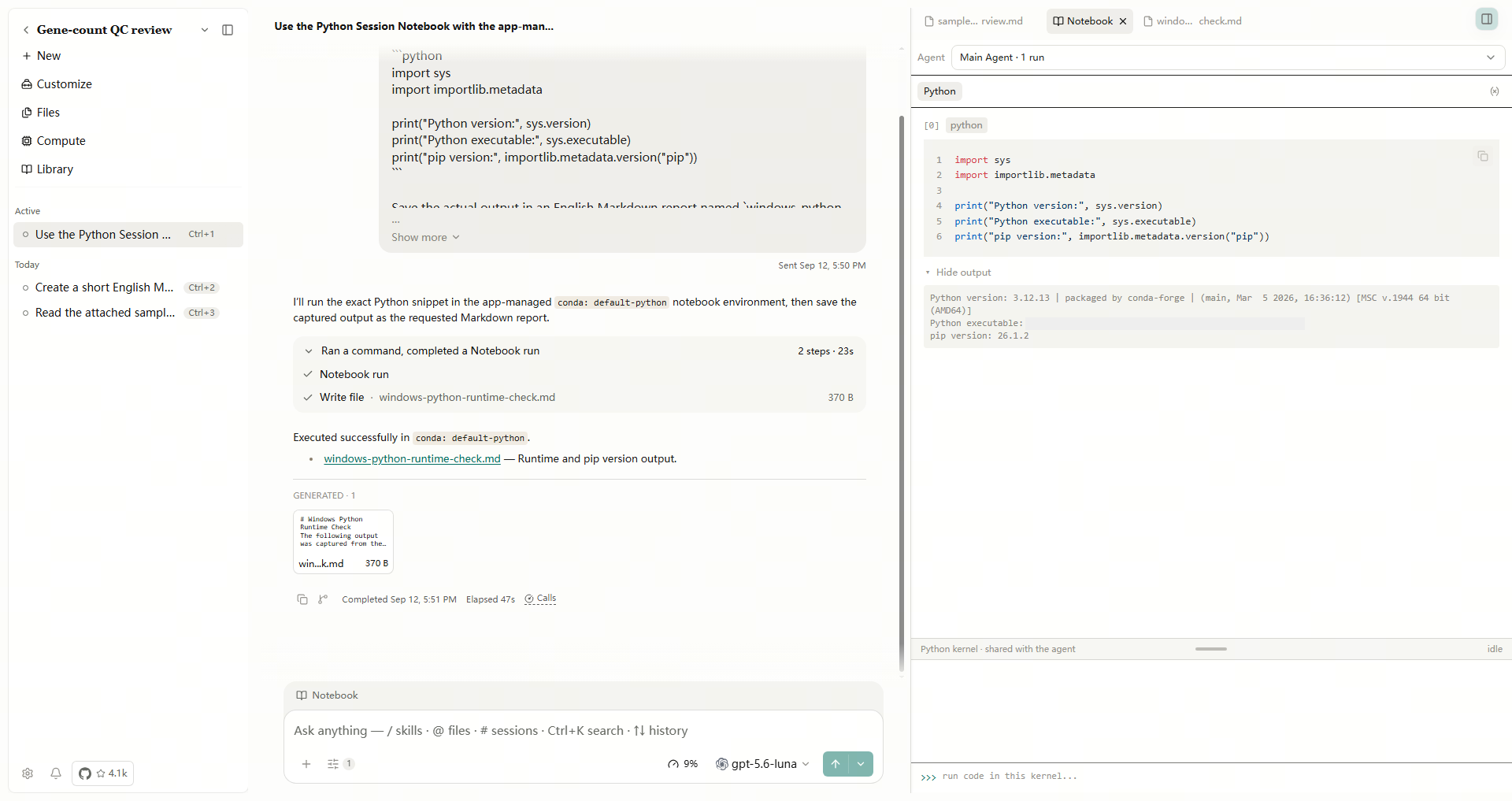
For a quick check before using research data, ask the Agent to run the Python version/path commands above in the Session Notebook and save their actual output in a Markdown report. To check the installed pip version as well, add import importlib.metadata and print(importlib.metadata.version("pip")).
Open the Notebook's output and compare it with the saved report. This Windows 10 example in Open-Science v0.28.0 reports Python 3.12.13 and pip 26.1.2. Reading package metadata does not install or import that package.
For Windows conda R startup or kernel-recovery failures, use v0.30.2 or later before retrying. The release fixes executable lookup after environment preparation and R kernel recovery. After updating, recheck the environment and run a small R calculation in Notebook; Ready alone is not an execution result. The screenshots below retain the versions and results of their original runs.
From v0.31.0, Windows R can run in standard mode without first setting up protected mode. Treat Enable protected mode before authorizing R access. from an older release as version-specific guidance. Network protection and package-installation permissions remain separate controls. In v0.31.1, a run blocked by Notebook network protection shows an inline warning with a link to the relevant setting; the cell was not executed. Review the required access, then rerun and check the output.
Worked example Check the Windows Python and R environments with a sample-QC table
The following analysis uses another Windows 11 computer and its existing Python/R environments. Use the paths and outputs from your own run when checking your installation.
Download the sample-QC CSV and attach it to a project session. This is a twelve-row summary, with one row per sample. The checks below read its existing metrics; they do not recalculate the original gene-count matrix. The input description and metric definitions are in Example data.
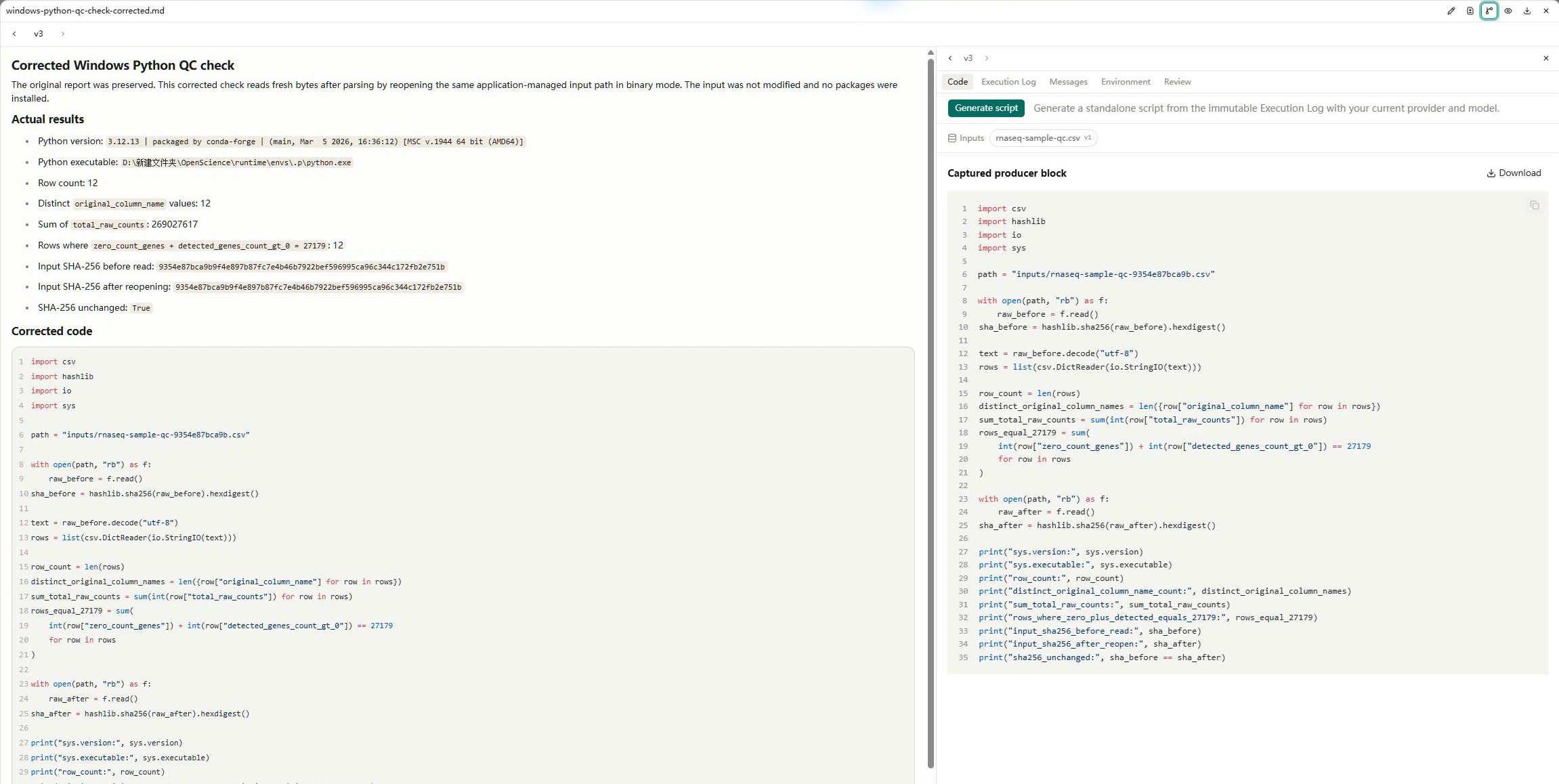
Read the table with Python. Ask the Agent to use the selected Python environment in the Session Notebook, with the standard library only. Request sys.version, sys.executable, the four checks in the table below and a saved Markdown report. Use the attached file's path. To check that reading left the input unchanged, calculate its SHA-256 before reading and again after reopening the file.
Open the saved report and its Provenance → Code view. Compare the captured code with the reported interpreter and results. In this example, Python reports version 3.12.13 and an executable ending in runtime\envs\.p\python.exe; the input hashes before and after reopening match.
The detail below shows Inputs and the captured code. Click the image to open the complete screenshot with the saved report alongside it.
Read the same table with R. Ask the Agent to use the selected R environment in the Session Notebook, with base R only. Request R.version.string, R.home(), the same four checks and a separate saved report. Expand the Notebook run card to inspect its code, then open the report and compare the results. In this example, R reports version 4.4.3 and a home directory ending in runtime/envs/.r/Lib/R.
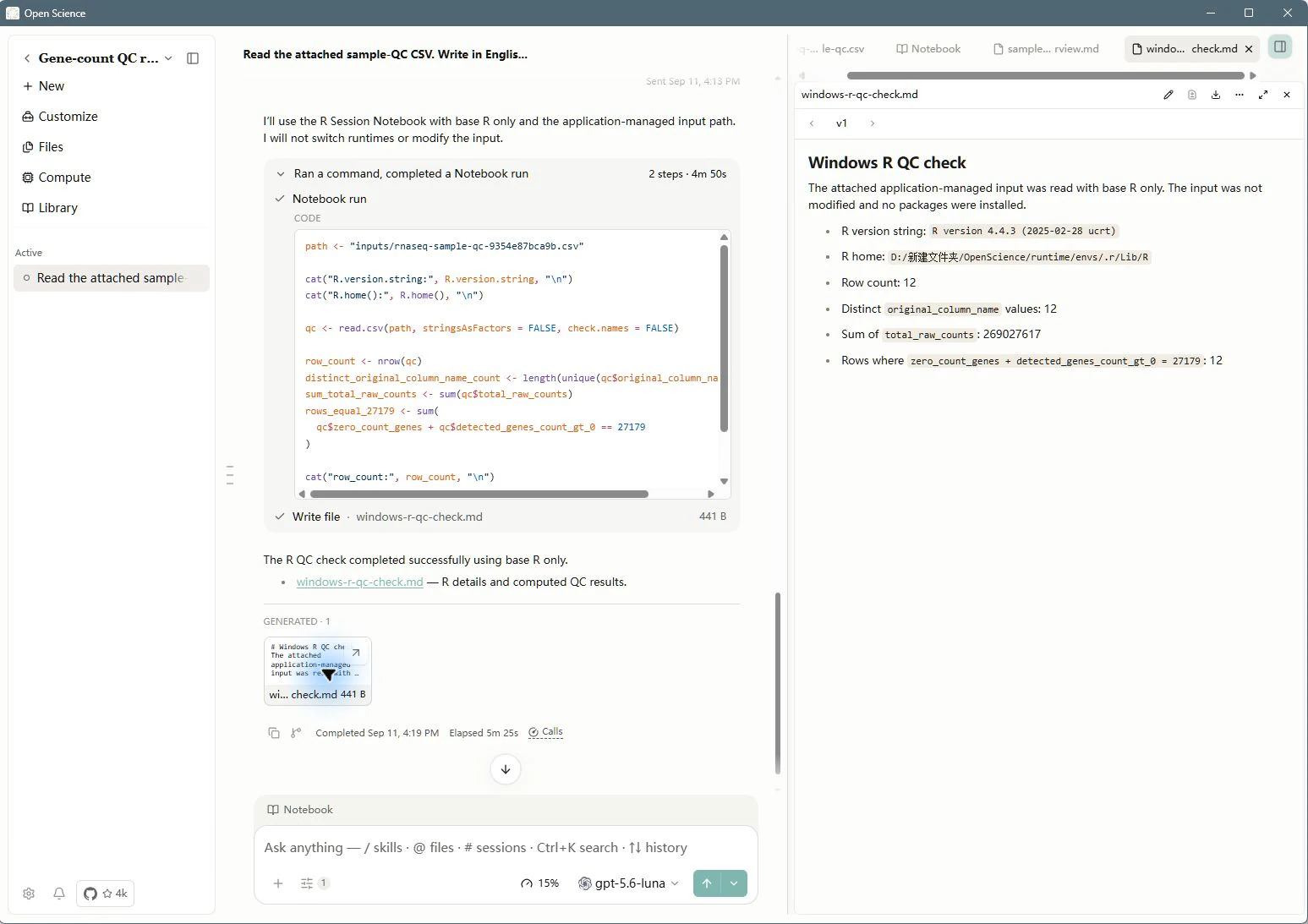
The installation paths in these screenshots belong to the example computer. Different drive letters, folders and interpreter versions on your own machine are normal.
Both reports give the following results for this input:
| Check | Result in this example |
|---|---|
| Data rows | 12 |
Distinct original_column_name values | 12 |
Sum of total_raw_counts | 269,027,617 |
Rows where zero_count_genes + detected_genes_count_gt_0 equals 27,179 | 12 |
Match the run's path to the environment you intended to use, then compare the saved results with the table. These runs use Python's standard library and base R; they do not require additional packages or demonstrate that new packages can be installed.
Maintain and repair environments
Cancel setup and retry
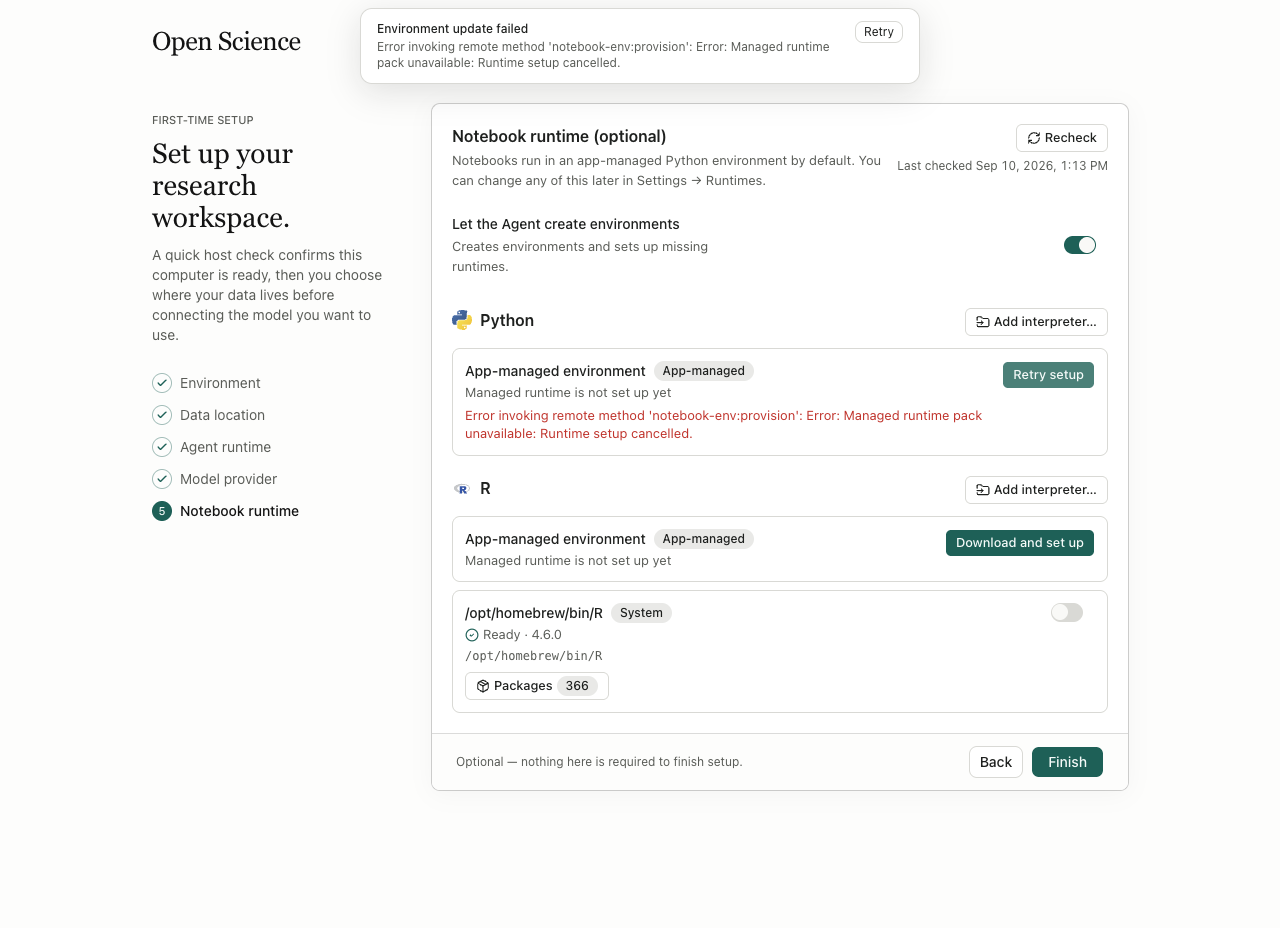
During Download and set up, choose Cancel and wait for Runtime setup cancelled. Choose Retry setup, wait for Ready, and open Packages to inspect the environment. Do not start a second setup while the first operation is still settling.
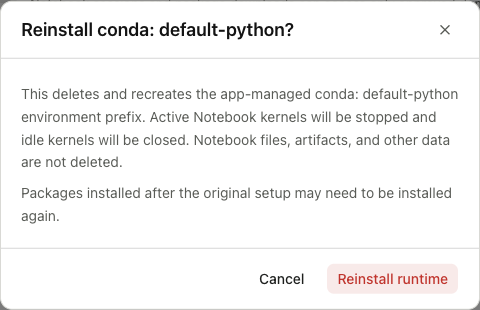
Reinstall a managed environment
- Save needed reports and record any packages you added.
- Select Reinstall on the intended managed environment.
- Read the impact notice, then choose Reinstall runtime.
- Wait for Ready and inspect Packages.
- Start a new Notebook cell and reopen your saved inputs and outputs.
Reinstallation deletes and recreates the environment. In the exercised recovery, an active cell was cancelled with Run cancelled: the runtime was stopped while this cell was executing. The old Notebook history remained visible, but its namespace no longer existed. A fresh cell confirmed that an earlier variable was absent; the unchanged CSV still returned 12 rows and 269,027,617 counts, and the saved report reopened.
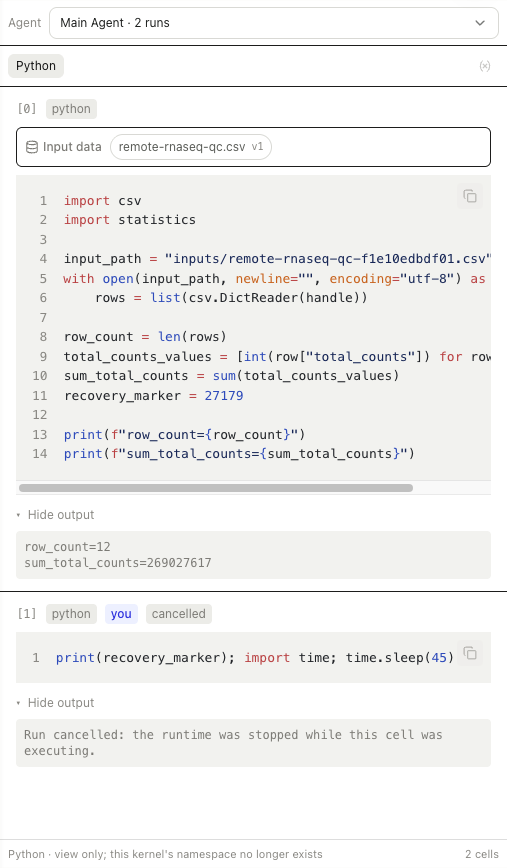
Retained files and retained kernel memory are different. Recreate variables by rerunning the required code. Additional packages may need reinstalling; successful recovery of the base environment does not establish recovery of every added dependency.
Development build: micromamba not found
The first attempt in the source build failed before provisioning because the development process could not locate micromamba.
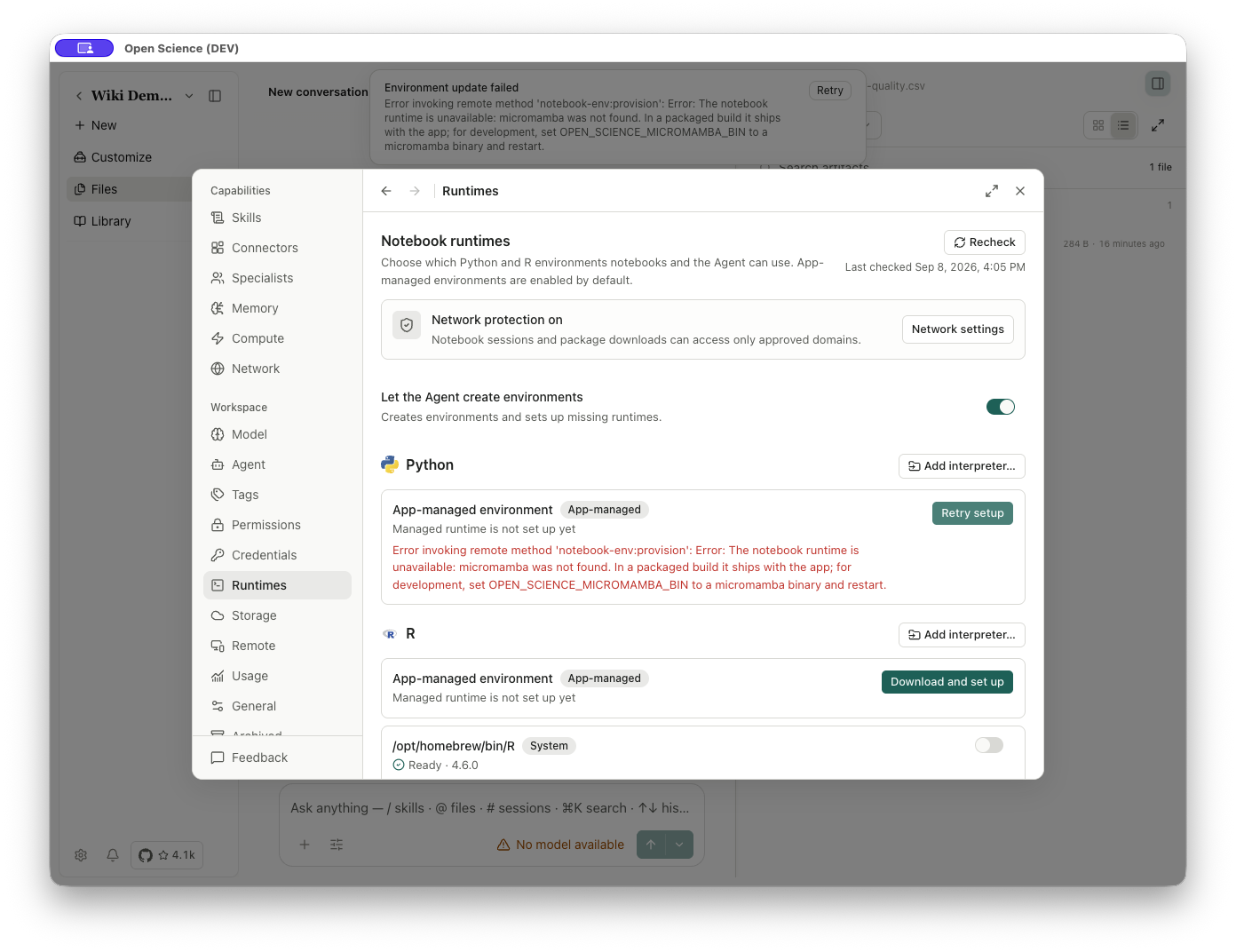
The packaged application includes this binary. For a source build, point OPEN_SCIENCE_MICROMAMBA_BIN at a valid micromamba executable in that process's launch environment and restart the development instance. Use the binary path from a compatible installation and confirm it is executable before relaunching.
This environment variable is a development setup detail, not a field in the Runtimes page. Do not delete an environment directory to work around this discovery error.
Optional WSL2 Bash Preview
Windows x64 can use the optional Local Shell · WSL2 Bash Preview in Settings → Runtimes. Keep PowerShell unless your task needs a Linux shell; WSL2 is not required to use Open-Science on Windows.
Select a WSL2 distribution and its exact non-root Linux user, then choose Save and check. Follow any platform/distribution setup instructions first. Readiness checks and matching preview resources must pass before Use WSL2 Bash becomes available; selecting a distribution alone does not activate it. Run a small shell command and inspect its result before starting a longer task. Use the PowerShell option to return to the default shell.
If readiness fails, retain the reported reason and continue with PowerShell while resolving it. Installing WSL components may require Windows administrator approval. This preview is separate from choosing Python/R Notebook interpreters.
Install Bioconductor packages on Windows
Bioconda does not provide Windows packages. For an app-managed Windows R environment, ask the Agent to use the Notebook package installer with installer="biocmanager", keeping the case-sensitive R package name such as DESeq2. Confirm the target environment before approving installation. Do not replace this with a Linux-only bioconductor-* Conda package name or an installation into an unrelated system R library.
Inspect the installation result and the environment's Packages list, then load the package in that same R environment. A dependency or compilation error still needs to be resolved; choosing BiocManager alone does not establish that installation succeeded. Existing external R environments retain their library permissions.