Build a core reading list for a new research topic
To discover papers from a research topic, follow the topic-search journal-club workflow. The PRISMA example below starts with three known DOIs and demonstrates checking, saving and reading those records.
Worked example Build a PRISMA reading collection
You are preparing a systematic review and need a small, defensible starting collection before reading broadly. This walkthrough builds a PRISMA reporting-guidance pack from three published papers, reviews the agent's discoveries, links accepted records to a project, and attaches an openly available PDF.
Deliverable: a three-record Library collection associated with the research project, one checked full-text attachment, and a reading-list artifact whose metadata you verify before reuse. This is a seed collection, not an exhaustive search or evidence synthesis.
For your own topic, replace the seed papers and collection/project names; check each paper’s actual metadata and available full text.
Sources and preparation
Use a working model connection and an English application interface. The example used a Codex subscription. Create PRISMA - Systematic review reading pack using Projects and source folders.
| Paper | DOI | Role in the pack |
|---|---|---|
| Page et al., 2021, The PRISMA 2020 statement: An updated guideline for reporting systematic reviews | 10.1371/journal.pmed.1003583 | Updated reporting guidance; the title's 2020 is not its publication year. |
| Moher et al., 2009, Preferred Reporting Items for Systematic Reviews and Meta-Analyses: The PRISMA Statement | 10.1371/journal.pmed.1000097 | Historical statement. |
| Liberati et al., 2009, The PRISMA Statement … Explanation and Elaboration | 10.1371/journal.pmed.1000100 | Historical explanation; a separate paper with a different author list. |
The publisher pages establish the bibliographic identities: 2021 statement, 2009 statement, and 2009 explanation.
1. Ask for a bounded candidate list
In Ask anything, enter a request with identifiers, a destination and a stopping condition:
Build a core reading list for our systematic-review reporting project.
Look up only these DOIs:
10.1371/journal.pmed.1000097
10.1371/journal.pmed.1000100
10.1371/journal.pmed.1003583
Use the literature library tools to retrieve bibliographic metadata and
stage the records for my Inbox review. Do not accept candidates for me.
Save reading-list.md with each title, authors, year, DOI, source URL and
suggested reading order. Label the 2009 papers as historical. Do not
claim to have read full text unless you actually retrieved it.
Choose the intended model, leave Ask for approval enabled, and select Send message. Expand tool activity when you need to inspect what was requested. The run may need to read a relevant Skill before looking up papers; a Skill name in agent prose does not prove its instructions were loaded.
When Save to Literature Inbox? appears, review the operation and authorize the intended save. Saving candidates is distinct from accepting them into your library.
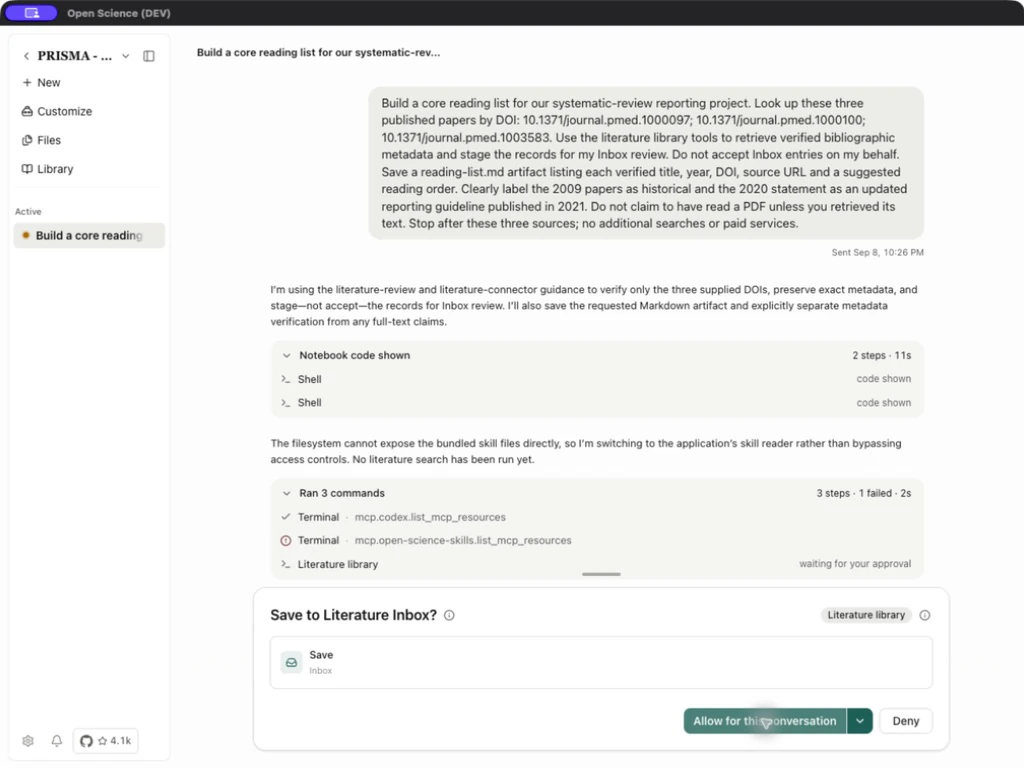
2. Review each candidate before accepting
Open Library → Inbox. In this run the badge showed 3, and each row displayed a title, first authors, publication year and Found via crossref.
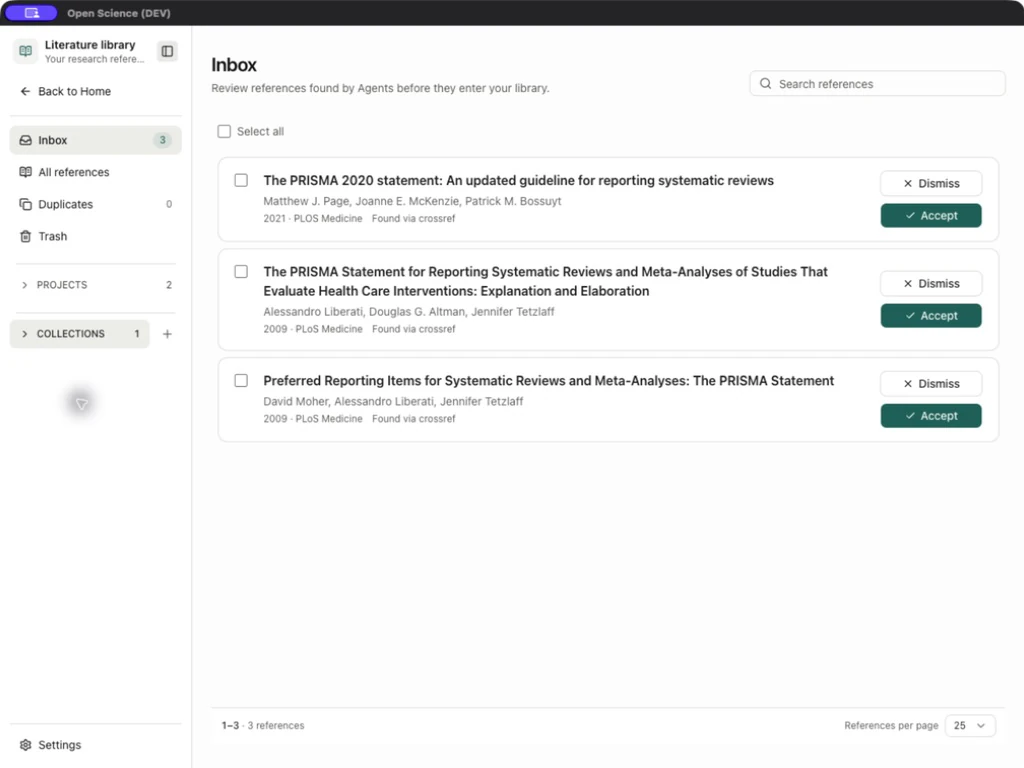
- Select the candidate title to open its details.
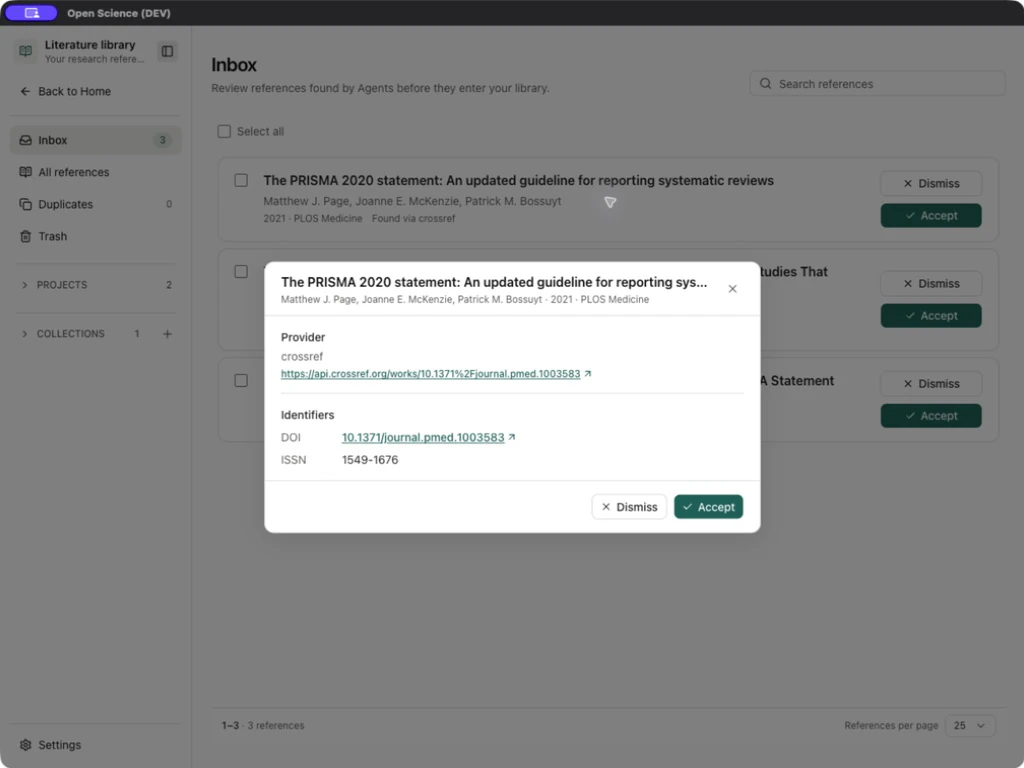
- Check Provider, its source link, and Identifiers → DOI against the intended paper.
- Compare the author order, year and publication with the publisher record. Similar titles do not establish that two records are the same paper.
- Select Accept when the identity matches. The candidate disappears from Inbox and becomes a library record.
- Repeat for the other two. The badge changed from 3 to 2 to 1; the final state was Inbox is clear.
| Inbox control | Outcome | When to use it |
|---|---|---|
| Candidate title / View details | Opens provider and identifier evidence. | Before accepting an unfamiliar or ambiguous paper. |
| Accept | Promotes the candidate into the library. | You have checked its identity and relevance. |
| Dismiss | Removes the candidate from the pending review queue. | It is irrelevant or should not enter the collection; it does not repair metadata. |
| Search references | Narrows the current view. | Locate an identifier or title in a larger batch. |
| Row checkbox / Select all | Selects candidates for available batch actions. | Only after checking the intended selection; the walkthrough accepted individually. |
3. Make the collection useful to a project
Create a collection with the sidebar New collection control:
- Name:
PRISMA reporting - Core reading. - Description: state that it contains updated and historical reporting guidance. The description is organizational text, not agent instructions.
- Select Create collection; Name is required, while Description is optional. Cancel and Close discard the draft.
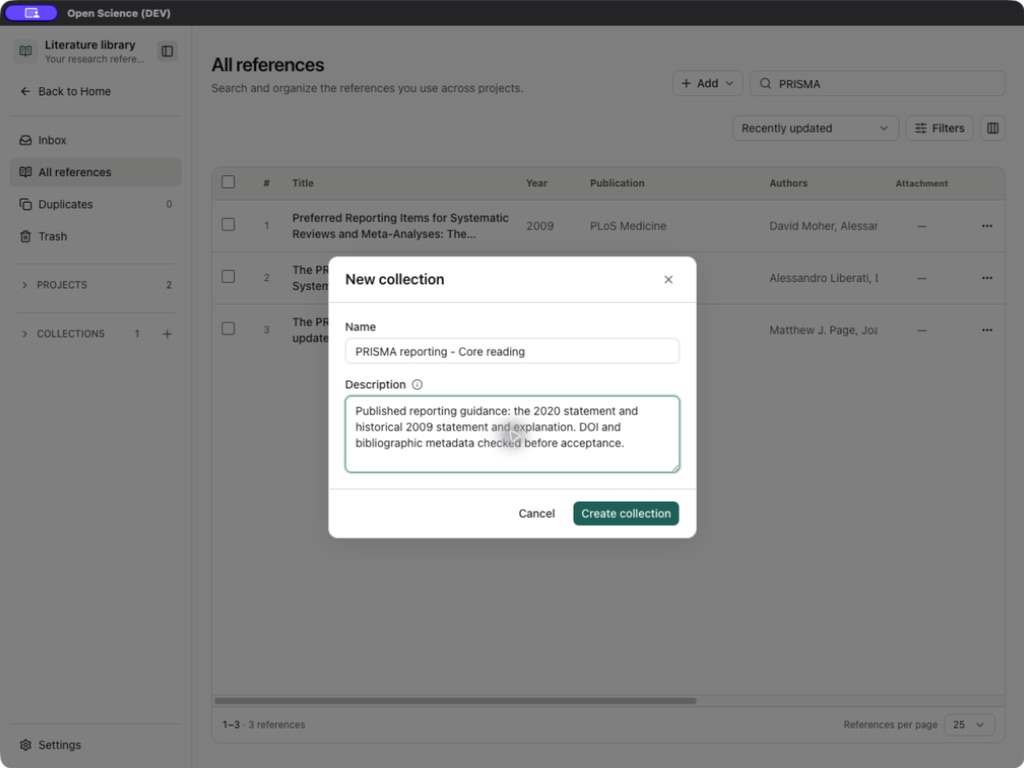
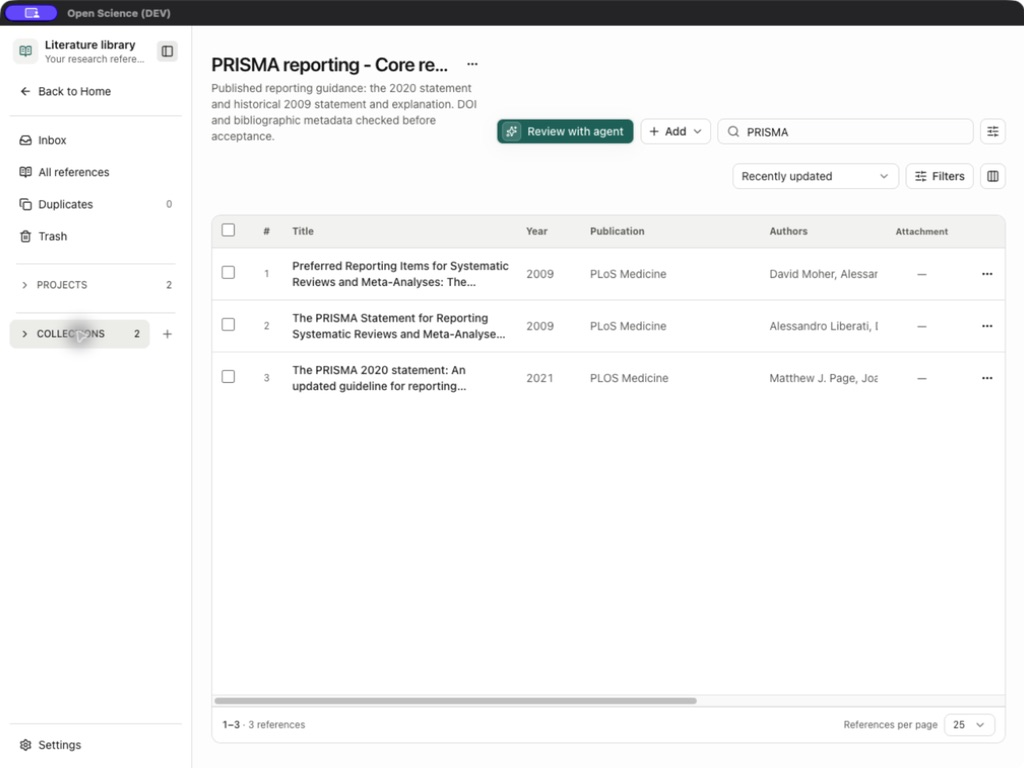
In All references, search PRISMA. Confirm exactly the three intended records are visible, select their checkboxes, and use Add to collection → PRISMA reporting - Core reading. The operation clears the selection. Select the three records again, then use Add to project → PRISMA - Systematic review reading pack.
Open the collection and check its three records. Open a reference detail to confirm both the project and collection checkboxes are selected. These are links to shared records, not three additional copies of the bibliography.
4. Attach usable full text
Open the 2021 paper and select Find full-text PDF. The lookup returned Europe PMC in this run. Inspect Open source before selecting Add attachment.
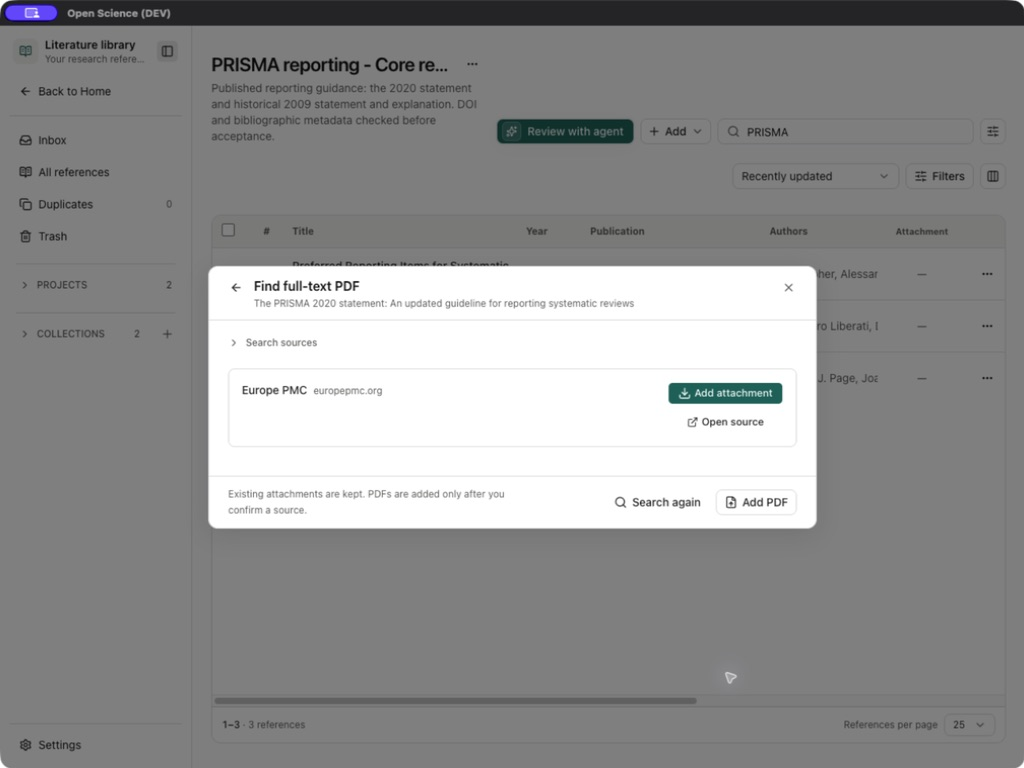
The source was discoverable, but Add attachment returned PDF could not be added. The message lists possible causes including sign-in requirements, expired links and the 50 MB limit; it does not identify which cause occurred here.
To recover, download the openly available PDF from the publisher article page. Return to the same reference and use Add PDF. Select the downloaded file, then open Preview prisma-2020-statement.pdf under Attachments. The successfully attached file showed 806.1 KB and a 15-page preview. Check the title and DOI on page one against the record.
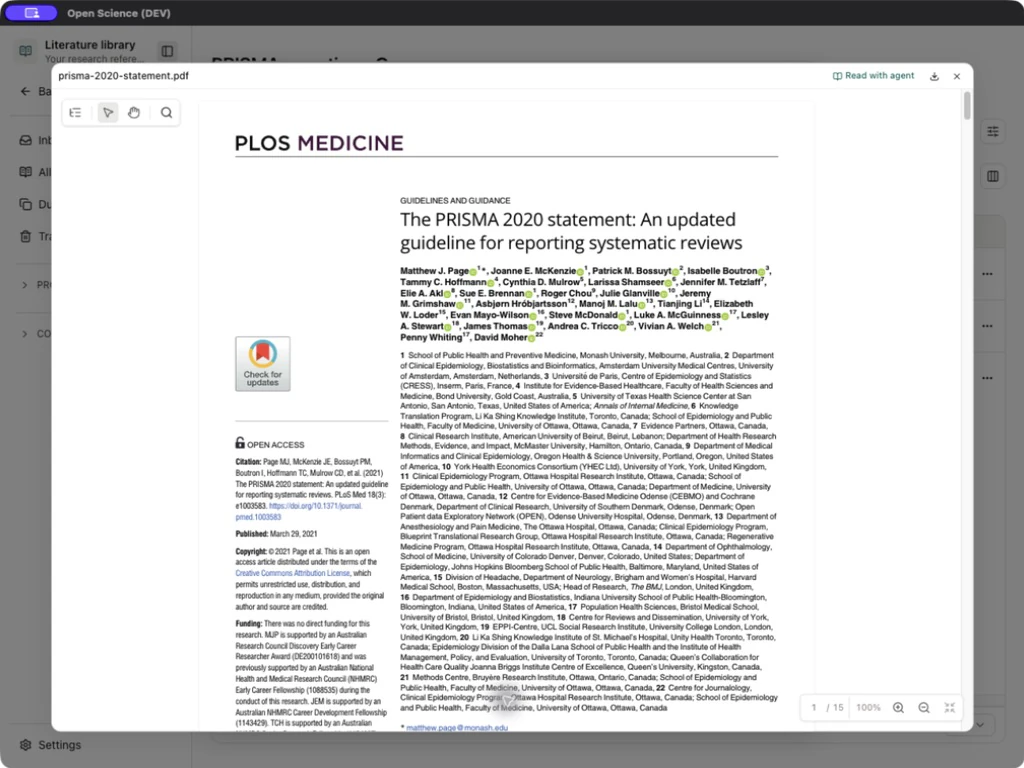
A visible source result is not an attached PDF. An attached PDF is not proof that the agent read it. Read with agent is a separate action that supplies reading context for a subsequent request.
5. Check and save the reading list
Open reading-list.md and compare each title, author list, publication date and DOI with the publisher pages above. Use the checked reading-list example as a reference. This download is a curated bibliography; it is separate from the application's earlier saved versions.
- For the updated statement, retain publication year 2021 even though the title says PRISMA 2020.
- For the 2009 statement, retain the four individual authors and The PRISMA Group. Use Name type → Organization for the group in Library metadata.
- For the 2009 explanation, keep its own ten-author list; do not copy the statement's authors.
- If the generated report differs, correct the Library record, then explicitly request a new managed version of reading-list.md using those corrected records.
- Reopen the new file and check all three entries and their DOI links before downloading. Updating metadata alone does not rewrite a saved report.
Request a correction such as:
Regenerate reading-list.md from the three accepted records. Preserve their
separate complete author lists, including the organization author The PRISMA
Group for DOI 10.1371/journal.pmed.1000097. Use 2021 as the publication year of
the PRISMA 2020 statement. Keep all DOI and publisher links. Save a new managed
version and reopen it. Describe metadata lookup and available attachments
accurately; do not claim full-text analysis.
Acceptance checklist and scope
- The collection and project each expose the three intended records.
- Each DOI opens the matching paper; the two 2009 papers retain different authors.
- The updated statement's publication year is 2021.
- The PDF preview opens and matches the 2021 record; failed downloads are not counted as attachments.
- Reading-list text distinguishes metadata lookup, manual acceptance and any actual full-text reading.
This collection supports a bounded reading task. An exhaustive database search, full-text synthesis and completed systematic review require additional methods and evidence.
For a new reading set, use Name type → Organization for corporate authors, then regenerate and check the bibliography. For an inherited PDF folder, follow batch import before reviewing the set. Updating a Library record does not automatically rewrite the saved reading-list artifact.