Literature library and citations
To find new papers online, describe your topic, date range and selection criteria in a conversation, then review the proposed records in Library → Inbox. See the topic-search journal-club workflow. Search references filters records already in the Library; it does not run an online literature search.
The Library is a shared local bibliography. Projects and collections link to its records; adding the same paper to another collection does not require another copy. This guide uses the three real PRISMA papers from the core-reading workflow. That workflow owns the research goal and acceptance checklist; this page explains the Library's controls and record lifecycle.
To reuse a figure or table from an attached PDF, follow PDF extraction. Metadata import and automatic full-text retrieval do not themselves extract figures or tables.
Choose the correct view
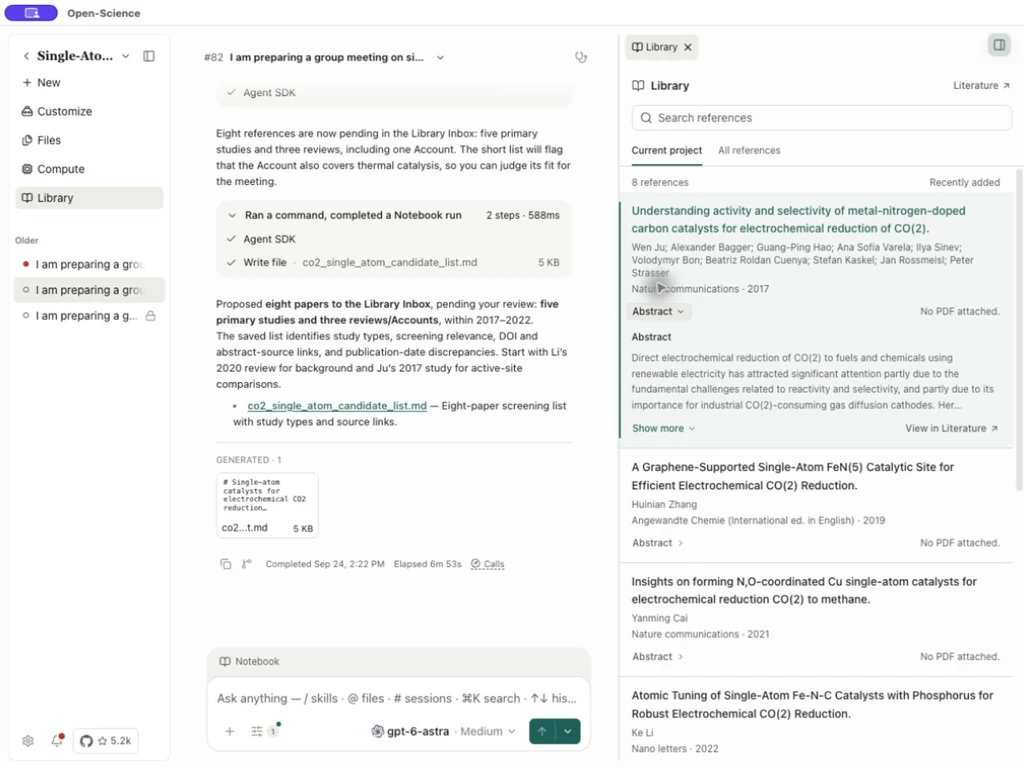
Opening Library from Home enters the full bibliography. In a project workspace, the sidebar's Library opens a compact preview on the right.
- Choose Inbox, Current project, All references, or an opened Collection, then use Search references to find existing records.
- Select Abstract to read a summary and Show more to expand it. No PDF attached means that record has no PDF; an abstract is not full text.
- For smart collections, imports and record management, choose Open in Literature, or View in Literature on a record.
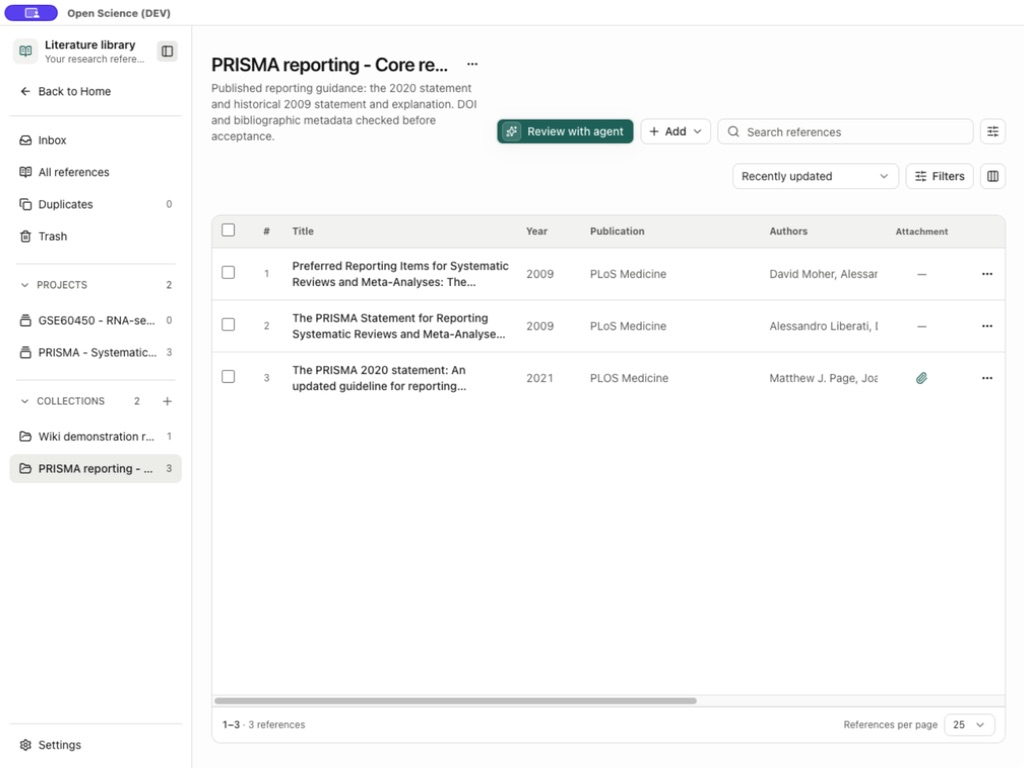
In the full Library, Back to Project / Back to Home returns to the previous context. Its Settings opens citation styles.
| View | Contains | Use it for |
|---|---|---|
| Inbox | Agent-discovered candidates awaiting your review | Check identities and sources before acceptance |
| All references | Accepted active records | Search, edit and organize your bibliography |
| Duplicates | Suspected identifier/metadata match groups | Compare before merging |
| Trash | Removed reference records | Restore or deliberately delete permanently |
| Project | References linked to that project | Keep the bibliography relevant to a research question |
| Collection | A thematic group, including nested collections | Reuse a reading set across projects |
Add a reference to a conversation draft
In the workspace Library preview, select a record's Add to chat to put its reference in the current Composer. Use Choose another conversation beside it to search other conversations by title or number, or start a new conversation. Check the destination project and conversation, add your question, then send it yourself. Add to chat does not send a message automatically.
For several papers, first enable Batch actions, select the records, check the Selected count and use the batch Add to chat action. Clear selection clears that selection; Done exits batch mode. This opt-in mode belongs to the compact workspace preview; the full Library retains its own table-selection controls.
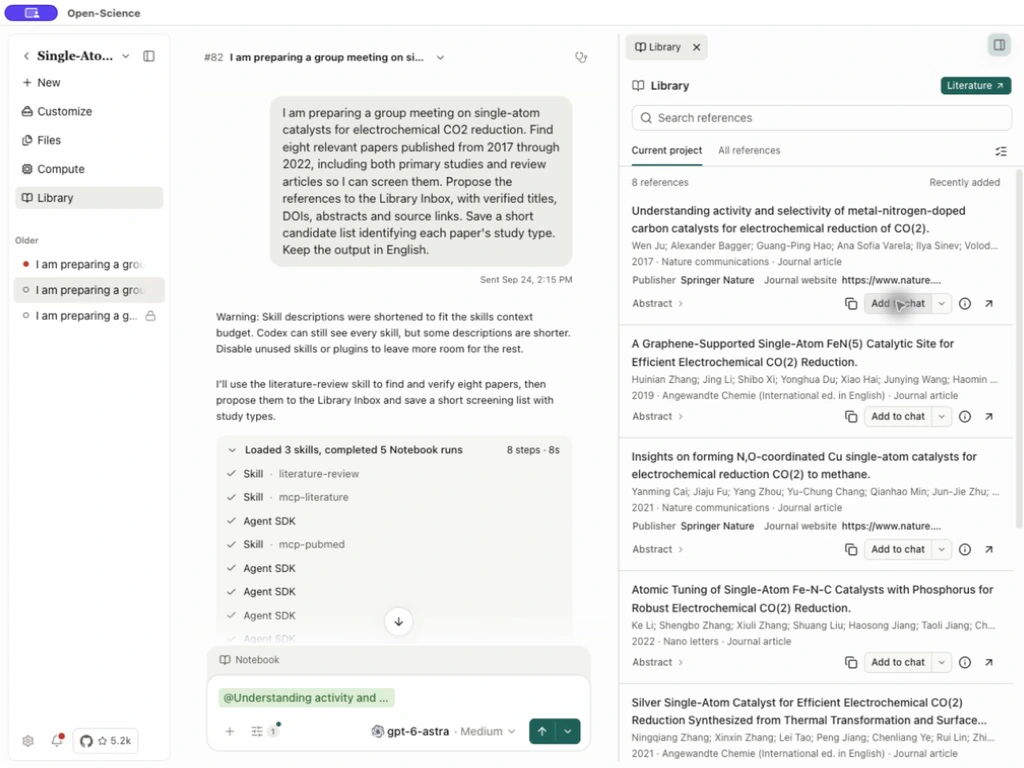
Reference details opens metadata and attachments; View in Literature opens the full Library record. Adding a reference does not download its full text. A record marked No PDF attached still has only its available metadata, abstract and other existing content.
Review candidates beside the conversation
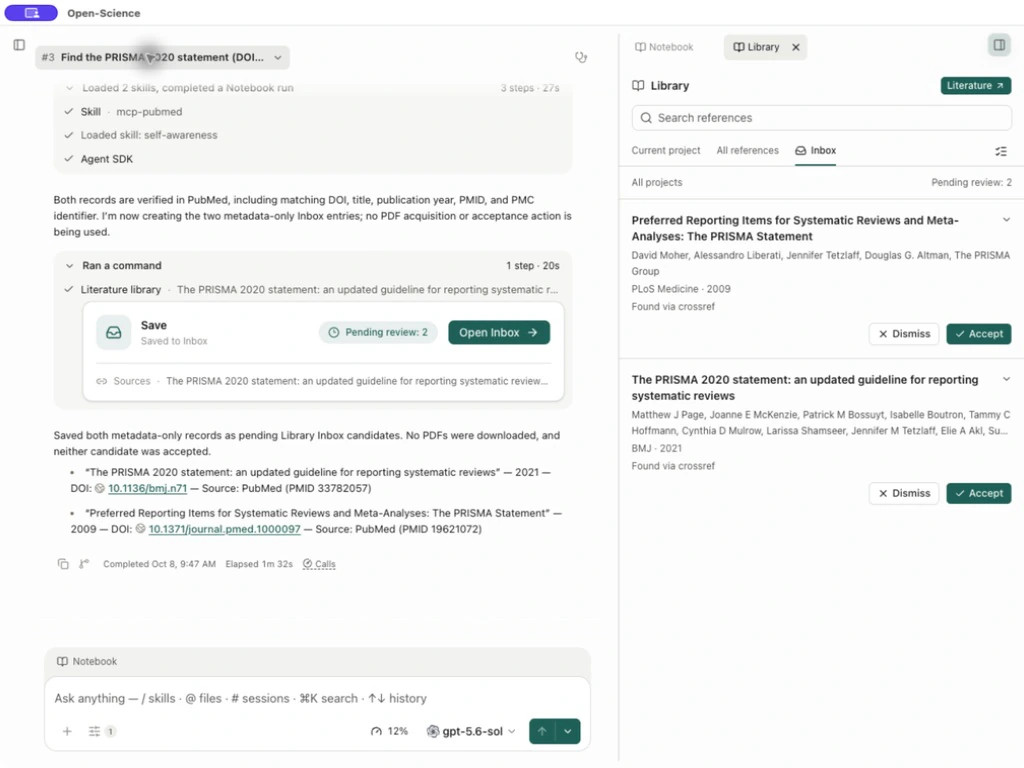
- Open the workspace Library → Inbox, or choose Open Inbox on the agent's saved-reference card. The conversation remains open beside the review queue.
- Check All projects and Pending review: this queue contains pending candidates across projects. Use Search references to narrow existing candidates, and inspect each title, DOI, source and proposed destination before accepting it.
- Choose Accept for a checked candidate, or Dismiss to remove it from the queue. Undo restores a dismissed candidate to pending review; it does not undo an acceptance.
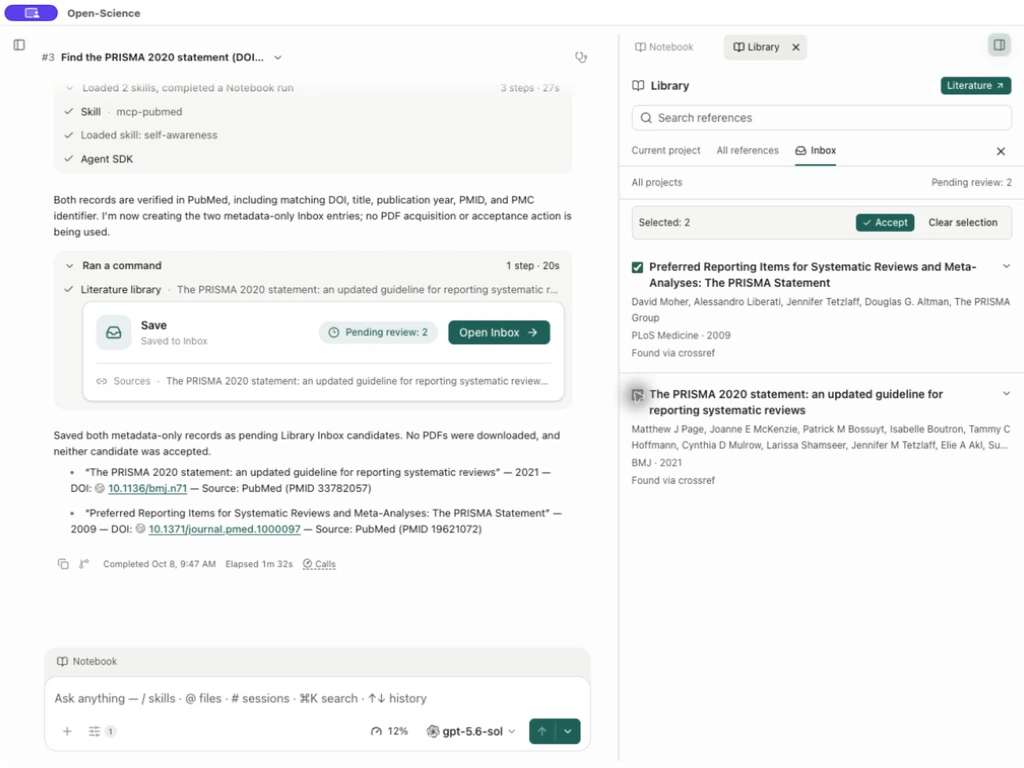
- For several candidates, turn on Batch actions, explicitly select rows on the current page, verify Selected, then choose Accept. Selection is limited to the current page; changing the query or page clears it. Use Clear selection or Done before choosing a different set.
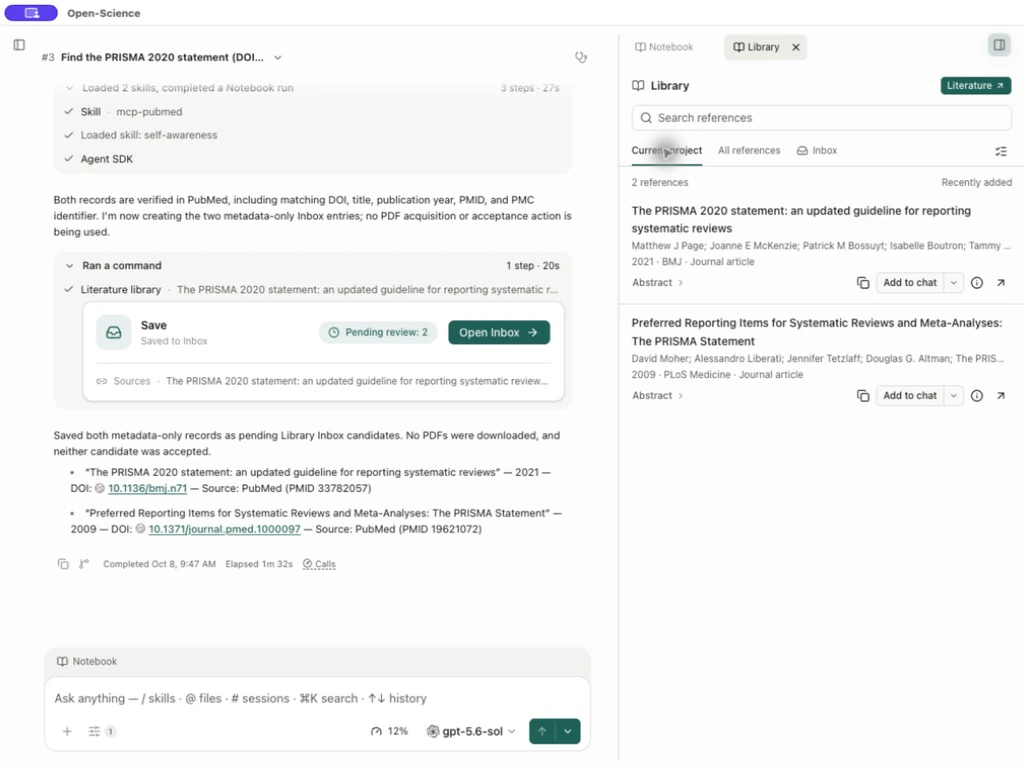
- Confirm accepted records in Current project or All references. Acceptance saves bibliographic records; it does not retrieve missing PDFs. If you need the full management view or previously dismissed records, choose Open in Literature.
Worked example Review two PRISMA candidates
The conversation below uses Codex to look up the PRISMA 2020 and 2009 statements and save their metadata to Inbox. After checking their DOIs, dismiss one candidate, then use Undo to restore it; the queue goes from two candidates to one and back to two.
Enable Batch actions, select both records, check Selected: 2, then choose Accept.
Inbox then shows Inbox is clear. Switch to Current project to see 2 references, both still marked No PDF attached. The PRISMA 2020 statement's actual publication year is 2021.
Display journal data
Library → Journals imports journal datasets with a source and year and displays matching attributes in reference details and tables. Follow Journal datasets and reference attributes for the complete steps, sample CSV and screenshots.
Add or import a record
Select Add and choose the source. Selecting one PDF opens its metadata editor; selecting several opens Import PDFs.
| Entry | Input | Check before saving |
|---|---|---|
| Add reference | Manually entered bibliography | Required title, reference type and identifiers |
| Import PDF | One or several local PDFs | Extracted metadata against each paper; multi-file selection uses the batch flow below |
| Import references | BibTeX, RIS or NBIB | Valid/invalid entries, destination and identifier matches |
Import a folder's selected PDFs
Import a folder's selected PDFs
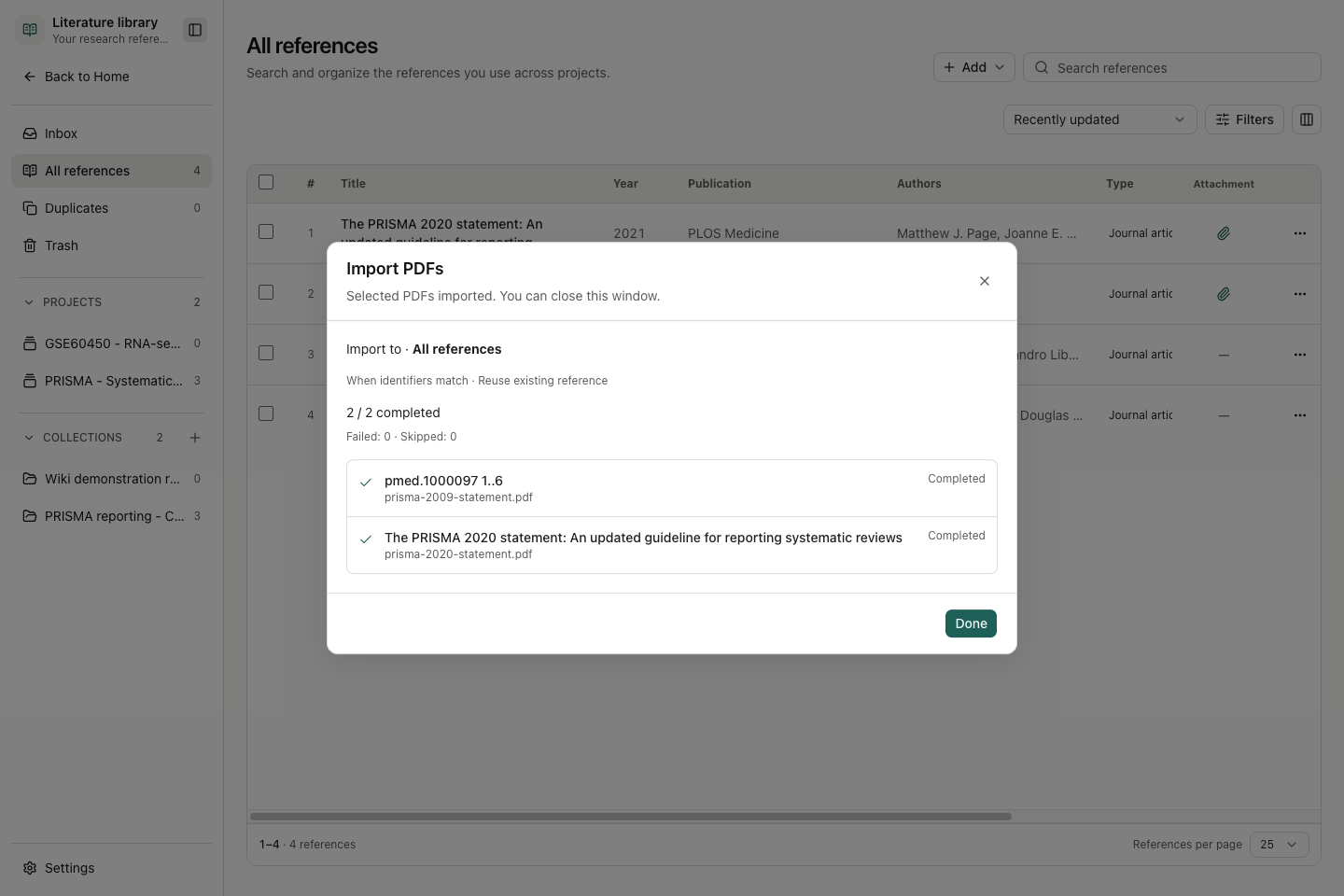
- Select the PDFs for the reading set. Wait for metadata extraction; a detected DOI can be used to complete bibliographic fields. Check the result against the paper.
- Check the destination displayed beside Import to; it comes from the Library view where you started the import. Under When identifiers match, choose a policy from the table below.
- Use each checkbox or Select all to choose this batch. Show more reveals additional listed files.
- Select Import selected. Read the overall progress and each file's status; a failed file is not a completed import.
- To stop, select Stop and wait for Stopping… to settle. Already committed references remain; an in-flight operation may finish.
- After stopping, select the remaining Ready files and use Import selected. If the dialog offers Retry unfinished after a failure, use it for the unfinished selection. Inspect any retained reference before starting a fresh import, particularly if its PDF upload was interrupted.
- Use Done or Close when the dialog offers it, then open the destination and verify its records and PDFs. Cancel abandons preparation before import.
| Identifier-match policy | Result |
|---|---|
| Reuse existing reference | Reuse the matching record instead of creating another bibliography entry |
| Keep as separate reference | Keep a distinct record for later comparison and duplicate review |
| Fill empty fields | Fill missing fields while retaining existing/conflicting values |
The batch can show Pending, Reading…, Ready, Importing…, Completed, Failed or Skipped. Selection, metadata readiness and import completion are separate states. If the app reports PDF upload cancelled. The reference was kept., check that retained record's attachments; cancelling the upload did not remove the bibliography entry.
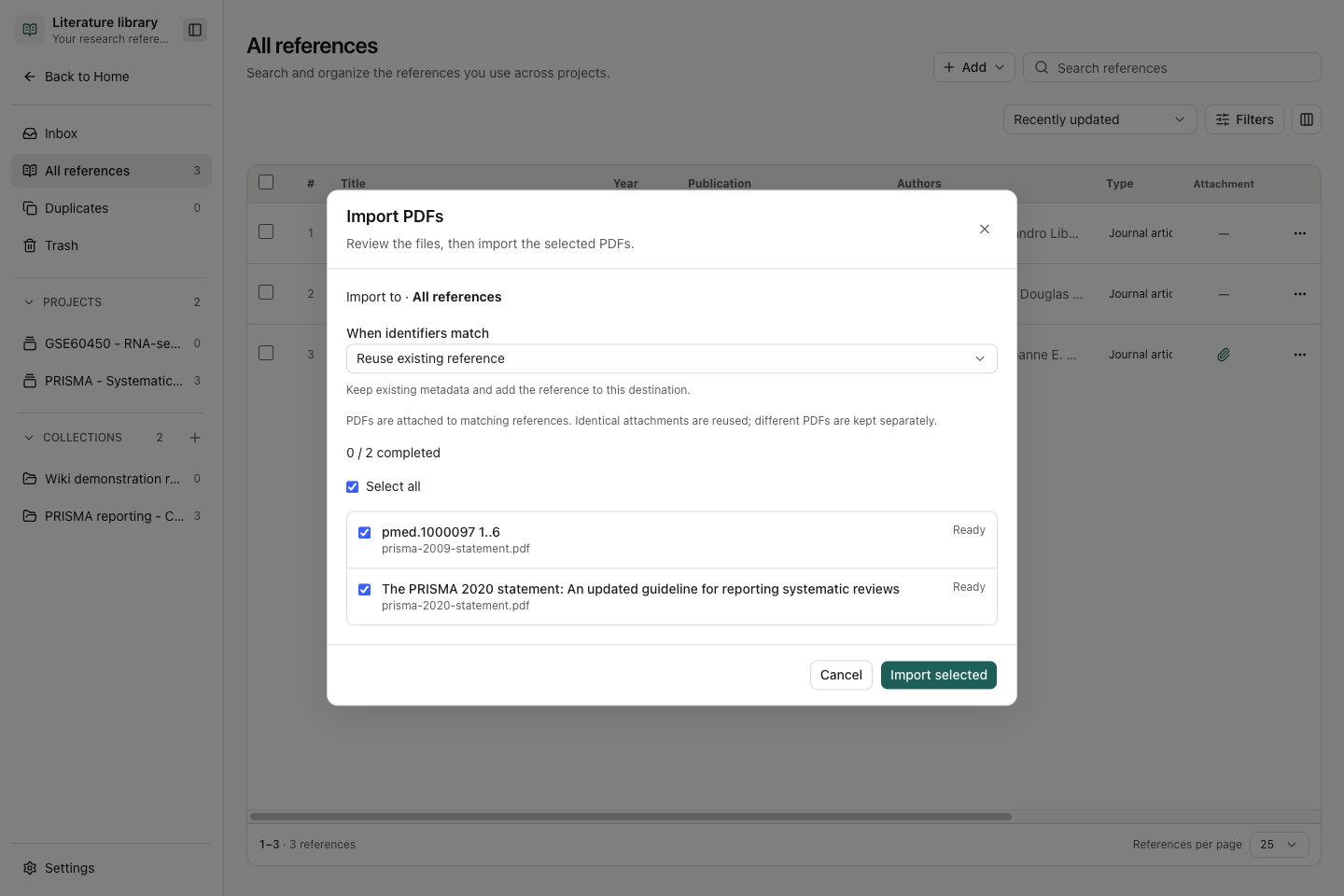
With Reuse existing reference, a PDF whose extracted title or DOI does not match can still create a separate record. After import, open each paper and confirm its title and DOI. Correct mismatches before merging duplicates. Completed confirms import, not accurate identification.
Stop a batch without losing completed work
Stop a batch without losing completed work
A Stop request allows the current item to finish. Inspect every row: Completed items are retained and cannot be selected again; select remaining Ready rows and use Import selected to continue. If failures expose Retry unfinished, correct the reported cause before retrying and check that completed records were not duplicated.
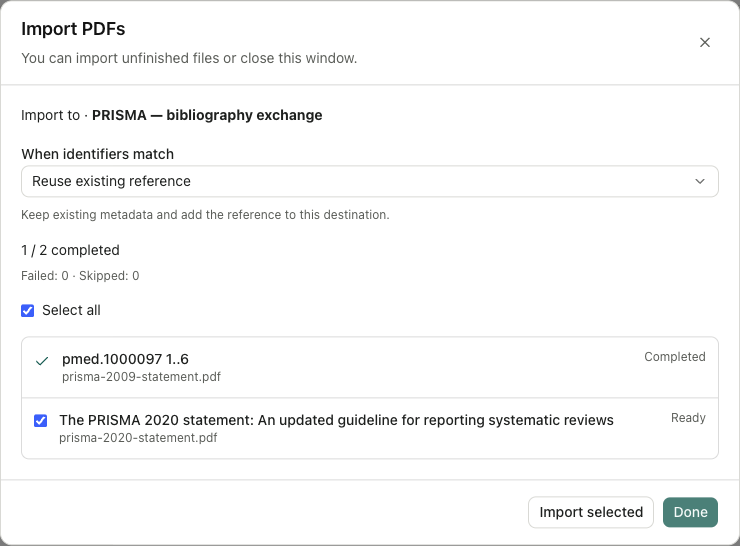
The reference was kept. Retry to finish adding its PDF. means the bibliography entry was saved but its attachment is unfinished. Check that the original PDF is still available at the selected location and opens normally, then select Retry unfinished. After retrying, return to the destination collection and open the PDF to check its content. If the result could not be confirmed, inspect your library before starting another import.
Bring a bibliography from another reference manager
Bring a bibliography from another reference manager
Worked example Import PRISMA records with three matching policies
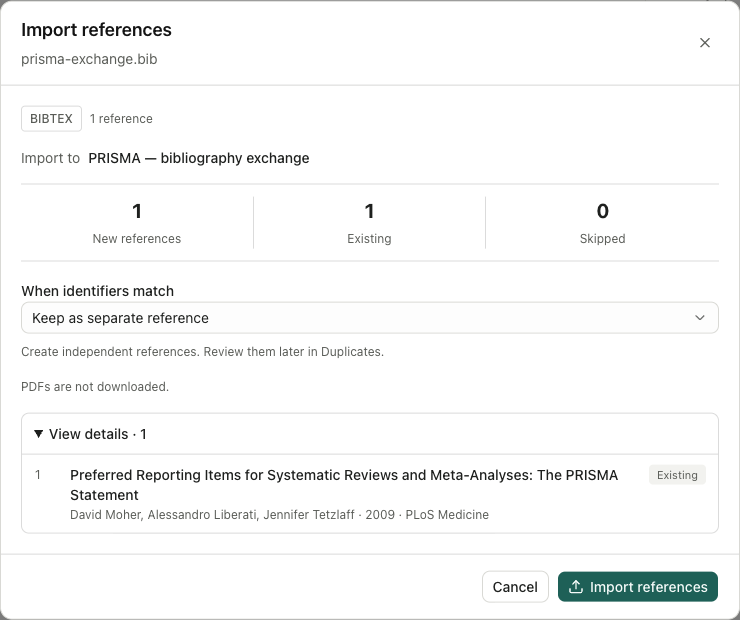
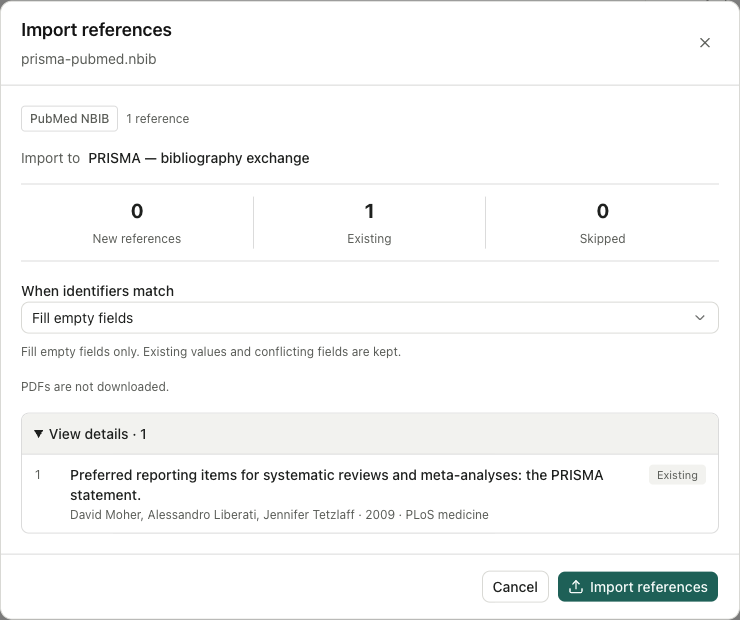
Open the destination collection first, then choose Import references and a .bib, .ris or .nbib file. The preview reports the detected format, destination, new/existing/skipped counts and matching records. Expand View details to inspect titles and authors before importing. Bibliographic imports do not download PDFs.
| Choice | Checked result with the PRISMA statement |
|---|---|
| Keep as separate reference | BibTeX created one record; Duplicates then contained one matching-DOI group |
| Reuse existing reference | RIS reused one record, with zero created, skipped or failed |
| Fill empty fields | The PubMed NBIB record added PMID 19621072 and PMCID PMC2707599; existing title and five creators remained |
Click Import references, wait for Import complete, inspect Created/Reused/Skipped/Failed, then select Done. Reopen the record: an import count alone does not establish correct metadata. Filling empty fields can add identifiers and an abbreviated journal name without replacing the full journal title.
Review Inbox evidence
Worked example Review three PRISMA candidates
Open the candidate title or View details. Inspect its provider, source link and DOI/other identifiers, then compare year, author order and publication with the publisher. Accept promotes it into the Library; Dismiss removes it from the review queue. Check the row selection before batch actions.
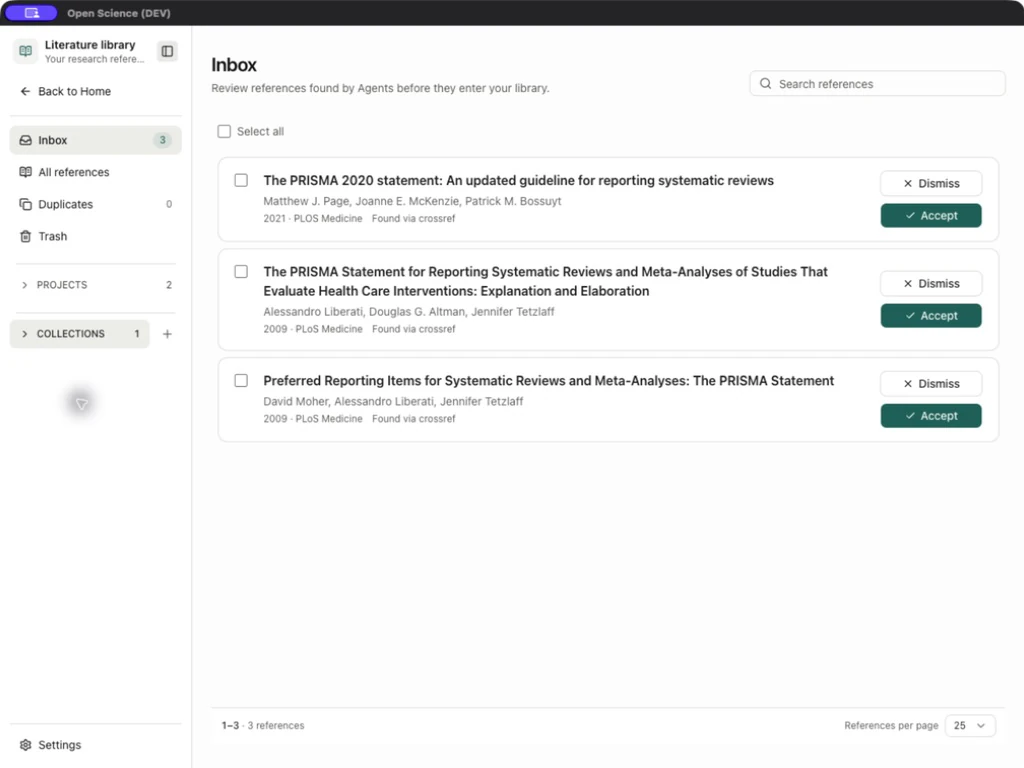
In this example, the three candidates were accepted individually, and Inbox became clear. A provider match is a starting record, not complete bibliographic validation. The 2020 statement's publication year is 2021. The two 2009 papers have distinct DOIs and author lists.
Inspect and correct metadata
From v0.33.3, Crossref metadata completion also imports an abstract when the source supplies one. Inspect Abstract against the original record after completion. This does not generate a missing abstract or retrieve full text.
Open a reference, then More actions → Edit metadata. Review the current values before using Complete metadata, which performs a lookup rather than a purely local edit.
If saving is rejected because the identifiers conflict, reopen the current reference and compare its DOI, PMID, arXiv ID and other identifiers with the original publication. Do not combine identifiers from different works or remove an identifier merely to force a save. Correct the intended record, save again and reopen it to confirm the change. If another client edited it while you were working, compare against the latest saved state before retrying.
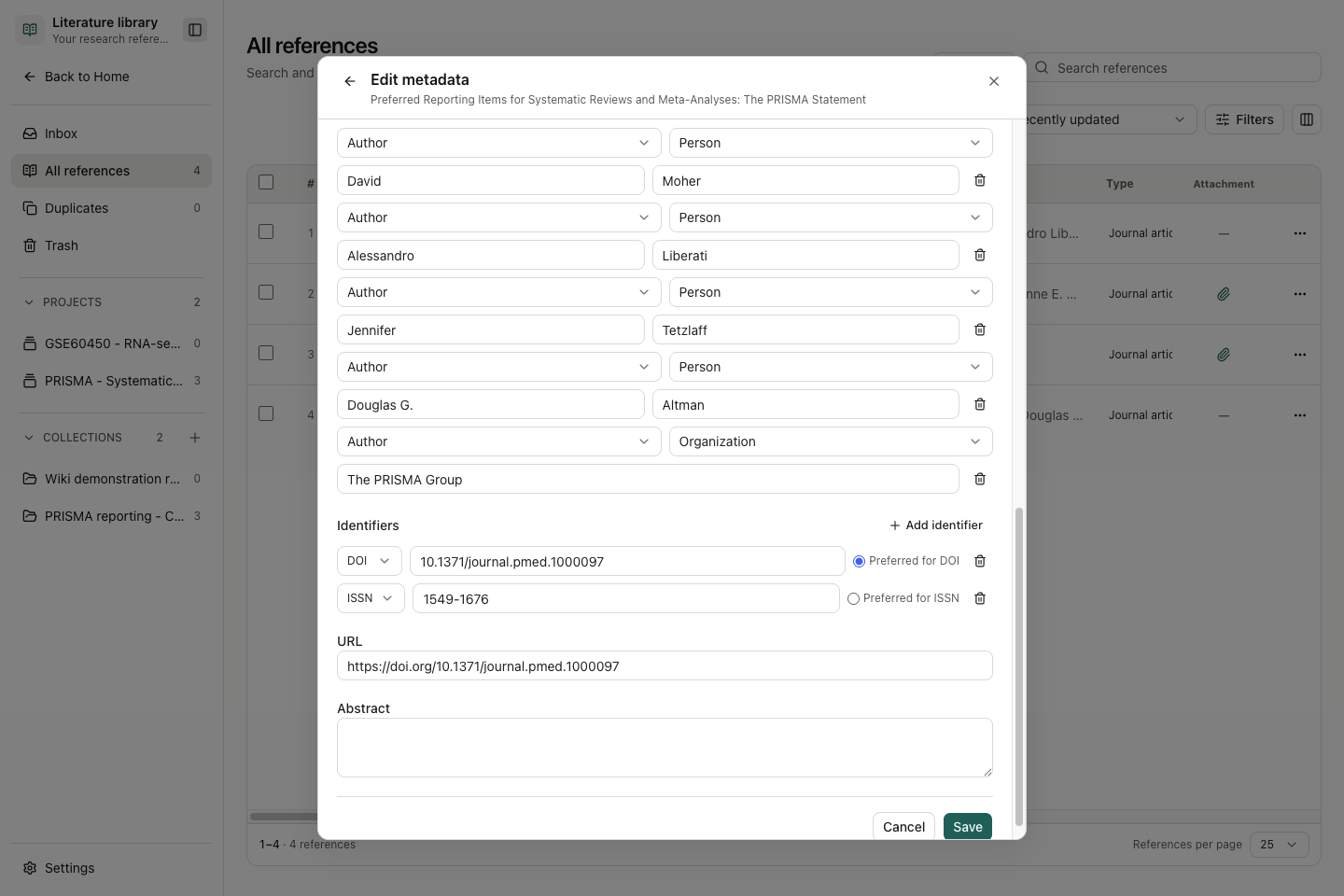
| Field/control | Input and effect |
|---|---|
| Reference type | Select the bibliographic kind: article, review, preprint, book, dataset and other supported kinds |
| Title | Required; preserve the published title |
| Year / Publication | Publication year and journal/container; a year embedded in the title may differ |
| Advanced settings | Volume, Issue, Pages, Publisher, Place and Edition |
| Add creator / Remove creator | Add or remove a creator row in the draft |
| Creator role | Choose Author, Editor or Translator to match the source |
| Name type → Person | Enter Given name and Family name |
| Name type → Organization | Enter the complete organization name; do not split it into invented person names |
| Add identifier | Type and value: DOI, PMID, PMCID, ARXIV, ISBN, ISSN or OTHER |
| Preferred for DOI / ISSN, etc. | Choose the preferred identifier within that type; the choice is not one global flag across all types |
| Remove identifier | Remove the draft identifier row |
| URL / Abstract | Source address and bibliographic summary |
| Save | Persist valid edits |
| Cancel / Close | Discard the draft |
Worked example Preserve The PRISMA Group as an organization author
To add The PRISMA Group, select Add creator → Creator role: Author → Name type: Organization, enter the full name and Save. Reopen the record and check that the organization follows its four personal authors. Compare the generated citation with the publisher's author list.
v0.30.2 corrects PubMed author-name parsing, including surnames, initials and suffixes. When importing or completing metadata, inspect the creator fields and generated citation against the linked source. Do not assume that installing the update rewrites metadata already stored in your Library.
Smart collections
Turn Smart collection on in New collection to screen Library records against explicit rules. Select Scope (all references, a project or a collection), add required Inclusion criteria and optional Exclusion criteria, then choose the evidence and update options. Unlike an ordinary collection description, smart-collection descriptions provide context for model evaluation.
Configure Settings → Model → Classification models → Smart collections first; this feature has no default model. Included, Needs review, Excluded and Not evaluated distinguish matched, uncertain, rejected and unevaluated records. Open Evaluation details and review the actual source before choosing Include or Exclude. Manual decisions survive updates until you restore the model decision.
Trial run (up to 20 references) saves results. Live rule preview evaluates a draft without saving them. Update automatically applies to new or changed records in the selected scope; it is opt-in and can incur classification costs. It does not discover new papers outside the Library. Follow the illustrated screening workflow from search to reviewed export.
During a run, open Screening process to inspect progress and use Pause / Resume analysis to pause or continue. Changes to rules, papers or saved progress can make a previous run non-resumable. Back to results returns to the decision list. Project and Collection scope markers distinguish source types and link to the source; they are not multi-user sharing permissions.
End a screening run you no longer need
When Abandon run is offered beside a paused or interrupted evaluation, select it and read the confirmation. Confirming keeps completed results but prevents that run from resuming; it does not delete papers or empty the collection. Use Pause / Resume analysis when you only need a temporary break.
If automatic updates remain enabled, later new or changed records can still trigger a new evaluation. Abandoning one run does not turn off Update automatically. See Auto mode for routine Library approval behavior.
Organize the accepted records
Create an ordinary collection with New collection and Smart collection off, fill Name and optional Description, then Create collection. The description is organizational text, not Agent Context. Cancel/Close discards the draft. Select records in All references and use Add to collection or Add to project. Selection clears after the operation; reselect if adding another destination.
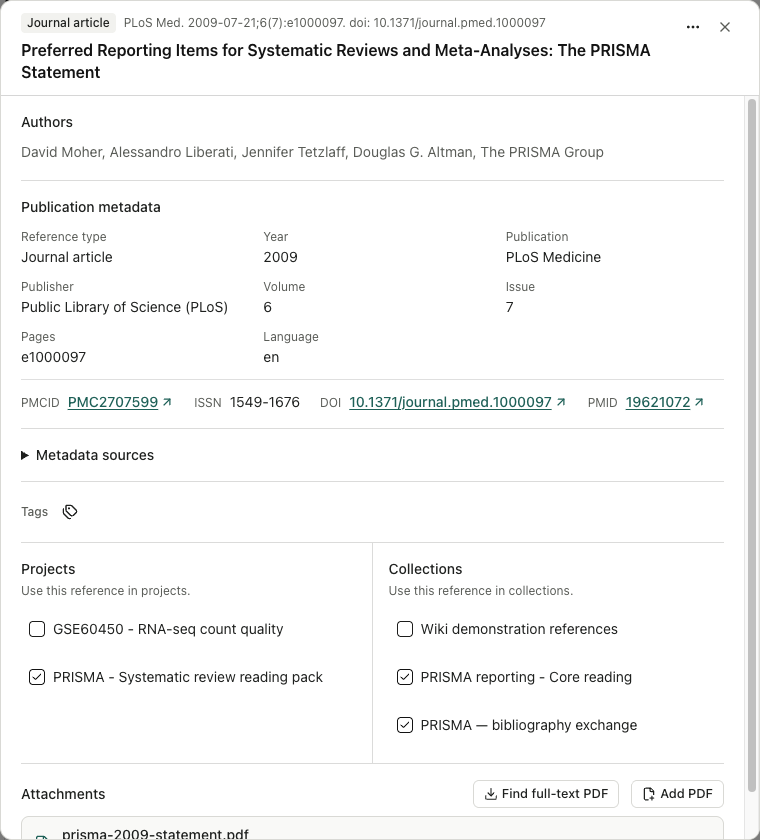
In a detail view, project and collection checkboxes show the links. Manage Tags adds organizational tags. The table's one-to-five-star rating is your annotation, not an automatic evidence-quality score. Clear selection leaves the records unchanged.
| Table control | Scope |
|---|---|
| Search references | Bibliographic fields including title, creators, publication, identifiers, abstract and notes |
| Sort references | Choose the displayed order |
| Filters | Narrow by the available type, year, tag and full-text conditions |
| Customize | Choose/reorder displayed columns |
| References per page | 25, 50 or 100 rows |
| Row checkbox / Select all | Set the targets for the available bulk actions |
| Export | Export selected bibliographic records; it does not automatically package all PDFs |
The total library count is independent of the current search/filter result. Read the displayed view and selection counts before a batch action; a smaller filtered result does not mean records were removed.
Clear search and filters before concluding a record has disappeared. Project/collection links do not create independent metadata versions for each destination.
Add and read full text
Find full-text PDF checks applicable public providers: Europe PMC/PMC, OpenAlex, Unpaywall and arXiv. Available identifiers and configured contact/credentials determine applicability. Inspect the source, version label and URL before Add attachment.
Worked example Attach the publisher PDF to the PRISMA 2020 record
If Add attachment fails after a source is found, download the publicly available PDF from the publisher and use Add PDF on the same record. Open the attached PDF and compare its title and DOI with the publisher record. In this example, Preview prisma-2020-statement.pdf shows the matching PRISMA 2020 paper: 806.1 KB and 15 pages.
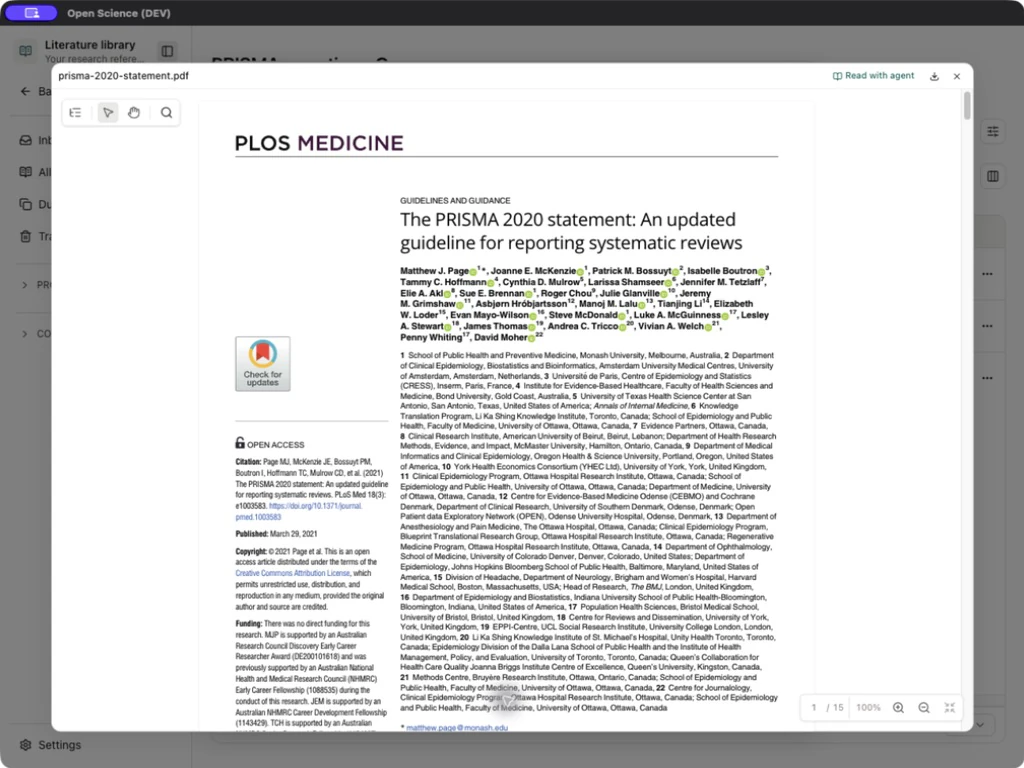
A source result is not a saved attachment. An attached PDF is not proof of agent reading. Read with agent supplies context for a subsequent request. A Composer @ reference can select an exact record, a project Library or a Collection: a collection grants retrieval scope, not automatic inclusion of every paper's full text. PDF reading controls are in Previews.
If no public copy is found, retain the checked metadata and use a legitimately available local PDF when appropriate. Background lookup/download tasks can expose pause-after-current, resume, review and cancel controls; cancellation does not imply that completed earlier items are undone.
Retrieve full text in batches and resume later
Retrieve full text in batches and resume later
- Select the intended records in the Library and open the selection's More actions → Find full-text PDF.
- After searching starts, choose Pause when needed. The current item finishes before the task pauses.
- Check Checked and Pending, then select Continue search. After closing the panel, return to the same task through Background tasks → Open.
- Review each candidate source and warning before selecting items and clicking Add selected.
- Downloading also supports pause and Continue download. Inspect the final Added / Failed / Skipped states and reopen any successfully added attachment.
- To discard an unwanted review-ready task, use Remove task in Background tasks. After removal, confirm that the task is gone and that its references and attachments still open. Removing the task does not delete them.
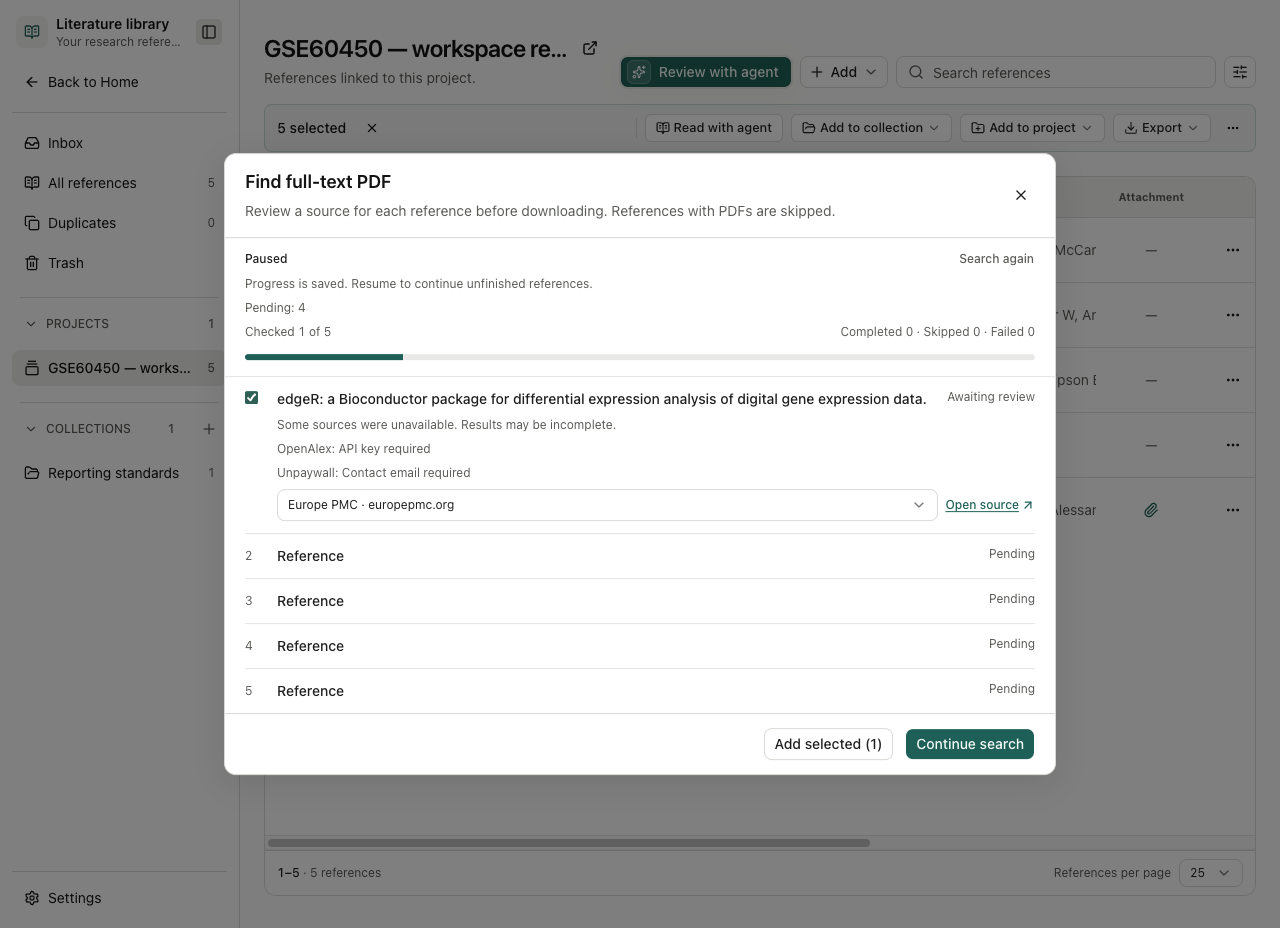
A paused search retains its checked and pending records. After continuing or reopening the task, inspect the final counts and each item’s outcome. Candidate discovery and successful PDF attachment are separate results.
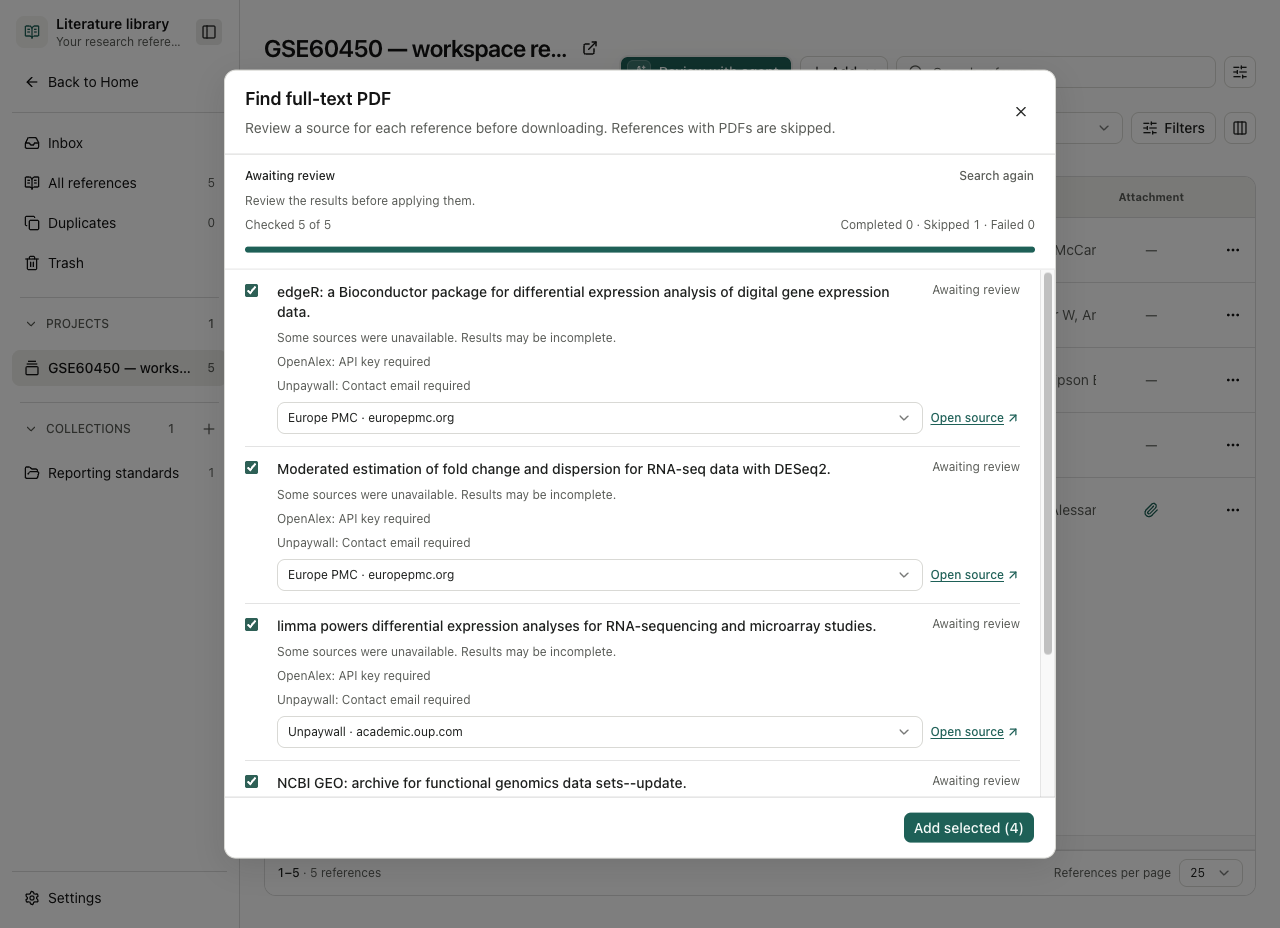
A source exists but the PDF cannot be added
A source exists but the PDF cannot be added
For PDF could not be added, check source sign-in requirements, link validity, the displayed size limit and the current proxy/DNS configuration. Avoid creating duplicate references as a retry mechanism.
If a PDF source resolves to a reserved address such as 198.18.x.x, the downloader rejects it. Follow Network to restore verifiable public resolution, then retry; do not disable the address check. If you already have a legitimately downloaded PDF, use Add PDF and verify its title, DOI and page count.
Format and copy citations
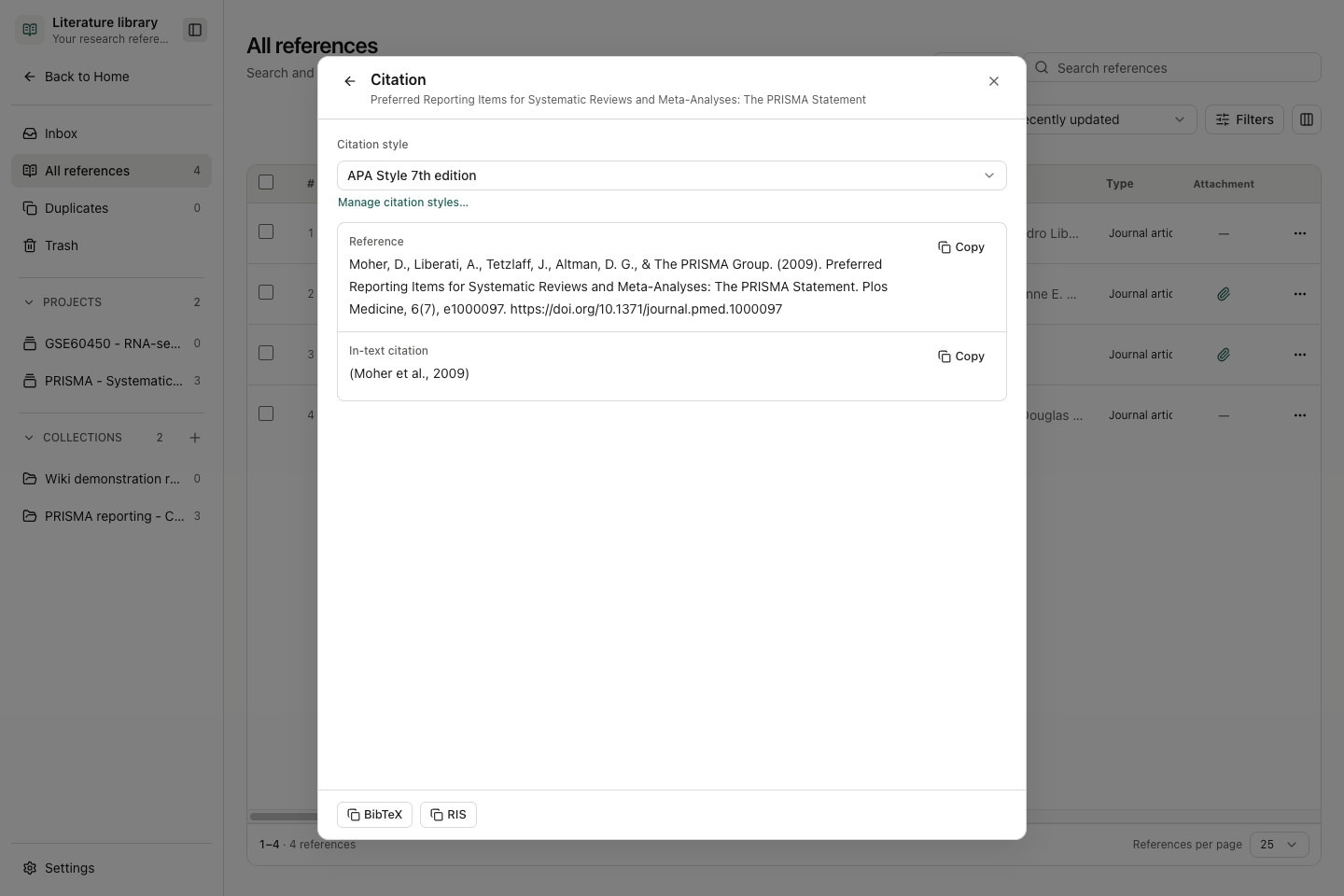
Open More actions → Citation. Select Citation style, inspect the reference and in-text form, then choose Copy reference, Copy in-text citation, Copy BibTeX or Copy RIS as needed. Check names, year, punctuation and DOI against the source before reuse. The corresponding representation does not repair an incomplete record.
Manage citation styles… opens style management. The bundled set includes APA, MLA, Chicago author-date, Vancouver, IEEE, Nature, AMA and Harvard. Preview shows a style sample, Browse styles opens the external style catalog, and Import CSL imports a local style file. The PLOS CSL import and its application are verified below. Copy and export are separate operations; check both when moving a bibliography.
Check a real citation after importing a journal style
Check a real citation after importing a journal style
Worked example Apply the PLOS citation style to a PRISMA record
In Library → Settings → Import CSL, choose the independent plos.csl file from the CSL styles repository. In this example, Imported styles increased from zero to one and showed Public Library of Science. Return to the real PRISMA record's Citation panel and select that style under Citation style. Check the numbered reference and [1] in-text citation. The style-management preview uses a sample article; inspect your actual record before copying a citation.
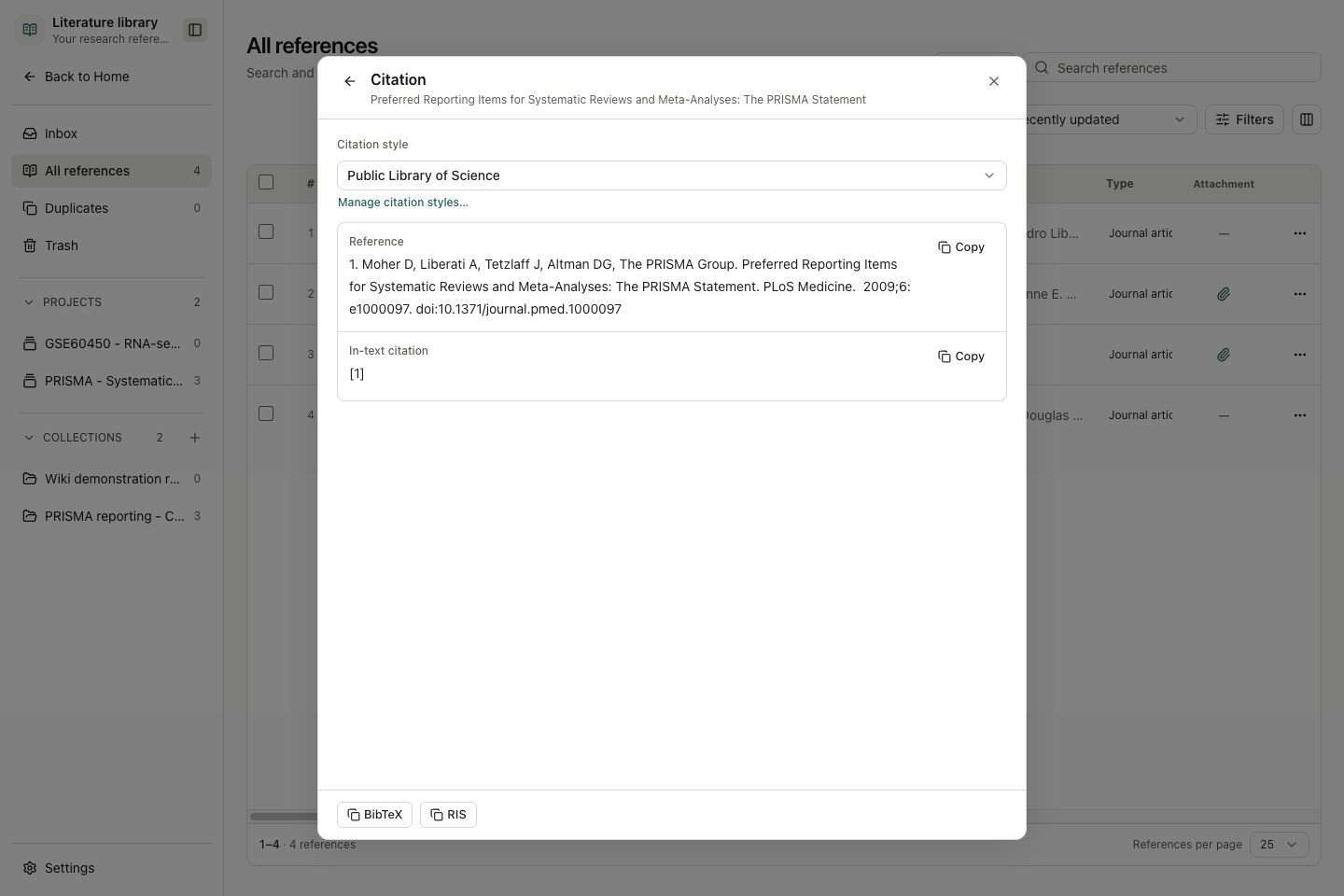
Copy a citation or export reusable records
Copy a citation or export reusable records
Worked example Copy and round-trip PRISMA citation records
The four Citation copy buttons write different representations to the clipboard. Paste into your intended editor and inspect the result before leaving the panel.
| Button | Result checked for PRISMA 2009 |
|---|---|
| Copy reference | APA reference retained the four personal authors, The PRISMA Group, year and DOI |
| Copy in-text citation | (Moher et al., 2009) |
| Copy BibTeX | An @article entry with the organization author enclosed in braces |
| Copy RIS | A TY - JOUR record with author, title, year and DOI fields |
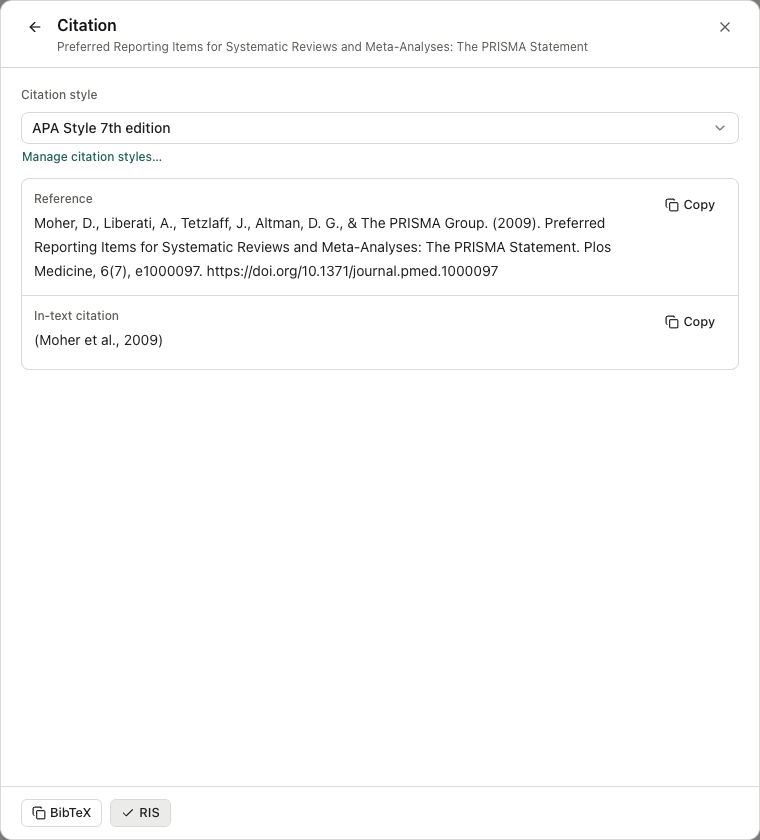
For a file, close Citation, select the required table rows and choose Export → BibTeX or RIS. Choose the location in the system save dialog and wait for Saved. These files contain bibliographic records, not a PDF attachment bundle. Reimport the saved file into a test collection with Reuse existing reference and check its match count. Both exported PRISMA files were reimported and reused the existing DOI without creating another record.
BibTeX stores year and month here, so its round trip returned 2009-7; RIS retained 2009-07-21. Check date precision when merging. Plain RIS author fields may not preserve a separate organization-name type in another manager; inspect the imported creator editor when that distinction matters.
Resolve duplicates and recover references
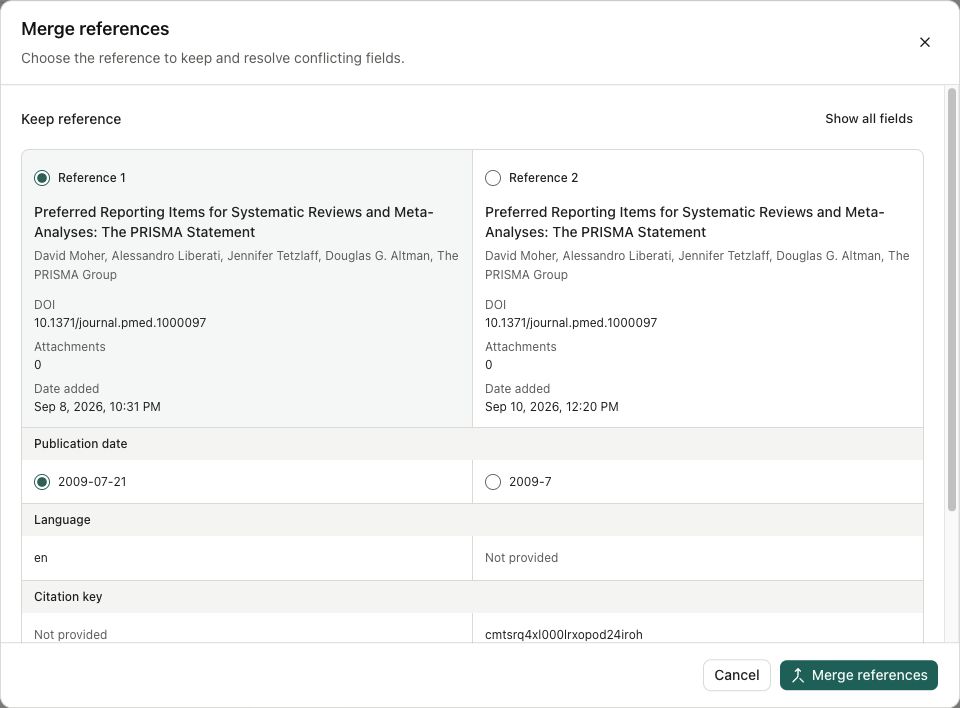
Worked example Merge and restore a PRISMA record with its attachments
Keep one record and its attachments
Keep one record and its attachments
- Open Duplicates → Review duplicates. The view scans active Library records, not just the current collection.
- Under Keep reference, choose the record with the verified identity. Compare DOI, creators, attachment counts and date added. Show all fields reveals fields hidden by the conflict-focused view.
- For each conflicting field, select its source. In the PRISMA BibTeX comparison, choose the full
2009-07-21publication date over2009-7. Empty fields can be filled from the other record. - Read After merging and its attachment, collection and project counts. Only then select Merge references; Cancel leaves the records separate.
- Reopen the survivor and verify metadata, links and PDF contents. The merged-away record appears in Trash as Merged duplicate.
A PDF with an extracted filename in place of its title may not enter a duplicate group. Correct its title and DOI using the publisher record, then review the matching group. After merging, confirm the retained PDF opens and collection/project associations are still present.
Restore an accidentally removed reference
Restore an accidentally removed reference
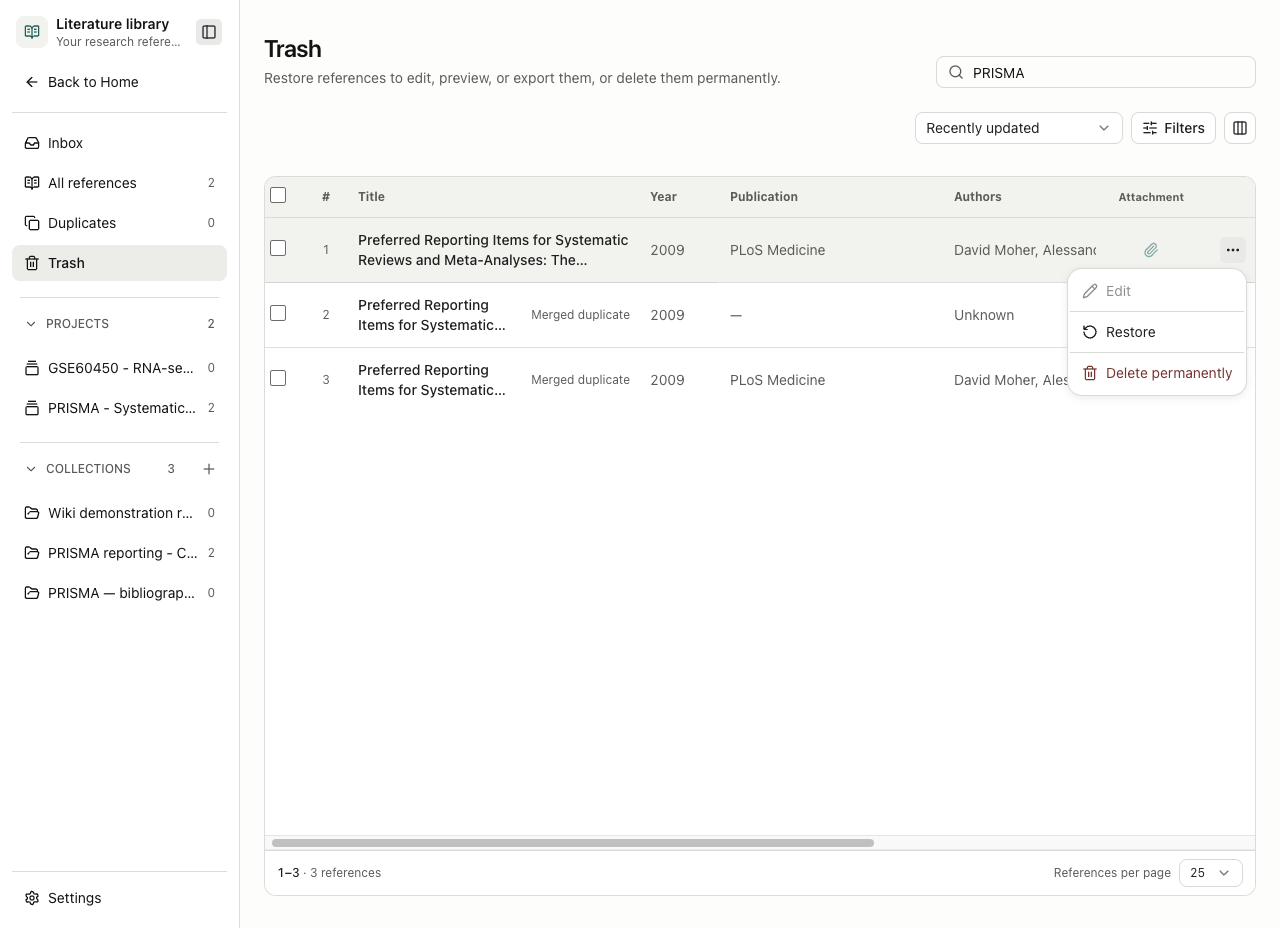
Use the row's More actions → Move to Trash. It disappears from active Library, project and collection views. In Trash, search by title or identifier, open its row menu and choose Restore. Restore before editing, previewing or exporting: these controls are disabled in Trash. Reopen the original project and collections to verify the restored links. In this example, restoring the PRISMA record retained its PDF and all three links.
Permanently remove an unwanted duplicate
Permanently remove an unwanted duplicate
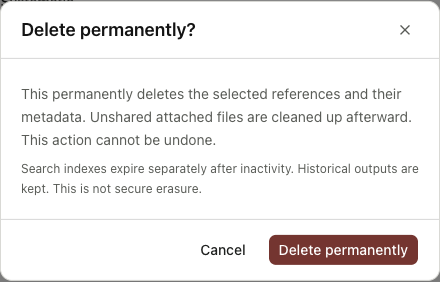
In Trash, choose More actions → Delete permanently and read the confirmation. Cancel preserves the row. Confirmation removes the selected references and metadata; unshared attached files are cleaned up afterward. Historical outputs are retained and search indexes expire separately, so this is not secure erasure. Export anything required before deleting.
After deletion, check that the selected record has left Trash and that the retained reference still opens with its attachments. Removing a collection link, moving a record to Trash and permanently deleting it have different scopes.
Attachment changes and concurrent edits
Before removing an attachment, read its deletion confirmation and verify the file/version being targeted. Use the available version history to inspect earlier attachment versions. Removing a PDF, moving its reference to Trash and permanently deleting a reference have different scopes; retained conversation evidence can restrict cleanup.
If another client changes a collection while your editor is open, a stale save can be rejected. Reopen the latest collection, compare its saved values with your intended change and retry against that state. A refresh or cleanup error after saving does not automatically mean the save failed: inspect the current record before repeating the action.
Sources: batch import, metadata editor, attachment history/deletion, concurrent edits.
Keep PDF reading notes
Open a reference's PDF attachment and use Notes & Annotations for annotations, page questions and document notes. The same library file version shares these notes across projects and sessions. Find a note under Library in global search, then choose Show annotation source to return to the PDF. See PDF annotations and document notes for steps and exports.
Select a loaded page for a batch action
Use the select-all checkbox in Library or Inbox to select the records already loaded in that view. Check the selected count and visible rows before choosing a batch action. Selecting this checkbox replaces the selection with the loaded rows; clearing it clears the selection.
When additional matching Library records exist, a separate Select all matching references action can extend the selection beyond the loaded page. Inspect its total and active filters before using it. The page checkbox alone does not do this. Use Clear selection to start again. Selecting records does not accept Inbox candidates or export files until you choose that action.
Resume a failed smart-collection batch
When a smart-collection evaluation stops on a failed batch, inspect its error and the remaining progress before using the offered retry. From v0.37.0, retry resumes the failed batch while preserving completed evaluation work. Keep the scope and criteria unchanged for that retry, then review Included, Needs review and Excluded results. Do not create a duplicate collection to recover an interrupted evaluation.
Trace references and citing papers
Open a reference's details and choose References or Cited by. Semantic Scholar supplies these relationships. If lookup matches by title alone, compare the proposed paper's title, authors and year before confirming it. Use Load more for later results, select the papers you need, then Add selected to Inbox. Review them in Inbox before accepting them into the Library; discovering a citation does not retrieve its full text.
An API key is optional. If requests are rate limited, wait or use Configure API key in the local desktop app. A missing result can reflect source coverage or access limits; it does not establish that the paper has no references or citations.
Import files and supplementary materials
Drop PDFs or supported bibliography files into the Library and review the import results. For a paper's supporting files, open its details and choose Find supplementary materials. Check the source, relation to the paper, filename and license before downloading. Discovery searches Figshare, DataCite and Europe PMC; a source link or an empty search is not proof that every supplement has been found.
Follow each attachment's download progress. For an archive, select the files to extract. Open the resulting attachment using its file-type preview; Word files can be previewed too. Keep the main article and supplementary attachments distinct, and retry only failed downloads after checking what is already present.
Check retractions and corrections
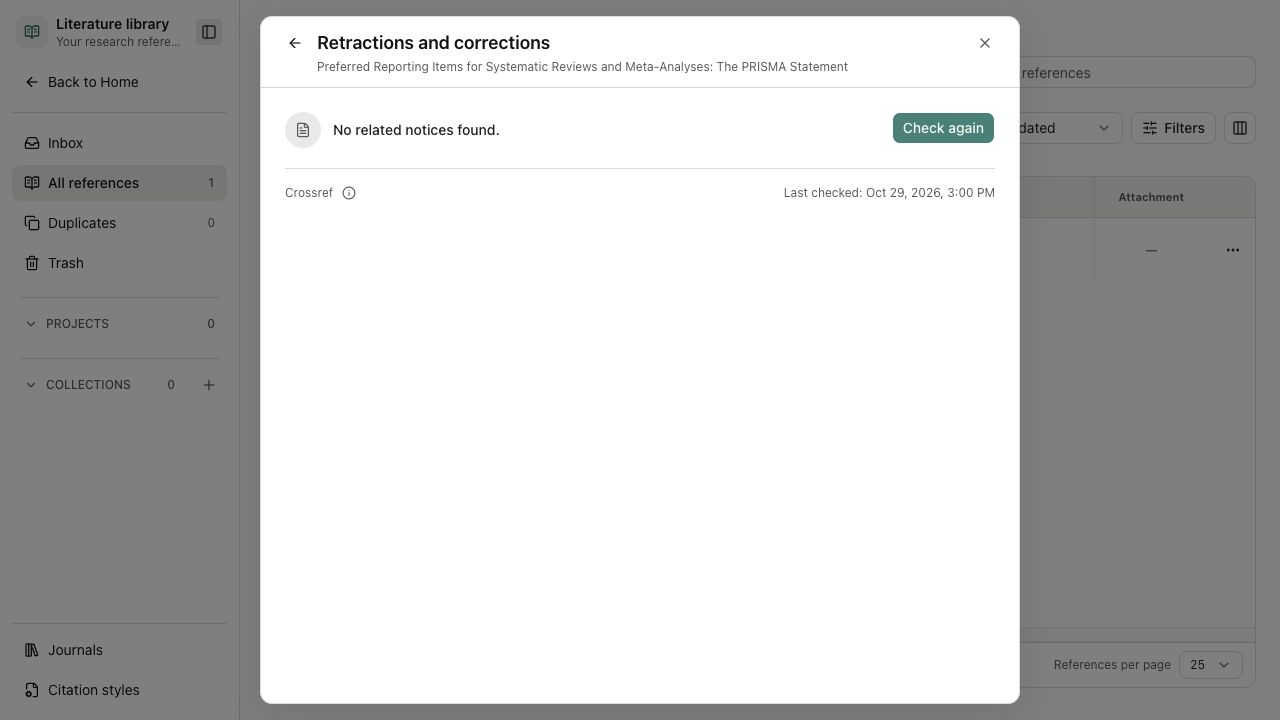
- Open a reference with one valid DOI. Choose More actions → Retractions and corrections, then Check now. Use Check again to refresh a saved result, or Retry after an error.
- The check sends that DOI to Crossref. Read each notice's type, source, date and DOI link; open the notice before changing how you use the paper.
- Read Last checked beside the saved result. Reopening the panel shows the earlier observation, not a new query.
No related notices found means the query returned no notices, not that the paper is unaffected. Crossref coverage is incomplete. Checks do not rewrite bibliographic metadata or screening decisions. If refreshing fails, inspect the date of the previous successful result and retry later.
Track your reading progress
Reading status is your own annotation. Opening a PDF, attaching it or asking the Agent to read it does not mark the paper as read.
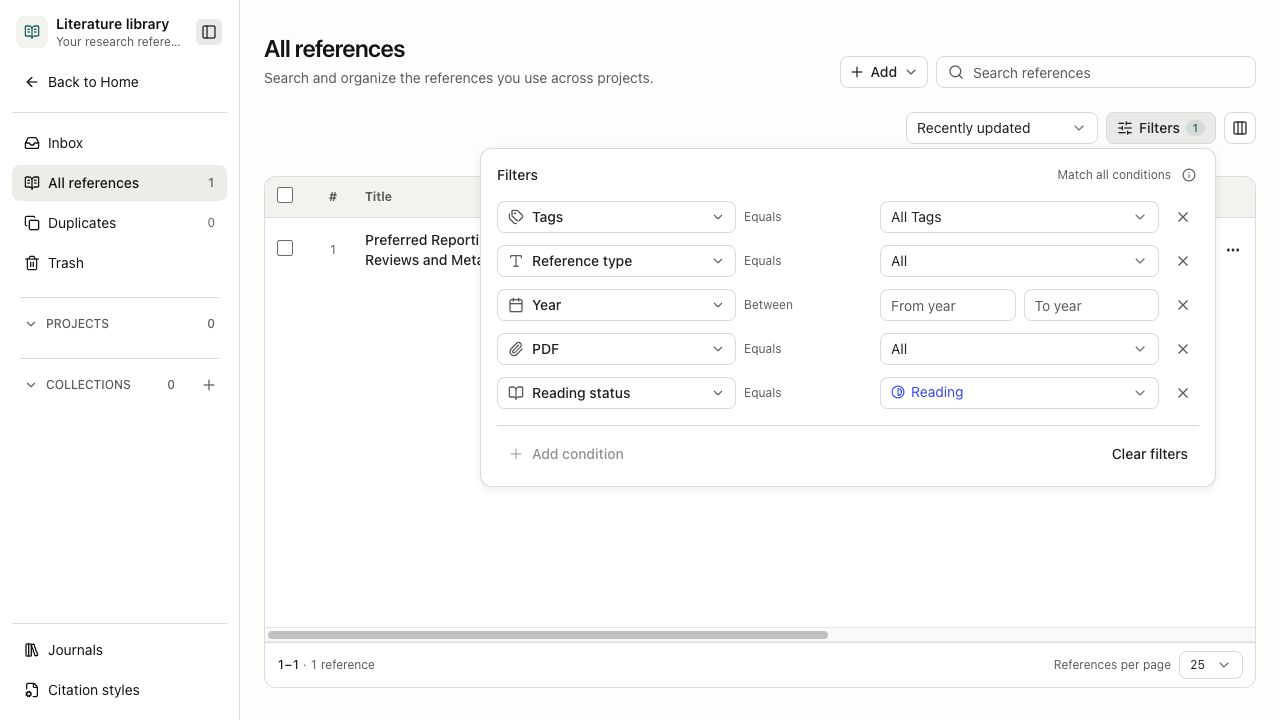
- In the Library, use Customize to show the Status column if it is hidden. Select a row's status, or open the reference's details and its Reading status control.
- Choose Unread, Reading or Read. Records without a saved status start as Unread.
- For several papers, select the intended rows and choose Set reading status in the bulk actions. Check the selected count; use all-matching selection only when you intend to include records beyond the loaded page.
- Use Filters → Reading status to find papers at the same stage. If a changed record leaves the current filtered view, clear the filter to find it again.
The status applies to the reference, including its project and collection views. It is separate from smart-collection screening decisions and evidence quality. If saving fails, keep the existing status and retry after checking the current record.