Projects and source folders
A project is the working container for a research question: it groups sessions, source files and generated results. Its Agent Context supplies durable instructions to every session in that project. Start a separate project when the research question or permitted source material changes.
To bring an existing research record into this project, use Import Session package. Imported sessions are read-only; create a normal session for new work.
Create a project
Worked example Prepare a systematic-review reading pack
Our example project is PRISMA - Systematic review reading pack. It uses published reporting-guideline papers, with the goal of retaining verifiable bibliographic records and a reading order. This is a collection-building task, not a completed systematic review.
- From Home, select New project. In an existing workspace, the project-name menu provides the same entry.
- Enter the fields below. Keep bibliographic and evidence rules in Agent Context, rather than only in Description.
- Select Create project. Confirm that the left sidebar displays the project name and the main panel opens New conversation.
- Open the project-name menu and Project settings to check the saved values. A successful project save is separate from model readiness.
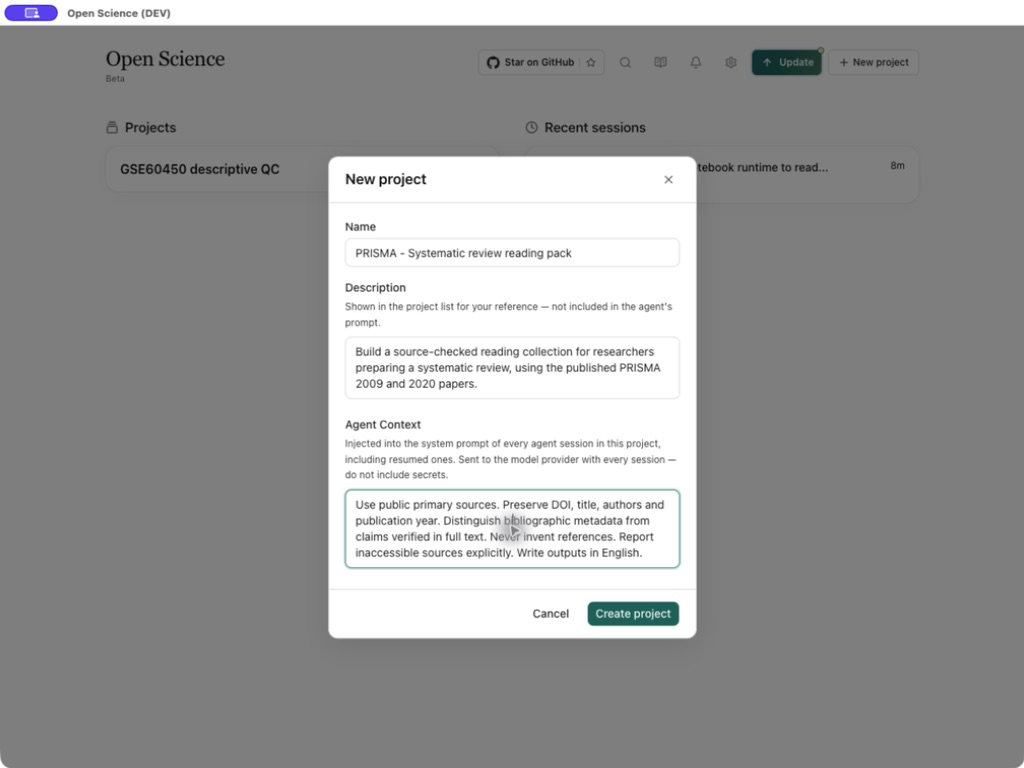
| Field or button | Example or action | What changes |
|---|---|---|
| Name | PRISMA - Systematic review reading pack | Required display name; up to 200 characters. Empty or whitespace-only input cannot be submitted. |
| Description | Build a source-checked reading collection for researchers preparing a systematic review. | Optional, up to 1,000 characters. Appears in the project list; it is not sent as agent instructions. |
| Agent Context | Use the instructions below. | Optional, up to 16,000 characters. Included in new and resumed agent sessions and sent to the selected model provider. |
| Create project | Save the valid form. | Creates the project and opens its workspace. A save error remains visible in the form. |
| Cancel, Close | Dismiss the draft. | No project is created. Dismissal is disabled while submission is pending. |
| Save in Project settings | Save an edited project. | Updates the existing project; it does not duplicate its sessions. |
Use public primary sources. Preserve DOI, title, authors and publication year.
Distinguish bibliographic metadata from claims verified in full text.
Never invent references. Report inaccessible sources explicitly.
Write outputs in English.
Give a project access to source files
Creating a project does not automatically expose your computer's folders. Open Files and choose the local-folder entry when you want to work with an existing directory. The folder picker selects a location; the subsequent permission prompt determines permitted access. Read the selected path and access mode before confirming.
Use read-only access when reviewing source material. Save a managed project copy if you need the source retained with the project. A local file preview and a managed upload have different lifecycles: moving an external file can break the original path, while a managed copy remains in application storage.
An access change can prompt a Notebook confirmation because active kernels may retain access from their earlier configuration. Finish or stop the relevant work before accepting a kernel restart. Selecting a folder is not evidence that every file in it has been read by the model.
Change or continue a project
Use the project-name menu to switch projects. Start a session with New when the next investigation needs its own transcript, while retaining the same project context. Use Project settings to revise durable instructions; check the next request against the revised rules, because already-produced results do not update automatically.
Download artifacts… is an output operation. It can be disabled when the project has no generated artifacts; uploading a source file alone does not create a generated result. Archive finished work when you want to remove it from active navigation while retaining recovery through Settings → Archived.
Confirm the result and recover from problems
| Observation | Interpretation and next step |
|---|---|
| Project name appears, but sending is unavailable | Project creation succeeded. Check Settings → Agent and Settings → Model separately. |
| Agent ignores instructions written in Description | Move instructions into Agent Context and send a new, explicit request. Description is organizational metadata. |
| Folder opens but a write is denied | Read-only permission permits inspection, not modification. Save a derived artifact or review the requested write scope. |
| Save remains disabled | Remove blank-only names and check field lengths; wait if another save is pending. |
| A different project is selected | Check the project title before attaching a document or sending a request. |