Network, proxies, and package mirrors
Open Settings → Network when a model, Notebook request or package download cannot reach its destination. This page separates connection status, Notebook allowed domains, a process proxy and package mirrors. A green connection check does not prove that every protected Notebook request will succeed.
Start with the failing operation: a provider request, Notebook network access and a package installer can use different routes. Keep its hostname and exact error available while changing these settings.
Read Network status first
The status combines network-link information and a package-registry probe. READY · Package registries are reachable indicates that probe succeeded. Checking, unreachable or offline states indicate that another check or connection repair is needed. Use Check again when available after changing the connection.
If Network reports Ready but a tool fails, expand that tool's error. The status probe checks its own destination; use the failed request's hostname and message to diagnose the affected route.
| Failure | Inspect next | Avoid this mistaken conclusion |
|---|---|---|
| Provider login fails | Provider authentication and the model connection check | Notebook domain settings will supply model credentials |
| One research hostname is denied | Manage access and the exact hostname in the request | Adding a broad unrelated domain will fix it |
| A package host is already allowed but CONNECT fails | Installer log, proxy and DNS resolution | Another identical Allow click will resolve all network failures |
| Certificate verification fails | The configured CA bundle and the organization's trust requirements | Disabling certificate verification is necessary |
| Package index returns no matching distribution after connection errors | Earlier network messages and selected Python/platform | The package must not exist |
Configure public network rules
- Open Settings → Network → Manage access. Read Public internet access and inspect Built-in services; groups marked Required stay enabled.
- Under Custom public domains, enter a hostname, an HTTP(S) URL or a leading-wildcard rule in Domain hostname, then choose Add to list.
- Inspect the normalized rule before Save changes, then retry the intended request. Saved approvals persist across restarts.
An exact hostname does not include subdomains. *.example.org covers its subdomains but not example.org itself. A URL such as https://example.org/path becomes a hostname rule: its path and port do not limit access. Rules allow sending data to their matching hosts. IP literals, localhost and credentials embedded in URLs are rejected. A hostname resolving to a private address still needs private-service review; a public rule does not grant that access.
Trust a private service
Use this only for a known internal service that your research code should access. This control is available in the desktop app. Only private service addresses are supported; localhost, this computer and reserved addresses remain blocked. The field does not accept raw IP addresses or wildcards.
- In Trusted private services, choose Add service and enter Hostname and Port. Confirm the exact service; the default port is 443.
- Select Review service. Inspect the resolved Approved addresses before choosing Add to trusted services.
- Review the list and select Save changes. DNS is checked again before saving; an address change requires another review.
- Retry a small request to that specific service and inspect its response. Address review alone does not test authentication or service availability.
A grant covers the exact hostname, port and reviewed addresses. It lets protected Notebook and Shell code send data to that service across all projects. Add only the access the task needs. Saving network rules resets protected connections and can interrupt an active transfer; finish that transfer before applying changes.
Choose a proxy mode
Select Configure proxy. Use a proxy address supplied by your own network configuration; the port in a screenshot is specific to that computer.
| Mode | Behavior | Required input |
|---|---|---|
| System | App requests follow the device proxy; agent processes inherit proxy environment from app startup | No explicit server field |
| Manual | Give new app requests and processes a fixed proxy | Proxy server URL |
| Direct | Connect without the configured/inherited proxy for new processes | No server field |
Manual mode accepts HTTP, HTTPS, SOCKS, SOCKS4 and SOCKS5 URLs. Embedded credentials in the URL are not supported. Bypass rules is an optional comma-separated list of hosts that should connect directly; localhost is always bypassed.
- Choose Manual.
- Fill Proxy server with the working proxy address used by your network.
- Add bypass rules only if the relevant destinations should connect directly.
- Select Save and wait for Proxy settings saved.
- Start a new request/process and test the original failing operation. Existing agent sessions, kernels and installers can keep their existing connections.
If Manual mode reports Enter a proxy server URL, enter a working proxy address or discard the draft with Done. Saving a valid address does not itself confirm that the proxy can carry the failing request.
When a domain resolves to a non-public address
If installation reports destination resolves to a non-public network address, inspect the detailed installer log even when the short error only says conda install failed or pip install failed.
deny network-outbound pypi.org:443
(destination resolves to a non-public network address)
- Check the affected hostname and its resolved address. Addresses such as
198.18.*are not public destinations. - Distinguish a domain-list decision from the destination check.
alreadyAlloweddoes not establish that the resolved address is acceptable. - Check public DNS resolution and the intended proxy route with the network owner, then retry the original small request. Keep domain protection enabled.
- Verify installation and import separately. A saved proxy, Ready interpreter or successful use of existing packages is insufficient.
If the same error persists, keep the hostname, resolved address and proxy mode with the installer log and follow Troubleshooting. A successful settings save is not a successful download.
Configure package mirrors and certificate trust
Select Configure or Edit under Package mirror.
| Field | Input and effect |
|---|---|
| Conda channel mirror | Mirror root used for Conda channel downloads |
| Python package index (pip) | A Python package index URL, typically ending in /simple |
| CA bundle path | Path to a complete PEM trust bundle including required public and corporate roots; blank uses public certificate authorities |
| View available mirrors | Open external mirror documentation |
| Save | Store the configuration for subsequent package operations |
| Cancel | Discard the draft |
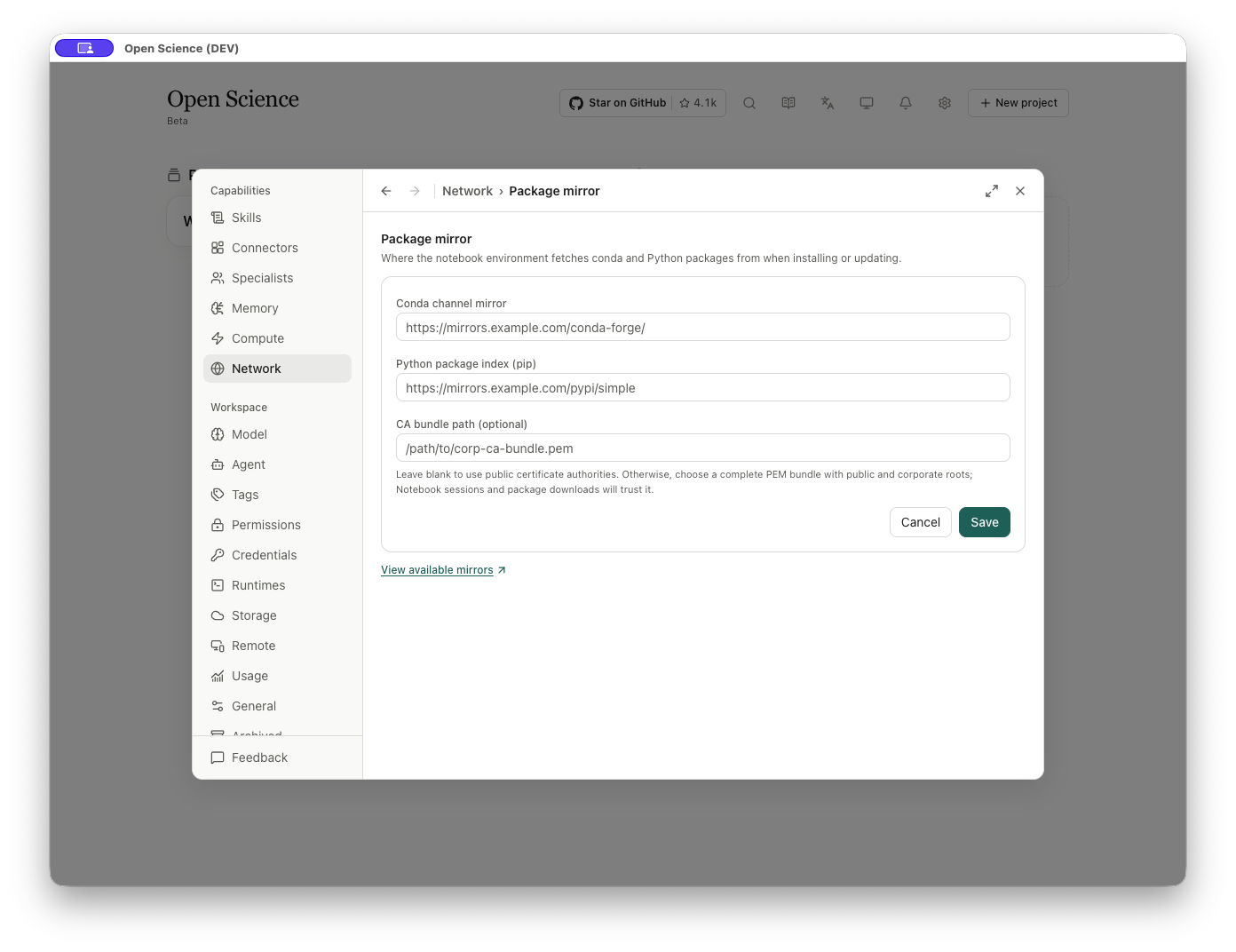
A package mirror changes the package source. Confirm the mirror's required root/index format, save, and retry a small package operation in the selected runtime. Model-provider proxy settings are separate.
Configured Conda, PyPI and CRAN mirror hostnames receive temporary access for the package-management operation. This does not add them to the permanent Notebook domain list or grant ordinary Notebook code the same access. Redirects to other hosts still follow the network approval flow.
Use a supported HTTP(S) mirror URL without embedded credentials, whitespace, localhost or a raw IP address. An accepted mirror setting does not fix an unavailable server or a hostname resolving to a reserved address. If installation fails, inspect that operation’s actual destination and error before retrying. Remote model endpoints have a separate HTTPS requirement.
Information to keep when a request fails
Record the app version, operation, runtime/environment, package or hostname, proxy mode and first useful error. Preserve the original installer output: the final “No matching distribution” line can conceal earlier connectivity failures. Exclude tokens and proxy credentials from shared diagnostics.
For a missing Python module after a successful connection, continue with runtime and package checks. Remote host setup is covered separately in Compute.
Network settings source, Notebook network boundary.
HTTP error lookup
For 400, 401, 403, 404, 429 or 5xx responses, use the HTTP troubleshooting table. Keep the responding service and its detailed message with the status code.
After changing proxy, mirror or Notebook domain settings, confirm the values persisted, then retry the original operation in the same runtime. Check both the download and package import; a successful settings save alone does not resolve an installation error.
An R cell was blocked before execution
In v0.31.1, Notebook shows an inline warning when network protection blocks an R run. Follow its setting link and inspect the requested access. The warning means the cell did not execute; it is not a scientific result or a completed run. After resolving the specific requirement, run the cell again and inspect its output. Windows standard-mode R support does not itself enable network protection.
Network access when the approval mode changes
From v1.0.5, Full access allows public network destinations without individual permission cards. Other authentication, source restrictions and private-service checks still apply. Changing to a more restrictive mode closes existing connections so they cannot continue under the old permission. Retry the intended request under the new mode and review any permission card it presents.
Global network grants are reflected in Settings → Network immediately. Inspect the current domain or private-service list before adding another rule. A global grant is broader than a one-time approval; keep only the scope you intend. See approval modes.