Memory and conversation context
Memory stores reusable notes; the context window is the material available to a particular model request. A saved note is not proof that an agent recalled it, and a visible old message is not proof that the entire original history fits in the next request.
Use a category for durable conventions such as preserving raw counts and separating gene length from sample counts. Enable Memory and the category’s Auto-recall when you want those conventions supplied to new requests.
Create a category and note
Worked example Save and recall an RNA-seq reporting convention
- Open Settings → Memory → New category.
- Enter
RNA-seq methodsas Name. In When should the agent save a note here?, describe when a confirmed method belongs in this category. - Set Auto-recall deliberately. This example left it off for a manually maintained method note.
- Select Create, then Add. Enter the note and select Save.
- Leave and reopen the category to verify its content and count.
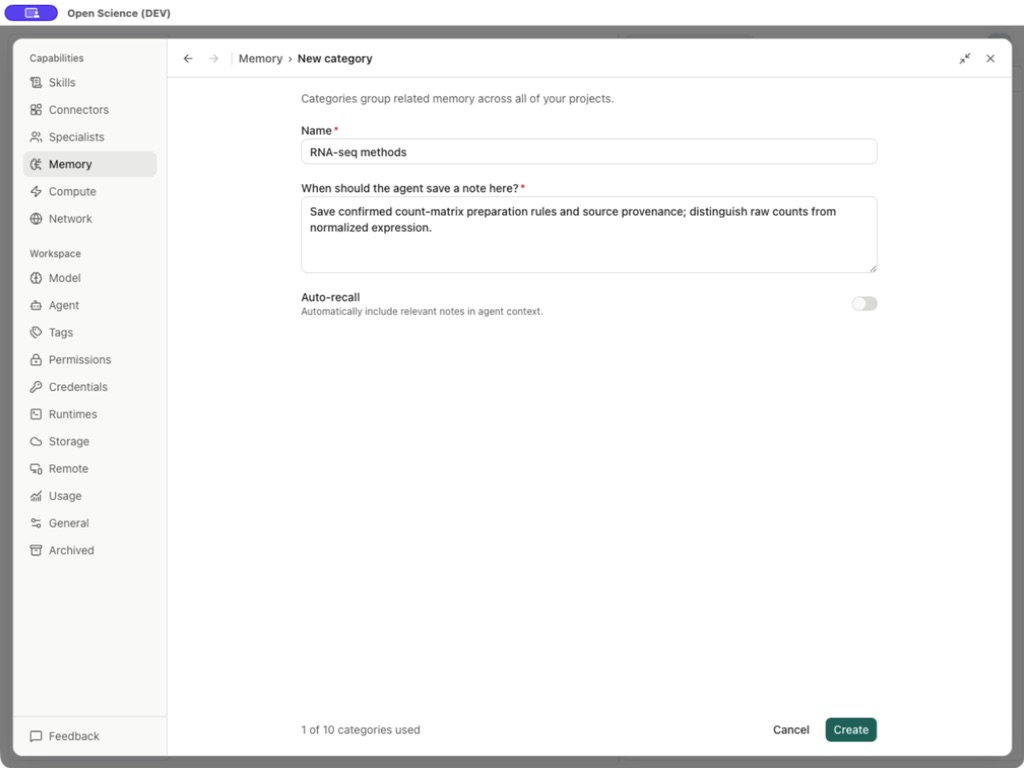
The saved note reads: “Keep the original GEO count matrix unchanged. Preserve Entrez Gene IDs as text, keep gene length separate from sample counts, and record the input SHA-256 with every derived table.” This is a working convention, not a claim about analysis results.
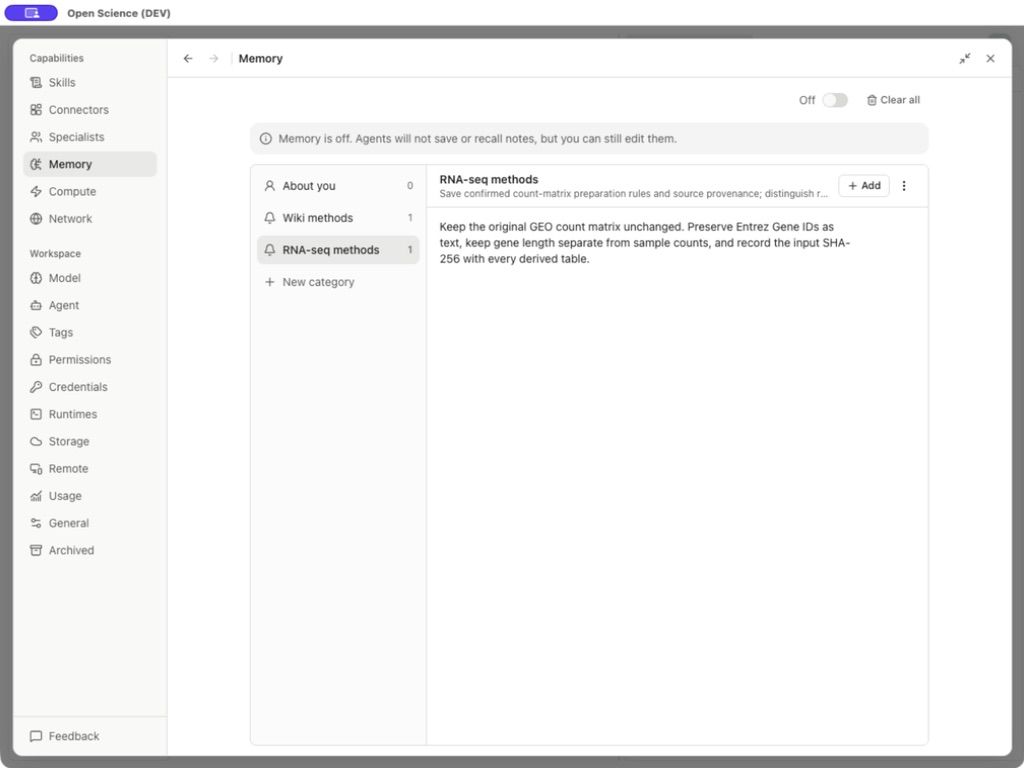
| Control | Effect and boundary |
|---|---|
| Memory switch | Enable/disable agent saving and recall. Off keeps existing notes and allows manual edits. |
| Category row | Show that category's notes and count. Categories group related memory across projects. |
| Project view | Show project-scoped notes; distinguish it from a global category. |
| New category | Name up to 64 characters, guidance up to 1,000; maximum 10 custom categories. |
| Add / Memory note | Create a note of up to 4,000 characters. Empty text keeps Save unavailable. |
| Copy note | Copy its text. |
| Edit note → Save / Cancel | Persist revised text or discard that edit. |
| Category actions → Edit | Change a custom category's name, guidance and Auto-recall. |
| Category actions → Auto-recall | Control automatic inclusion for this category; the main Memory switch still applies. |
About you is a built-in category. Its identity cannot be edited or removed like a custom category.
Save a convention from a conversation
- Turn Settings → Memory → Memory on. Open RNA-seq methods → Category actions and enable Auto-recall.
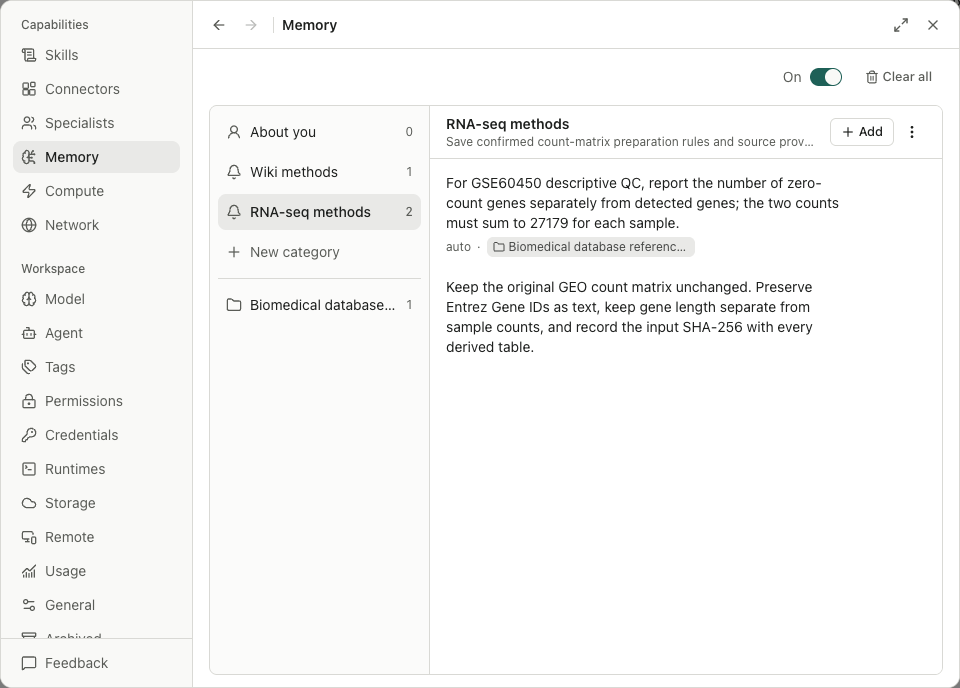
- In your project conversation, ask the agent to remember a confirmed convention and name the category. For example: “Remember in RNA-seq methods: for GSE60450 descriptive QC, report zero-count genes separately from detected genes; the two counts must sum to 27,179 for each sample.”
- Inspect the Save memory request when approval is required. Check the proposed content, category and project scope before selecting Allow once. Choose Deny if it does not represent an agreed convention.
- Reopen the category. Check that the note exists, has the intended text and appears under the intended project. The auto label identifies an agent-created note; it does not mean a computation verified the convention.
Check recall in a new conversation
Start a new conversation in the same project and ask which saved reporting convention applies, without supplying the answer. Compare the response with your note. A question in the original conversation can be answered from its existing history.
Turn the main Memory switch off and repeat the question in another new conversation. Check that the agent no longer receives the note through application memory. Your saved notes remain in Settings. Switching Memory off does not erase a note or remove text already present in an existing conversation.
The save above followed an explicit “remember” request. It does not demonstrate that the agent will spontaneously identify every useful convention. Context compaction is separate from saving a memory note.
Inspect conversation context
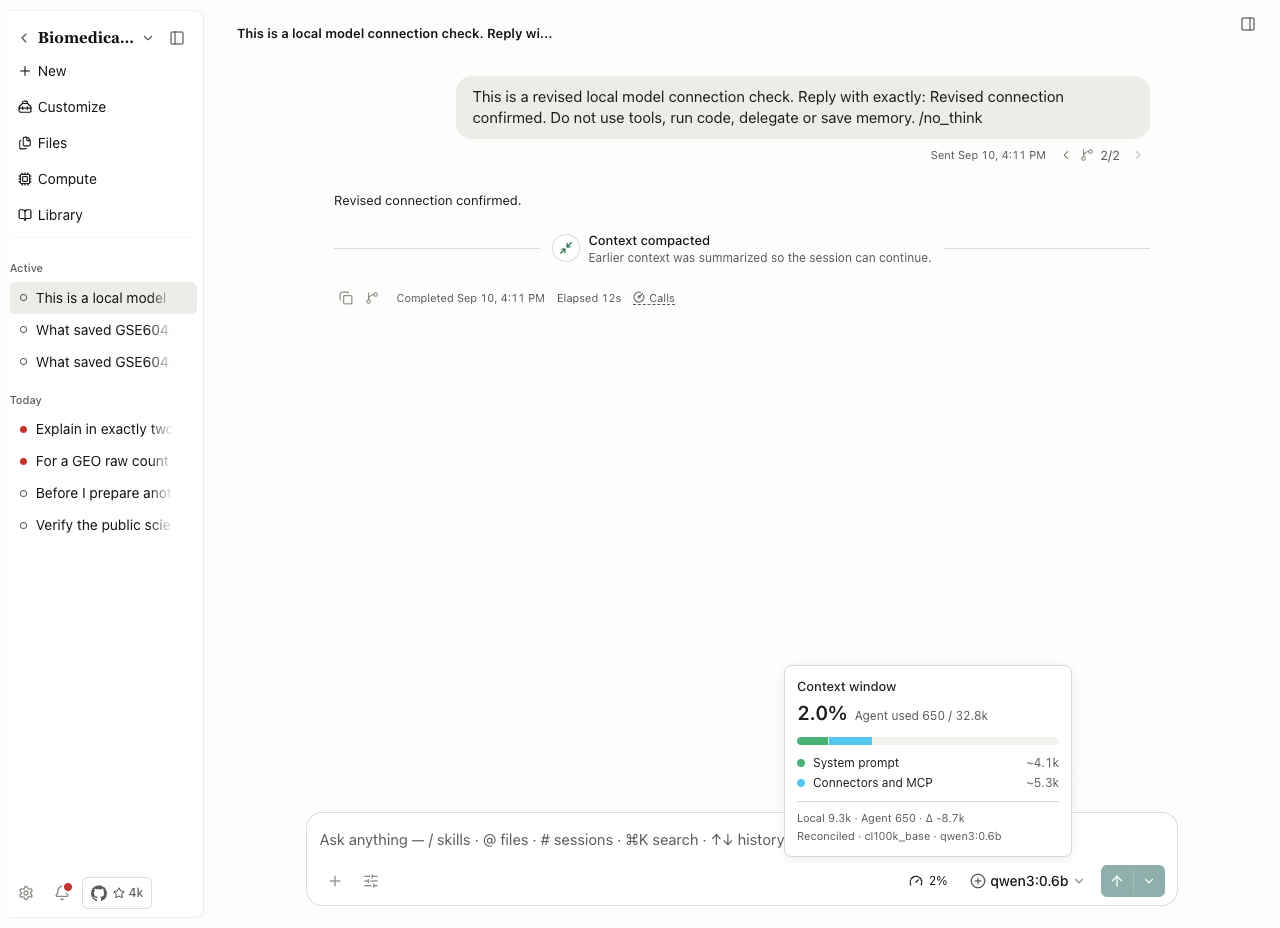
In a session, open the Context used percentage or Add menu → Context window when available. Inspect Current composition, History and Session call summary. Categories can include System prompt, Tools and agents, Messages, Connectors and MCP, Skills and framework overhead.
Select a history point to inspect its run, model, occupancy and terminal state. Local estimates and provider-reported measurements can differ; unavailable category detail is not zero usage. A compaction marker records a context event, not a new saved artifact or deletion of every visible message. Manual compaction controls depend on the active framework.
When OpenCode provides Compact in the context popover, select it and wait for Context compacted. Original messages can remain visible while the backend continues from a summary. Before continuing, ask the agent to list the retained constraints and compare them with your requirements. Re-state any missing or incorrect constraints before starting the next operation. Compaction does not guarantee lossless retention; provider measurements can differ from local estimates.
For a continuation, state the current goal, accepted decisions, exact input/output files, validation already done and unresolved questions. Link the saved evidence rather than relying on Memory to reconstruct it. Use Sessions and branches for branching/export and Usage for cumulative token volume.
Delete only the intended scope
Delete note removes one note after confirmation. Delete category removes the category and its notes; inspect the affected count. Clear all removes custom categories and notes while retaining About you. Cancel when the scope is larger than intended. Older backups can still contain deleted notes.
Sources: Memory schema, Memory panel, context viewer.