Organizing with tags
Tags organize Skills, Connectors, Specialists and References. They are not a universal label on every session or arbitrary disk file. Use Settings → Tags to create tags and browse their assigned resources.
After assigning a tag, open its detail and select a listed resource to return to it. Removing the tag assignment leaves the resource itself in place.
Create and edit
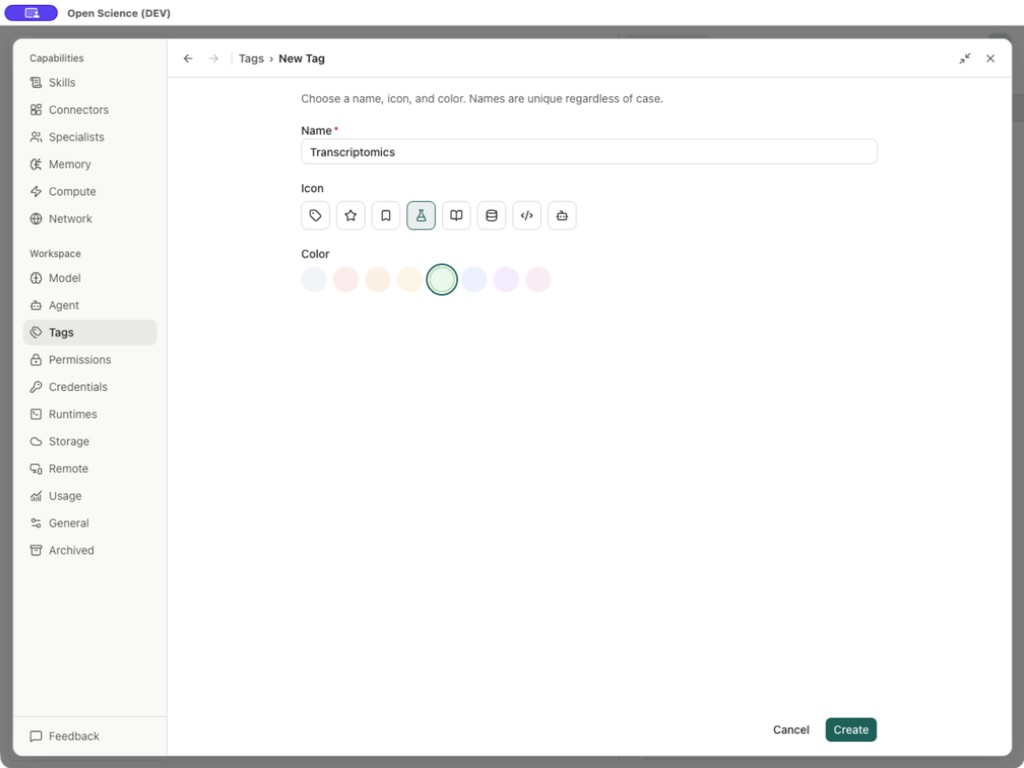
- Open New Tag, enter a name and choose its icon and color.
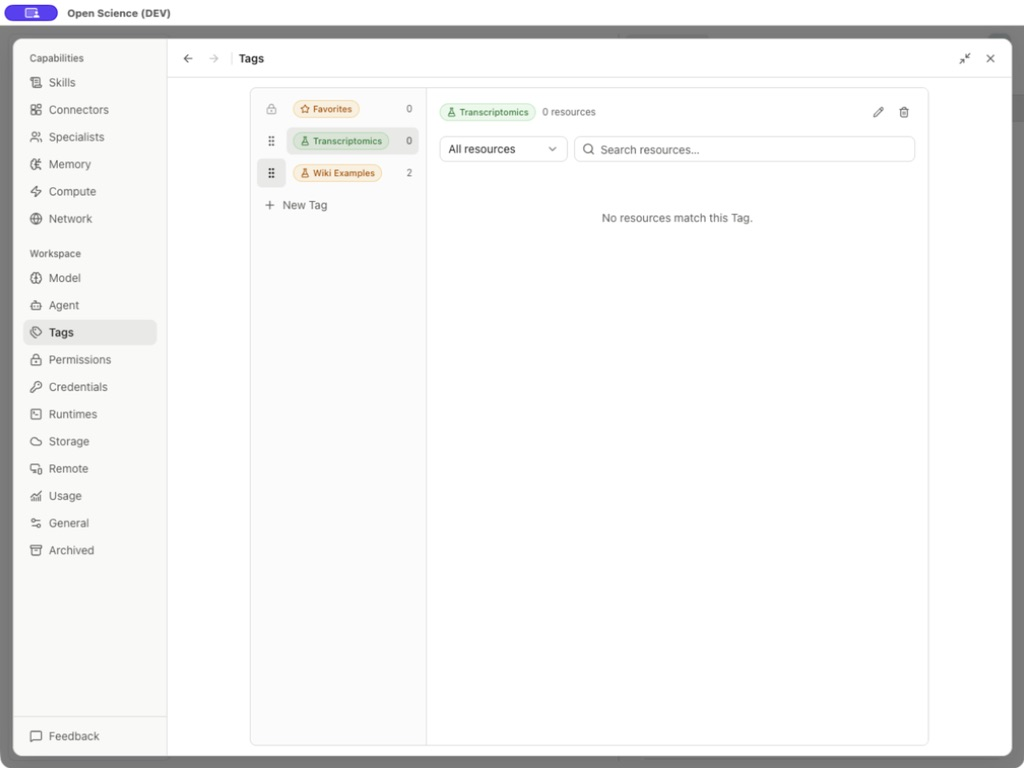
- Select Create. Check the new row and zero-resource state.
- Choose Edit Tag to revisit the current values. Save commits an edit; Cancel discards the draft.
| Field/control | Options and behavior |
|---|---|
| Name | Required; names are unique regardless of case. |
| Icon | Tag, Star, Bookmark, Flask, Book, Database, Code or Bot. |
| Color | Gray, Red, Orange, Amber, Green, Blue, Purple or Pink. |
| Create / Save | Create a new tag or save an existing tag's edit; empty names cannot be submitted. |
| Cancel / Back to tags | Leave the form without saving its current draft. |
If saving returns Could not save Tag, compare the name with existing tags, including case-only differences, and retry with a unique name. That error is generic; it does not by itself establish the cause of every failed save.
Assign and find resources
Open the intended Skill, Connector, Specialist or Reference and use its tag control to select the tag. Return to Settings → Tags and select the tag row. Read the resource count, then use Filter resources by type and Search tagged resources together. The type selector offers All resources, Skills, Connectors, Specialists and References. Clear search and reset the type if an expected resource is missing.
In the resource's tag picker, type in Search Tags, use ↑ / ↓ to move through matches and Enter to select. If the name does not exist, choose Create “name” to create and assign it. Check the selected tag after saving.
A tag name alone does not connect a service, grant permission or add a Skill to an Agent. Those controls remain on the resource and its capability bindings.
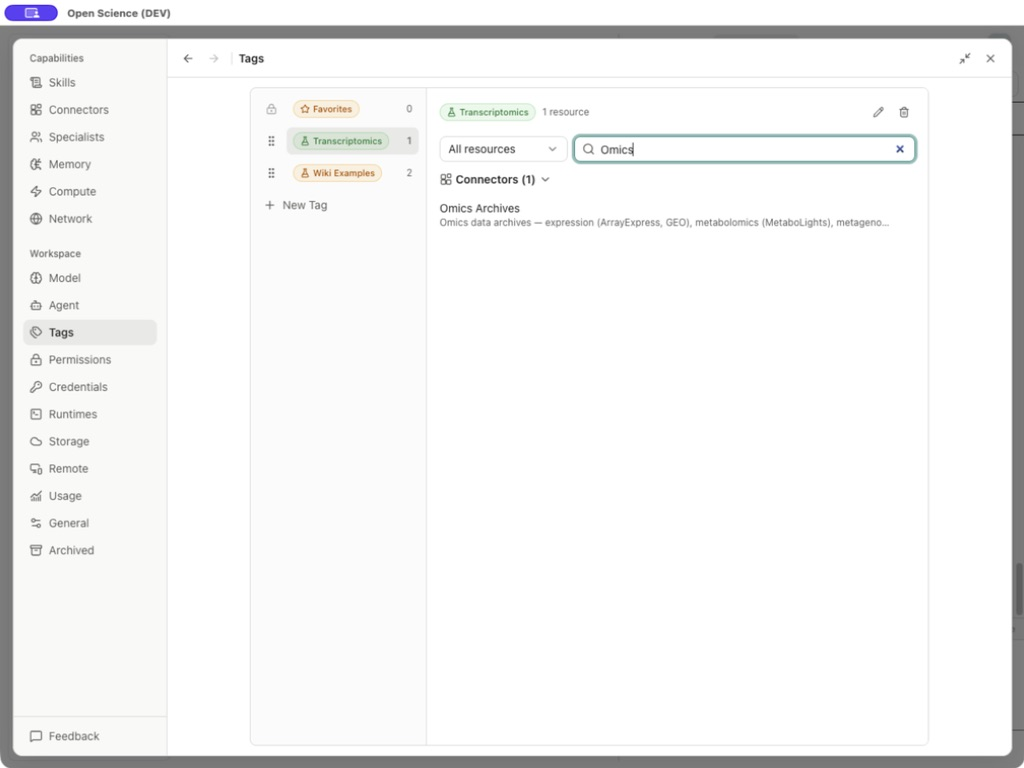
Worked example Find Omics Archives through a Transcriptomics tag
Assign Transcriptomics to Omics Archives, then open the tag detail. In this example, it shows 1 resource; searching Omics keeps that Connector visible, and selecting it opens its detail. Use your own tag and resource names when repeating these steps. Removing the assignment leaves the resource intact.
Order the tag list
Favorites stays first. Drag Reorder [name], or focus the handle and use the arrow keys, to move a custom tag. Check its new position in the list.
Remove a tag
Select Delete Tag and inspect Assignments to remove. Deleting the tag removes those assignments but keeps the resources. Cancel retains both the tag and its assignments.
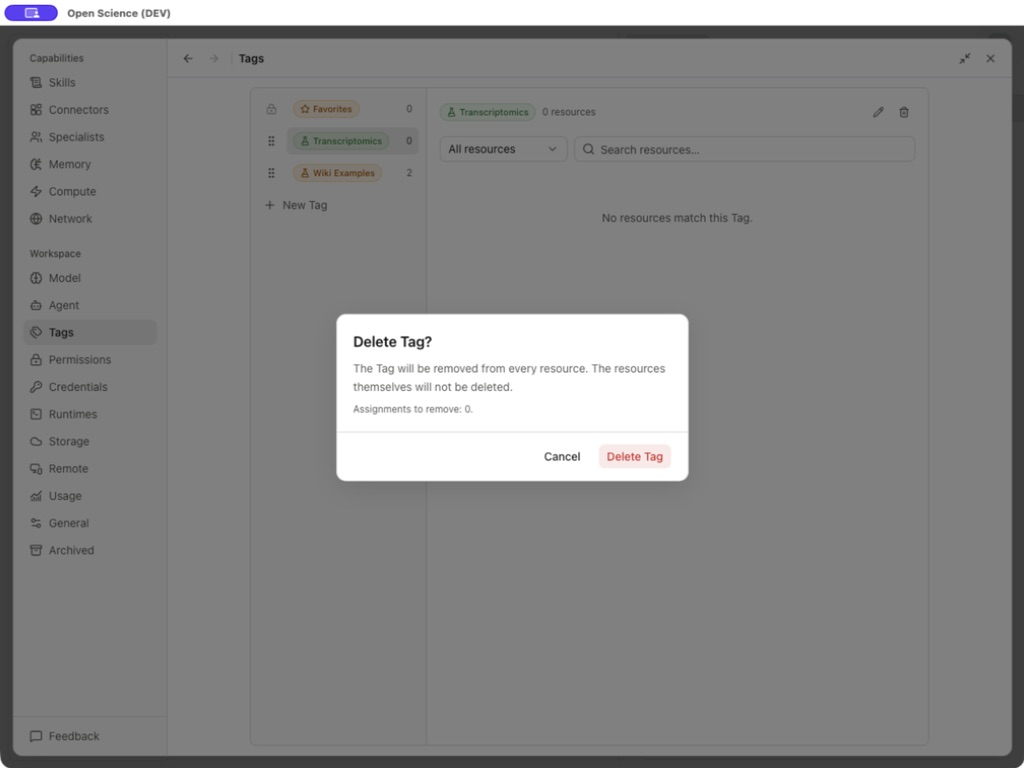
If your purpose is only to remove one assignment, do that on the resource rather than deleting the tag everywhere. Use Literature library for organizing papers into collections; tags and collections serve different purposes.
Sources: Tags panel, resource assignments.