Navigation and search
Use Home to choose the investigation, the session list to choose its conversation, and previews to inspect its sources and results. This chapter follows the real GSE60450 - RNA-seq count quality project.
Start from Home
Use Settings → General → Appearance to change the app language or theme. The settings center groups panels by purpose and provides its own search.
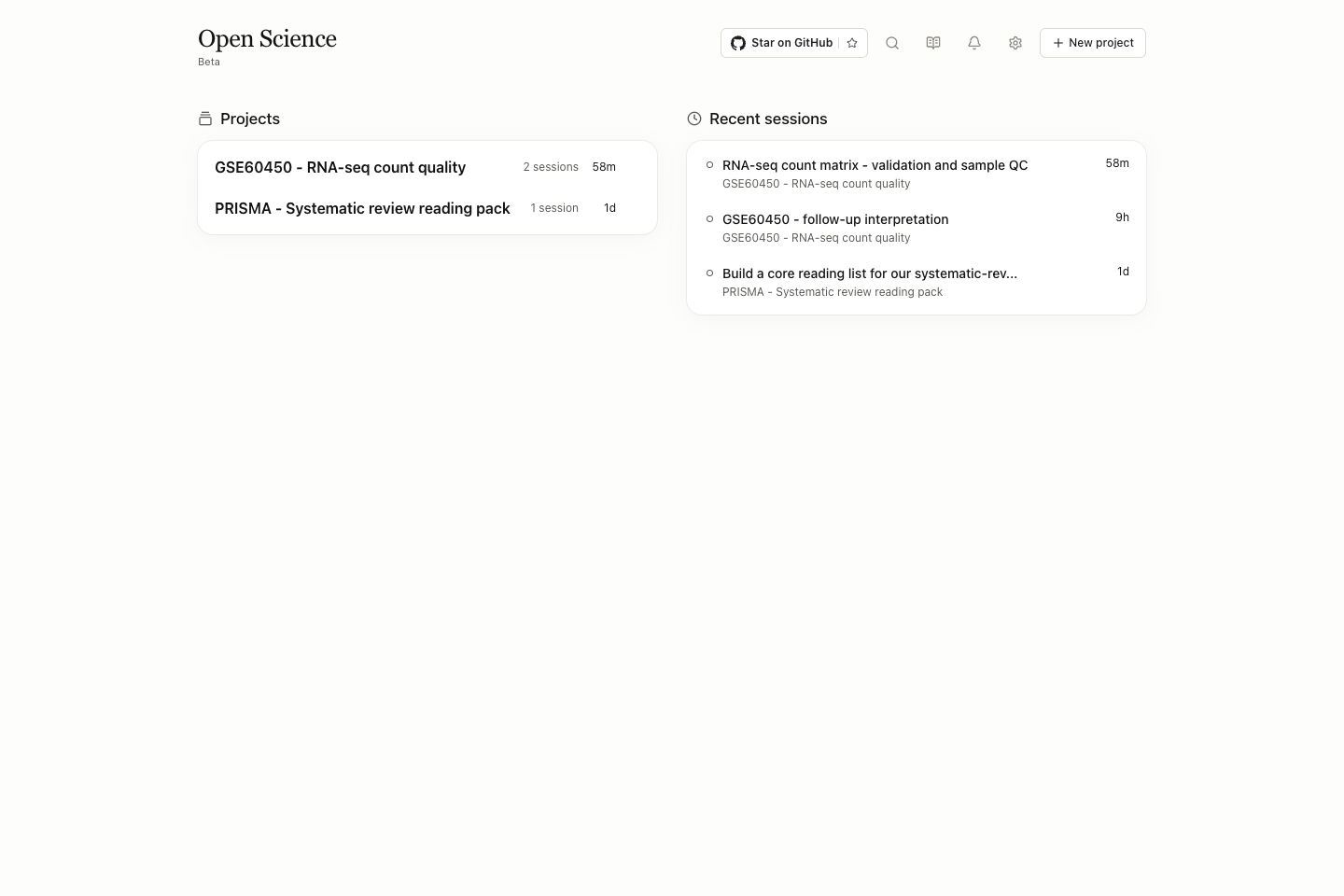
| Entry | Action | Check after opening |
|---|---|---|
| Project card | Open that project's workspace | Project name above the session list |
| Recent session | Resume that conversation directly | Session title and owning project; similar titles can belong to different projects |
| New project | Enter Name, Description and Agent Context | See Projects for field scope and folder access |
| Search | Open global search | Find projects, messages, files and literature; Wiki search is separate |
| Library | Open shared references | Project and collection views are links into the same library |
| Model settings | Configure model access | A connected account and a successful research run are separate states |
| Settings → General → Appearance | Change Language / Theme | interface language does not translate task content |
| Messages | Inspect application messages | Read the actual event; an unread counter is not a task-failure count |
In a workspace, All projects returns to Home. The project-name menu contains project actions; the menu beside a session affects that session. New under Sessions starts another conversation in the current project. It does not create another project or copy its source folders.
Keep the conversation and evidence visible
The workspace has a session sidebar, a conversation and an optional preview area. Files opens the file library; Library opens references; Open notebook opens recorded execution. Select a preview tab to change the visible file. Opening another result can add a tab while previously opened tabs remain available.
Drag the Resize left panel or Resize right panel divider to allocate space. Collapse the sidebar or preview panel when reading wide content; reopen it using the corresponding edge control. These are layout changes. They do not cancel a running task, delete a file or remove its version history. Full-screen file browsing and full-screen previews are separate controls; close the correct surface to return to the prior layout.
Choose the right search scope
| Search surface | Searches | Useful example |
|---|---|---|
| App global search | Projects, sessions, message text, uploaded/generated file names and Library records/collections; indexed contents of supported uploads | A phrase from a reply, a filename or a paper title |
| Files → Search project files | Names within the chosen project/file-source filter | rnaseq after selecting All artifacts |
| Library → Search references | Bibliographic fields, including title, creators and identifiers | A PRISMA DOI |
| PDF document search | Searchable text in the open PDF | A phrase on a paper’s pages |
| This documentation’s Search | Wiki titles, headings and body text | Inbox, SHA-256 or remote access |
Global search finds message text, uploaded-file names and indexed upload contents. Generated files are searched by name; unindexed content is not searched. It does not imply full-text indexing of every PDF, image or other binary format. Use the document’s own search when looking inside a PDF.
Find a message, file or paper
- Press ⌘K on macOS or Ctrl+K on Windows/Linux, or select Search.
- Enter a recognizable phrase, title or filename. All groups results by category; choose a category to narrow the list.
- Open Advanced filters beside the categories. Use Search scope, Result order, Time range and the result-specific sender, file-format or Library-kind filter. A filter only applies to the relevant result type.
- Select a result to open its detail pane. Check the owning project/session, matching text or file version before navigating.
- Open the matching message or file from the detail pane. For a file, use its source-message action when you need the conversation that produced or attached it. Library results open the corresponding reference or collection.
- Load more within a result category when needed. Close the detail pane to continue searching, or press Esc to leave search.
The detail pane updates when you select another result. A short initial list is not the complete match count; use the group’s load-more control or continue scrolling within a selected category. With no query, recent sessions, files and literature help you return to recent work.
The number beside Advanced filters shows active conditions. Collapsing the filter column keeps those conditions applied while you inspect results. Reopening search returns the category to All and collapses the column; check the filter count and controls before assuming you are searching everything.
When a result seems missing
Clear category and other filters, check the owning project and search a distinctive phrase or the saved filename. Use Archived when looking for archived work. A path printed in a failed tool response is not a saved artifact. Newly changed or reordered content may require refreshing the search. If a file opens but cannot be previewed, follow Files and Troubleshooting.
Switch sessions from the tray
Open the Open-Science icon's menu in the macOS menu bar, Windows tray or a Linux desktop with tray support. Use Running sessions to find active work, Pinned sessions for pinned conversations, or Recent items for recent content. Longer lists continue under More items. After choosing an entry, check the project and conversation title that opens.
Use Pin beside a conversation title to keep it handy. Show / Hide changes window visibility; Quit exits the app. Switching conversations does not stop a task. Linux icon availability depends on the desktop's tray support. See appearance and notifications for window-close behavior and alerts.