Storage and archived work
Use Settings → Storage to inspect the managed data location and disk usage. Use Settings → Archived to organize inactive projects and sessions. Archiving does not move the data root or promise disk-space recovery.
Read and refresh disk usage
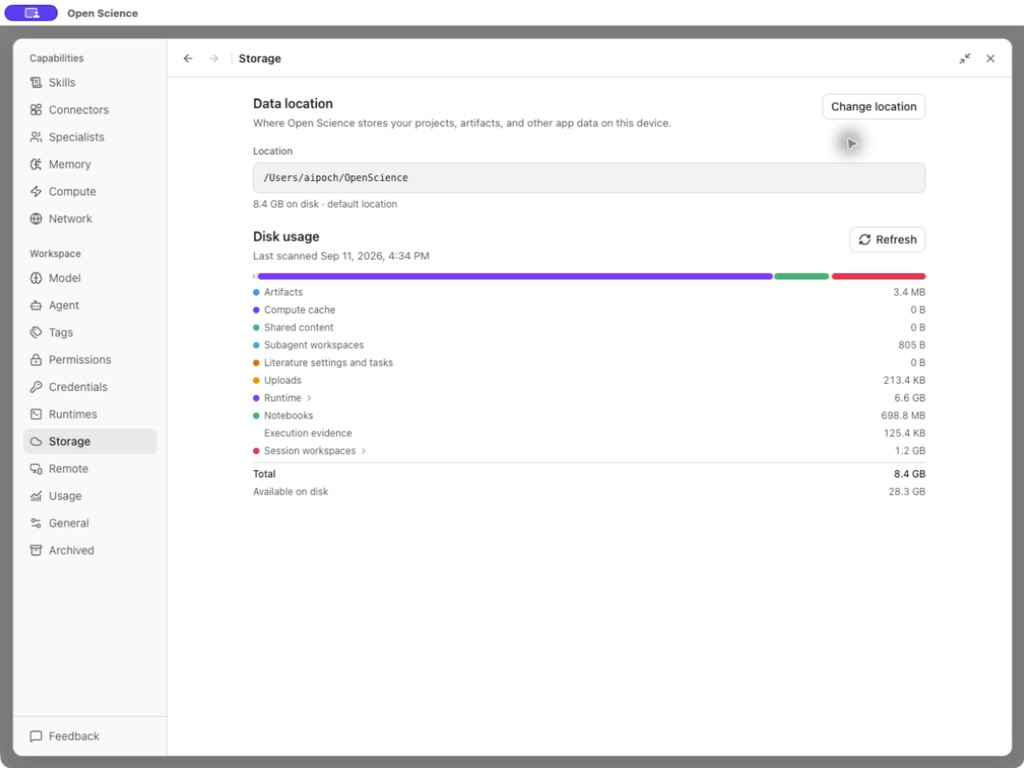
Read Data location before backing up or diagnosing a missing file. This is the app's managed root, separate from an external source folder granted to a project. Refresh rescans usage; check the last-scanned time before comparing measurements.
| Category | What it accounts for | Interpretation |
|---|---|---|
| Artifacts | Managed research outputs and their retained data | A small latest report can still have earlier versions |
| Uploads | Managed input copies | Removing an external source file does not remove this copy |
| Runtime | Managed interpreters and dependencies; expand for detail | Usually larger than a small example dataset |
| Notebooks | Session execution storage | Export a needed Notebook before deleting its owning work |
| Execution evidence | Captured version evidence | Different from the current live kernel |
| Session workspaces | Working files for conversations | Not every working file has become a published artifact |
| Compute cache / Subagent workspaces | Cached or delegated working data | Read the actual category before assuming it is disposable |
| Total / Available space | Current managed total and device free space | Measurements, not installation requirements |
Disk usage changes with your files and runtimes. Inspect each category before using its management controls; a usage category does not imply that its contents can be safely deleted in one action.
Move the data location
Before moving
Finish active tasks and keep exports of important inputs, outputs and execution records. Record the current location and required packages. Moving research data does not move all application settings or conversation history, which remain in the configuration location.
Choose and submit the destination
- Select Change location and read the migration notice.
- Select Continue to open the destination form.
- Enter New location, use Browse…, or choose Move back to the default location.
- Check the source, destination, available space and rebuild notice.
- Change location submits a valid move; Cancel leaves the current location unchanged.
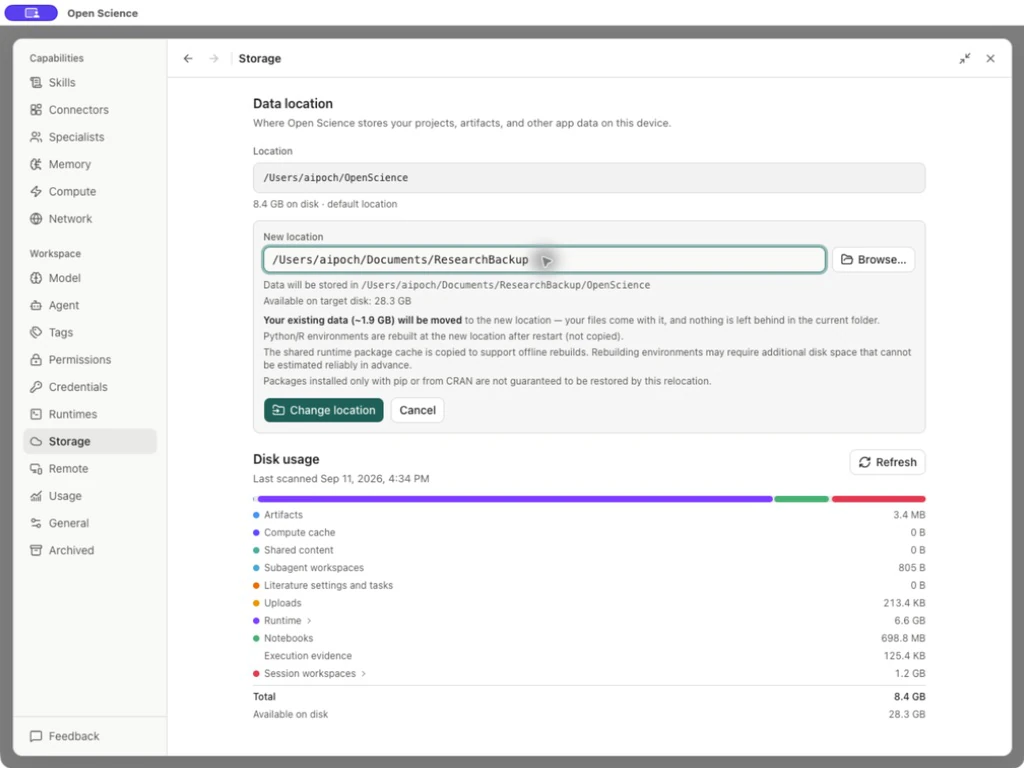
The app moves existing research data. Python/R environments are rebuilt after restart, not copied. The shared runtime package cache is copied to support offline rebuilds, but pip- or CRAN-only packages are not guaranteed to be restored. Additional rebuild space cannot be predicted reliably. Record environment/package requirements before a real move and test the needed runtime afterward.
Check the destination after restart
- Open Settings → Storage and confirm Location is the chosen destination.
- Reopen an existing project, its saved report and previous report revisions. Check the Library, collections, project links and PDF attachments as well.
- Open Notebook, inspect the available runtime and rerun a small read-only calculation with an existing input. A successful copy alone does not verify the rebuilt runtime.
- Keep the original data and exports until these checks pass. Compare retained file contents or checksums, and confirm Library references, collections, project links, attachments and citation settings. Save and reopen one new result to check that the new location is writable.
For an external R interpreter, confirm that the selected executable still exists and that the Notebook remains bound to it. Load the packages your analysis needs, rerun a small calculation, and reopen the saved result. An external interpreter and its existing packages are separate from the app-managed environment that may need rebuilding.
Return to the default location
- Finish active tasks, then select Change location → Continue → Or move it back to the default location.
- Check the source, default destination, free space and runtime-rebuild notice. Submit and wait for Data copied.
- Select Restart now. After restart, verify Settings → Storage → Location. If copying succeeded but switching did not, use migration recovery.
- Reopen the original project and saved files. Check managed Python/R in Runtimes, use Download and setup when needed, and run a small read-only calculation against an existing input.
After returning, reopen an existing project, input and saved report. Confirm the managed runtime is ready, then run a small calculation and save a new result. Reopen it to check that the default data location is in use.
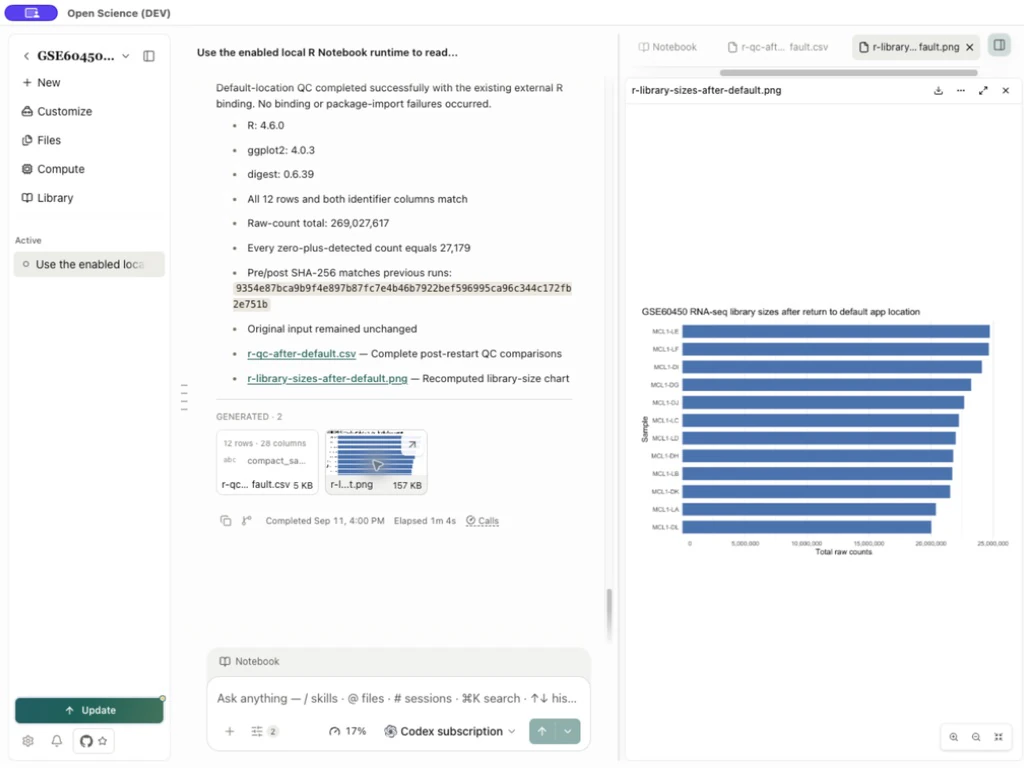
If A different folder named OpenScience already exists here. Choose another location. appears, the app blocks overwriting it. Cancel and preserve that directory. Establish its ownership, contents and backup before resolving the conflict; do not simply delete a same-named folder. Retry migration only after destination validation passes.
The data copied, but switching failed
Data copied confirms the copy and checks; Restart now still has to switch the active data location. If it reports Could not prepare the app to switch data locations safely. Please try again., the move is not complete. Do not manually redirect internal paths.
- Retain the error and both locations. Check that the original project and files still open.
- Reopen Change location. When an unfinished copy is detected, choose Resolve unfinished move.
- Finish move attempts to complete the existing copy. Discard copy abandons that unfinished copy while retaining the original location. Read the confirmation scope first.
- If Conversation storage needs attention appears, resolve the unfinished move, choose Retry, and reopen the original project and report.
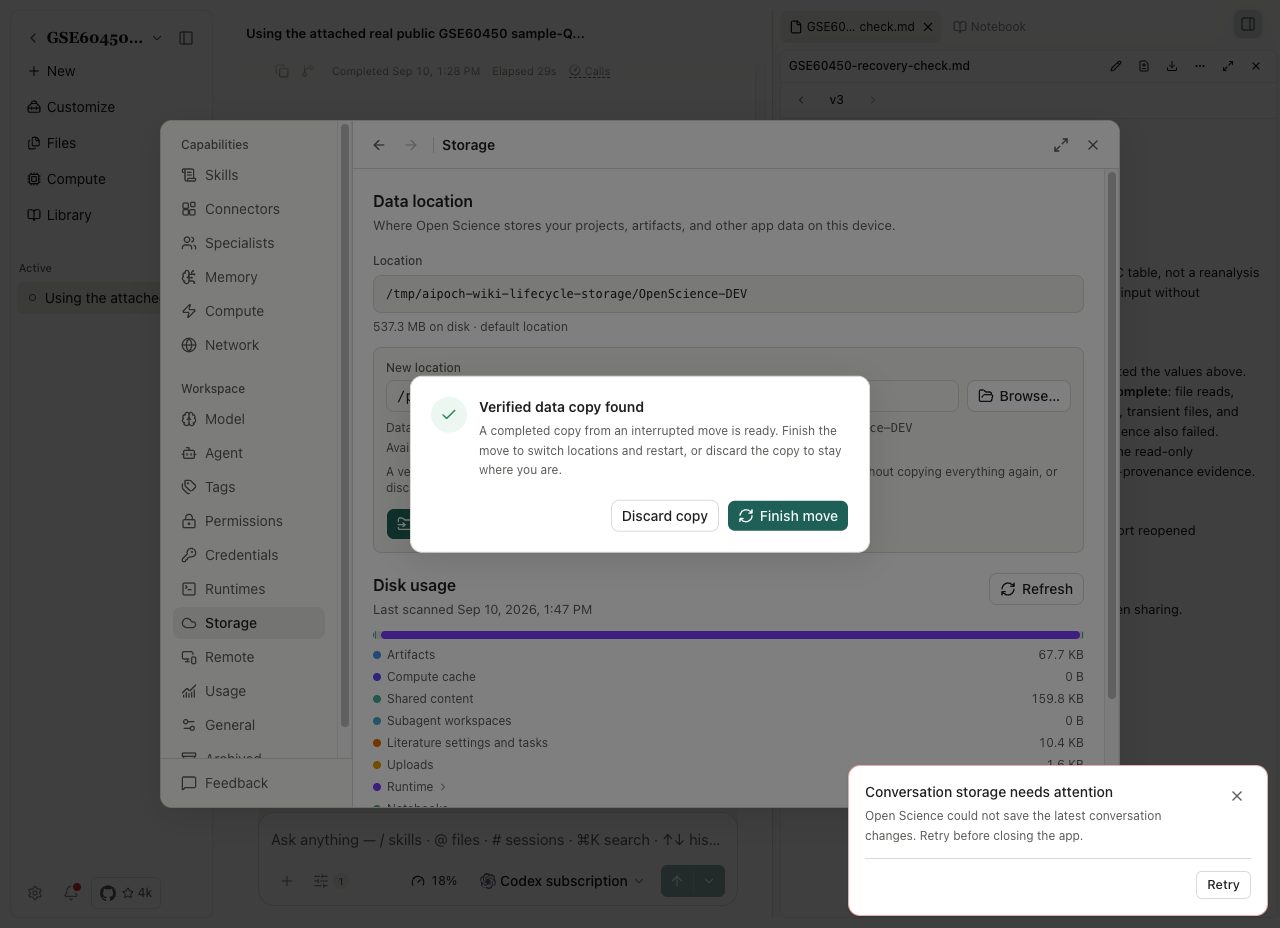
If retrying the final switch repeatedly fails, finish active work, quit and reopen the app, then retry the move. If the error persists, keep the original location and collect the failure details before making another change.
Archive a session and bring it back
Choose the session you intend to archive and finish or stop its active work first. Keep a separate completed session if you need to compare the restored state.
- Open the session row's menu and choose Archive.
- Confirm it leaves the active session list.
- Open Settings → Archived.
- Under Sessions, identify its title, project and archive time.
- Select that row's Restore.
- Return to the project and confirm the session is available again.
Choose the row's Restore to restore an archived session. The window-level Restore only changes the Settings layout. For an archived project, open Projects → Manage to inspect its sessions before restoring or deleting it.
Archive and restore a project
- On Home, open the project card’s actions and choose Archive.
- Open Settings → Archived → Projects, then the project’s Manage row.
- Read the project and session list. Sessions can show Hidden because its project is archived without being individually archived.
- Choose Restore project.
- Reopen the project, its conversation and a saved report.
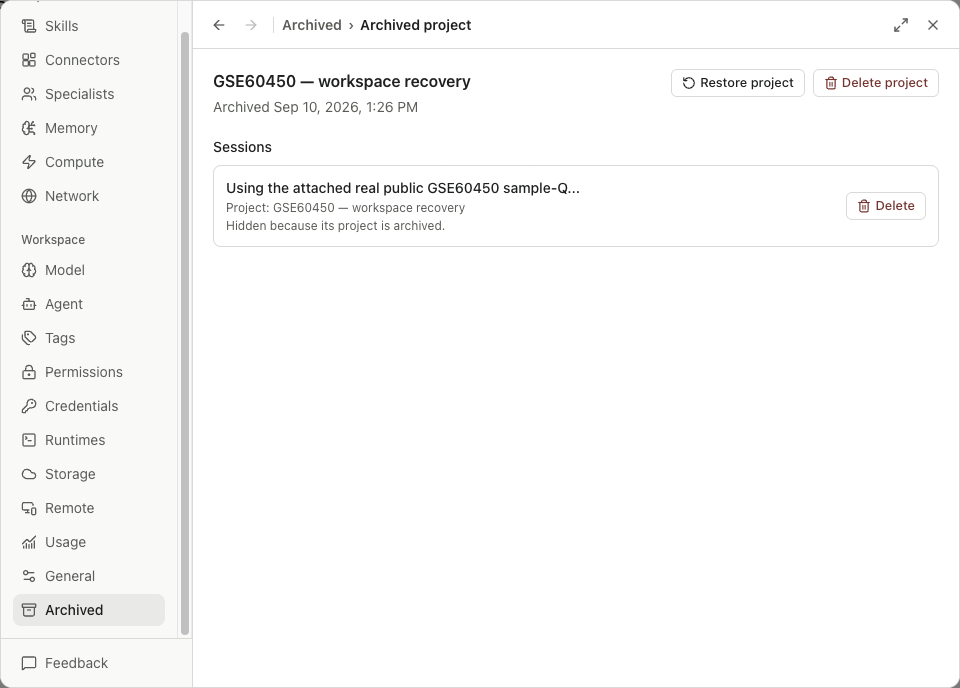
Reopen a saved report and its revisions after restoration. Archiving organizes the project; it does not rerun the analysis or remove the report’s version history.
Permanently delete a project
Delete project opens a permanent-deletion confirmation. Read its scope before confirming: managed artifacts and uploads are separate from external working-folder files, which are not deleted. Check which tasks and kernels will stop and which managed Session workspaces remain in Storage. Archiving and deleting have different outcomes.
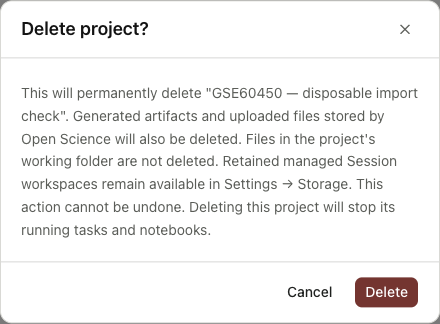
Use an empty disposable project if you are learning the deletion flow. Inspect the confirmation’s affected records before deleting a project containing research.
Distinguish removal operations
| Operation | Recoverability and effect |
|---|---|
| Unpin | Changes session placement only |
| Archive | Reversible organization; retained work appears in Archived |
| Restore | Returns the archived item to use; it does not rerun research |
| Remove a source-folder grant | Changes access to an external folder; not deletion of that folder |
| Delete project/session | Permanent removal after the application's confirmation; read affected records/files before proceeding |
| Literature → Move to Trash | A separate reference-library lifecycle; restore there, not in Archived |
Before permanent deletion, export the inputs, outputs and execution records you need to retain. Check whether other work still references them, and cancel if the confirmation includes content you intend to keep.
If storage or recovery fails
For a failed download, check the chosen destination and free space. For an unavailable managed file, confirm the selected data location and profile before creating a replacement project. For missing packages after relocation, check the rebuilt runtime rather than assuming research data was lost. Use Troubleshooting to collect the first useful error and version information.
Sources: Storage panel, migration form. Library relocation checks.
Reopen data after an upgrade
An existing saved data location takes precedence. For a completed older installation without an explicit saved location, Open-Science retains the historical location and saves that choice. If that saved folder is unavailable, reconnect it before restarting. If multiple historical locations contain research data, the app asks you to select or recover the original folder instead of silently choosing one. Keep both copies until you have checked their projects and files; do not create a new empty location to resolve an apparent loss of data.