Conversations and queued requests
The Composer sends instructions and input references to the current session and lets you prepare follow-ups during execution. Queue · Not saved means a queued request has not yet become a saved transcript instruction.
Start from a research idea
The empty conversation page offers Analyze data, Compare papers, Find literature, Create charts and other research starters beside the Composer. Use the arrows to see more choices.
- Open New in the intended project.
- Choose a starter such as Explain a paper. It fills the Composer with an editable request; choosing it does not send a message.
- Attach the actual paper or data, wait for the upload, and replace the general request with your question and expected output.
- Check the model, attachments and request, then send. Open the returned sources and files before accepting the result.
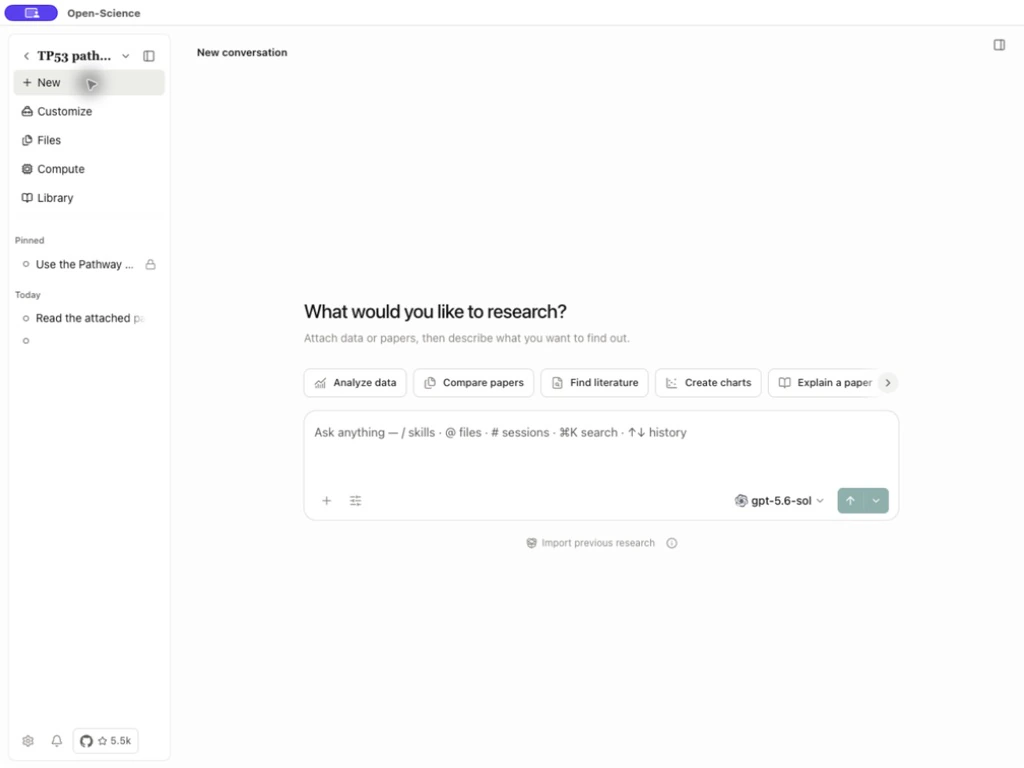
Import previous research is the separate entry for a .science package. Choosing a research starter does not import a package or supply example data.
Prepare a request with a checkable outcome
Select New in the intended project and enter a request in Ask anything. Name the input, desired output and any method constraints. For a complete starting example, follow Your first project.
| Entry | Action | Check before sending |
|---|---|---|
| + → Attach files | Choose a local file and wait for upload | Intended chip present; no transfer remains active |
| Attachment chip | Preview the staged input | Name and contents match the intended data |
| Remove attachment | Remove its draft reference | Does not delete the original local file |
| + → Your files | Select an existing project file | Correct artifact/version, not just a similar name |
@ | Select a file/artifact or available literature reference | Choose an actual suggestion to bind the reference |
/ | Select an available Skill | Method is relevant and prerequisites are available |
# | Reference a session transcript for this turn | Does not promise to include all that session's files/kernels |
| + → Save as skill | Turn a completed branch into a reusable Skill | Finish current activity; inspect the tooltip if unavailable and verify the saved package |
| + → Context | Inspect current context usage | New unsent sessions can have a disabled entry |
| + → Review | Request review when eligible work exists | A result and compatible review path are required |
Long plain-text pastes above 10,000 characters or 300 lines become managed attachments. Show in text field restores that text to the editor when offered. At the start of an empty Composer, Up/Down browses prompt history; inspect restored attachments before resending.
Select how work begins
The model selector chooses among configured models. Its reasoning options depend on the model/framework. Changes apply to subsequent requests, not an already running turn. Agent controls exposes permission mode, Auto-review, Specialist choice and Delegation; each has a separate effect.
| Send control | Use | Result/boundary |
|---|---|---|
| Send message | Idle session, ready request | Saves a user message and starts execution |
| More send options → Plan first | Review steps before execution | Respond to the plan before approved work proceeds |
| Side chat | Discuss in an independent tab with restricted tools | New drafts inherit the conversation model and reasoning effort; check the Side Chat selection before sending. See Side Chat |
| Branch | Independent continuation where available | Check inherited history/files; see Sessions |
| Add message to queue | Prepare a follow-up while running | Pending request remains Not saved until delivered |
| Cancel run | Stop current execution | Wait for cancellation; already saved results are not automatically undone |
Send precise feedback
Example Request input and output checks in a plan
If the plan omits a source-integrity or output check, request it before approving. Adapt the output requirements below to your task:
Add an explicit before/after SHA-256 check and reopen all three saved
outputs. Use compact sample labels in the plot, and include their exact
original column-name mapping in the CSV/report.
This was submitted through Respond to Plan → Send Plan feedback, followed by approval of the revised plan. It was not a demonstration of queue delivery. See Planning for the actual controls and screenshots.
For a running task, use the queue when you need to change the next instruction. State what changes and what remains required. A message update does not itself authorize a newly requested package install or broader file access.
Manage a running task's queue
- Enter the follow-up in Ask anything while the run is active.
- Select Add message to queue, then expand its count to read the pending text.
- Use Edit queued message to bring it back into the Composer. Preserve/clear an existing draft first if the app asks.
- Remove queued message removes the pending item, not an already delivered instruction.
- Drag the reorder handle. For keyboard reordering, focus it, press Space to pick up the item, Up/Down to move it, then Space to drop it.
- Send now requests delivery through the framework's supported follow-up path.
- Confirm the text appears as a user message and the agent acknowledges the change.
Read Sending…, Stopping… or Queued message will send after the current run finishes. Some framework states defer delivery. Not saved means the text is not yet a durable transcript message; preserve important pending text before closing/reloading. A branch warning means the queue belongs to another message path. Resolve a send error on the existing item before adding duplicates.
Edit and reorder follow-ups while a report is being written
To revise several queued messages, edit the intended request, adjust its order, then remove any request you no longer need:
- Select Edit queued message beside the intended item. It moves into the Composer and temporarily leaves the queue.
- Revise the text and select Add message to queue. Check its position again; an edited request can return at the end.
- To move the request earlier, focus its Reorder queued message handle, press Space, use the arrow keys, then press Space again.
- Use Remove queued message beside a reminder or instruction you no longer need.
- After delivery, check the saved transcript for the final text and order. Removed requests should not appear as delivered instructions.

Check that delivered replies follow the edited content and order. Items labeled Not saved have not entered the saved transcript; copy important unsent text before closing or restarting.
Exit queued editing ends queue-editing mode and leaves the text in the Composer. Editing removes the original item from the queue, so exiting does not put it back. To retain it, check the draft and add it to the queue again; to discard it, clear the draft.
Preserve attachments when editing
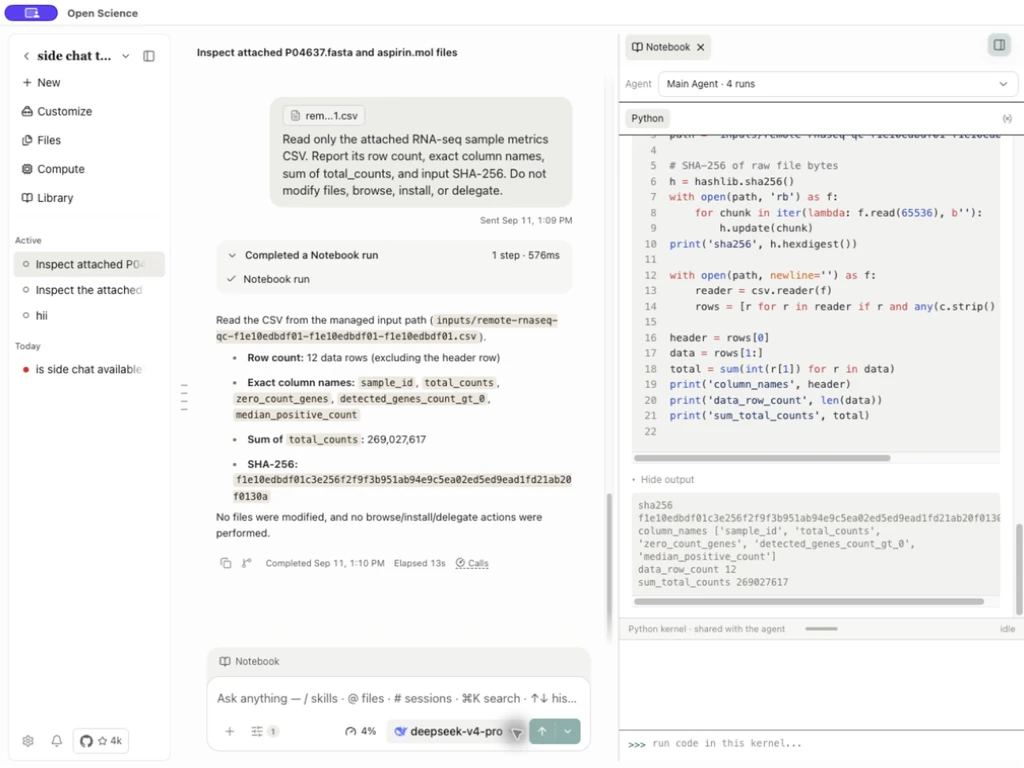
When a queued request includes a file, confirm its attachment chip is still present each time you reopen the editor. Change the instructions, then select Add message to queue. After delivery, compare the file shown in the saved user message with the intended input. Ask for a file checksum when the exact file identity matters.
A queued attachment becomes unavailable
If an edited queued message stops with Managed file or its Session is deleted., inspect its attachment chips and the original file in Files. Preserve the request text, reattach the current file in a new ordinary message, and retry. Avoid repeatedly sending the same stale attachment reference. Keep the error and file identity for a diagnostic report if the new attachment also fails.
Read activity and completion
Expand a tool card to inspect its arguments, code and output. After completion, open each requested result. If a step failed, use its first error to choose the recovery action in Troubleshooting.
Show more expands a long user request. Copy message and code Copy controls copy their respective content. Scroll to end returns to the latest event; the desktop run-marks rail jumps among prompts in a long conversation. Editing an earlier user message creates a revision; use Sessions to understand the selected path.
| Issue | Next check |
|---|---|
| Send disabled | Empty text, incomplete upload or unavailable session state |
| Queue edit refused | Existing Composer draft must be preserved/cleared |
| Original analysis continues | Confirm update delivery versus deferred state |
| Task waits after plan approval | A separate tool permission may still be pending |
| Model says Done but a tool failed | Inspect the first failure and actual saved artifacts before acceptance |
Copy, download or enlarge an answer table
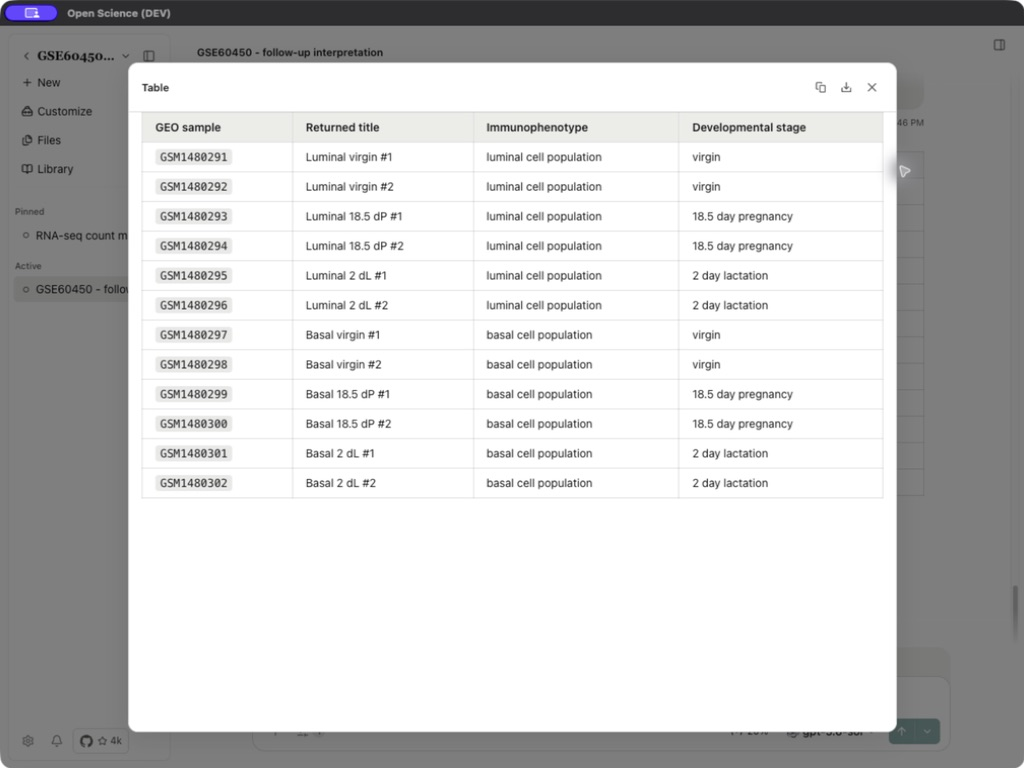
Hover or focus the response table to reveal Copy table (Markdown, CSV or TSV), Download table (CSV or Markdown), and View fullscreen. Choose the needed format, confirm the destination and reopen the file to check rows and headers. These actions export an existing answer; they do not rerun a Connector or create a managed artifact version.
For long-running work, use Background tasks to open or cancel the specific run. A queued follow-up is a pending instruction; a background task is already admitted work. Closing the task list does not stop execution.
Sources: queue controls, delivery controller.
Drop files into a conversation
You can drag local files onto the conversation area, not only the Composer. Wait for the attachment chips and any upload to finish, inspect the filenames, then send the request. Dropping files does not send the message. To import a .science research package, use Import previous research on the empty conversation page; see Research packages.
Mention a file by dragging it
Drag a file card from Files, or the open artifact's file header, into the Composer. Confirm that the draft contains a mention for the intended file, add your question, then send. Dropping inserts context into the draft; it does not start a request. In a new conversation, the Files panel can also supply a mention. Check the selected project and file before sending.
Answer a clarification question
Read the label on each question: Single select permits one option; Multi select permits several. Select the choices that answer that question. Longer option lists scroll inside the card. After submission, expand a past answer to inspect its full question, answer and option list.
Use Type your own answer for a different response, Let the agent decide to delegate that choice, or Skip to leave it unanswered. A typed response replaces the option selection. Use Next and Back to review a set of questions, then Finish to submit it. Merely selecting an option saves a draft; it does not finish the response. Wait for the card to resolve and the task to continue before sending the same answer again.
These cards clarify the research request. They do not grant tool permissions or approve a separate Plan.
Preserve a draft while resolving a block
If a queued message reports an error, read it and use the offered undo action before editing or resending. A quit/reload warning can mean an unsent draft remains; return to the draft or deliberately discard it. Dropping a folder now asks you to select files inside it: open the folder, select the intended files and wait for their attachment chips.
For an expired model or Connector credential, follow the recovery action shown for that service, then return to the original conversation and check its state. Do not send the same request again while its earlier reply may still be in progress. Artifact @ mentions are also available in remote web conversations; select the intended file/version before sending.
Skip a clarification question
Use Skip to leave the current question unanswered, or its menu's Skip all for the remaining questions. Let the agent decide delegates the choice instead; it is a different response. Check the saved answer history and whether the conversation resumes before submitting another answer after an error.