Installing and switching agents
Choose an Agent framework to execute conversations and tools. After installing it, configure a compatible model provider. You can keep several frameworks installed. The active framework in Settings → Agent is an application-wide setting shared across projects; it applies to subsequent turns and workflows.
Read the Agent page
Open Settings → Agent. The page separates Installed from Available. Read the version, path and Active marker on the installed card before changing anything.
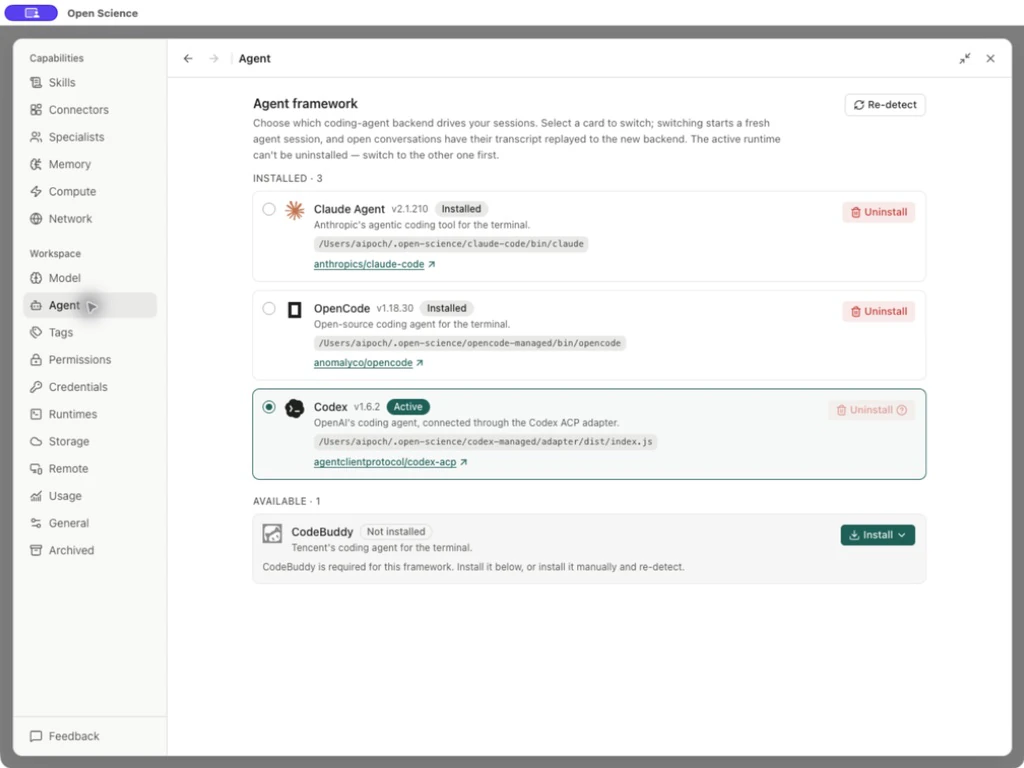
| Control/status | Meaning and action |
|---|---|
| Installed card | Select an eligible inactive card to request a switch. A listed installation still needs compatible model access. |
| Active | The application-wide selected backend. Its Uninstall action is disabled. |
| Re-detect | Refresh discovery after an installation or path change. It temporarily shows Detecting; it does not install missing software. |
| Not installed | No usable runtime was detected for that framework. |
| Install menu | Choose a source offered for that framework, then inspect the installation progress. |
| Install log / Retry | Read the failed step and retry after resolving that cause. |
| Repair | Appears when the managed installation needs repair; inspect the affected runtime before confirming. |
The inspected page offered Codex, Claude Agent, OpenCode and CodeBuddy. Available sources and authentication requirements differ; do not assume every framework offers the same installer or sign-in method.
Install and verify
- Select Install [framework] and review the offered source. A managed install stays under app-controlled storage; a manual installation must be discoverable by the app.
- Follow progress and read the install log if a step fails. Resolve environment/network prerequisites before retrying.
- Use Re-detect after a manual install. Confirm the expected version and path rather than relying on the presence of a command in another terminal.
- Select the ready card. Review the switch dialog, then confirm the intended backend.
- Check Settings → Model, run a small request, and inspect an actual response/tool result.
For OpenCode, Install → App-managed download (recommended) downloads a self-contained runtime. The page showed Resolving, download progress, and then an Installed card with its version and path. Select that card, confirm Switch to OpenCode?, and choose a compatible model. The local connection example returned a completed response; see local provider setup for its API and token limits.
For Codex, the native runtime and ACP adapter must pass detection as a compatible pair. Installing only one component is not equivalent to a ready backend. Provider subscription login is covered in Provider setup.
In v0.33.0, Claude Agent requires Claude CLI 2.1.118 or later. If detection reports an unsupported version, update the detected installation through its installation method, then use Re-detect and check readiness before starting a session. Updating a different CLI on your path does not repair the installation shown on the card.
Update an app-managed Codex runtime
Open Settings → Agent and read the Codex card’s Codex CLI and ACP versions separately. If an update to the tested pair is offered, finish or close sessions using that runtime, choose the update action and wait for detection to complete. Confirm the new versions and readiness, then send a small request in a session.
An app-managed update replaces the app-owned runtime; an external CLI must be updated through its original installation method, followed by Re-detect. The app refuses replacement while an app-launched Codex process is using the target. This operation does not update Open-Science itself or migrate an in-flight task.
In v0.34.0, Codex CLI must be at least 0.157.1, and the ACP adapter at least 1.6.2. Updating Open-Science alone may leave an older Codex installed. If you see Update required or a message that the version cannot be verified, stop sessions using that runtime, then select Update Codex on the managed card. Update an external installation through its original method and select Re-detect. Check the detected versions and Active before running a request.
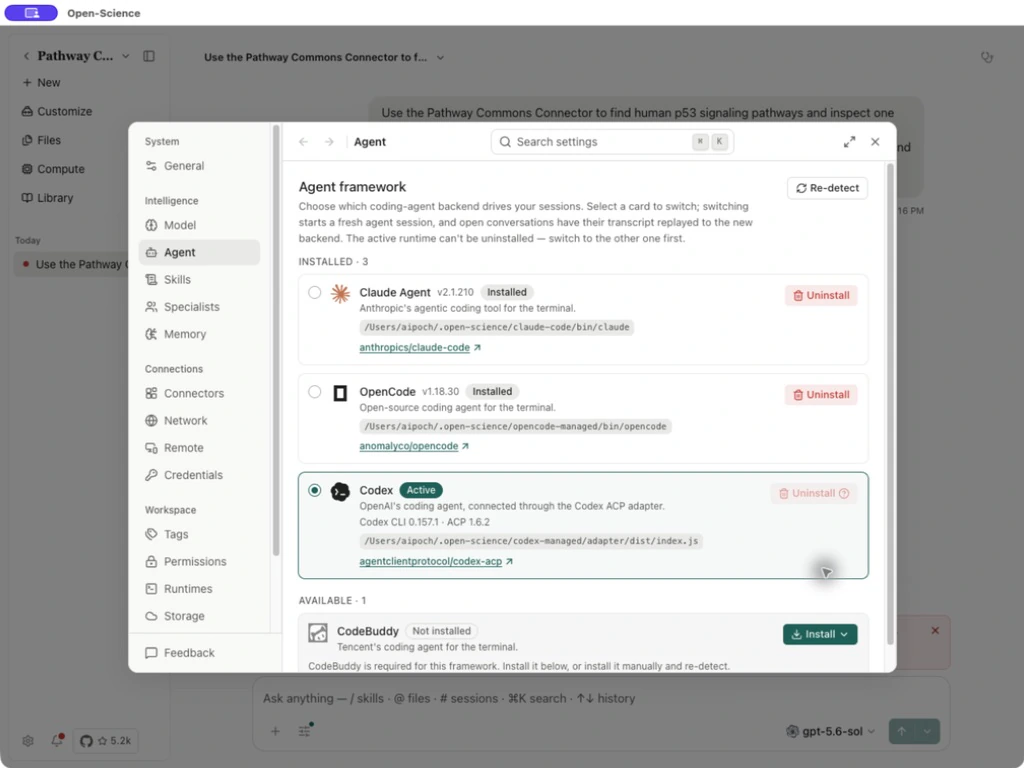
This is Open-Science's runtime compatibility baseline, not a universal minimum for every model. Updating the app, updating its runtime and signing in to a model provider are separate steps.
Switch without confusing retained history with live state
Finish or stop the current operation before switching. The change applies across projects to subsequent turns and workflows. Already running work keeps its existing runtime until it finishes; idle conversations reconnect when used again. Retained conversation history does not transfer an in-flight tool process or guarantee that interpreter variables survive. Check the files, Notebook and permissions before continuing a computation.
After switching, check the model selected for the conversation. Codex subscriptions support Side Chat; pending session operations or recovery can temporarily prevent opening it. Follow the message shown by the entry.
Repair and removal
Use the app's repair flow for a broken managed runtime; do not delete its directories during a running installer. If an external install is shown, repair that installation and re-detect it. To remove a managed backend, activate another ready backend first, open Uninstall, and read the confirmation's component list. Removal is not a cleanup step needed merely to switch models.
Uninstall and reinstall an app-managed runtime
- Keep a different backend Active. In this example, Codex remained active while OpenCode was removed.
- On the inactive OpenCode card, choose Uninstall. The confirmation applies to the copy downloaded and managed by this app; a separately installed copy is unaffected.
- Confirm Uninstall, then choose Re-detect. OpenCode should move to Available with Not installed.
- Choose Install OpenCode → App-managed download (recommended). Wait for the Installed card, then select it and confirm Switch.
- Check Active, the runtime path and the compatible model selection. Reinstalling the backend does not configure a model provider for it.
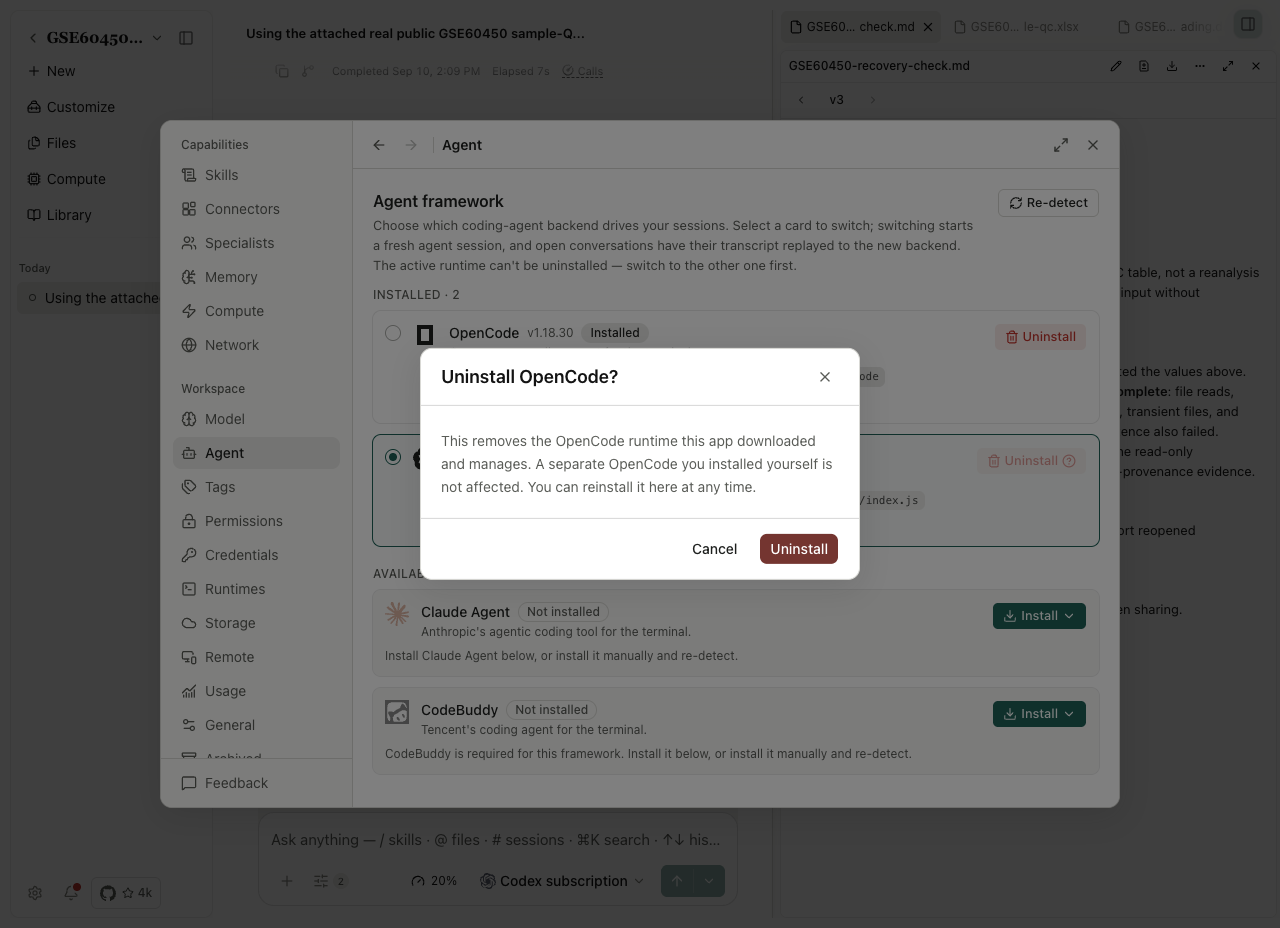
Before removing a backend, switch to another available backend; the active backend cannot be removed through this control. After reinstalling, re-detect and activate it, then open an existing project and run a small request to check the connection.
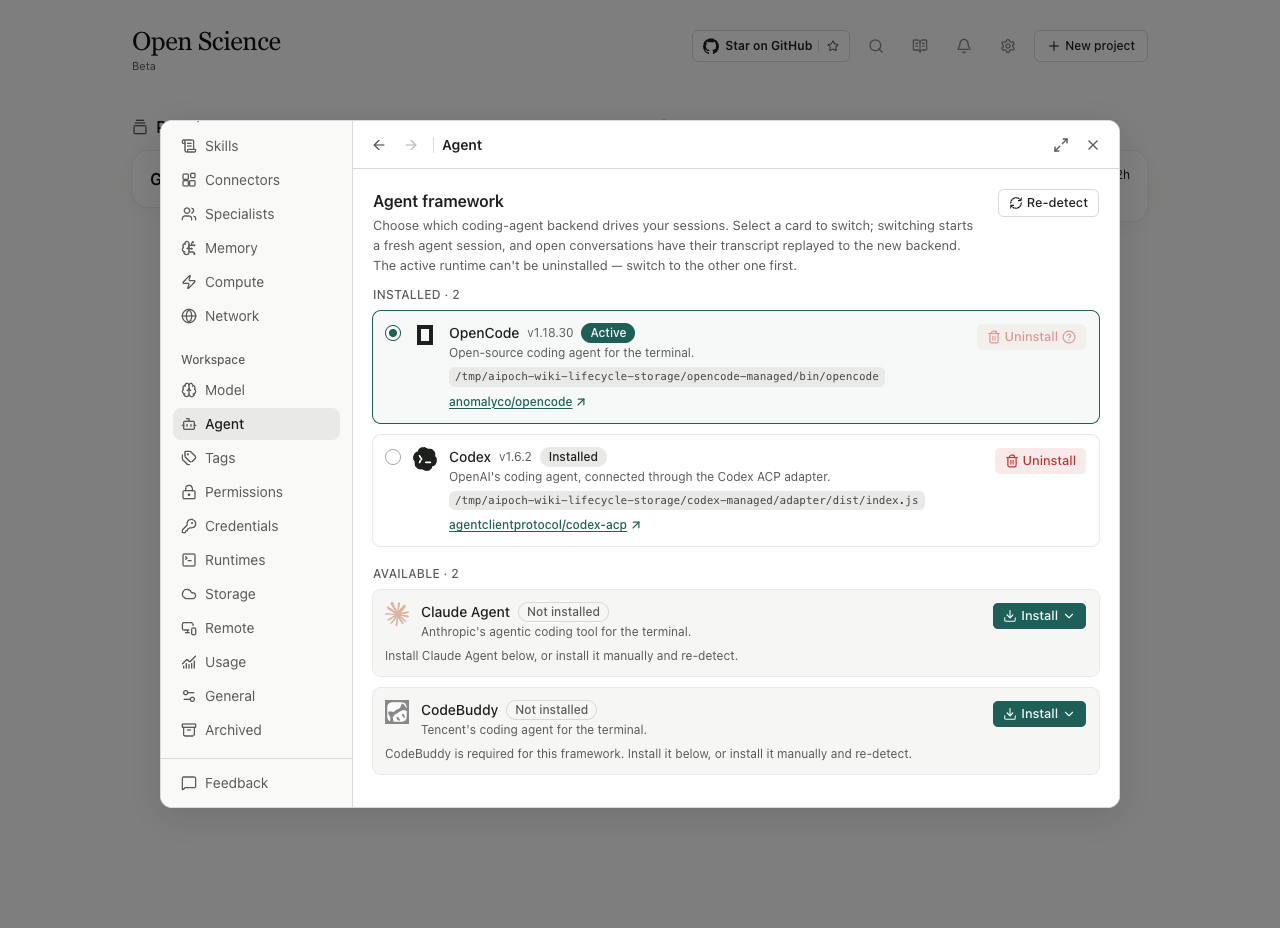
If install actions are disabled, check for another installation/switch in progress and the stated prerequisite error. If detection succeeds but requests fail, inspect model authentication and framework/API compatibility separately.
Sources: Agent panel, framework card.
Scope and switch behavior: settings storage, runtime switching.