Notebook and execution evidence
Use Notebook to inspect executed code, run a command in the current kernel and follow background work. For a saved file, open Provenance to inspect the execution and evidence associated with that file version.
Before running Python or R, enable a compatible runtime. For a complete data-analysis example, use the public-data workflow.
Open a Session Notebook
- Open the project and conversation containing the calculation you want to inspect. If you are starting fresh, ask the agent to execute a small calculation in the Session Notebook first.
- Select Open notebook, or use the conversation menu View notebook.
- Select the Notebook tab when a file preview is active.
- Use Agent to choose the execution owner, then Python / R / Bash to choose the language.
- Open a numbered run and read its output and completion state. A copied activity labeled code shown contains displayed code; inspect the original producing session for its execution record.
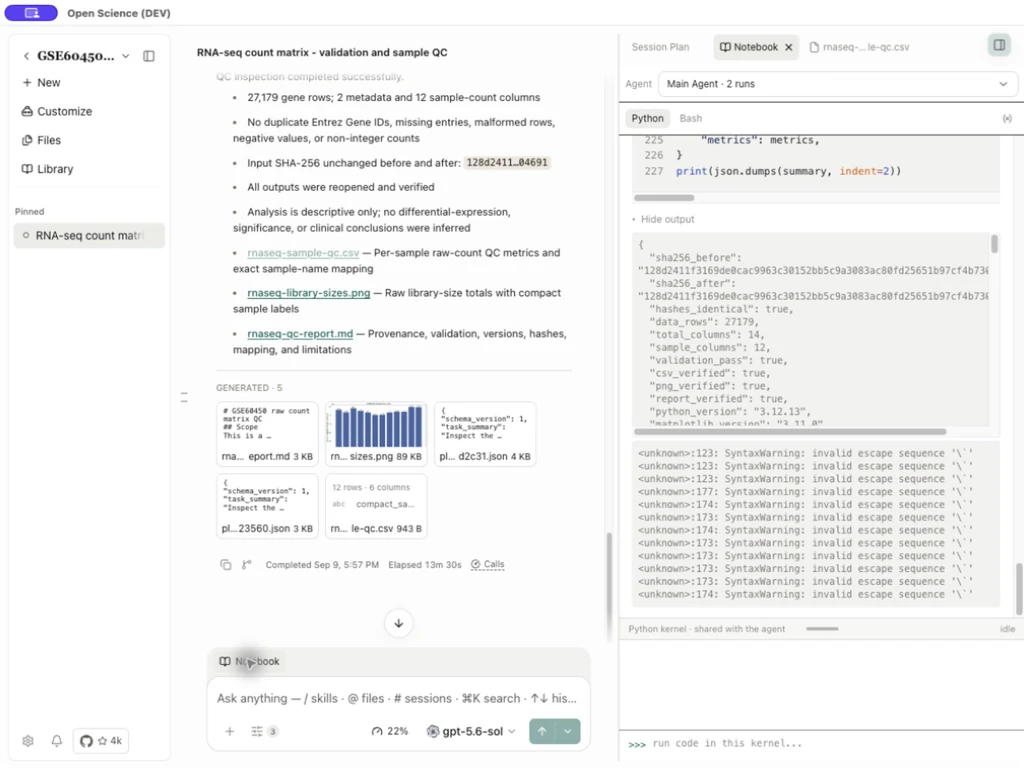
| Control | Action | Result |
|---|---|---|
| Agent | Select Main or a child agent | Displays that owner's records; agents can have separate kernels |
| Language | Select an available language | Changes the records and console; install missing languages in Runtimes |
| Numbered run | Select a recorded execution | Opens its code, output and status |
| Copy to clipboard | Copy selected code | Keeps external paths and dependencies as written |
| Hide output / Show output | Collapse or expand output | Changes the view without rerunning code |
| run code in this kernel… | Enter and submit code | Executes in the selected live kernel |
| Close / collapse preview | Return to the conversation | Keeps recorded execution history |
Check Input data / Inputs when present. Match the displayed file and version to your request. If a reference is unavailable, reopen or attach the intended input through the application before retrying.
During first-run preparation, Notebook can already show code being received while the runtime is still getting ready. Visible code is not evidence that it ran. Wait for any required setup or approval, then inspect the numbered run's final state and output. If a large session or Notebook is still restoring, wait for loading or connection recovery to finish before deciding whether to rerun it.
Review code before it runs
From v0.36.0, Agent-submitted Notebook code is checked before dispatch. Supported ordinary reads and analysis proceed without an extra risk prompt. Operations that could make irreversible changes, or that cannot be fully analyzed, require a one-time decision. Code typed directly into the manual console is not covered by this Agent approval step; inspect it yourself before submitting.
- When Review risky code appears, check the environment and the operation being requested. The calculation is waiting for your decision.
- Select Line beside a finding to inspect its location in the complete code. Check paths, affected files and commands, including any operation the analysis could not resolve.
- If the action is unnecessary or its target is wrong, decline it and ask the agent for a safer revision. Approve once only when you intend the displayed operation; the request does not grant permanent permission for future risky code.
- After deciding, inspect the recorded decision and the Notebook run status. Approval alone is not evidence of completion. A declined request does not execute that code.
Worked example Inspect an external Python process request
The pictured calculation only adds numbers, but it starts another interpreter through subprocess.run. That nested execution cannot be fully checked, so the request pauses for review. The notice does not mean the code is malicious. This example chooses Deny; the run is then recorded as interrupted without executing the child process.
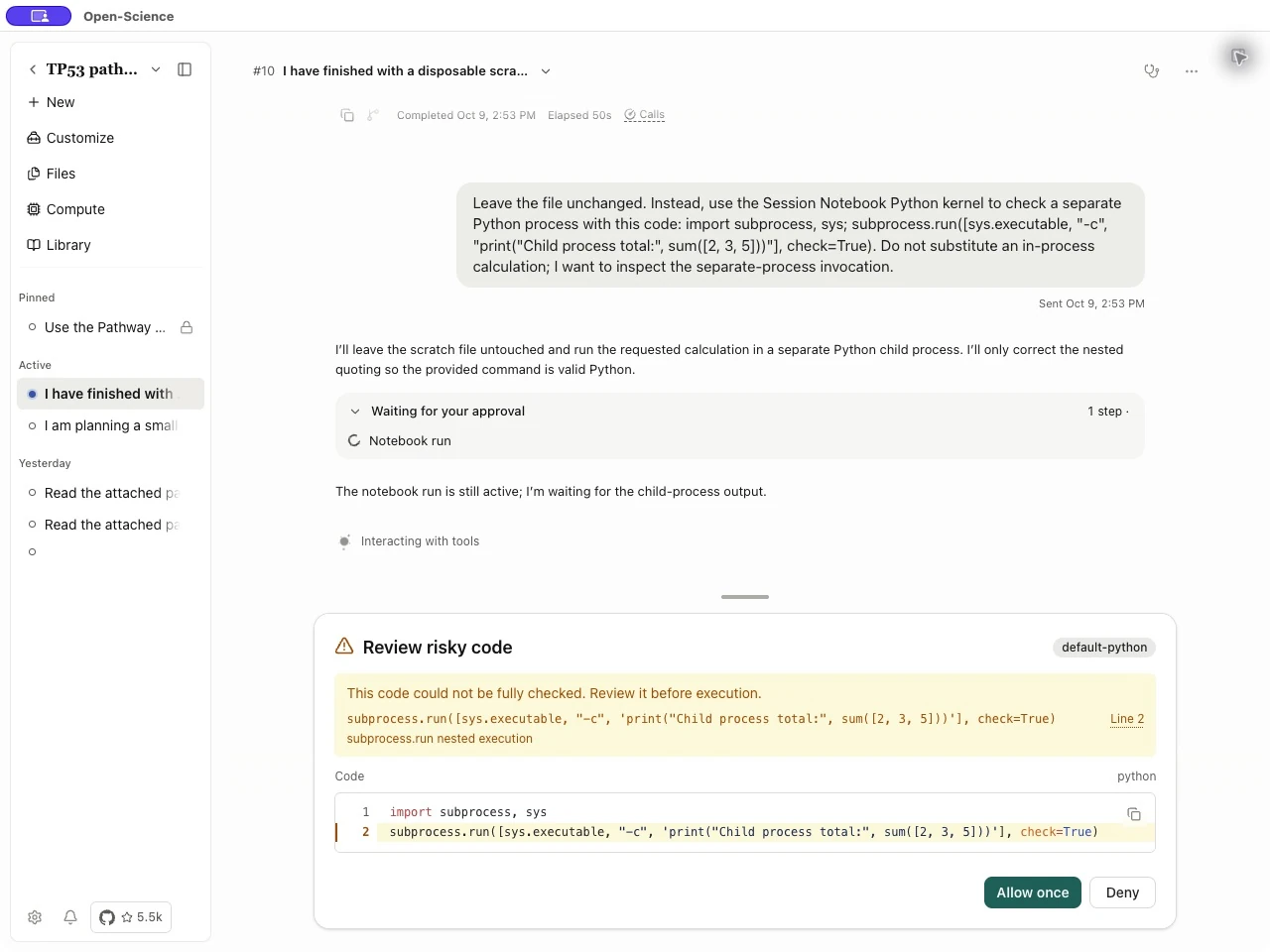
This screen checks execution risk; it does not validate the statistical method or result. Auto-review and Reviewer assess completed work separately. v0.36.0 also improves Python/R dependency capture; use Provenance and rerun verification to check a result's actual inputs and outputs.
Work in the live kernel
Run a check yourself in the live kernel
Select Python, click run code in this kernel…, and enter the following self-contained command. It requires no dataset, third-party package or variables from an earlier conversation:
import sys
print("Python:", sys.version.split()[0])
print("Executable:", sys.executable)
Press Enter to execute; use Shift+Enter for a newline. Dismiss an open autocomplete menu with Escape before submitting. Confirm a numbered python · you entry and the interpreter information in its output. The executable should belong to the runtime you selected.
For R, select R and submit:
cat(R.version.string, "\n")
cat("R home:", R.home(), "\n")
Inspect the recorded R entry and its output. Python and R have separate variables. A NameError or object not found usually means the named object has not been created in that kernel; inspect your code before reusing a command from another session.
For a worked check of the interpreter and saved results, open Python and R runtimes and choose Windows at the top of the page.
Inspect live variables
- Select Inspect variables after a run that creates variables.
- Read Name, Type, Size / Shape and Preview.
- Enter a name from your own code in Filter variables. For the screenshot example,
shafilters the listed hash variables; choose a name that exists in your own kernel. - Use Refresh variables to read the current namespace, and Show private variables if the name you need is hidden.
- Select Close to return to the Notebook.
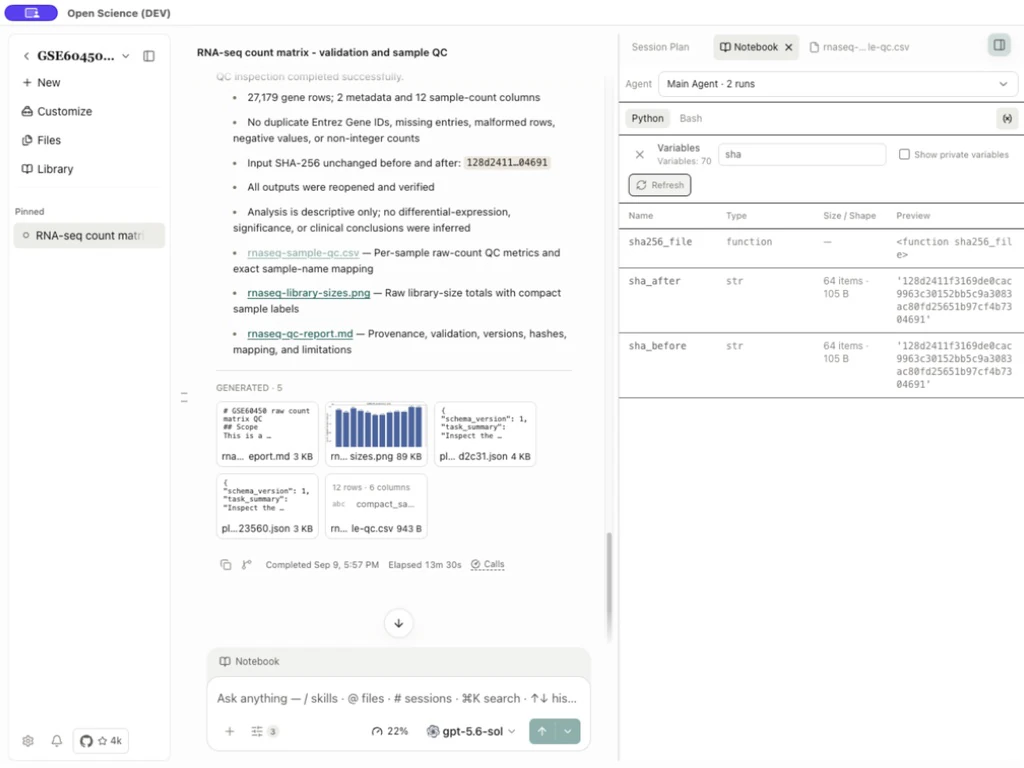
A preview can abbreviate a value; print the needed field in the console to inspect it fully. Variable tracking is limited means the dependency graph is incomplete. For a tracked result, stale indicates a dependency changed; unknown means the relationship could not be established. Rerun affected code before using an outdated result.
Continue after a kernel change
Changing or rebuilding a runtime can stop its kernel. Saved files and execution records remain separate from in-memory variables. After the change, run the interpreter check above, recreate required variables by rerunning their producing code and reopen the saved files you need.
Use Runtimes for setup cancellation and reinstallation. A runtime rebuild, a normal kernel restart and recovery of a background job are different operations; check the relevant operation's status rather than assuming they restore identical state.
Run the same gene-count check in R
Worked example Check GSE60450 gene counts in R
- Install and enable R.
- Attach the original matrix. If comparing a Python result, attach that CSV to the same conversation as well.
- Ask for Session Notebook → R execution and the input/output requirements in the data-quality workflow. Specify preservation of complete identifiers and a separate output file.
- If Change notebook runtime? appears, confirm Language: R and the intended interpreter. Check the environment on the subsequent Run R code? request.
- Open Notebook → R, read the execution record, then open the saved CSV, figure and report.
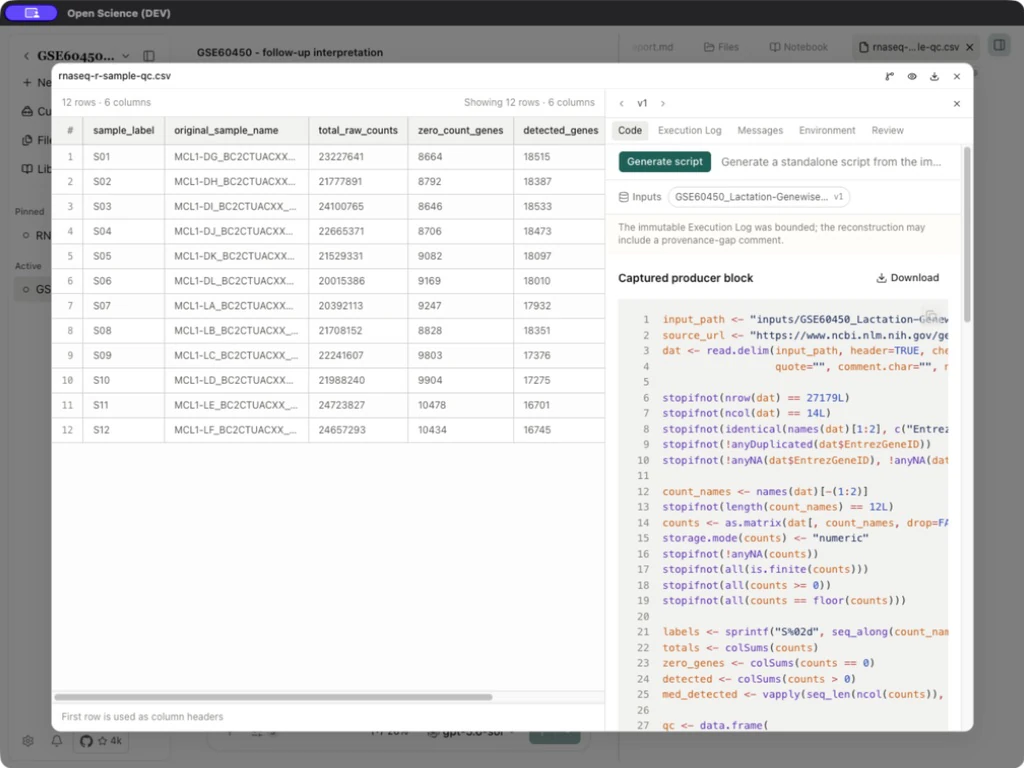
Compare metrics by the full sample identifier using the shared baseline. Keep the original source and record which metrics include or exclude zero counts. Raw-count QC prepares the data for a separately designed statistical analysis.
Keep the R result and its evidence together
Open the saved CSV's Provenance → Execution Log → Download notebook. Keep the export alongside its input and results. An export for one file version may omit later manual console commands.
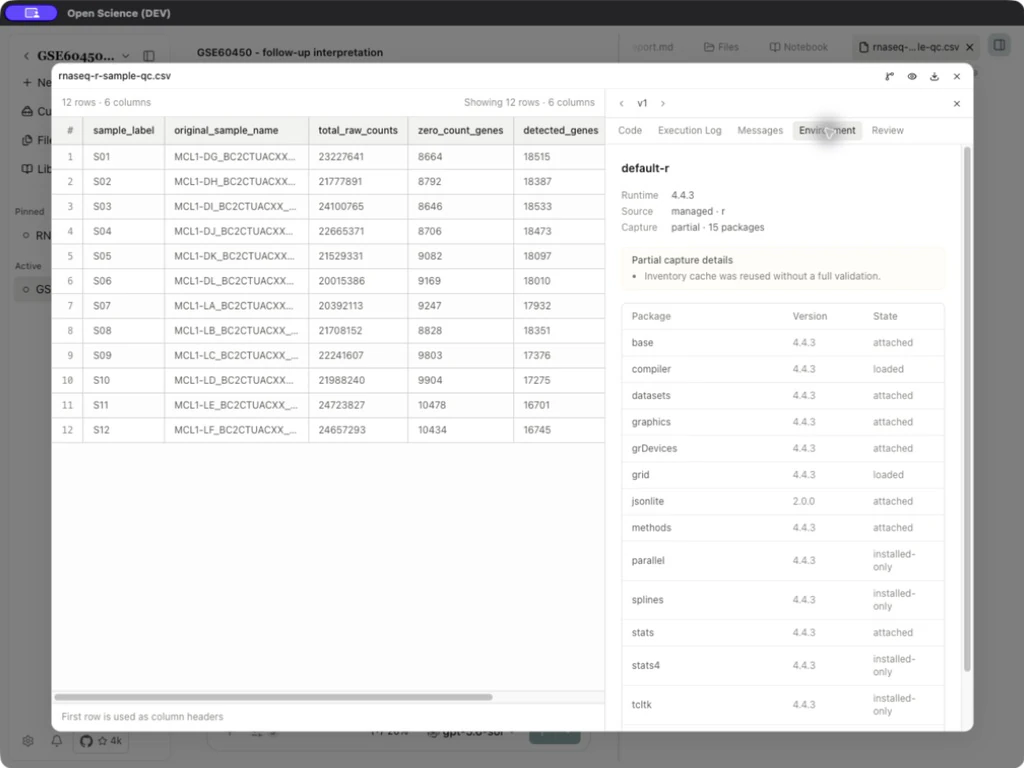
The Runtimes package inventory describes the installed environment; Provenance describes the environment evidence captured for a particular file. Read partial or cached-inventory notices rather than comparing their package counts as if they were the same list.
Background tasks and result delivery
Ask for background execution when a supported Python, R, persistent REPL or shell task should continue while you work elsewhere. Include the input, outputs and stopping condition in the request.
- After admission, open the conversation's Background tasks entry. It groups local runs and remote Compute jobs; a conversation without tasks may not show it.
- Read the task identity, environment, status and elapsed time.
- Select Open to inspect the corresponding Notebook run or Compute job.
- To stop a task, select its Cancel control and wait for the status to settle. Check any files already saved before using or discarding them.
- After completion, inspect the delivered result message and open the saved outputs.
- After interruption or an app restart, inspect the existing task and any recovery message before submitting another copy.
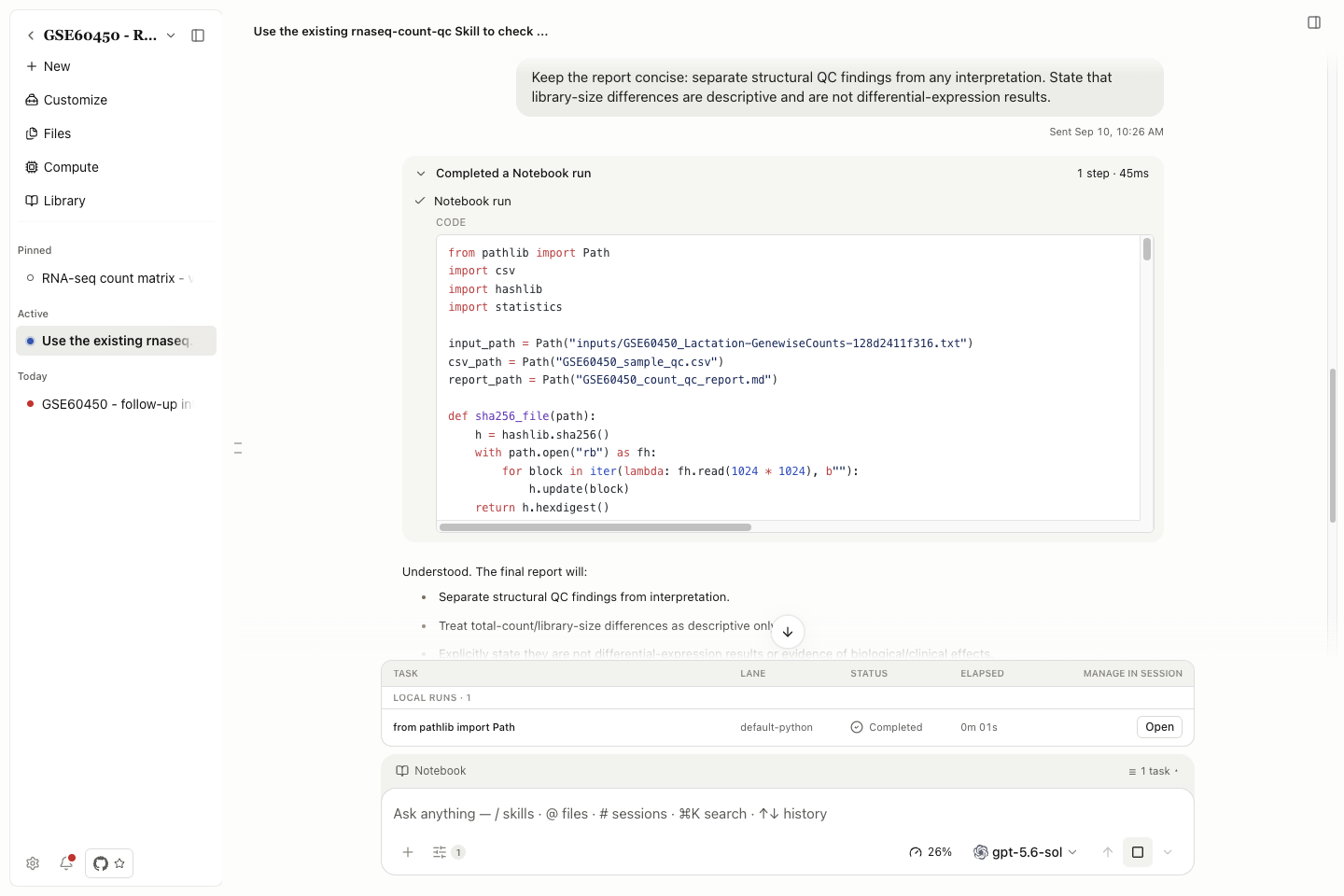
| State | What to check |
|---|---|
| Queued / Running | Selected environment and progress; shell jobs may wait for an execution slot |
| Cancelling / Cancelled | Whether cancellation is still processing or has settled |
| Completed | Exit result and saved output files |
| Failed / Timed out / Interrupted | First error, retained output and offered recovery action |
| Result unavailable | Existing job record and recovery details |
Closing the task list leaves the task running. Completion of a calculation and delivery of its result message are separate stages. Remote jobs also need the host and scheduler conditions in Remote compute.
Inspect one saved version's evidence
Open a saved file and select File actions → Provenance, or Open Provenance in its enlarged preview. Confirm the selected file version first.
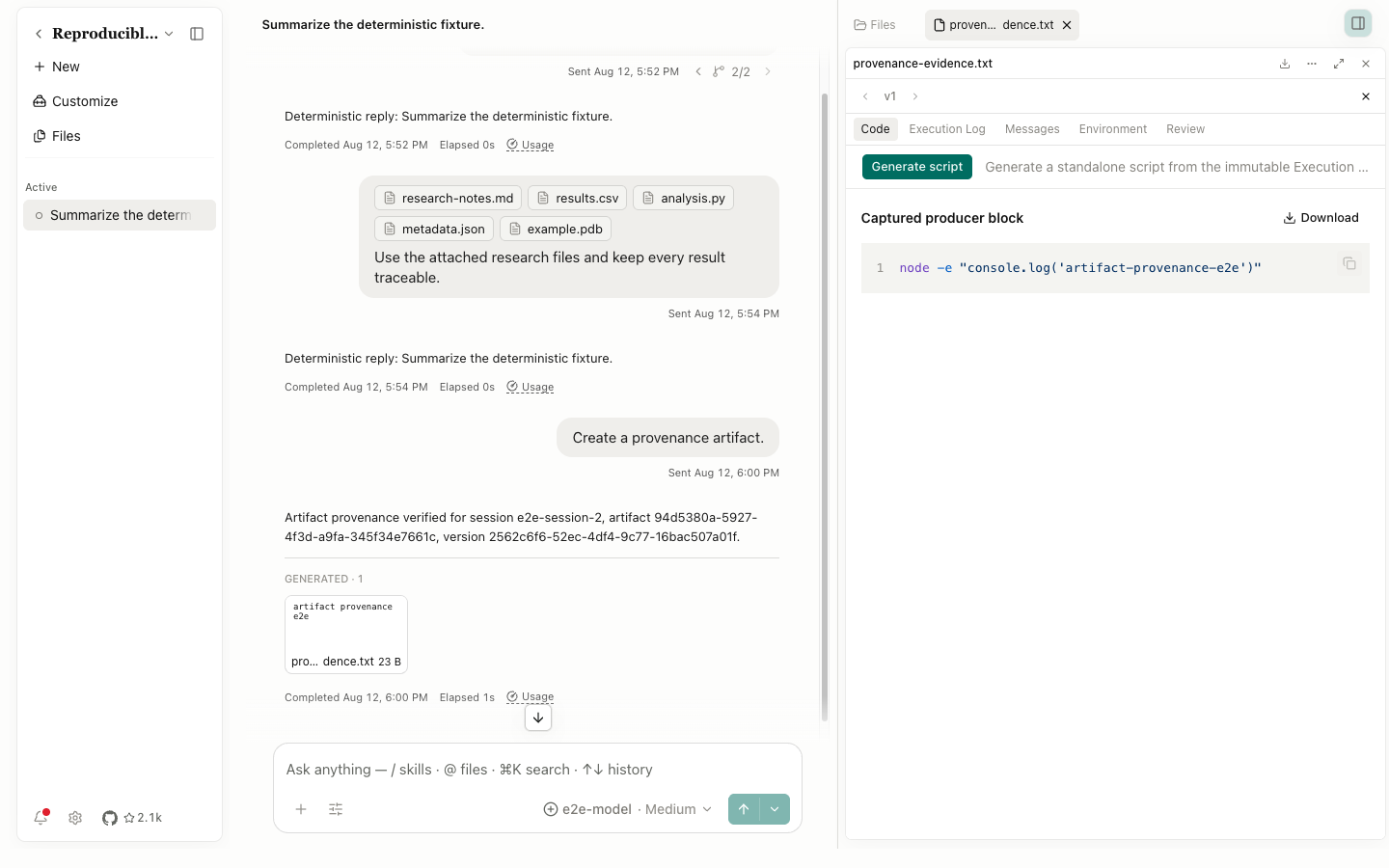
| Tab or control | Use it to inspect |
|---|---|
| Code | Captured producer code, input references, copy/download and Generate script |
| Execution Log | Execution records frozen for the selected version |
| Messages | Captured requests and decisions associated with the result |
| Environment | Interpreter, package information and capture status; see restoration conditions. |
| Reproducibility | Captured inputs, rerun checks, output comparisons and verification records. |
| Review | Review associated with this exact file version |
| Previous / Next Artifact version | Evidence for another saved version; unavailable when none exists |
| Close Provenance | Return to the preview |
| Label | Meaning and next action |
|---|---|
| bounded | The retained evidence covers a limited scope. Keep that scope with exported code and results. |
| partial | Some environment information is missing or unconfirmed. Record required dependencies before external reuse. |
| No review for this version | This file version has no associated review. Use Reviewer to understand conversation and artifact review. |
| Cached environment | The inventory was reused. Check the actual interpreter/packages when environment changes matter. |
Editing a report creates another file version; it does not rerun the computation that produced a separate CSV. See Files and versions.
To inspect a review, select Review for the required version, expand its checks and use Go to transcript to inspect the cited activity. No issues found applies to those checks and that version; it does not fill missing execution or environment evidence. If a review was interrupted, open its Review error entry and choose Re-run review. After completion, return to the file's Review tab and confirm the new result. The earlier failed attempt can remain visible in the conversation.
Reproducibility
To rerun a captured result, compare outputs and save the verification record, follow the Reproducibility guide. This chapter covers Notebook execution, provenance inspection and code export.
Export and reuse code
Choose the export that matches your goal:
| Goal | Entry | Contents |
|---|---|---|
| Read the recorded producer code | Code → Captured producer block → Download | Captured source with its original paths and dependencies |
| Keep recorded Notebook cells | Execution Log → Download notebook | A Notebook export for the selected result/version |
| Prepare a portable script | Code → Generate script | A model-generated reconstruction to inspect and test |
Download captured Python code on Windows
- Open the saved report’s intended version, then Provenance → Code.
- Under Captured producer block, choose Download. Check the
.pyfilename and destination in the save dialog, then choose Save. - Open the saved file and compare it with the displayed code. In PowerShell, run it with the same Python interpreter; use the
&call operator before a quoted executable path. - Compare the output with the Notebook and saved report. Keep any required input files alongside the code.
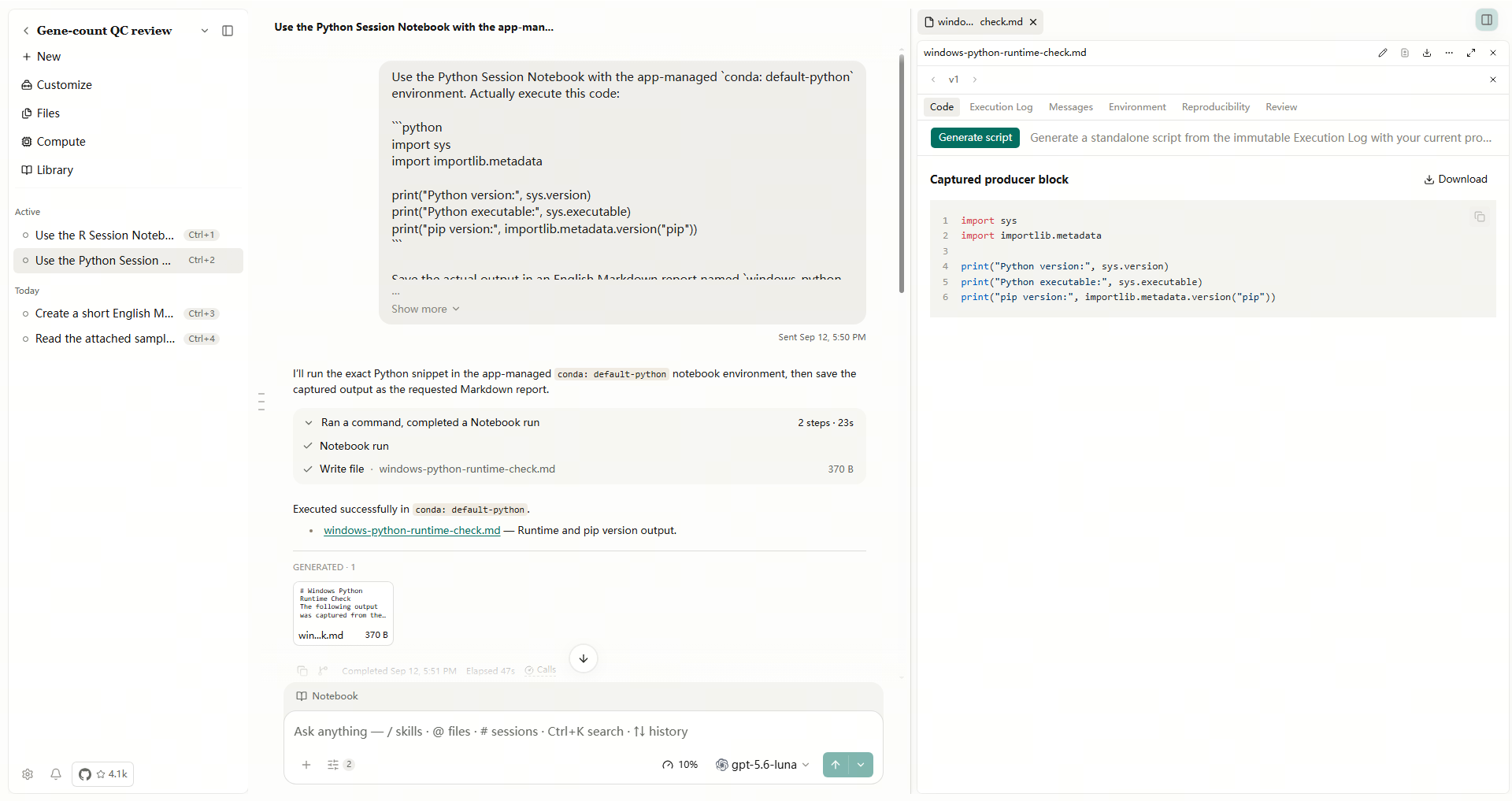
This downloads the recorded code. Generate script is a separate reconstruction operation. If generation fails, keep its full error; downloading captured code does not mean reconstruction succeeded.
Generate a standalone script
- Open the intended version's Provenance → Code. Check Inputs and Execution Log.
- Select a compatible default model in Settings → Model → Main model. This auxiliary feature uses that policy, which can differ from the conversation's model selection.
- Select Generate script and wait for Generating… to finish.
- Read the LLM-generated reconstruction label. Check input paths, dependencies and output locations before selecting Download script.
- In the system save dialog, choose a separate directory, check the
.pyfilename, and confirm Save. Open the saved file to confirm it contains the displayed code. - Supply the inputs using the exact filenames expected by the script, prepare its dependencies, then run it outside the app. Compare the output fields and input checksum with the saved result. A completed download alone does not verify the calculation.
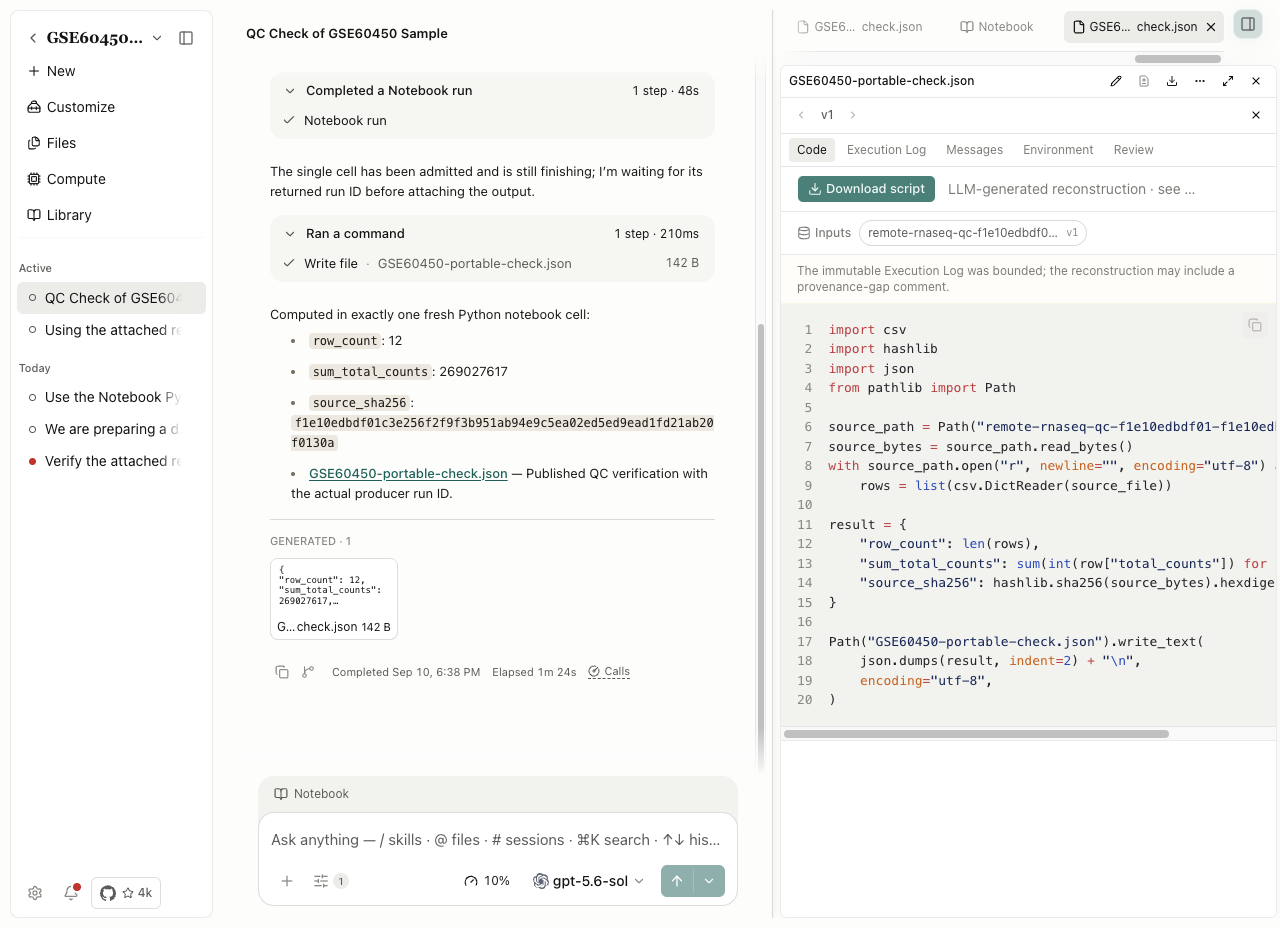
Worked example Rerun the exported RNA-seq check outside the app
For a runnable downloaded example, save the script, input CSV and expected JSON into one folder. In that folder, run python3 GSE60450-portable-check.py. The script uses Python's standard library. Rename the downloaded expected JSON to expected.json before running: the script writes GSE60450-portable-check.json. Compare that generated file with expected.json before adapting the script to new data.
Download code when script generation is unavailable
If the app returns Artifact code reconstruction is unavailable with Codex subscription authentication., use a compatible provider for this auxiliary operation or download the captured producer code. This error concerns script reconstruction, not ordinary Codex Notebook execution.
For RECONSTRUCTION_UNAVAILABLE, inspect missing inputs or execution evidence. A captured-code download preserves available code; it cannot recover steps that were never captured.
Export and reuse the recorded Notebook
Select Provenance → Execution Log → Download notebook, choose a location and save. Open the export and check its language, cells and outputs.
Before an external rerun, prepare the input files, recorded dependencies and a writable output directory. Replace application-managed paths only in a working copy, keeping the original export intact. The export does not bundle credentials or the complete application environment. Example exports are available from Example data.
If a Windows Notebook export has no extension, first open a copy as text and confirm it contains Notebook JSON with nbformat, cells and the expected code/output. Preserve the original, then give the working copy an .ipynb extension. Renaming changes how other programs open the file; it does not convert its contents or rerun its cells.
Interpret errors and warnings
| Symptom | Next action |
|---|---|
| Missing variable | Rerun the code that defines it in the selected language/kernel |
| Missing package | Inspect that runtime's packages and follow Runtimes |
| Input version unavailable | Open or attach the intended current input; resolve its identity through the application |
| PermissionError / access denied | Inspect the requested file and permission scope; report persistent access failures using Troubleshooting |
| Network/installer error | Follow Network using the affected hostname and full error |
| Warning with a completed run | Read what the warning affects, then inspect the saved output before deciding whether to rerun |
When reporting a problem, keep the first failing line, selected runtime, file identity and task state. Link saved output to its actual producing run.
Ready runtimes and captured packages
A ready default runtime no longer requires a second setup approval for an ordinary supported operation. A risky-code decision or a request for additional access remains separate: inspect its action and scope before responding.
In the result's Provenance → Environment, retain Conda and pip origins and the reported package versions/build strings when the environment uses both managers. v0.37.0 improves mixed-environment capture and micromamba metadata. Compare the captured environment with the intended runtime, then use rerun verification when you need execution evidence. A package inventory alone does not prove identical numerical results.
Check dependencies after a chained analysis
After reading a CSV, transforming it and exporting a new file in Python or R, open the output's provenance and inspect the recorded input versions and execution dependencies. Use those records to select the file version to verify. More accurate lineage capture does not by itself rerun the calculation or establish the scientific validity of the analysis; follow artifact verification.
Check local folder access
If a local input cannot be read, check Notebook and Shell folder permissions. Changing the restriction stops live processes and clears variables. Save results first, grant the required folder, then rerun only the cells needed to rebuild the working state.