Remote browser access
Remote browser access lets another device operate this computer's running workspace. Projects, agents, files and Notebook runtimes continue to run on this computer. It is separate from SSH/Slurm compute, which sends computation to a host.
Remote.It may accept service changes before its background agent reports them as ready. Complete browser pairing and workspace access still need to succeed on your devices. The Off-state screenshot below illustrates the controls, not a connected remote session.
Prerequisites and modes
Open Settings → Remote on the home computer. Install and sign in to the separate Remote.It desktop application before enabling the modes that use it. Open-Science calls its installed CLI; it does not create a Remote.It account or bundle that service.
| Mode | What it is for |
|---|---|
| Off | Pause remote access while retaining provider setup and trusted-browser records for reuse. |
| App access | Connect through the signed-in mobile app and complete two-step verification. |
| Browser access | Use a persistent HTTPS browser link and complete two-step verification. |
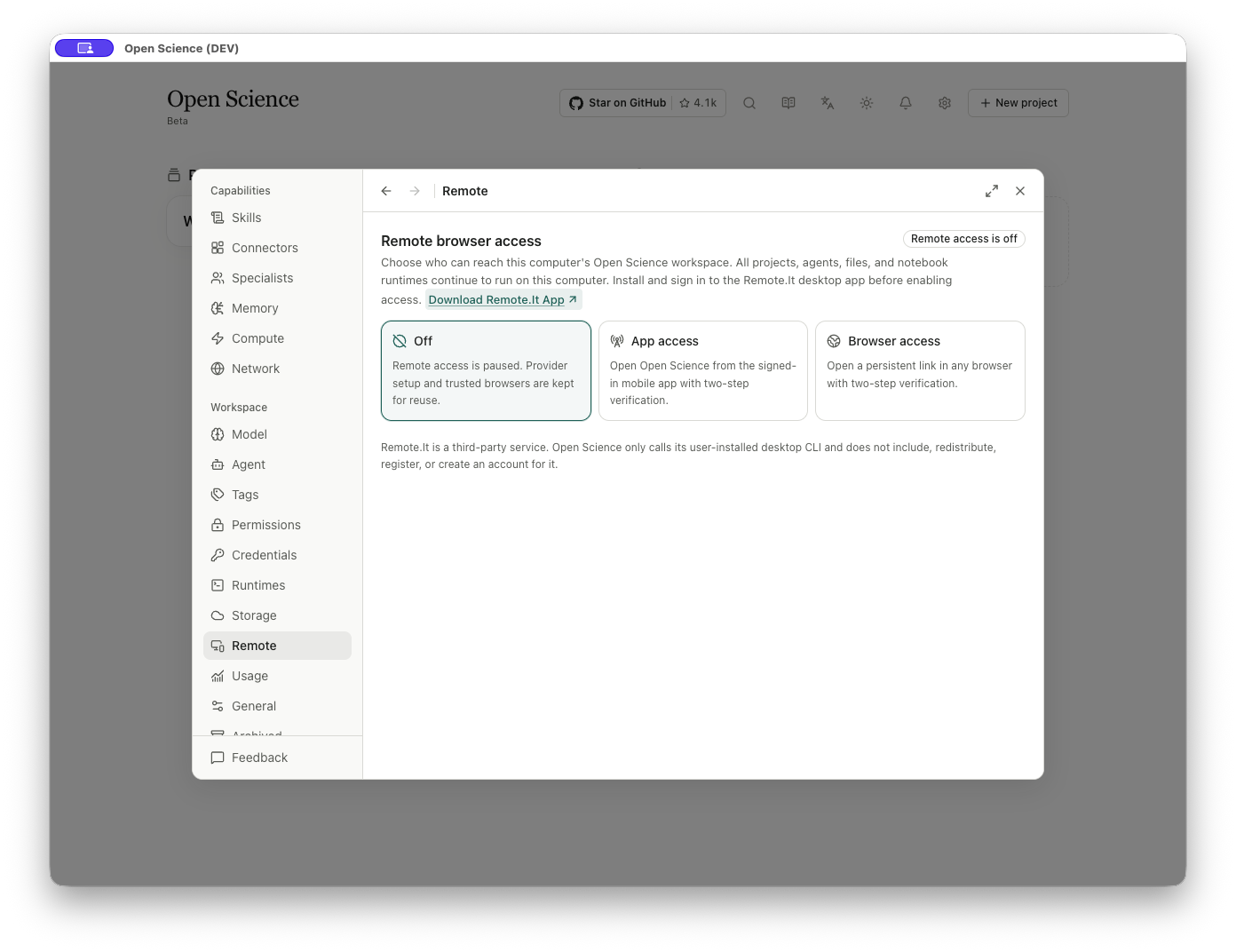
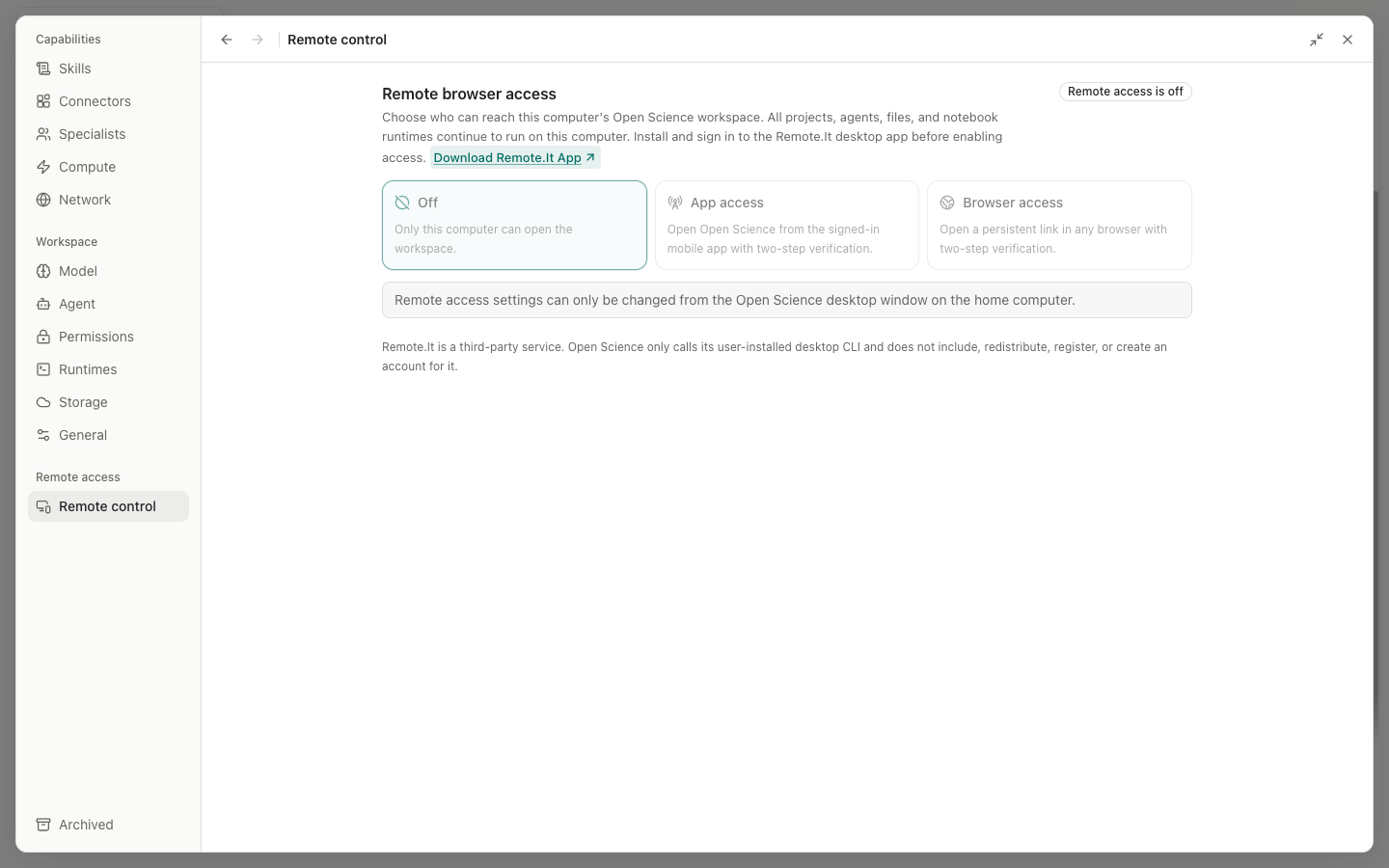
Access-mode settings can be changed from the desktop window on the home computer. A connected browser may manage pairing/trust when authorized, but it is not a substitute for that desktop-only mode control.
Pair a browser when the environment is available
- Select the intended access mode and wait for its ready/running status. An error or Changing access mode state is not a usable connection.
- In Browser access, use Copy, Open or the QR code for the displayed link. In App access, use the mobile connection instructions and the same Remote.It account.
- On the requesting device, compare the six-digit code with Pairing requests on an authorized approving device. Check browser, platform, time and address.
- Choose Reject, Allow for up to 12 hours, or Trust this browser for 180 days. Temporary access is not permanent trust.
- Verify that the intended workspace opens and a small read-only interaction succeeds. Do not infer connectivity from copying a link.
Keep the access link private. Share a connection only with the intended device, and confirm the pairing request before trusting it.
Revoke and stop
Trusted browsers lists device details and last use. Revoke [browser] invalidates that browser's authorization for subsequent protected access/reconnection. Turning Off pauses access but keeps trust records; revoke a lost device separately.
If the app reports that turning Off did not finish, use Retry turning off and confirm the saved state. The warning explicitly says access may return after restart if Off was not saved. Do not treat a selected radio button alone as success.
Service changes accepted, agent still restarting
If the message says Remote.It accepted the service changes, but its background agent is still restarting, the new Service IDs have been saved. Wait a few seconds, then select Detect or Detect again. Do not add the device again or switch modes repeatedly; reuse the accepted service configuration.
Continue only after the page provides the browser link and pairing controls. If detection keeps failing, confirm the Remote.It desktop app is signed in and its agent is running, retain the exact message, and use Troubleshooting to report it. A Ready subpanel alongside a page-level error is not enough to establish end-to-end access.
Diagnose by stage
| Stage | Check |
|---|---|
| Provider not detected | Remote.It installation, sign-in and the page's detection result. |
| Mode change fails | The current error and whether the local app/provider remain running. |
| Link opens but workspace does not | Pairing code, expiration, trust and authorized device. |
| Previously working browser is rejected | Revocation/expiry and whether access is Off. |
| Workspace opens but a task fails | Model, runtime and tool permissions on the home computer; remote access does not configure these. |
For local headless/browser commands, see service reference. That is a separate entry path from the Remote.It modes shown here.
Source: Remote access panel.
For Linux headless deployments without a usable OS keyring, read the credential-storage option. It changes local storage of eligible secrets; it does not configure Remote.It, pair a browser or grant remote access.
Pairing and revocation in v0.31.1
Pending pairing requests appear before Trusted browsers, with remaining time and urgent badges. Match the code shown on the requesting device before granting access; an expired request must be started again. A trusted browser can revoke itself: expect its protected access to end and pair again if access is needed later. Off, temporary access and revoking trust remain different actions.