Keyboard shortcuts
Keyboard actions depend on focus. A key that edits text in the Composer can navigate a result list or close a preview when a different control is focused. Read the visible shortcut and selected surface before using it during a running task.
Search and navigate
| Action | macOS | Windows/Linux | Focus and result |
|---|---|---|---|
| Open app search | ⌘K | Ctrl+K | Search projects, sessions, messages, files and literature; see search scope |
| Search within Settings | ⌘K | Ctrl+K | While Settings is open, focus its header search; see Settings overview |
| Move through search results | Up / Down | Up / Down | Command palette: move the highlight |
| First / last result | Home / End | Home / End | Search result navigation when handled by the palette |
| Open selected result | Enter | Enter | Inspect the result details, then open the matching message, file or record |
| Close search/menu | Esc | Esc | Dismiss the active overlay; unsaved forms can have their own confirmation |
| Move focus | Tab / Shift+Tab | Tab / Shift+Tab | Forward/backward through enabled controls |
Open app search with the shortcut for your platform and enter a phrase, title or filename. Select a result, check its context in the detail pane, then open the matching content. Use the source-message entry to find a file's context. See Navigation for filters and search scope; the Wiki's separate search includes documentation body text.
Compose and reference inputs
| Input | Where to use it | Check before continuing |
|---|---|---|
@ | Composer | Choose an actual file/artifact/reference suggestion; plain text alone does not bind a file |
/ | Composer | Select an available Skill; its appearance does not establish all runtime prerequisites |
# | Composer | Select the intended session transcript reference |
| Up / Down | Empty Composer at the start | Inspect restored prompt history and attachments before resending |
| ⌘Z / Ctrl+Z | Focused text editor | Undo the draft edit handled by that editor |
| ⌘Shift+Z / Ctrl+Shift+Z | Focused Composer | Redo a draft edit where supported |
| Displayed Send shortcut | Composer | It submits the request; use the Send button if uncertain about a multiline draft |
In the Windows desktop app, click inside the Composer draft before using Ctrl+Z to undo or Ctrl+Shift+Z to redo. Check the resulting text before continuing or sending. When using Tab / Shift+Tab, look for the focused control's outline, such as the attachment button below. Confirm focus again after opening a panel or changing a control's state; do not rely on a fixed number of keypresses.
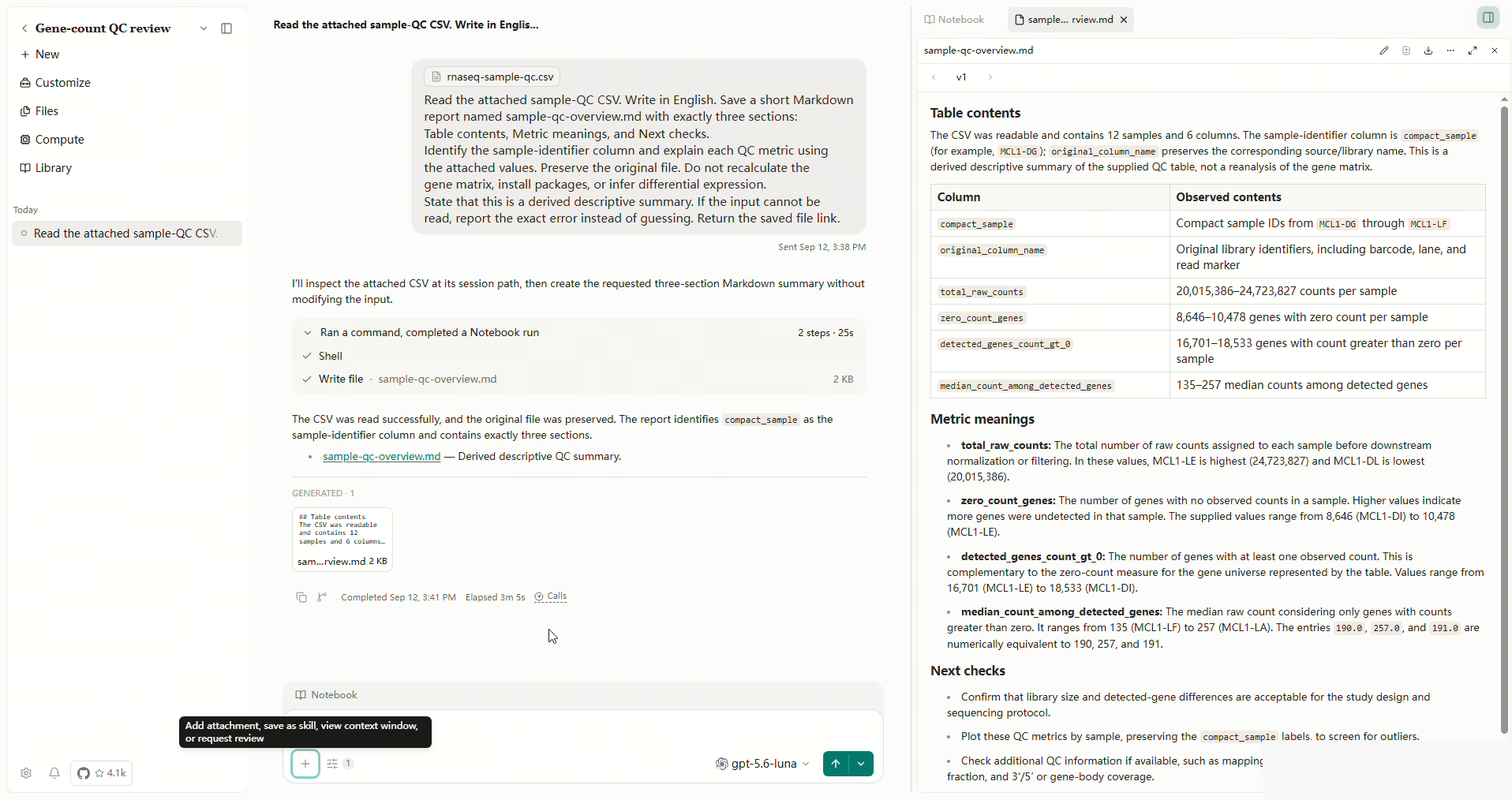
The detail shows the attachment button's focus outline and tooltip. Select the image to open the complete screenshot.
Do not use a generic undo shortcut as a substitute for restoring a deleted artifact or reversing executed code. An archive Undo notice, when offered, is a separate action from text-editor undo. Use Archived to restore retained work after the notice is gone.
Work with previews and queues
Focus a preview tab before using Left/Right to move among tabs or Home/End to choose the first/last tab. Delete/Backspace on a focused preview tab closes that tab; it does not delete the source file. Inside an editable report, those keys instead edit text. Use the visible close control when focus is uncertain.
A focused Side Chat tab has a destructive-close confirmation: confirming stops that chat and deletes its saved conversation. Use Cancel or collapse the preview area to keep it. See Side Chat.
In a queued request, focus its reorder handle, press Space to pick it up, use Up/Down to move it, and press Space again to drop it. Read the resulting order before sending. This is not the same as moving between search results or browsing Composer history. Queue editing/removal and delayed delivery are described in Conversations.
Resize without losing open files
Drag the divider beside the preview to change its width. Collapse preview panel hides it; Expand preview panel restores the open tabs. The open tabs remain available after collapse/expand. Use a focused tab for navigation keys; typing inside a file editor has different effects.
If a shortcut seems unresponsive
Check which field or dialog owns focus, close unrelated overlays, and try the visible button. On macOS, some Home/End keys require the keyboard's Fn combination. OS/browser shortcuts can intercept keys before the app sees them. The desktop window and browser entry point therefore need not handle every key identically.
Sources: global search keyboard handling, preview tabs, queue.
Search within the current settings panel
In Settings, ⌘K (macOS) or Ctrl+K (Windows/Linux) focuses the header search across settings. ⌘⌥K or Ctrl+Alt+K focuses the eligible search field in the current panel or dialog. The local shortcut needs an available local search field; it does not open application-wide search or PDF text search.
Desktop interface scale
| Action | macOS | Windows / Linux |
|---|---|---|
| Increase one step | ⌘+ | Ctrl++ |
| Decrease one step | ⌘− | Ctrl+− |
| Reset to 100% | ⌘0 | Ctrl+0 |
These shortcuts share the 90%, 100%, 110% and 125% steps in Settings → General → Appearance → Interface scale. See interface size. File-preview zoom and whole-app scaling are separate controls.