Sessions and branches
A project groups related sources and work. A session is one conversation within it. Use a new session for a separate question, and a branch when the new question should retain a selected conversation history. Neither is a replacement for checking which files and execution records the new conversation can actually access.
Create, name and return to a session
Open the project, select New under Sessions, enter a request and send it. Check the project name first: a new session belongs to that project. Select a session row to return to it; read its status before assuming the task has finished.
Example Name an RNA-seq quality-check session
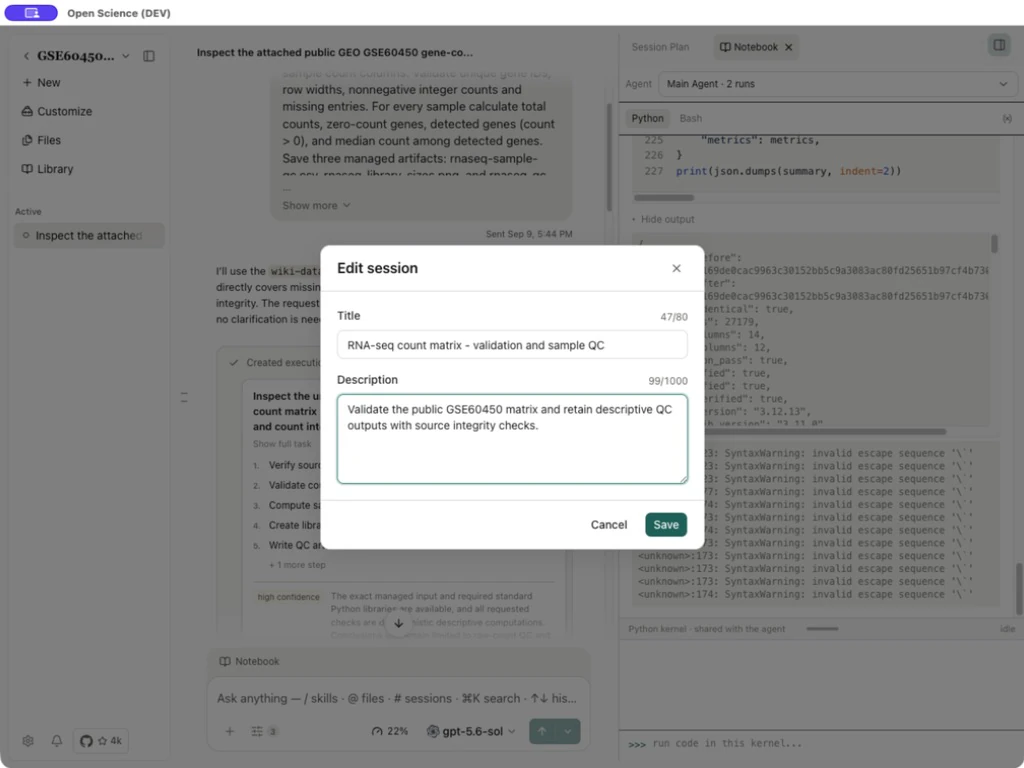
For the completed GSE60450 run, we used Edit… to save this information:
| Field | Example value | Constraint |
|---|---|---|
| Title | RNA-seq count matrix - validation and sample QC | Up to 80 characters; the editor shows the count |
| Description | Validate the public GSE60450 matrix and retain descriptive QC outputs with source integrity checks. | Up to 1,000 characters |
| Save | Persist the changes | Check the sidebar title after closing |
| Cancel / Close | Leave without applying the draft | This does not cancel the research run |
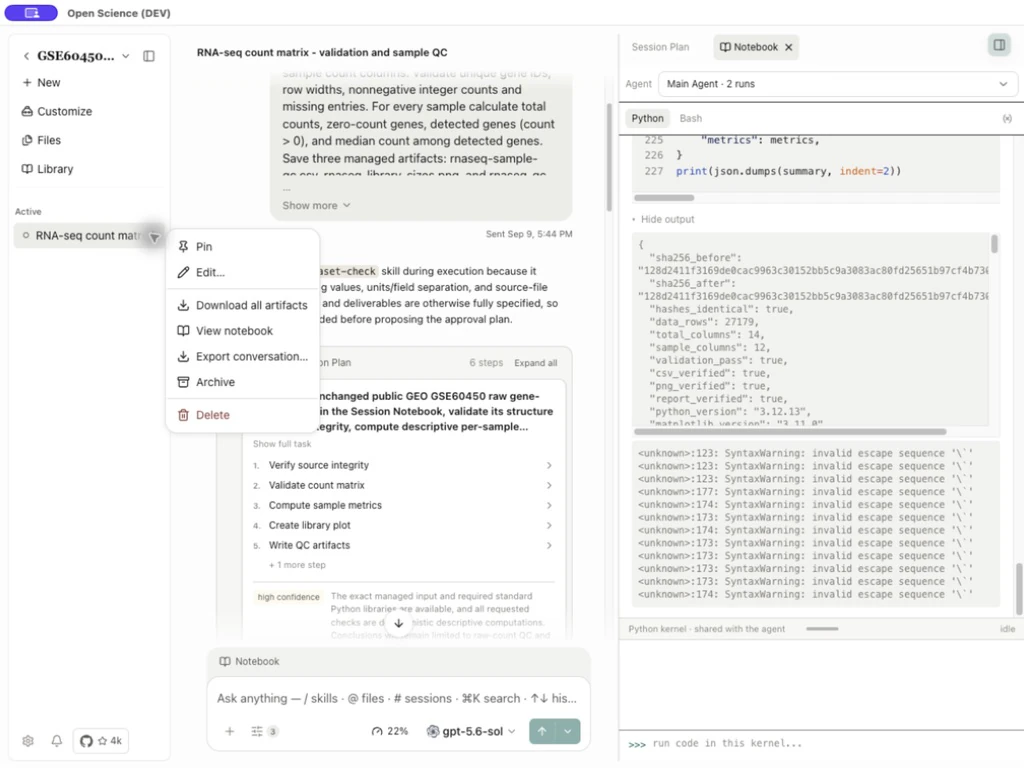
Choose Pin from the row menu to keep the session in the Pinned group. Unpin returns it to the ordinary list. Pinning organizes access; it does not keep a kernel alive or protect a session from deletion.
Hover over a session to check its number as well as its title and project. The number helps distinguish similarly named conversations; confirm the selected row before editing or deleting it.
Save a reading bookmark
Use private reading bookmarks to save a passage or PDF region with a note, then return to it from Bookmarks in this session. Saving a bookmark does not send the passage to the agent.
Read the session menu correctly
Common actions in the session header
Open Session actions beside the current session title for Edit…, Pin / Unpin, New side chat, Fork, Export and Archive. Confirm the displayed session name and number before choosing an action.
The Export submenu separates conversation, .science research-package and diagnostic exports. A conversation is a reading copy, a package hands over saved research records, and diagnostics support troubleshooting. Sensitive diagnostic evidence requires separate confirmation; the export remains local until you share it. Inspect its contents first.
Unavailable actions are disabled for the current state. A read-only imported session needs Fork before execution can continue; see Side Chat for the separate discussion's scope. The sidebar session-row menu also provides View replay, View notebook and file downloads. The screenshot below shows that sidebar menu.
| Action | Result | Check |
|---|---|---|
| Edit… | Change the title/description | Correct row and saved label |
| Download all artifacts | Open an artifact selection/download flow | This session's saved files and requested selection |
| View notebook | Open the session's execution view | Owner, language and actual runs |
| Export conversation… | Export the conversation through the offered format/options | Transcript export is distinct from an artifact/Notebook bundle |
| Archive | Hide the session from active navigation | It remains recoverable in Settings → Archived |
| Delete | Open a permanent-deletion confirmation | Read exactly which data is affected; Cancel preserves it |
Branch after a completed result
Worked example Branch a completed QC session for sample annotation
Suppose you want to discuss downstream sample annotation while keeping the finished raw-count QC conversation intact.
- Open the completed answer in the original session.
- Select Branch in new session beneath that answer.
- Confirm a new session row appears. It can initially share the original title.
- Rename it to
GSE60450 - follow-up interpretationwith Edit…. - Inspect the inherited transcript before submitting the next request. Reference the original project artifacts explicitly where needed.
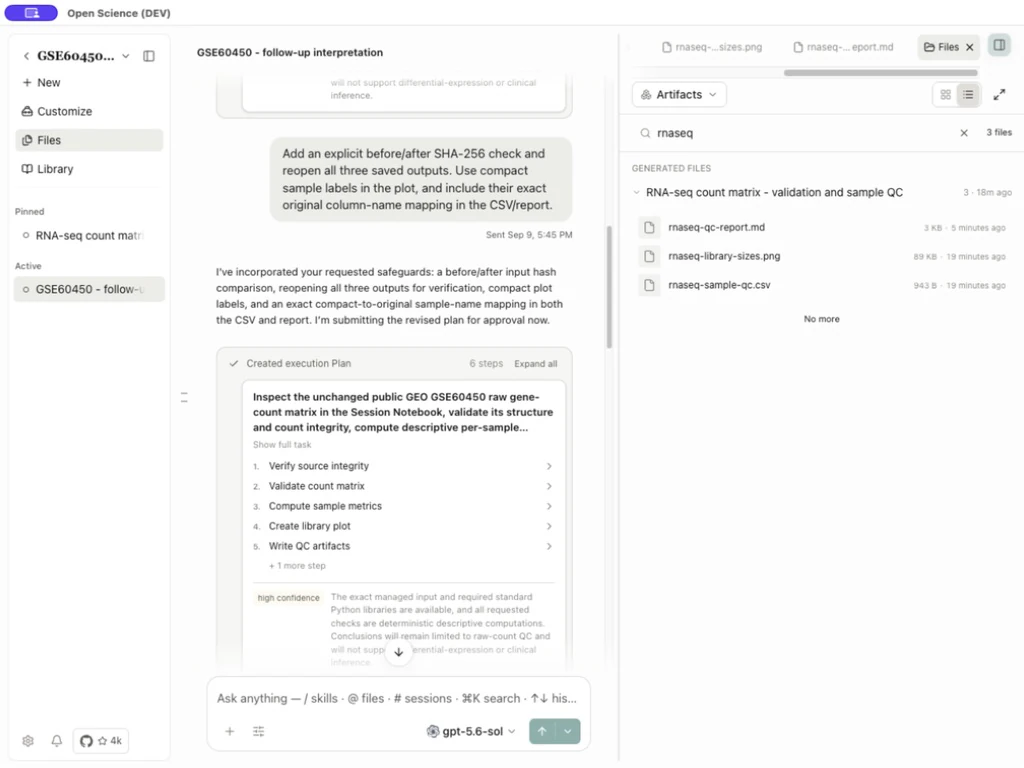
A branch preserves selected conversation history, but it does not recreate the original live kernel. For a copied activity labeled code shown or a blocked historical link, open the original artifact from the project's Files panel and inspect its producing session.
Branch availability depends on the message and framework state. Side Chat is separate. A new side discussion inherits this conversation's current model and reasoning effort; you can select a different model for its next send.
Revise an earlier message
Edit message on an earlier user request creates a message revision, rather than erasing the entire history. Read the revised text and attachments before submitting. Use Previous/Next message revision where available to inspect alternatives. Later visible context depends on the selected path; an old answer should not be treated as the response to a newly edited request.
Worked example Revise a request for QC metric definitions
For this QC example, choose Edit message on the completed question, replace the one-sentence request with four definitions, and choose Send. Revision controls are unavailable while the new response is running. Once it finishes, Previous message revision returns to 1/2 with the original question and answer; Next message revision returns to the revised answer. A further correction to the exact CSV field names produced 3/3. In this Codex-subscription session, the two reports saved before the revised message remained available and their downloaded bytes were unchanged.
The same revision path was also exercised with OpenCode and a local model: the revised request produced the new phrase, Previous restored the original reply, and Next restored the revised reply. This connection-only example does not establish that tool state or external side effects are reversed.
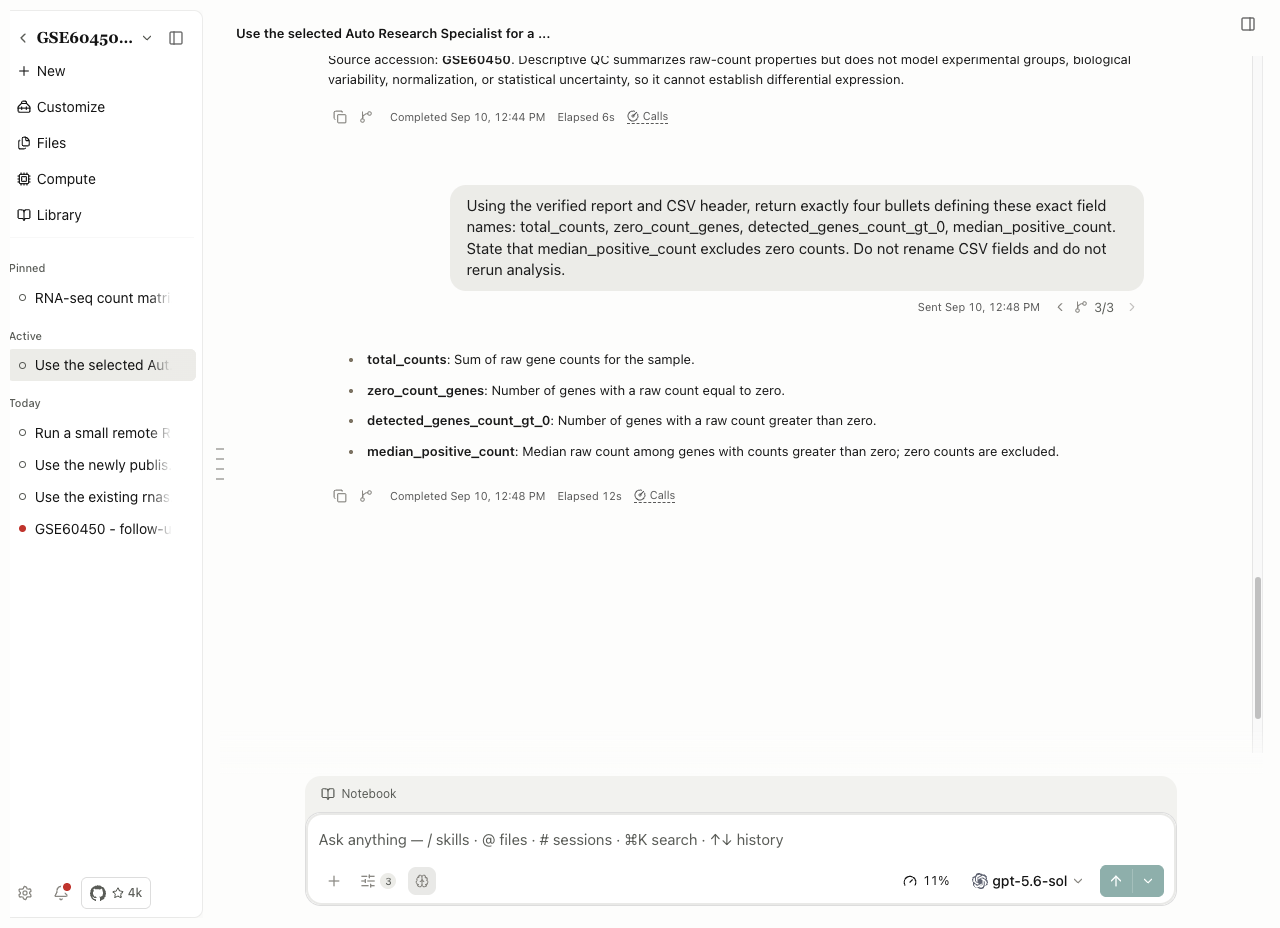
Cancel leaves without submitting the edit. Send requests a new answer; check it before continuing. Use a follow-up to correct the next action or a branch for a separately named investigation.
Research packages
To hand over conversation branches, files and evidence together, use a .science research package. The guide covers export options, import and inspection, read-only sessions and transfer recovery.
Export conversations and research files
Choose Export → Export conversation… from the session row menu to share a research discussion. First use Edit… to give the session a concise title: PDF export uses that title, and a long automatic title can consume much of the first page.
| Control | Action and result |
|---|---|
| Format → PDF / Markdown | PDF for reading and printing; Markdown for further editing |
| Entire conversation | Export the current conversation branch |
| Selected | Show turn checkboxes, initially empty; the counter follows your selection |
| Select all | Select every listed turn |
| Export PDF / Export Markdown | Open the system save dialog; unavailable when no turns are selected |
| Cancel | Close without creating an export |
Worked example Export only the final GSE60450 QC definitions turn
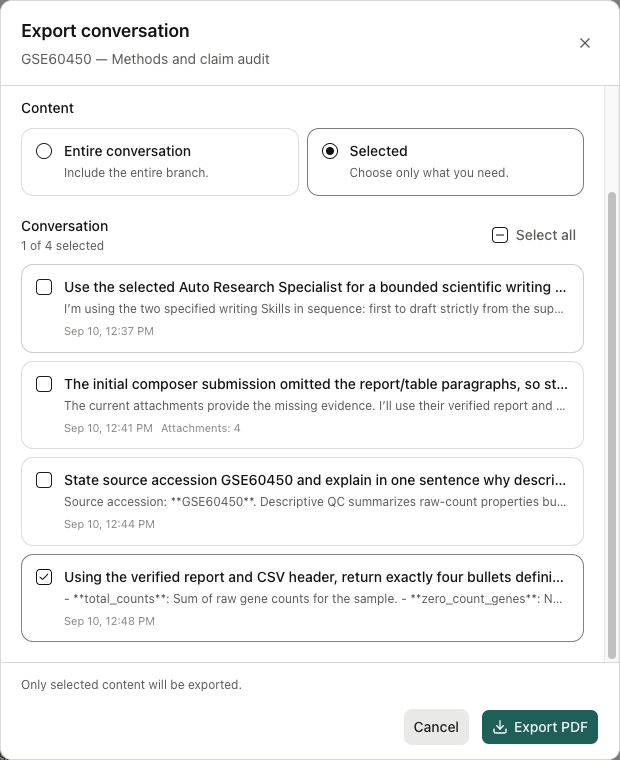
In GSE60450 — Methods and claim audit, selecting the final turn produced a one-page PDF containing only that request and its four metric definitions. Earlier discussion was absent. The entire-conversation PDF was also reopened and checked. The earlier selected-turn Markdown export began with its selected follow-up. A turn can contain several assistant messages, so selecting one turn need not export exactly two messages.
Conversation export does not replace research-file download. Result links may refer to internal application records that a recipient cannot open. Download the CSV, figures or reports separately when those files are part of the handover.
Download session artifacts
Choose Download all artifacts, select the files, choose Download N artifacts, and pick a destination folder. This entry saves separate files. The two downloaded Methods and claim-audit Markdown files were reopened and matched their saved artifacts byte for byte.

Download a project file bundle
Open the project-name menu at the top left → Download artifacts…. Files are grouped under Generated and Uploads. All are initially selected; use Uncheck all, choose the files to hand over, and save the ZIP.
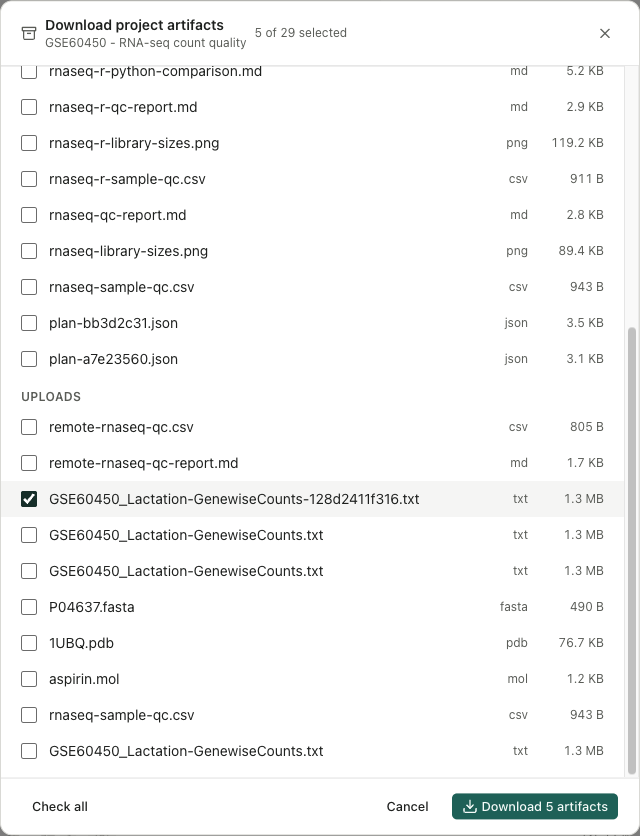
Choose Cancel in the system save dialog to abandon that save; your file selection remains available. Once writing starts, the app disables cancellation and closing. Wait for the result; cancelling the destination dialog is different from stopping a write in progress.
If only some files downloaded, restore access to the unavailable source files, then select the complete intended handover and download again. Saving to the same ZIP name replaces the previous archive. Selecting only failed files creates a new bundle containing only those files; it does not append them to the earlier ZIP.
Open the downloaded ZIP and compare file counts, names and contents under generated/ and uploads/ with your selection before sharing. This bundle is not a backup of the full project, conversation history, Notebook kernel or runtime.
Archive and restore a finished branch
Choose Archive on the intended branch, then open Settings → Archived → Sessions. Check the project and archive time before selecting Restore. Confirm that the branch returns to active navigation and its saved contents open; the original conversation is separate.
For an archived project, use its Manage entry and inspect the project's sessions. See Storage and archived work for the difference between archive, restoration, deletion and storage relocation. A session's disappearance from the active list is not evidence that disk space was reclaimed.
Sources: session editor, workspace implementation.
Fork an existing session
Use Fork when you need an independent working copy of a local or imported session. Branch in new session starts from a selected message; Fork copies the session's complete saved research history, including its branches, Notebook records, file versions, literature, annotations and private bookmarks. The source session stays unchanged. Copying a record does not rerun it or establish that its environment is ready on this computer.
- In the desktop app, finish or stop the current task. Wait for any package transfer to finish.
- Open the session row's actions and choose Fork. The app shows transfer progress; Run in background hides that window without cancelling it.
- Wait for Fork completed and open the new session. Open its title to inspect Source session and the new session number.
- Open an inherited file and check its contents. Inspect the selected model and runtime before continuing; old machine paths or permissions may need attention.
- Send the next task in the copy and check its new output. Keep the original as the reference record.
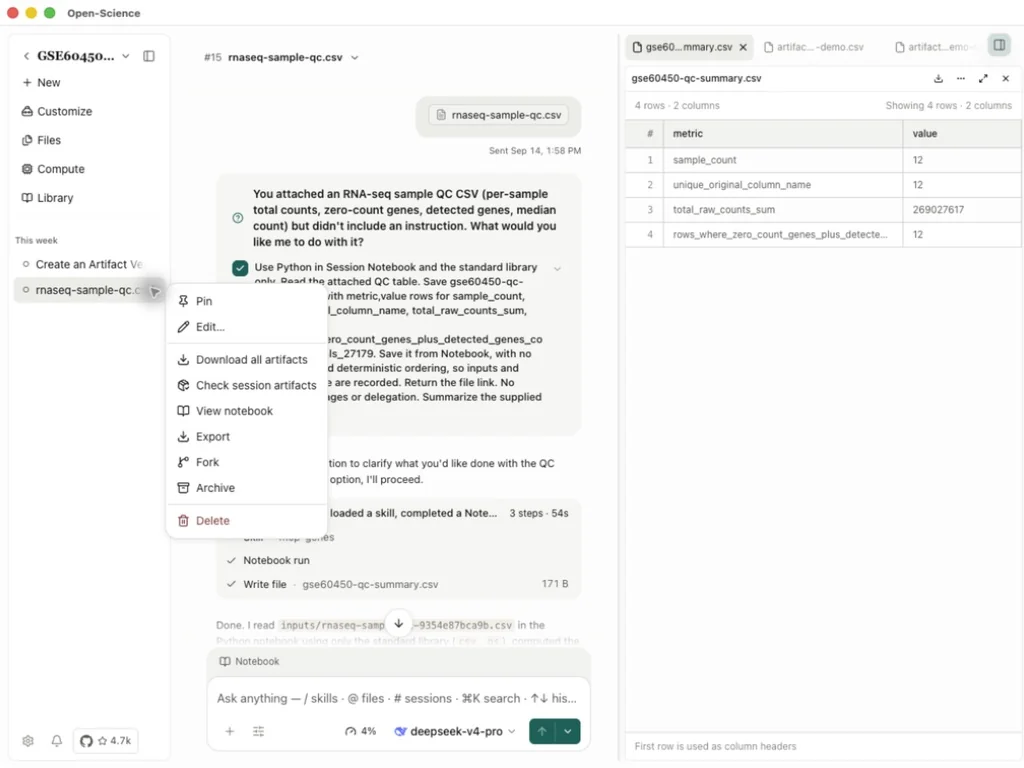
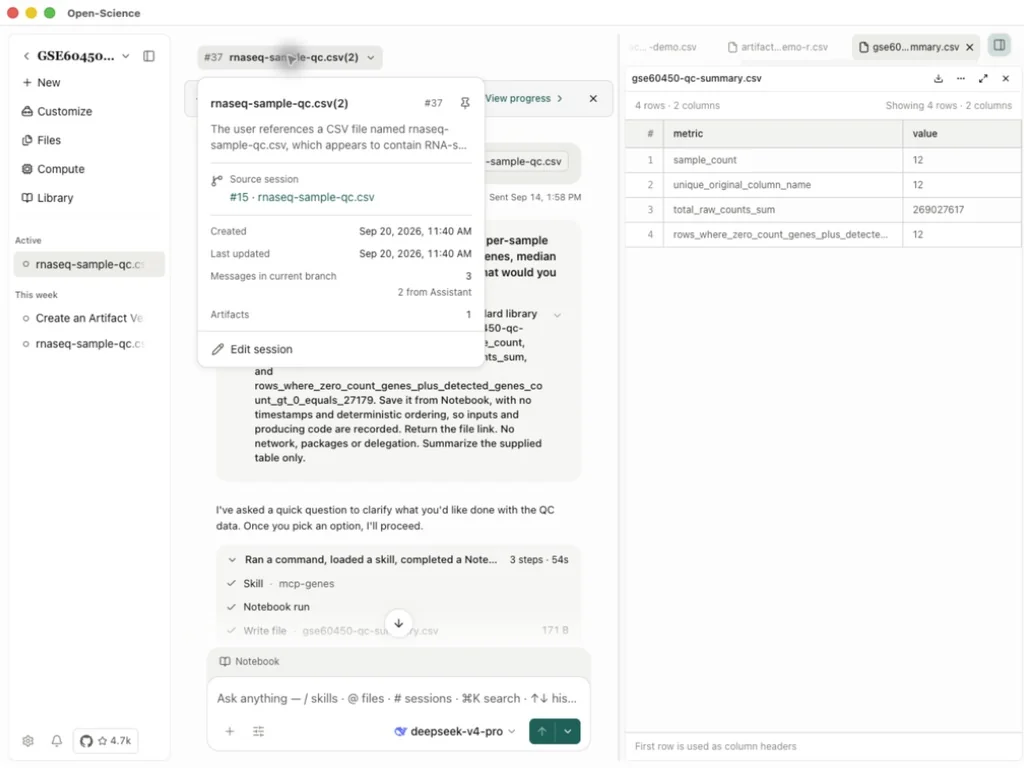
Fork is available in the desktop app. Imported sessions remain read-only until you work in their fork. Project settings and memory are not a separate copied project. Old review or verification records describe their recorded versions; inspect any outdated status before treating them as current checks.
Continue a QC calculation in the copy
Worked example Fork a local session in v0.31.1
In the GSE60450 project, fork the existing QC session and open the inherited gse60450-qc-summary.csv. Check 12 samples and 269,027,617 total raw counts. In the copy, ask the agent to read that file with Python, verify both values, calculate mean counts per sample and save a separate fork-qc-check.csv. The result is 22,418,968.083333…. The source and inherited files have identical contents; the new calculation is a separate file. This mean demonstrates continuation, not expression normalization.
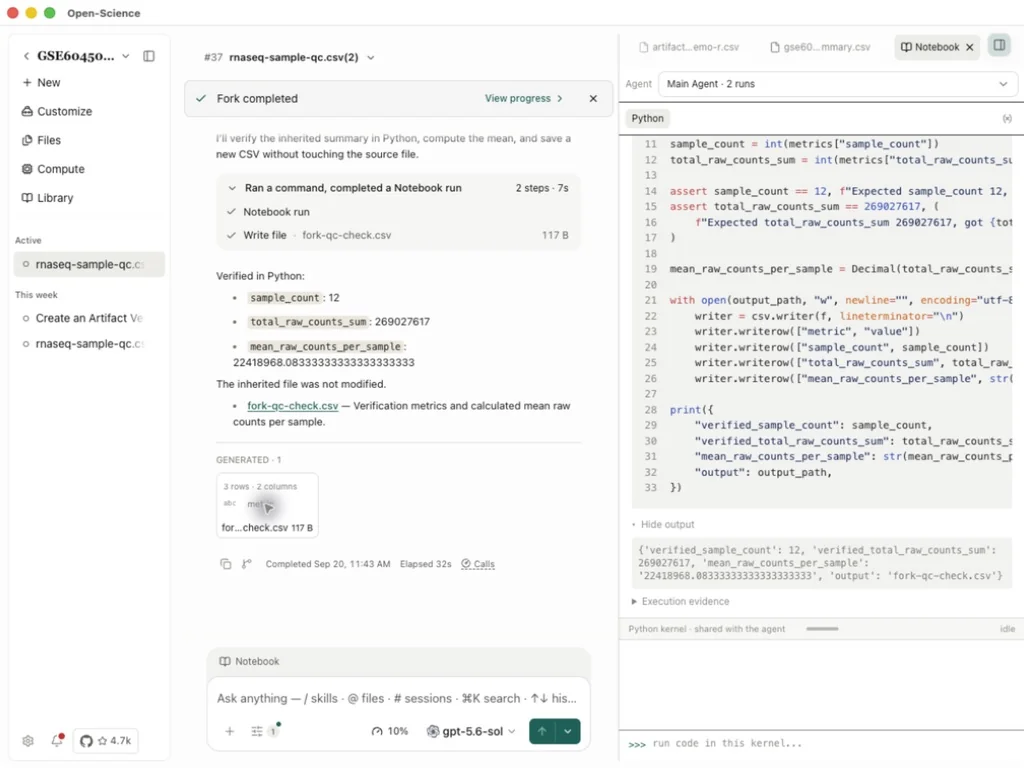
Download the calculated result. To continue from a received .science package, follow Research packages.
Read the session information card
Select the session title to see its number, description, source, creation/update times, message count for the current branch and artifact count. Use Pin to keep the session easy to find, or Edit session to change its title and description. A Continued from chat divider links back to the recorded source turn.
Export session diagnostics
Use Session actions → Export → Export diagnostics… in the header, or the corresponding Export submenu on the session row, to collect selected diagnostic sources in a local archive. Application logs can include metadata outside the selected session. Review the source list, completion message and archive contents before sharing; see diagnostic export steps.
Replay or discuss recorded work
Choose View replay from the session row menu to step through the recorded conversation, Notebook activity and saved file versions. Discuss starts a separate conversation linked to that research. Imported sessions also expose both actions beside their read-only notice. Follow Session replay for playback, source inspection and a worked discussion.
Continue after changing the agent or reconnecting
Before sending the next turn, check the selected Agent/Specialist and model. v1.0.0 restores ACP conversations with the selected agent and repairs detached Codex continuation after Specialist switches. Reopen the original conversation and inspect its latest saved messages and run state after reconnection. Do not resend a write simply because its response was interrupted; confirm whether it completed first. Changing an agent or recovering a connection is not evidence that a previous failed analysis succeeded.
Recognize a session waiting for you
A session paused for your answer or approval shows a waiting state on Home, in the sidebar and in the conversation. Open the pending card, read the requested decision, and submit it to continue. Reloading the app does not by itself answer the question or approve a tool. Double-click a session in the workspace sidebar to open its editor.
For diagnostic exports, read the completion summary: a partial export is a warning, not a complete diagnostic bundle. Keep the specific error and review the exported files before sharing them.
Expand a compact conversation
In v1.0.4, completed turns collapse intermediate messages and group tool activity into summaries. Expand a group to inspect its details; running, waiting and interrupted work remains visible. Conversation search, annotations and native find reveal matching hidden content. Collapsing changes presentation, not the saved research record or whether a task completed.