Models and task policies
Choose a model for the work it must perform, then check which settings are inherited. A Provider supplies model access; an Agent runs the conversation and tools; a Specialist supplies a reusable role and selected capabilities. Changing one does not install or configure the others.
Use the task policies below when Main, Subagent, Reviewer, Vision or Session details need different models. Check the provider and model in the resulting task, especially when several providers offer the same model name.
Select the main model
- Open Settings → Model. In a workspace, the Composer's Select model entry also exposes model choices.
- Open Main model and choose an available model under its configured provider. A catalog entry is not proof that the account can use it.
- Select Reasoning effort. Use the choices actually displayed for that model. This inspected model offered Default, Low, Medium, High, XHigh and Ultra; other models have different ladders.
- Close and reopen Model to check the saved selection. Start a small request and inspect its result before a long analysis.
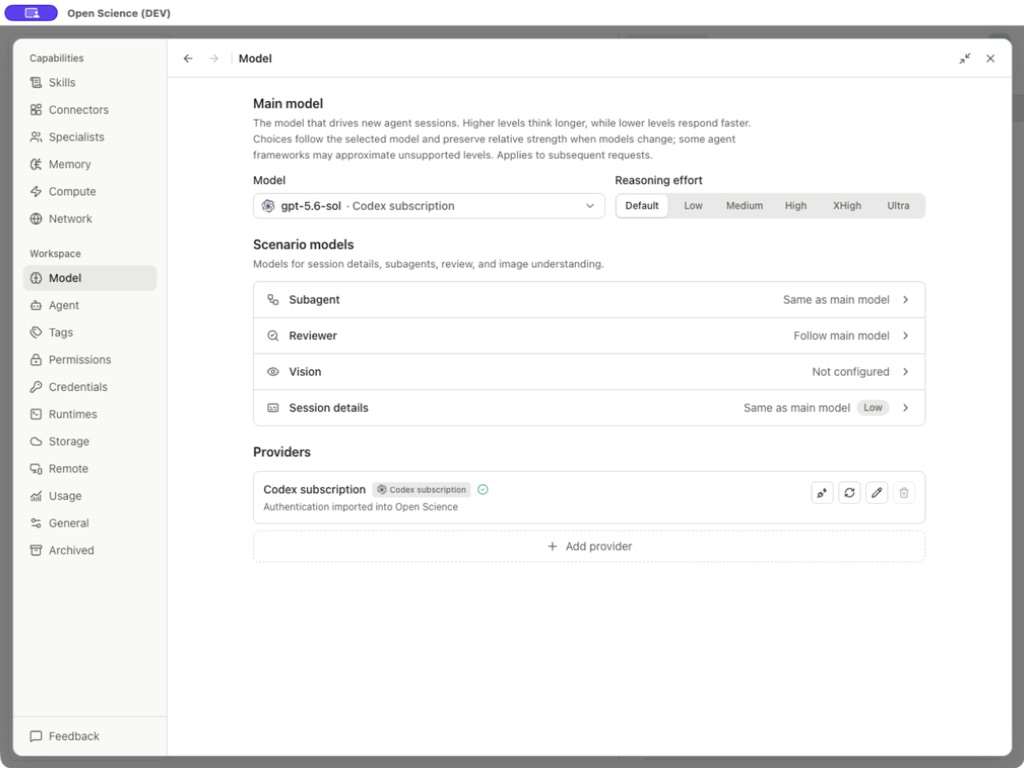
Changes apply to subsequent requests. They do not retroactively change the model behind an existing answer. When models change, the app attempts to preserve relative reasoning strength; a backend may approximate an unsupported effort. Higher effort can increase time and token use and is not a correctness guarantee.
Assign models to specific tasks
Select a scenario row to expand it. Opening another row collapses the previous one. Read the collapsed summary after making a change: it distinguishes inheritance, a fixed model and an unavailable selection.
| Scenario | Model choice | What to verify |
|---|---|---|
| Subagent | Same as main model, or a compatible separate model | The matching effort control is disabled while it follows Main. Delegation must also be enabled. |
| Reviewer | Follow main model, or a configured reviewer model | A model policy alone does not enable Auto-review or create a review record. |
| Vision | A configured image-capable model | Not configured means there is no dedicated Vision selection. Whether a relay is needed depends on the active backend's image support. |
| Session details | Follow Main or choose a compatible model; inspect its effort and enablement | This generates session title/description using a restricted call. It is separate from the scientific task and its artifacts. |
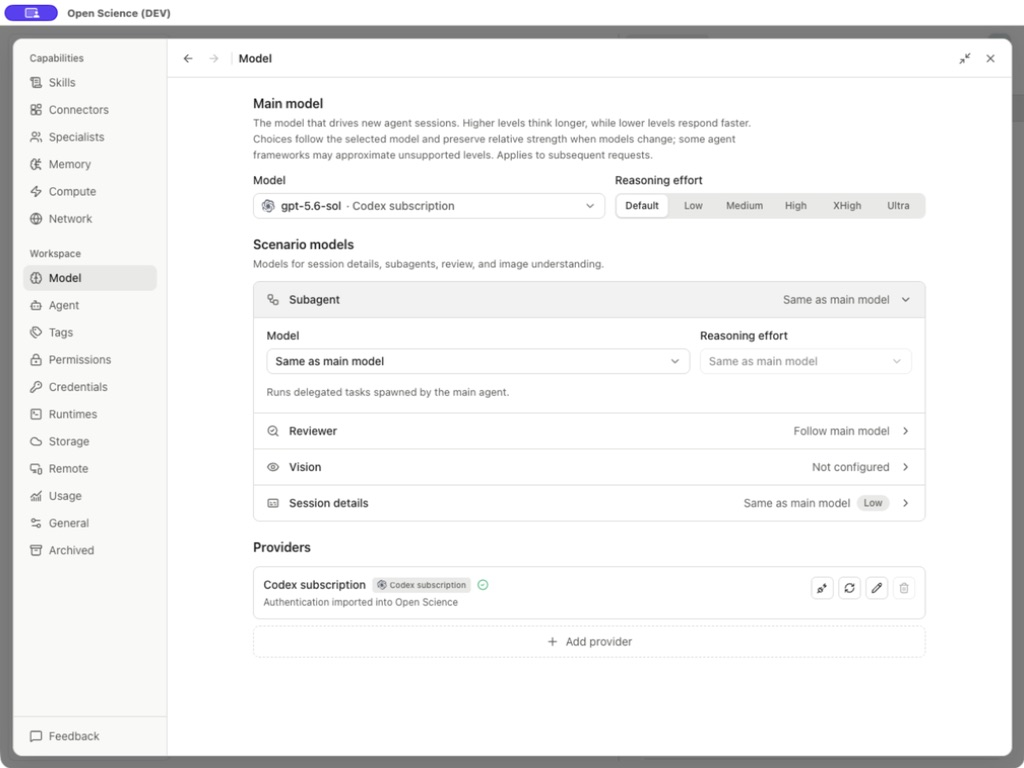
The Session details selector filters out Codex subscription models. A model visible in Main or Vision may therefore be absent here. With a compatible local provider and OpenCode selected, the local model became available as a fixed choice. Not supported beside its reasoning effort means that effort control is unavailable; it is separate from whether the model can receive a text request.
For a pinned scenario, select the provider/model and then the supported effort. Return to the inheritance option when you want future Main changes to propagate. An Unavailable summary can retain the previous model name even after its provider is removed or no longer eligible; select a valid replacement.
Read a chart with a separate Vision model
Use Vision when the conversation's Main model cannot accept images. A Main model that already accepts images can read them directly.
Worked example Check labels in a sample-count chart
- Expand Settings → Model → Vision and choose an available image-capable model. Select a supported reasoning effort if the control is enabled.
- Keep the intended text model selected in the conversation. Changing Vision does not replace Main.
- Use + → Attach files to attach the chart. Confirm that its filename appears in the Composer before sending.
- Ask for specific visible information, such as the title, axis labels, units and number of plotted samples. Request an explicit indication when a label is unreadable.
- Compare the answer with the original image. Use the source table for exact numerical comparisons: in this example, two labels rounded to 24.7M do not prove that their underlying counts are equal.
- Return Vision to Not configured when you no longer want a separate image model. This does not remove the model provider.
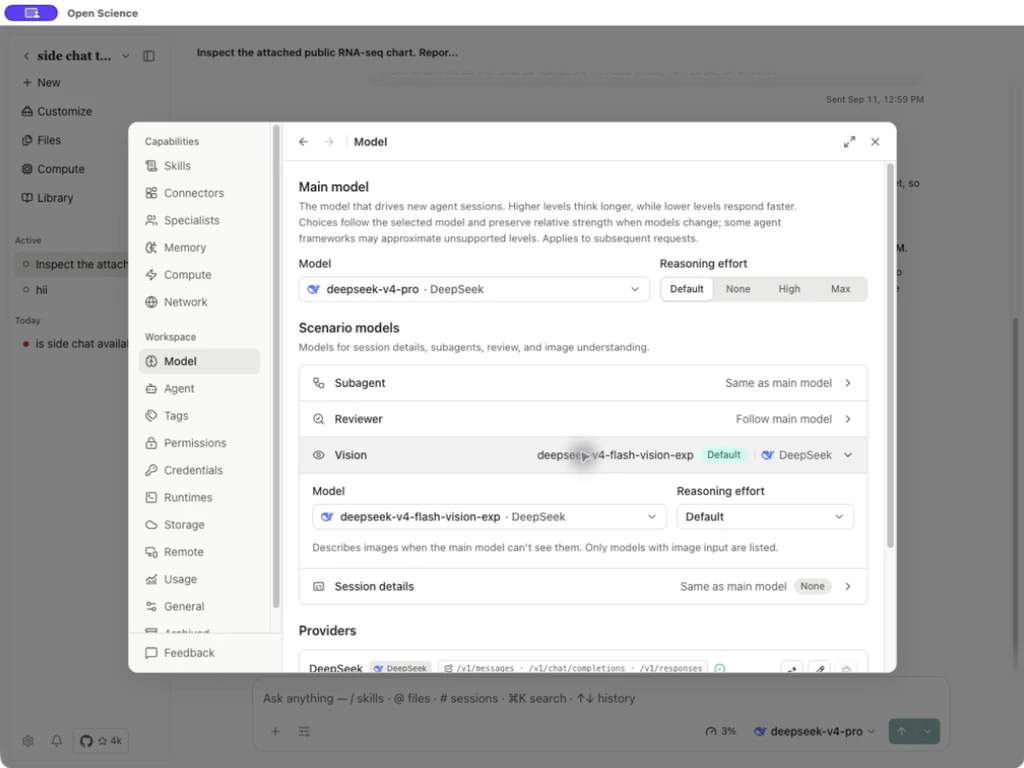
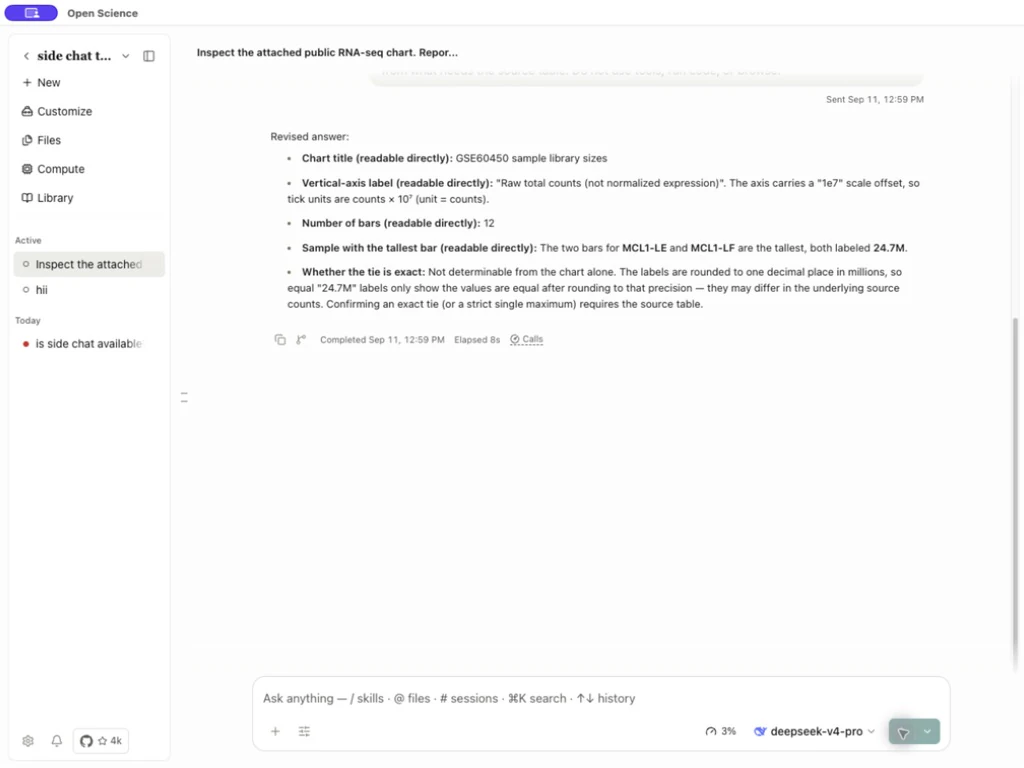
The current image relay excludes Codex subscription providers even though they can appear in the Vision selector. If a text-only Main model still rejects an image after that selection, choose another eligible Vision provider or an image-capable Main model. Do not treat a saved selector value as a successful image request.
Confirm that session details were generated
After choosing Same as main model or a compatible fixed model under Session details, create a conversation. Wait for the first-prompt fallback to become a concise title, then inspect the saved description. A truncated copy of the prompt does not establish successful generation.
Check the saved title and description after the auxiliary request finishes. If the title remains a shortened prompt, inspect model compatibility, local server load and the call’s final status. An auxiliary timeout can retain that fallback. Session-title generation uses its own model policy and does not run the conversation’s scientific calculation.
Provider controls and failure checks
| Control/state | Next action |
|---|---|
| Add provider | Follow provider setup, including its authentication and endpoint requirements. |
| Check Codex login | Recheck the subscription login state; this does not run a research task. |
| Re-import Codex login | Import a refreshed existing login through the app's flow. |
| Edit | Review provider configuration. Preserve the working configuration until a replacement is verified. |
| Disabled Delete | The current provider cannot be removed in this state; choose another valid setup first. |
| Compatibility warning | Check the active Agent and provider API format before repeatedly retrying. |
| No scenario choices | Configure an eligible provider/model first; a blank selector is not a request to type an arbitrary model name. |
Use Agent setup for the execution backend and Usage for reported activity. Exact configuration precedence is in Reference.
Sources: model selection, scenario policies.
Classification models
Open Settings → Model → Classification models. Classification services have two independent bindings: Automatic capability selection and Smart collections. The first helps select relevant Skills and Connectors before a request starts. It does not replace Main or add a chat model. You can leave Automatic capability selection at Use default method; Skills and Connectors still work without it.
Automatic capability selection through this service is supported in main conversations using Codex Chat Completions or CodeBuddy. Codex subscription sessions keep their existing capability-loading path. Only the current request and capability names/descriptions are sent for this feature; an unavailable or unclear classification falls back to the default method.
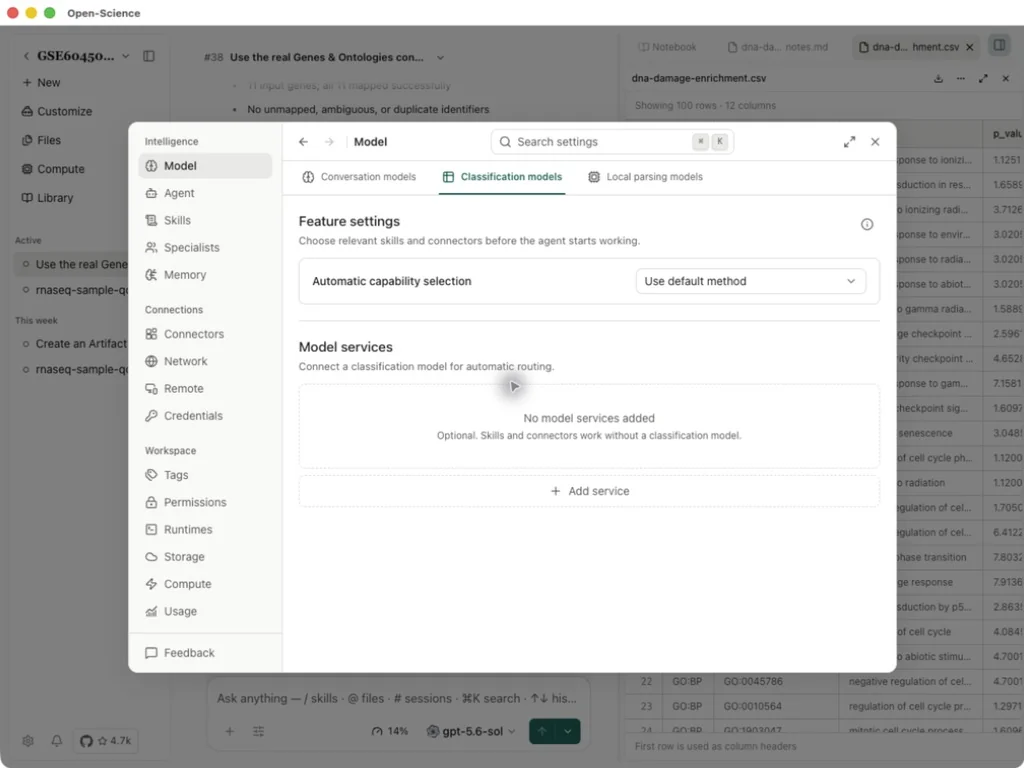
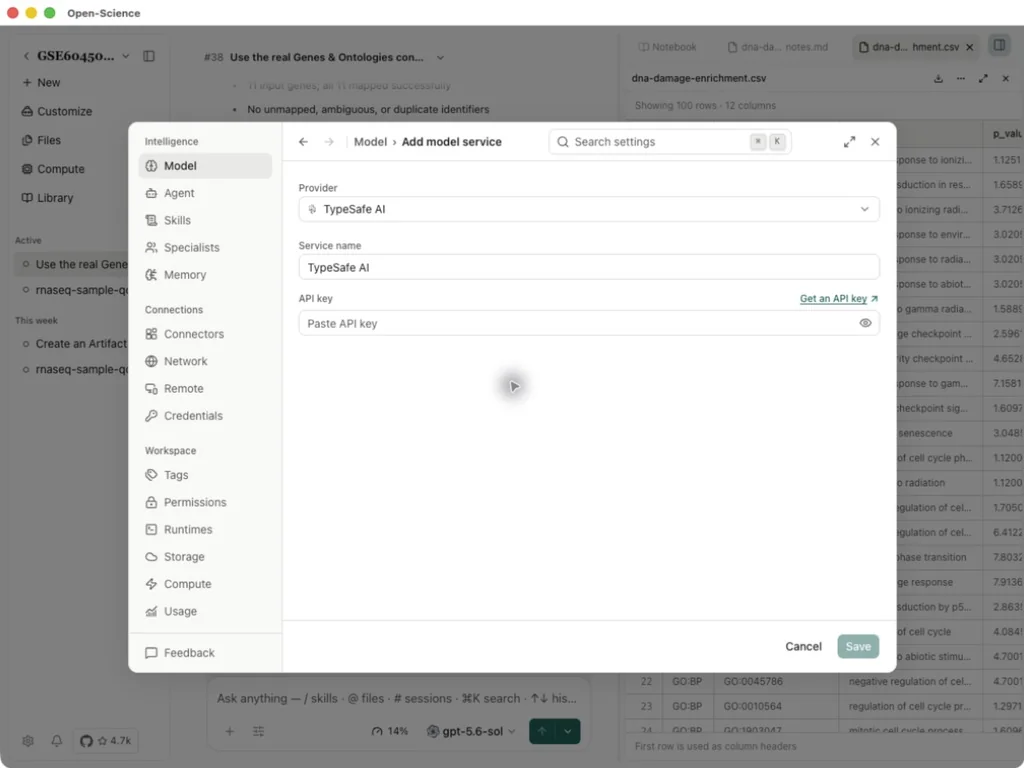
- Choose Add service, then TypeSafe AI, OpenRouter or Custom HTTP service.
- Name the service and supply its API credential when required. OpenRouter can use an existing compatible account or a new key; keep keys hidden in screenshots.
- Select Save and wait for validation. Failed validation leaves the previous settings unchanged.
- Under Automatic capability selection, select the saved service and a model offered in its catalog. Use Check model to check the connection.
- Try a bounded request in a supported main conversation, then inspect the actual tools selected. A successful model check alone does not verify a research result.
Removing a service returns automatic capability selection to the default method and leaves any Smart collections binding to that service unconfigured. A separately stored service key is removed with it; removing a service that shares an account does not delete that account or its key.
See provider setup for conversation models. Local PDF parsing resources are managed under Local parsing models, a separate tab.
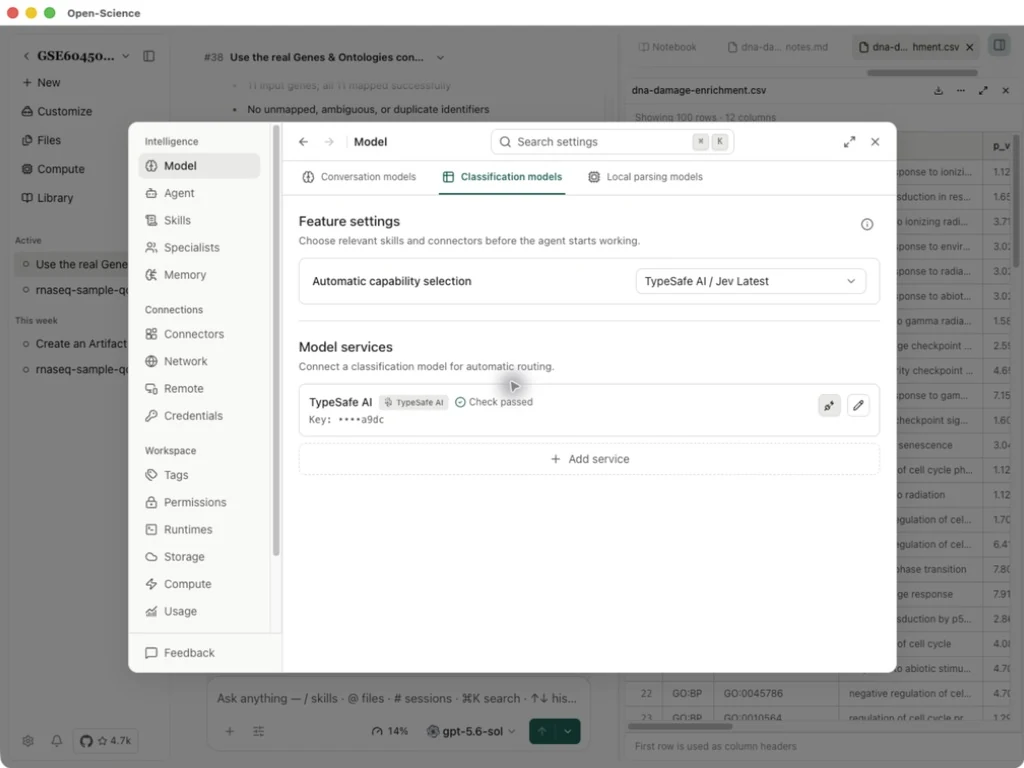
For Jev, select TypeSafe AI / Jev Latest under Automatic capability selection, then choose Check model. Check passed confirms that the service responds. Reopen Settings to confirm the binding is retained.
For example, a public TP53 lookup in a Codex Chat Completions session can use Jev to select mcp-genes. Inspect the selected capability in the activity, then inspect the database response for the research result. Codex subscription sessions use their existing capability-loading path; a saved Jev binding does not make those sessions use Jev.
Bind a model for smart collections
- Open Settings → Model → Classification models and save a compatible service if you have not already added one.
- Under Smart collections, select the service and one of its offered models, then choose Check model. This binding is shared by all smart collections; it is independent of Automatic capability selection.
- Confirm Check passed, then return to the Library and create a small, clearly scoped collection. Smart collections have no default model: configure this binding before evaluating references.
Main can continue using Codex subscription. Its capability-loading route does not prevent the Library from using its own classification binding. The example below selects TypeSafe AI / Jev Latest for screening.
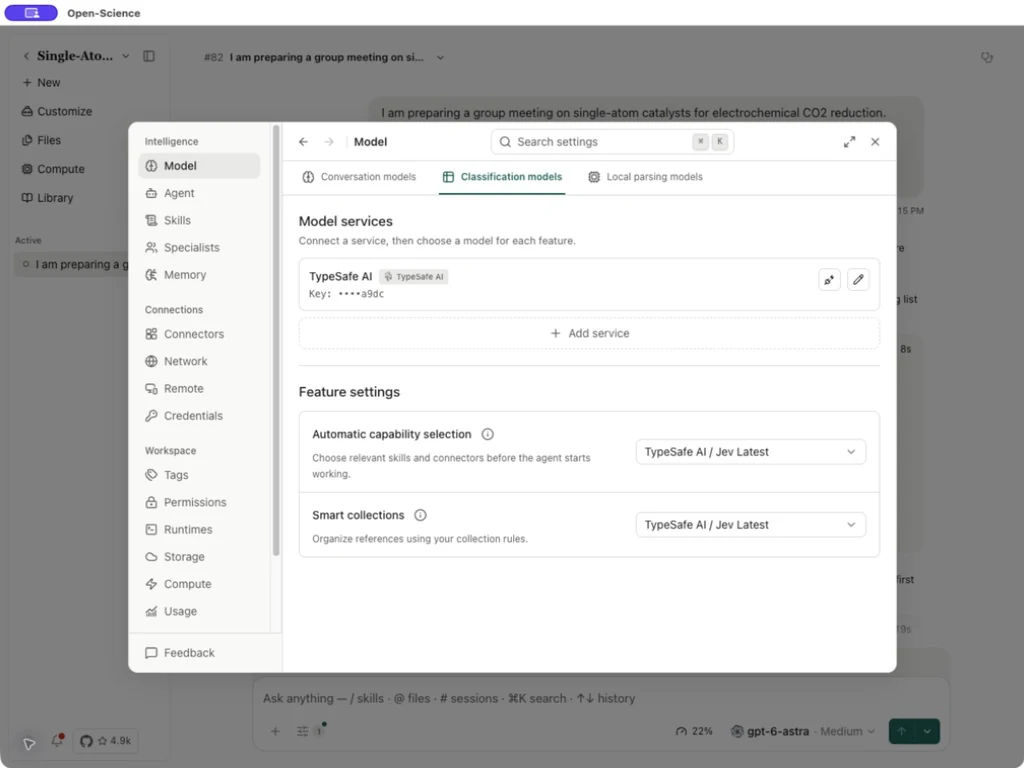
Screening sends the collection rules and reference evidence to this service. With Use available full text off, it uses title and abstract. Turning it on sends available PDF text; long documents use relevant passages, and an unavailable or unreadable PDF falls back to title and abstract. Check the evidence shown for each decision. Follow the smart screening workflow to evaluate and review a real set of papers.
Custom classification services
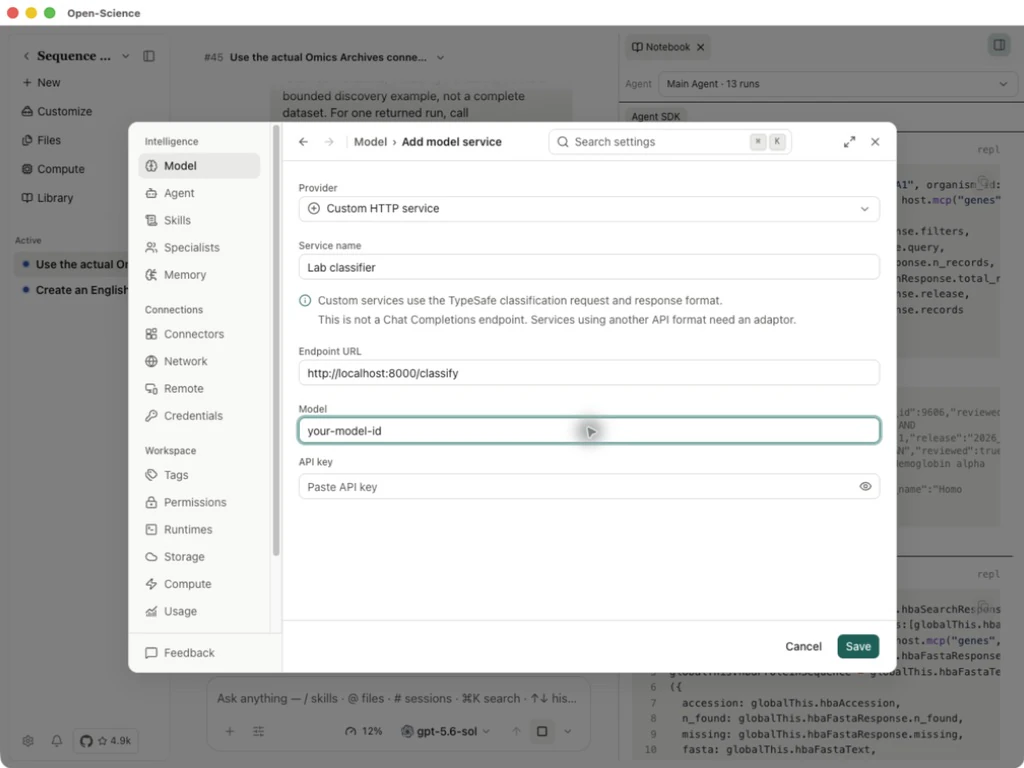
In Add service → Custom HTTP service, enter a service name, endpoint URL and model ID. The endpoint must implement the TypeSafe classification protocol; an ordinary Chat Completions endpoint is not interchangeable. Supply the service's API key when required: a loopback endpoint may use HTTP without a key, while remote endpoints require HTTPS and credentials.
After saving, select the service under Automatic capability selection and run Check model. Then inspect capability selection in a supported conversation route. This setting does not switch Main or make Codex subscription sessions use the classifier.
The form below illustrates the fields. Replace the sample endpoint and your-model-id with your actual service details before checking the connection.
Choose a PDF translation model
PDF translation has its own Translation method and Model controls in the reader. Agent can use an available compatible model; Direct API requires an API provider. Codex subscription models are unavailable for this operation in v0.37.1. Selecting a translation model does not require replacing Main. See PDF translation.
The official Anthropic catalog includes Claude Haiku 5.5. Model visibility and access depend on the selected Agent and account. Pick the current catalog entry rather than appending a context-size suffix to an old model ID.