Opening and previewing files
Open a saved result to inspect its selected version. This page covers shared viewing controls and ordinary document formats. Use Tables for data interpretation and Scientific viewers for sequence and structure controls.
Open, enlarge and return
A generated-file card opens its preview. Open … in split view beside the session keeps the conversation visible. Select another tab to switch files, Open full screen preview of … to enlarge one, and Close preview of … to close that surface. Collapse preview panel hides the panel without deleting its open files. A full-screen preview and a full-screen Files library are different views.
| Header control | Meaning |
|---|---|
| Filename and version | Confirm the selected result before downloading or citing it |
| Download | Save a copy of that result |
| File actions → Provenance | Inspect evidence attached to a managed artifact version |
| View in context | Return to the session that produced the artifact |
| Previous / Next file version | Navigate immutable saved revisions when available |
| Edit / Compare | Available only for supported managed content; see Files |
| Close | Dismiss the view; this is not Delete |
The closing behavior above applies to file previews. A Side Chat tab has a separate confirmation: closing stops that side discussion and removes its conversation. A full application restart also clears remaining Side Chats. Messages already delivered to Main remain saved.
To save a reading location for yourself, select text or a PDF region and choose For me; see Reading bookmarks.
Read files by format
Read a result table
Worked example Read the RNA-seq QC table, figure and report
Open rnaseq-sample-qc.csv. In this example, it shows 12 rows · 6 columns and uses the first row as headers. Horizontal scrolling exposes long source-column names and the metrics to their right. The table's row numbers are display positions, not gene or sample IDs.
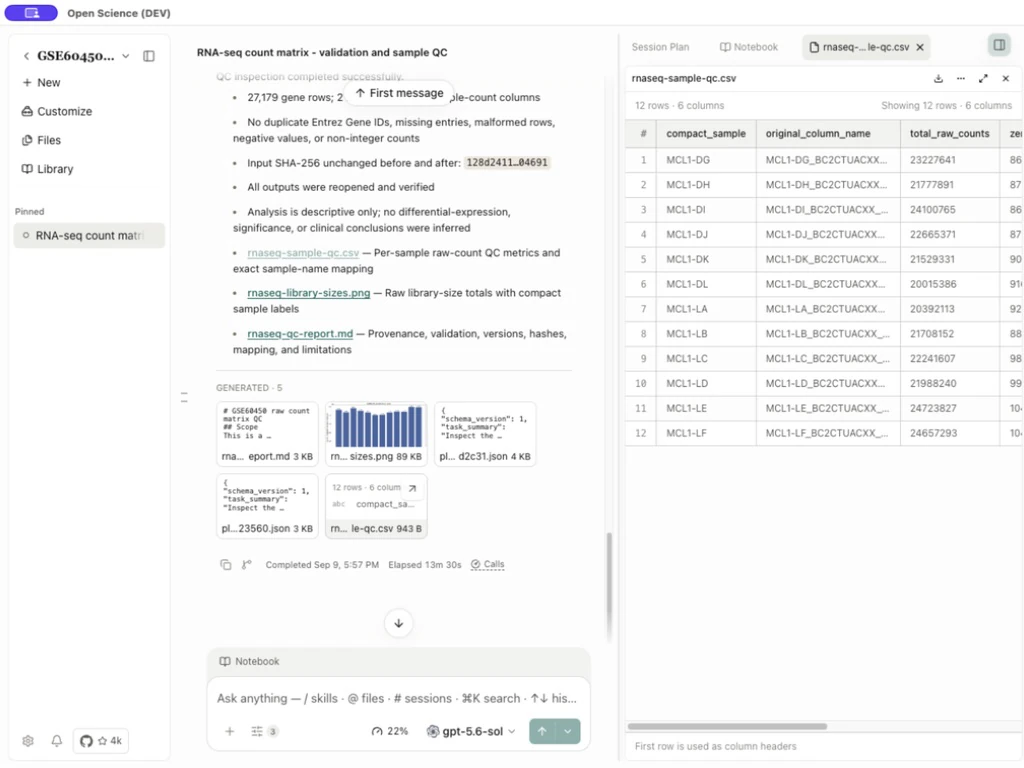
Check that column labels and full identifiers are readable. Field definitions and checks against the shared baseline are in Tables and datasets.
The source .txt is a tab-separated matrix; a text viewer may display it as text rather than the CSV grid. Do not rename a file's extension and assume its delimiter or scientific meaning changed. Very large previews can be bounded; read any displayed row/column limit before treating the visible subset as the full dataset. Format limits are in Reference.
Inspect the figure
Open rnaseq-library-sizes.png. Use Zoom in, Zoom out and Reset zoom; open full screen when axis labels are too small. Zoom changes only the view. It does not resample the source matrix or update a statistical result.
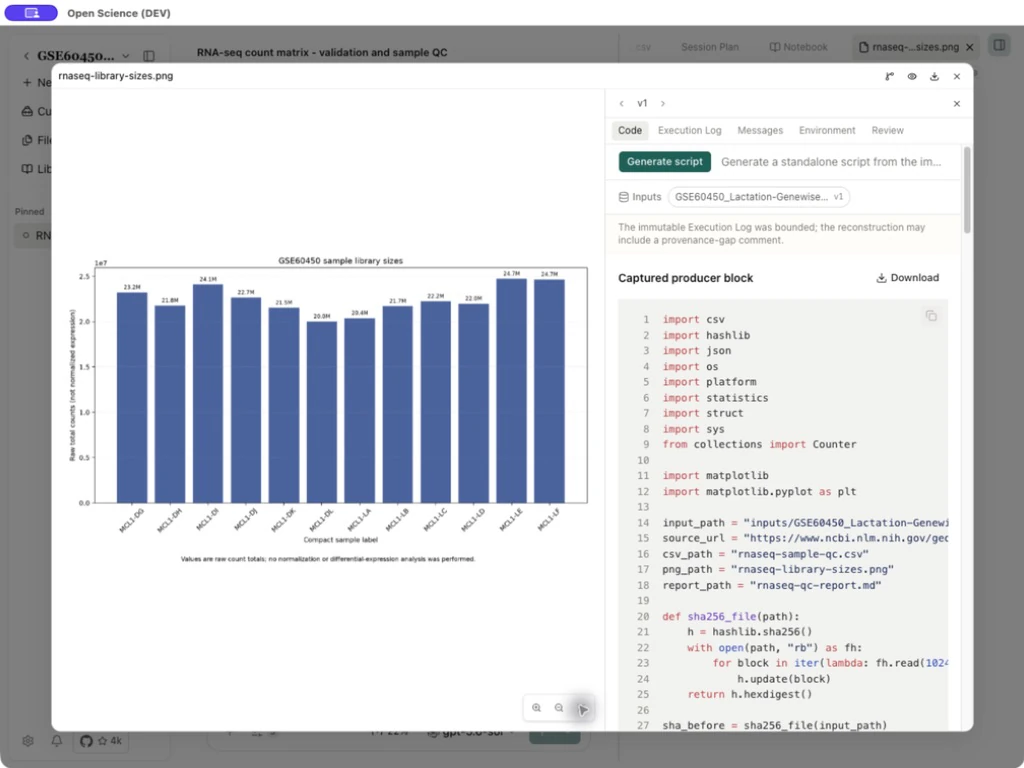
Read the raw-count axis, all twelve sample labels and their mapping in the CSV/report. Different bar heights alone do not establish differential expression. The example is a descriptive pre-analysis check, with no normalization or hypothesis testing.
Read methods and provenance together
Markdown renders headings, lists, code and links. Read the report's checksum and method before accepting the plotted result. An authored link opens its destination through the applicable source-preview or external-browser action; inspect the full hostname before treating it as evidence. A failed or blocked source preview is not confirmation that its contents were read.
Use Provenance to inspect the selected artifact's code, execution log, messages, environment and review. Read any partial, bounded or No review for this version label using Notebook and execution evidence.
Read Office files and multi-page figures
Worked example Inspect Office and TIFF reading copies of the QC results
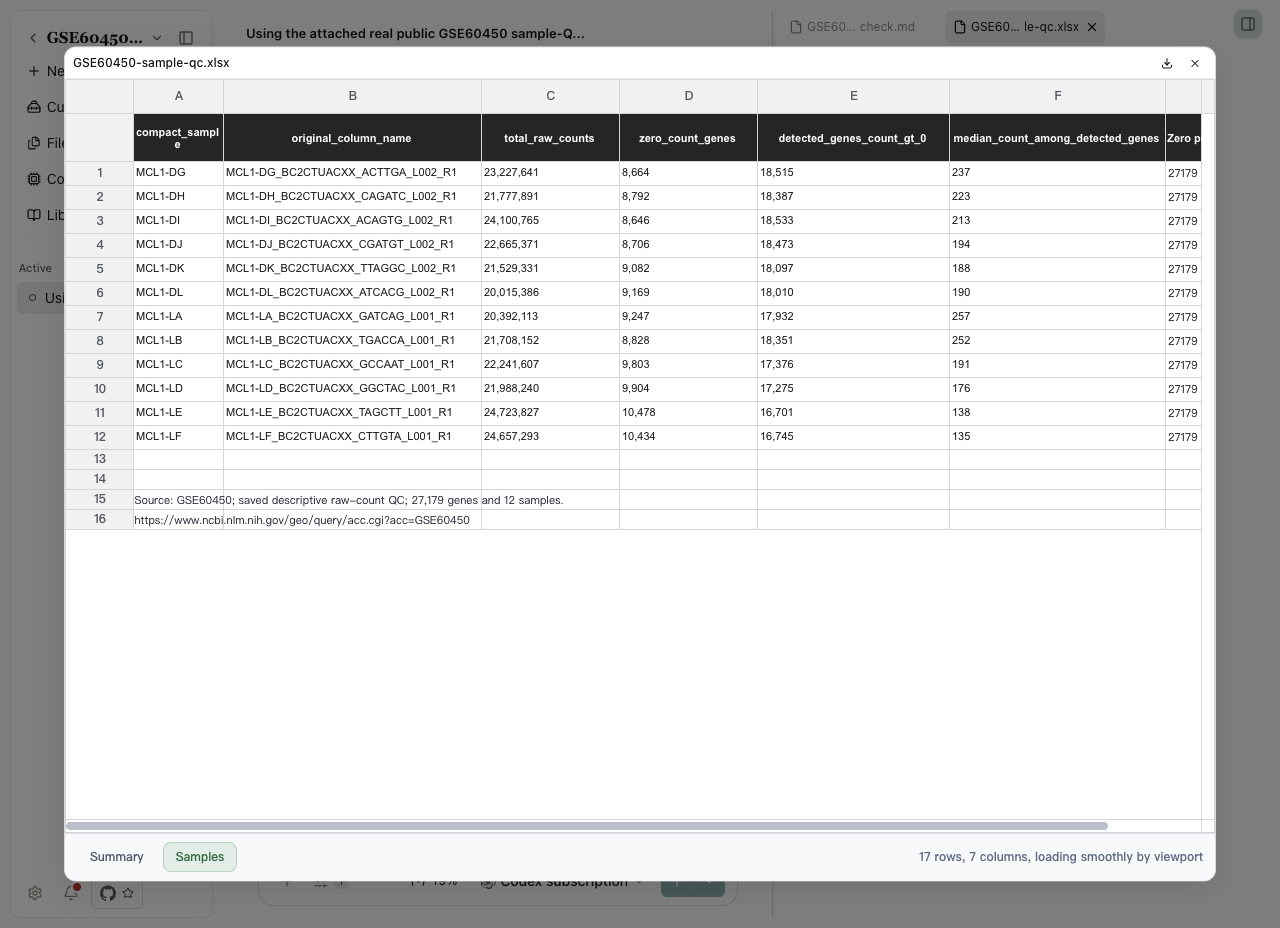
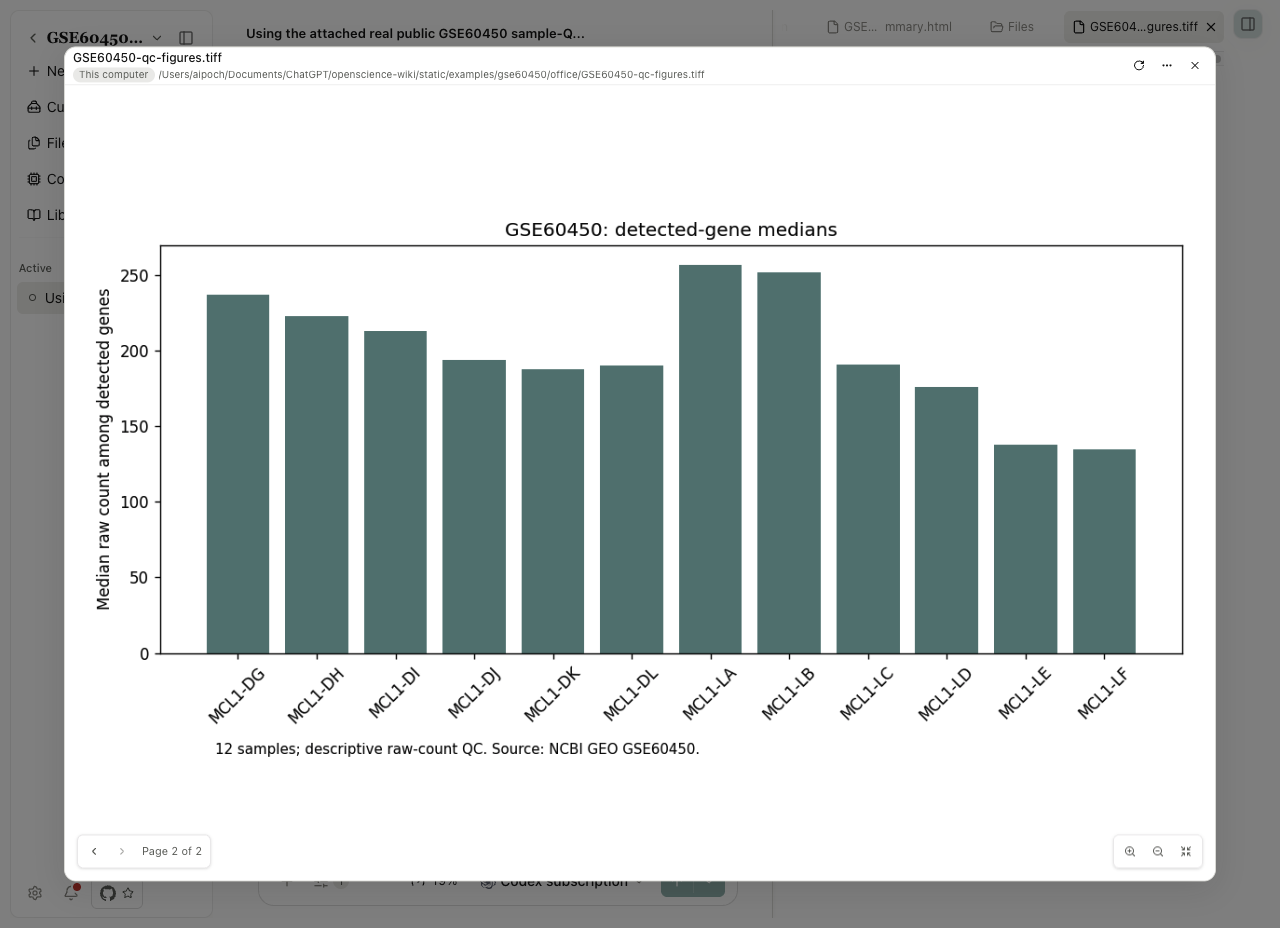
The Word report, Excel workbook, PowerPoint slides and two-page TIFF present the same saved GSE60450 QC results. These are reading copies, not new analyses.
| Format | Steps and what to check |
|---|---|
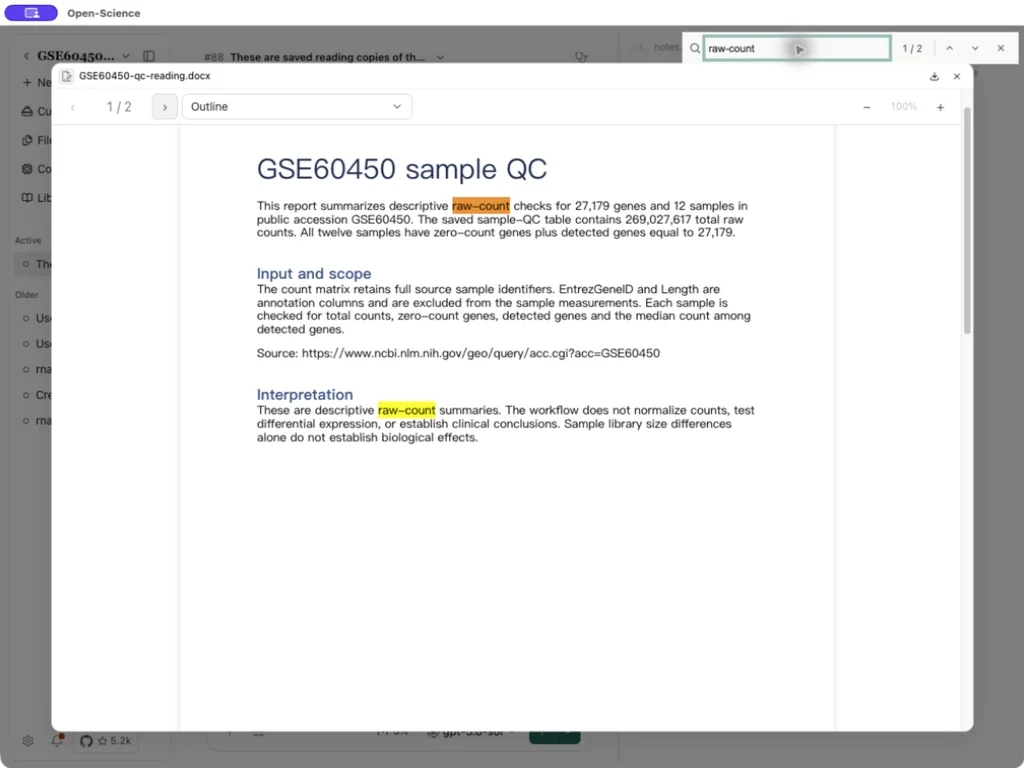
| DOCX | Open the report. Use Previous / Next to visit both pages or Outline to jump to a heading. Press ⌘F (macOS) or Ctrl+F (Windows/Linux), search for raw-count and check its matches and the methods. Full-screen preview gives more room; there is no Word editing ribbon. |
| XLSX | Open the workbook, then choose Summary or Samples at the bottom. Scroll horizontally for the last column. Samples contains 12 data rows plus its header, spacing and source notes; the viewer reports 17 used rows, not 17 biological samples. Values are a preview of the saved workbook, not evidence of a fresh calculation. |
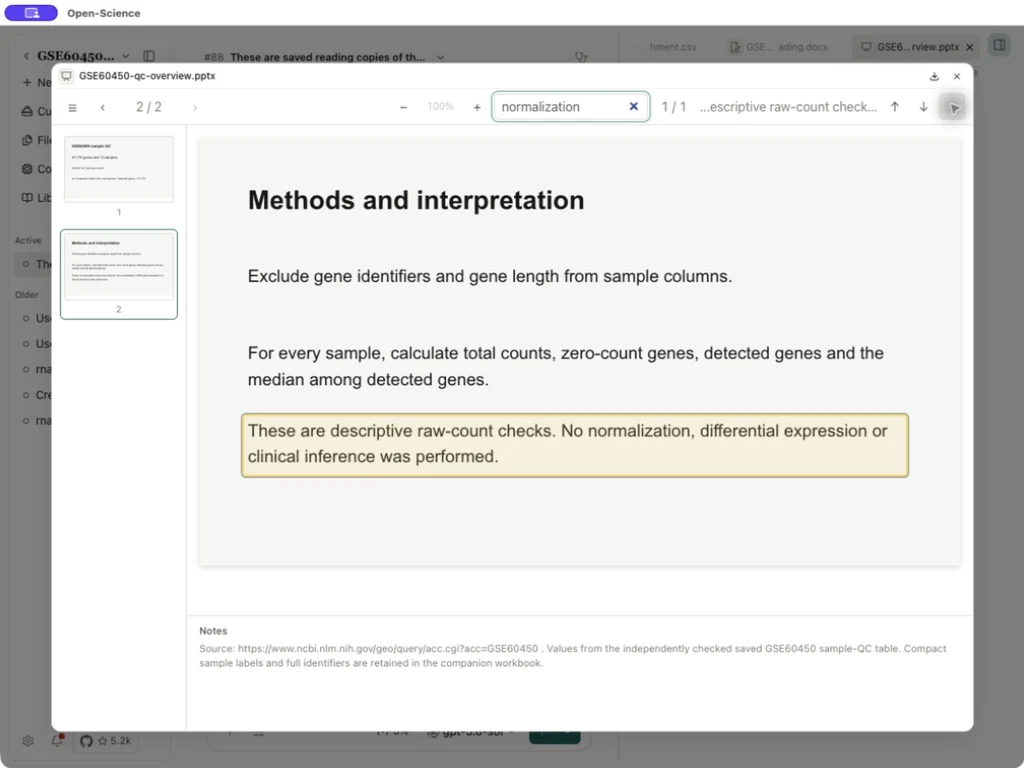
| PPTX | Open the slides, choose the Page 2 thumbnail or Next, and check 2 / 2. Use Find to search for normalization on the methods slide. Notes displays embedded speaker notes; this is a reading surface, not a presentation editor. |
| TIFF | Open the figure and use Next page / Previous page. The two pages show raw library sizes and detected-gene medians. Zoom in / Zoom out / Reset zoom changes the view; check Page 1 of 2 or Page 2 of 2 before interpreting the figure. |
| JSON | Open the summary to inspect source text, identifiers and values. It displays as code rather than an expandable object tree. |
| HTML | Open the reading table. Source shows the HTML; Render restores the formatted document. Neither mode reruns the QC. |
If Preview unavailable → Open this Office file in your default app to view it. appears, use Open for a local file, or Download for a managed upload, then open it in a compatible application. This fallback keeps the original file available when the built-in preview cannot display it.
Other supported viewers
The following table lists preview modes and controls for supported file types.
| Family | What to inspect | Controls and boundaries |
|---|---|---|
| Page number, readable text, source PDF | Thumbnails, outline, document search, page navigation, zoom and selectable regions; scanned pages may lack searchable text | |
| Code / plain text | Complete relevant block and language | Line numbers, syntax display, copy/download; oversized content can be limited |
| JSON / HTML | Structure or rendered document | Rendering is not permission to execute code with application privileges |
| Images / TIFF | Resolution and selected image | Image zoom/pan; TIFF has a dedicated rendering path |
| Office files | Whether the managed renderer succeeds | Download/open externally if DOCX/XLSX/PPTX preview is unavailable; preview is not full Office editing |
| Biological sequences | Sequence identity and extent | Sequence-oriented view for supported FASTA inputs |
| Molecular structures | Parsed model and chosen representation | Rotate, zoom, pan and supported Cartoon/Stick/Sphere/Surface/Line representations; missing structural data can disable a representation |
| Unknown or unsupported file | Name, size and fallback message | Download for a suitable external viewer; do not infer valid content from the extension |
For PDF context, link only the papers relevant to the current task and unlink them when the next task should not use them. The app supports up to three linked PDFs per session. A literature record without an attached PDF provides metadata, not proof that full text was read; see Library.
Diagram source and format-specific controls
For a rendered Mermaid diagram in a conversation, select View source in its action bar to read the underlying diagram text; View diagram returns to the rendering. The toggle becomes available after rendering and is disabled while an error replaces the diagram. It changes the view, not the analysis or source file.
Example Switch between a Mermaid diagram and its source
In a new conversation, ask: Show a Mermaid flowchart with three steps: Attach a file → Inspect the preview → Save a report. Do not include file links. Once rendered, hover over the diagram, select View source, and confirm the three nodes. Select View diagram to return; use View fullscreen if labels are too small.
The diagram displays the requested steps. To inspect a saved file, open its actual file card; a diagram node alone is not an artifact reference.
| Format | What to check |
|---|---|
| Single-page PDF | No multi-page Reading entry; use the PDF's ordinary preview controls |
| CSV | Inspect the displayed range; a bounded preview must not be treated as the complete input/export |
| Office workbook | Check the selected visible worksheet and renderer error; use the original file for unsupported editing |
| TIFF | Check the selected page and rendering result before interpreting pixel/sample values |
| JSON | Consult the preserved source text when formatting matters |
| Markdown tables | Focus the table actions to use copy/download/full-screen controls with the keyboard |
Implementation references: Mermaid controls, PDF condition, CSV, Office, TIFF.
Extract PDF figures and tables
Use this when you need a figure or a reusable table from a PDF. Open a PDF attached to a conversation, a generated PDF, or a readable PDF in Library. Bibliographic metadata alone is not an extraction input. Uploaded PDFs support the same Figures & Tables analysis; you do not have to add a Library record first.
- Open the PDF preview and select Figures & Tables beside Original PDF.
- On first use, choose Download and continue. Wait for the model download and integrity checks; analysis then starts automatically. If the resources are already installed and the page offers Analyze PDF, select it.
- Follow the page progress. After completion, select a candidate and use Show in PDF to compare it with the source page, caption and surrounding text.
- For a figure, open its image preview and use Copy image or Download image. For a table, select Table, choose TSV, HTML or Markdown, then use the copy/download action. Choose Image when you need to inspect the source crop.
- Reopen the exported file. Check row/column alignment, merged headers, units, footnotes and cross-page content before using it in an analysis or report.
Extraction runs locally after the model resources are downloaded. Reopening the same PDF can reuse cached results; Analyze again reruns extraction when needed. Cancel through the progress control if you need to stop. If analysis is incomplete, inspect the failed-page notice rather than treating the visible candidates as the complete document.
Unplaced table text and Table notes preserve content that needs review. If structured cells are unavailable, use the source crop and original PDF; do not infer missing cells. Scanned and rotated pages are not supported by this extraction workflow. A PDF can remain readable even when extraction is unavailable.
Extract a figure from an uploaded paper
Worked example Inspect Figure 1 from Lang et al., 2019
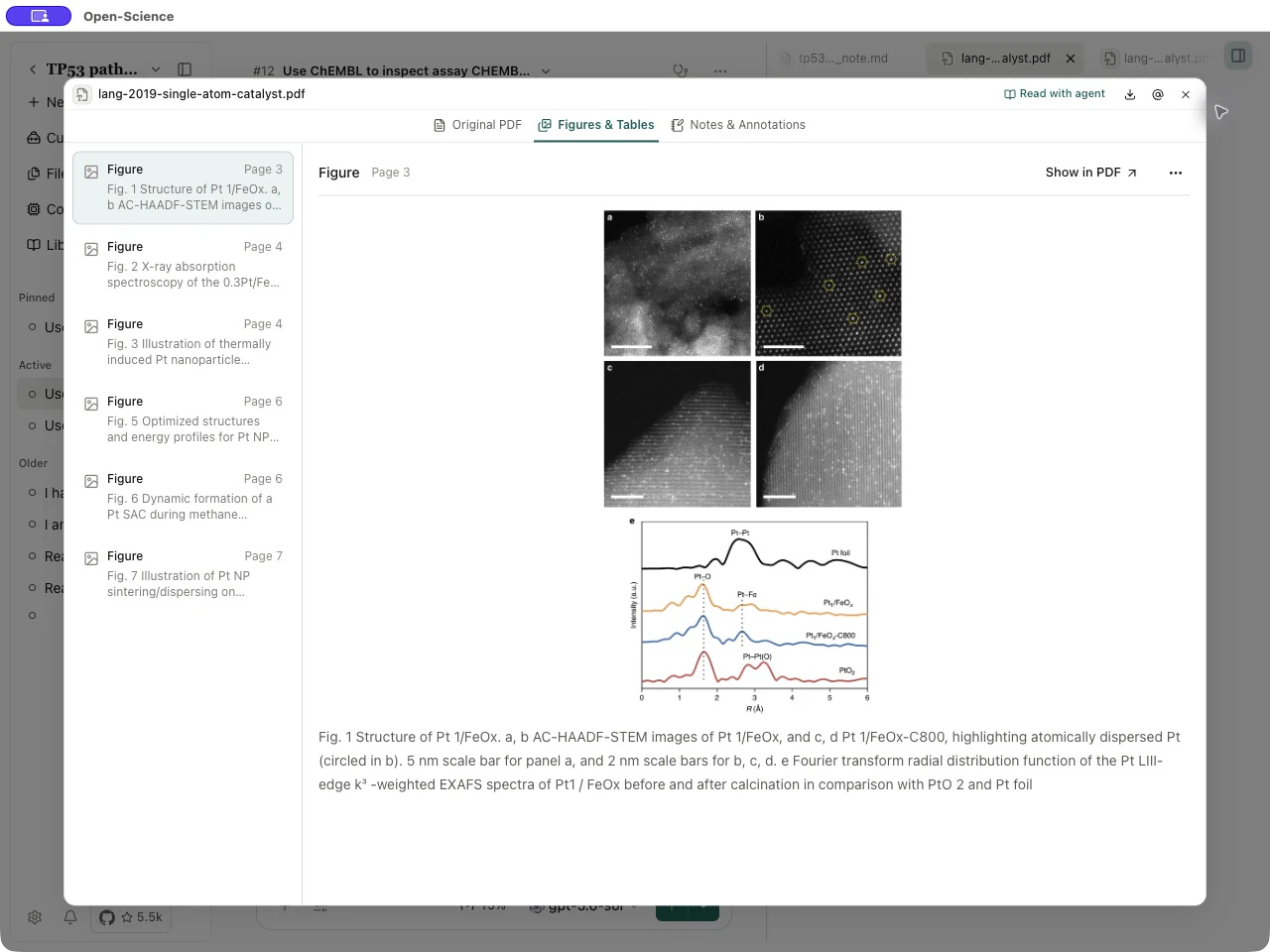
Use the publisher PDF for Non defect-stabilized thermally stable single-atom catalyst, by Lang et al., under CC BY 4.0. The screenshots show the paper figure as displayed by Open-Science.
- Add the PDF through + → Attach files in a conversation. After sending the message, open the uploaded attachment card.
- Select Figures & Tables. On first use, complete Download and continue; wait until the page reports Analysis complete.
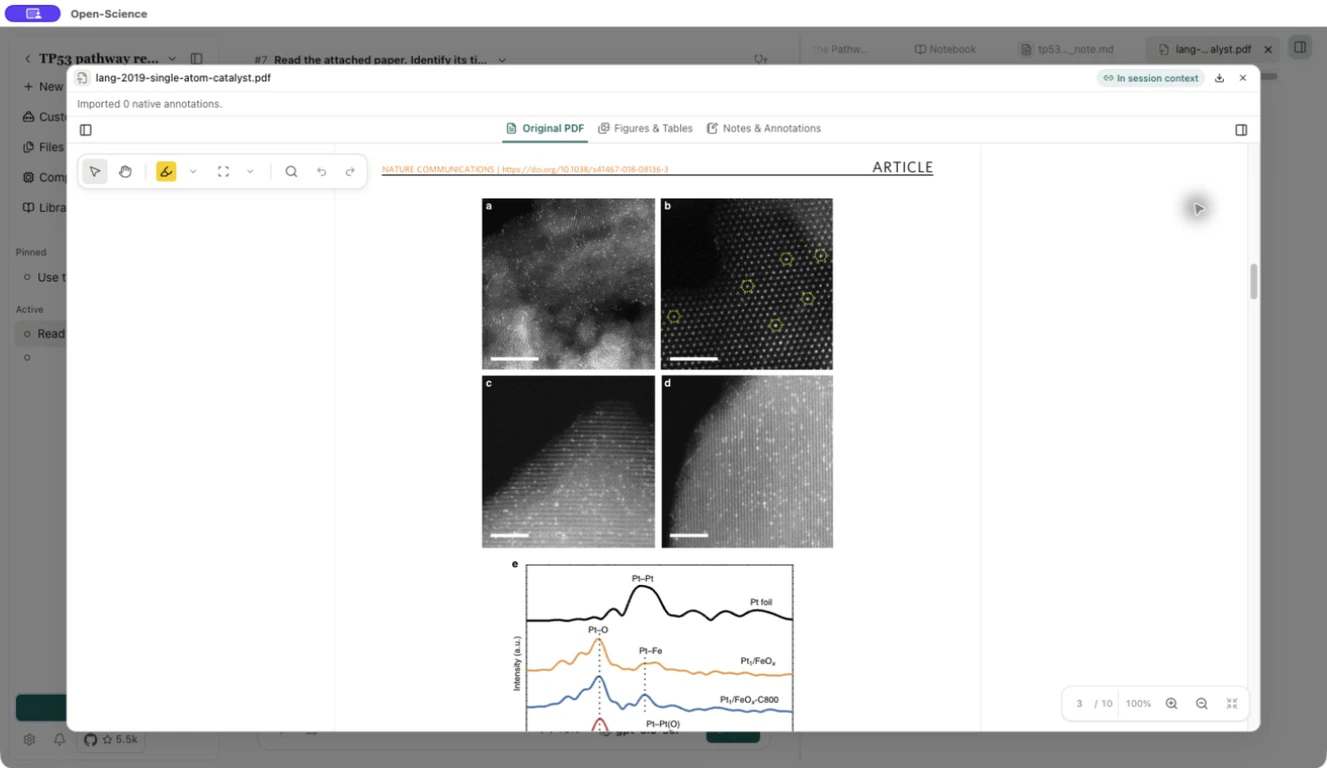
- Select Fig. 1 in the index. This uploaded copy places the figure on PDF page 3. Compare its image panels and caption; the extracted image is evidence to inspect, not a new finding.
- Choose Show in PDF. Confirm 3 / 10 in the original preview and compare panel labels, scale bars and curves. Use the original page to resolve a page-number or caption mismatch before citing the figure.
Ask the agent about an extracted figure or table
- Open the intended PDF, use Read with agent to link it to the current session, and complete Figures & Tables analysis for the relevant pages. Before sending your question, confirm that the PDF remains in the Composer’s reading context. A Library record by itself is not a linked PDF, and linking alone does not run this analysis.
- Ask about a specific figure, table or algorithm. Include its label or page and the question you need answered.
- Inspect the tool activity: list_pdf_elements finds the available extracted elements; read_pdf_element reads the selected evidence. Ask for the source page and any missing or uncertain content in the answer.
- Compare the answer with the original figure or table, including headers, units and notes. If extraction is absent or incomplete, analyze the missing pages and retry; a caption alone cannot establish a trend or an exact table value.
Example Request table evidence from a linked paper
Read Table 1 from the linked PDF's extracted elements. Report the physical PDF page, column headings and values relevant to my question. Preserve units and footnotes, and identify any missing cells or incomplete extraction.
These tools read existing extraction results; they do not start PDF analysis. Table output may arrive in several batches, and figure/algorithm evidence can be delivered as an image. Check that the selected model supports the required image input; a delivered image alone does not prove it was interpreted correctly.
Load remote media deliberately
Images, audio and video linked from a model response wait for you to activate loading. Read the destination hostnames shown by the control before proceeding. Approval applies to that displayed element and its URLs, not every future response or the whole domain. Closing the preview does not undo a request already sent.
Mermaid diagrams containing remote images can be blocked before loading; request an ordinary diagram without embedded images when needed. For images sent to a model, Open-Science removes ancillary metadata from the model-input copy while preserving the original file. This does not remove sensitive content visibly present in the image.
Verify the downloaded file
Open the intended preview, choose Download, confirm the filename and location in the system save dialog, then save. Open the downloaded copy and check its content. Download saves the original file; switching TIFF page or Excel sheet does not restrict the download to that page or sheet.
When a preview fails
Confirm the file saved successfully, then check the exact version and format. Try Download to distinguish a viewer limitation from an unavailable file. For a local file changed outside the app, use Reload where offered. Do not overwrite the input to repair a rendering issue. Report the filename, type, size, app version and displayed error; exclude private file contents unless they are needed for diagnosis.
Annotate a PDF
Open Notes & Annotations to manage highlights, area marks, page notes and document notes. Show notes sidebar keeps notes beside the original page. The download menu separates Download original PDF from Download PDF with annotations. Follow PDF annotations and document notes for a complete reading, search and export walkthrough.
For Figures & Tables, first-time local model installation can try approved download mirrors when the primary source is unreachable. Wait for download and integrity checks before choosing Analyze PDF. Mirrors do not remove the need to install these resources; a cached result can reopen without a fresh analysis.
Read a PDF in the first message
- Open a paper with a readable PDF in Library and choose Read with agent.
- Select the target project and New conversation. Check that the composer shows the PDF under Reading and the preview shows In session context.
- Ask a question immediately. You do not need to send a separate introductory message before linking the paper.
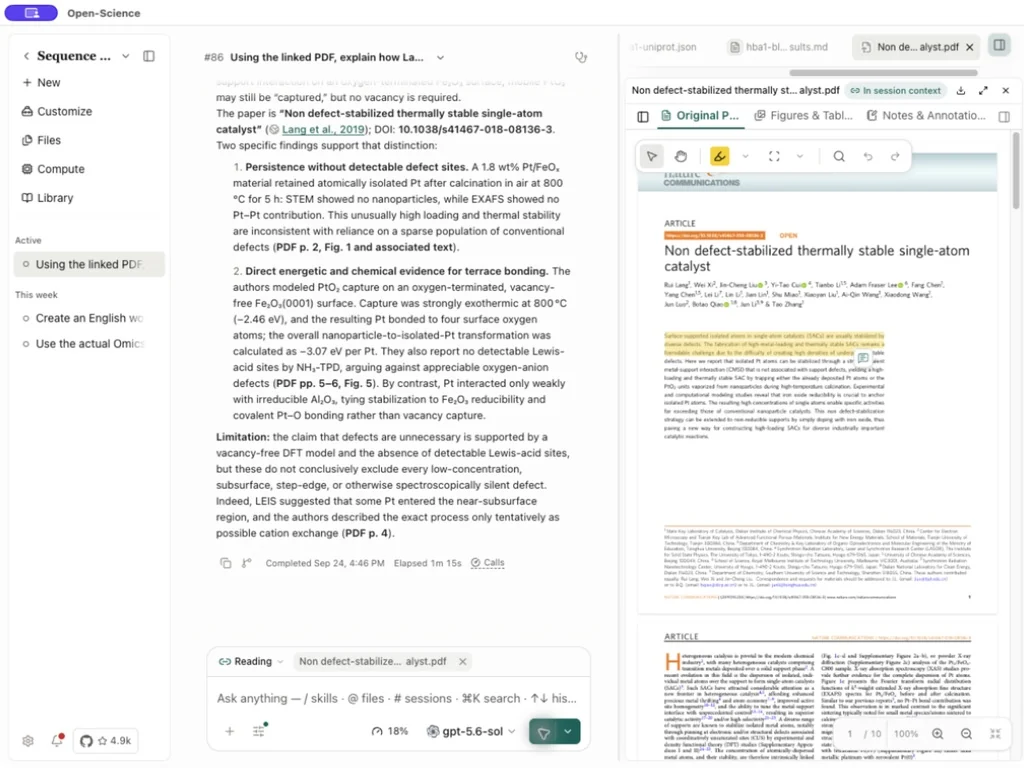
Worked example Ask about the mechanism in Lang et al., 2019
The example uses Non defect-stabilized thermally stable single-atom catalyst, an open-access paper under CC BY 4.0, with Codex subscription.
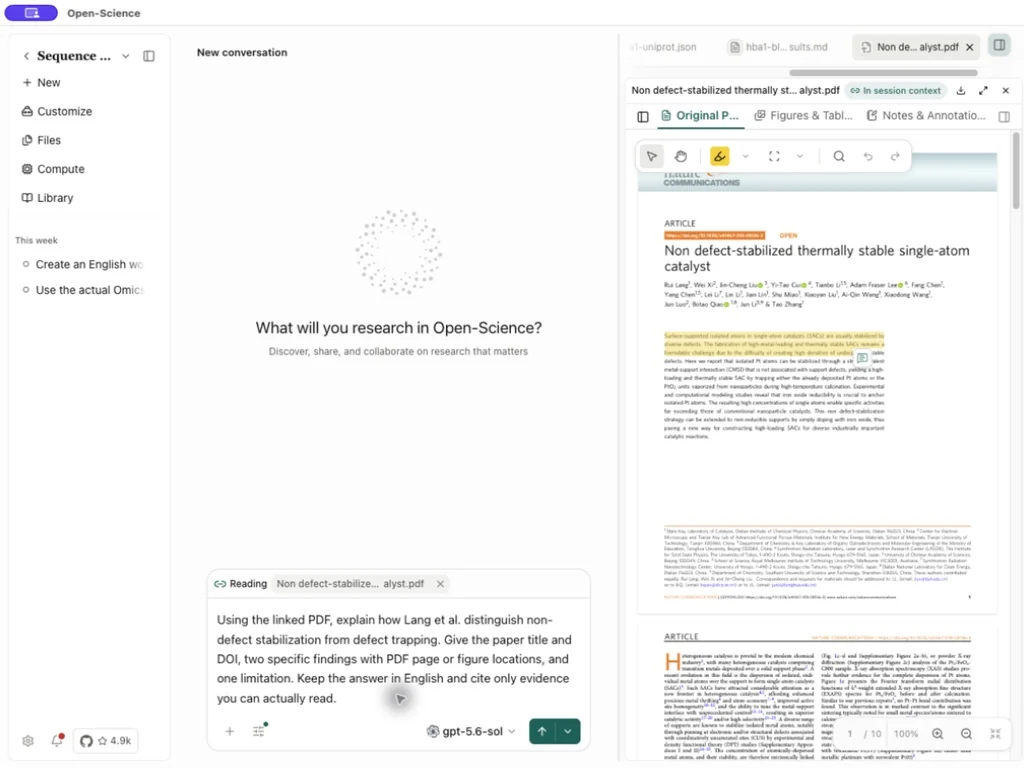
Using the linked PDF, explain how Lang et al. distinguish non-defect
stabilization from defect trapping. Give the paper title and DOI,
two specific findings with PDF page or figure locations, and one
limitation. Keep the answer in English and cite only evidence you
can actually read.
The response retrieves passages from the linked PDF and identifies the paper, mechanism and locations to check. Open the cited pages alongside the response and verify each claim against the original. A reference to a figure in the text does not mean the figure image has been extracted or visually interpreted; use Figures & Tables when image evidence is needed.
For highlights and document-level notes, continue with PDF annotations.
Keep a source website signed in
The built-in browser preview for live source websites retains its site session across visits and app restarts. If a source requires an existing account, sign in on that source's page and continue reading. Closing the preview does not sign out of the website; use the website's own sign-out action when needed. Retaining a login does not automatically give the agent full-text access or change network access rules.
Ask about a newly uploaded PDF
Worked example Locate thermal-stability evidence in an uploaded paper
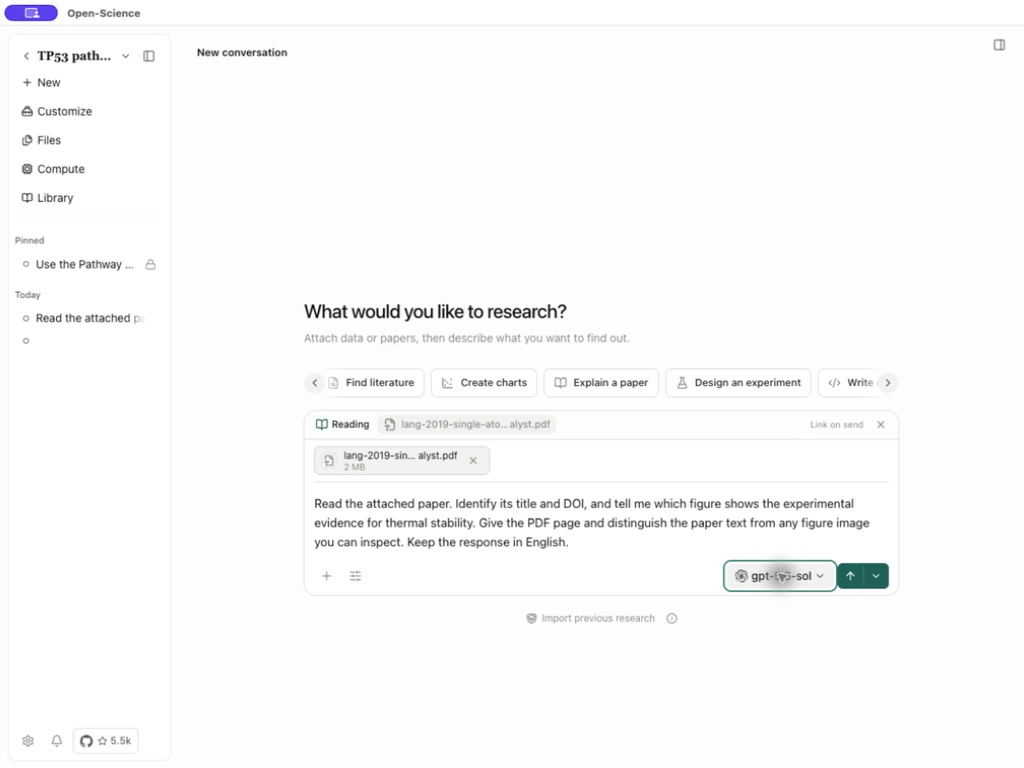
This example uses the same open-access Lang et al. paper above, uploaded as a local PDF into a new conversation with Codex subscription.
- Select New, then + → Attach files and choose the PDF. Wait for the upload to finish.
- Open the attached PDF and check the Reading context before sending the first request.
- Ask the following question, then expand the reading-tool results and inspect the answer's page references.
Read the attached paper. Identify its title and DOI, and tell me which
figure shows the experimental evidence for thermal stability. Give the
PDF page and distinguish the paper text from any figure image you can
inspect. Keep the response in English.
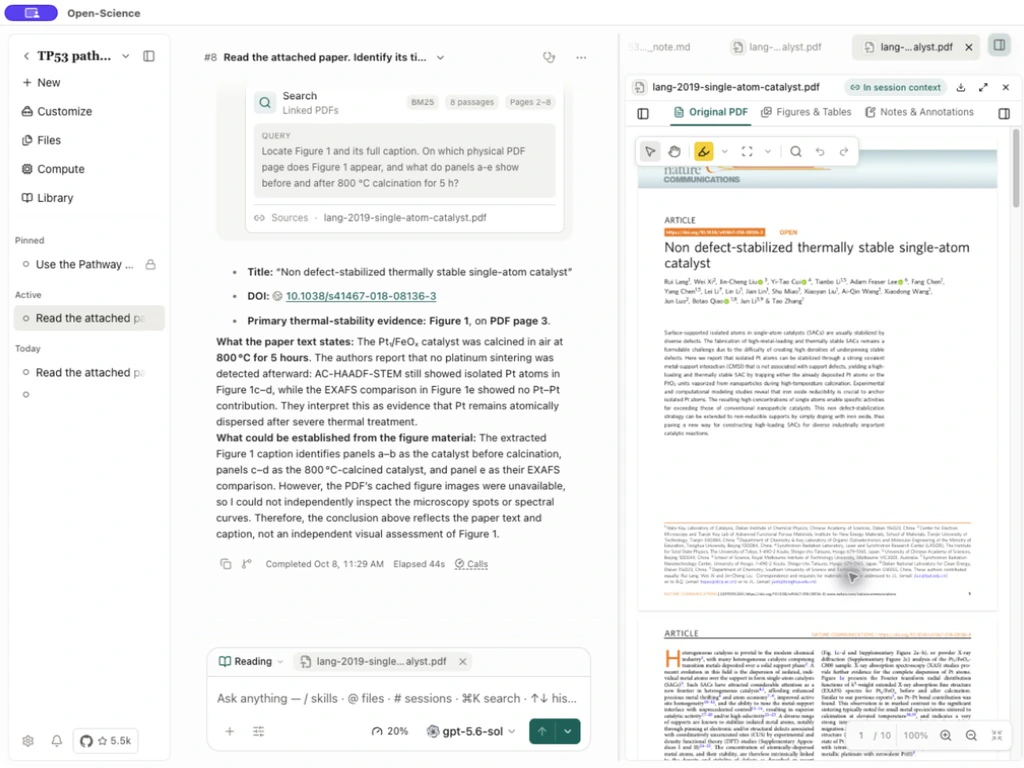
The response identified Figure 1 on PDF page 3 from the paper text and caption, alongside DOI 10.1038/s41467-018-08136-3. Open page 3 and compare the cited panels with the source. Text search alone did not provide extracted figure images: the answer explicitly distinguished readable text from images it could not inspect. For visual interpretation, first use Figures & Tables and inspect the extracted region.
Translate the document
Open Full-text translation in the PDF toolbar to prepare text, choose a supported model and save a resumable translation. Follow Translate a full PDF for model requirements, original/translated comparison and PDF export. Keep the original for checking figures, tables and quotations.
Check extracted scientific structure
After Analyze PDF, open a figure and table alongside the original page. Confirm that figure crops include every panel and their captions/legends, and that tables retain grouped headers, row groups, units and footnotes. A nearby formula or paragraph must not become a table cell or figure caption. v0.37.1 improves these boundaries and source-cell references; extraction remains something to check before reusing values. If an older saved extraction is incomplete, use reanalysis when the reader offers it, then compare the resulting elements before replacing a downstream table.
In v0.37.2, extraction further corrects figure/table ownership and legacy PDF math symbols. Compare minus signs, Greek letters, superscripts, subscripts and operators with the rendered source before copying a formula or table value. A cleaner extraction is not a substitute for checking the scientific expression.
v1.0.0 further improves native table and figure ownership, including repeated records, sparse columns and scientific fractions. When checking a table, keep repeated rows as separate records unless the source identifies them as duplicates. Compare fraction numerators/denominators, grouped labels and empty cells with the original page; do not fill an empty cell from neighboring prose.
Check PDF search coverage
When PDF search reports incomplete coverage, treat its matches as results from the text it could search. No match does not prove the phrase is absent from the whole paper. Inspect relevant pages in the original PDF, especially scanned pages, figures, equations and tables. Reader-mode extraction and translation can preserve more structure, but the source PDF remains the reference for checking content.
For DOCX previews, check continuous list numbering and table borders against the downloaded document before quoting or sharing the result.
Preserve a Word template when generating DOCX
Attach the .docx template to the session and ask the Agent to create a separate report while preserving its layout, table formatting, borders and page structure. State which content to replace and which template elements to retain. v1.0.5 improves this preservation; it does not make every template identical across Word-compatible viewers.
Open the generated file in its preview, then download it and inspect it in the Word application you will use for delivery. Check table widths, page breaks, headers, footers and long text before sharing. Keep the original template so the output can be compared and revised.