Files, artifacts, and versions
Keep the original file, uploaded copy and generated artifact distinct. This page covers ownership, finding files and saved revisions. See Previews for viewing controls and Sessions for export bundles.
Attach an input or reference a folder
Use Composer → + → Attach files, select GSE60450_Lactation-GenewiseCounts.txt, wait for the attachment chip, and preview it before sending. The display name remains recognizable; the managed input path can include a checksum suffix. Removing a chip cancels its inclusion in the draft, not the original file on disk. Your files selects an existing project file instead of uploading it again.
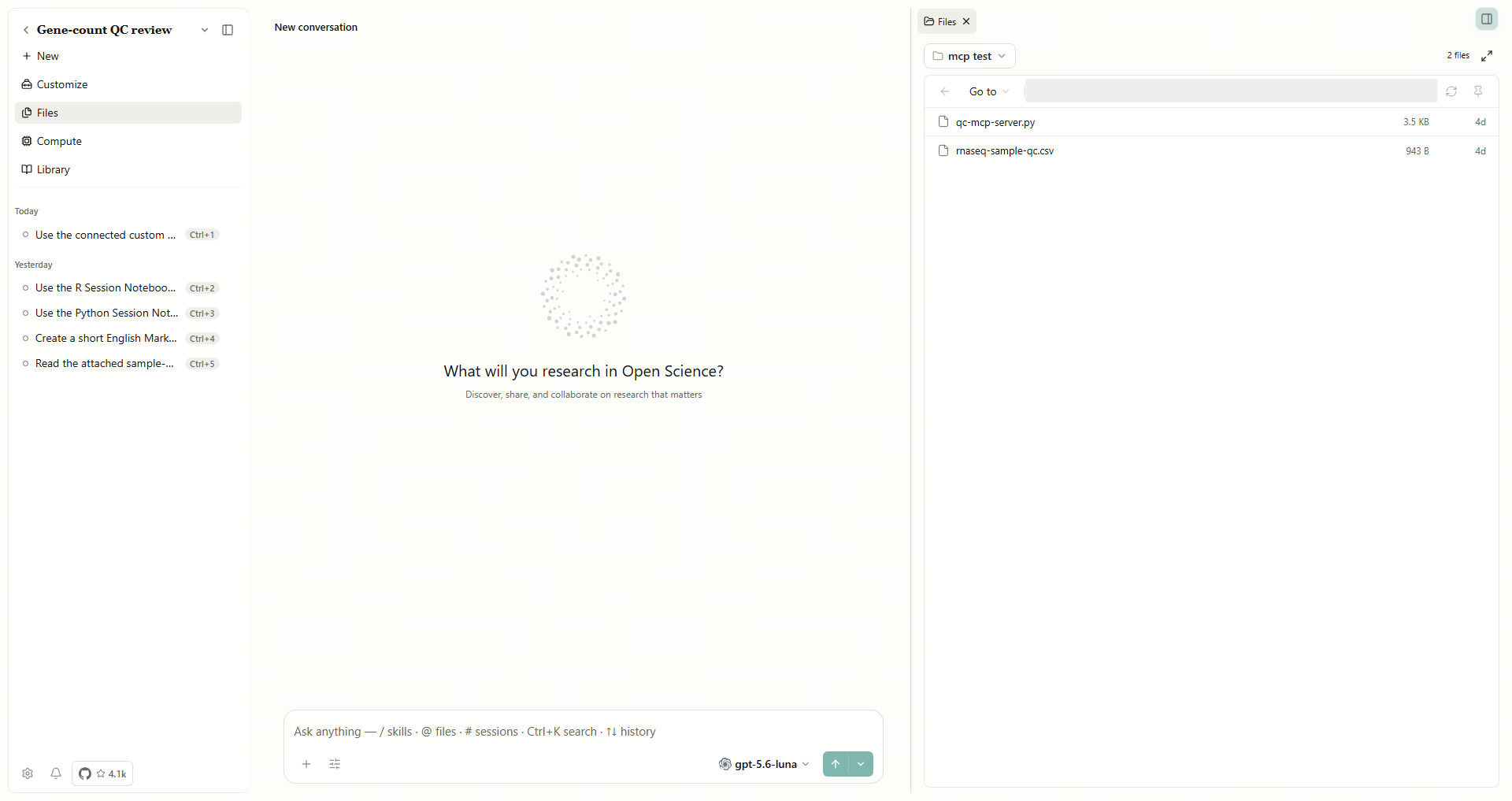
A folder reference is useful when several inputs should remain on disk. In Files → Filter project files → This computer → Add folder…, navigate to a specific subfolder and choose Read-only or Read & write. Review the kernel-stop confirmation before Grant this folder. Changing Notebook file access stops active kernels so their permissions can be recreated. Cancel leaves the proposed grant unapplied. Folder selection and permissions are detailed in Projects.
| Local file control | Action and resulting state |
|---|---|
| Directory path | Enter a permitted directory, then navigate to it |
| Go to parent directory | Move up one directory within the browser's access rules |
| Go to | Choose a saved location |
| Refresh directory | Reload the directory listing |
| Pin this folder | Add/remove a location shortcut; removing it does not delete the folder |
| File row | Open the file in a preview |
| Reload file | Reread the external file after it changes |
| More actions → Copy path | Copy the external file path |
| More actions → Save as artifact | Save a managed project copy; wait for Saved |
| Download | Save an external copy through the platform's save flow |
A read-only grant protects the external directory while still allowing outputs inside the project workspace. Use the local-file controls above to refresh sources and save managed copies.
For an existing folder, open Files, select the Artifacts dropdown, then This computer → Add folder…. In the app’s Grant folder access dialog, choose a specific subfolder and Read-only, then Grant this folder. The user-profile root may be unavailable; select the research subfolder instead. Read any Notebook-kernel impact confirmation. On returning to Files, verify the selected folder and its files.
In the Windows Attach files dialog, select a file from a path containing Chinese characters or spaces, or enter its full path in the File name field and open it. Back in the app, check the attachment name and preview the table dimensions and contents. To abandon a selection, choose Cancel and check that no new attachment was added to the draft.
Find inputs and generated results
- Open Files and select Filter project files → All artifacts.
- Read Your uploads separately from Generated files grouped by session.
- Select List view for names and sizes, or Grid view for visual cards.
- Enter a filename fragment in Search project files, such as
rnaseq. Check the matching names and owning sessions. - Clear the search to show files excluded by that filter.
- Expand files opens the larger library; Exit full screen files returns to the workspace.
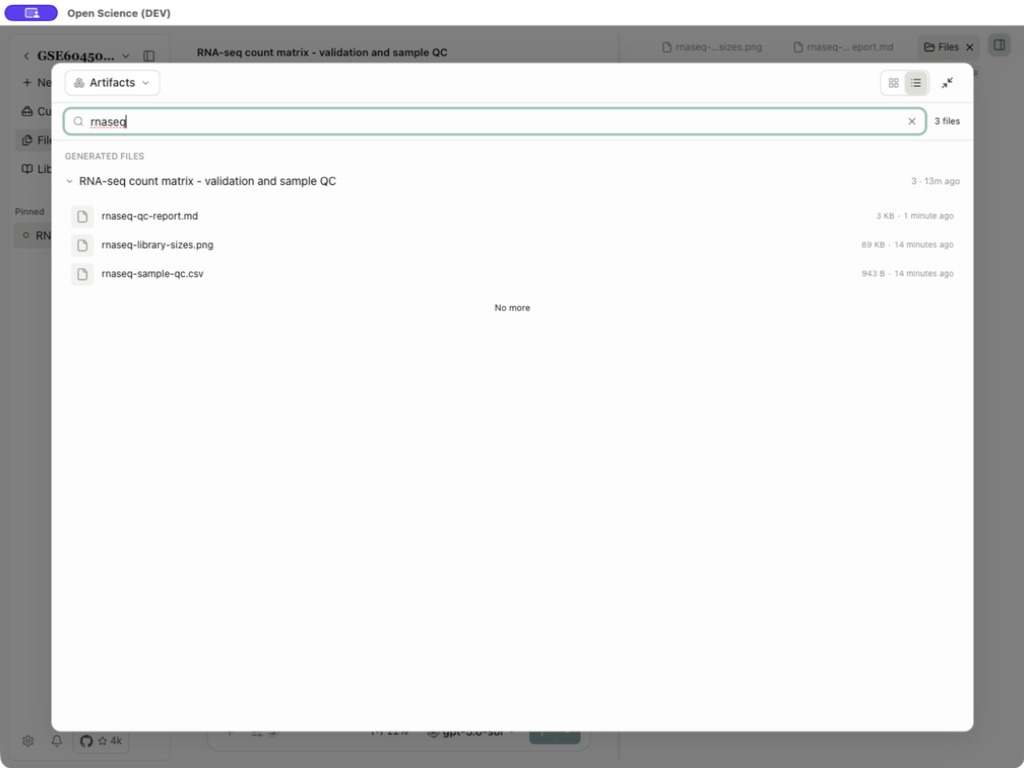
The count describes the current filter. A search with no matches does not delete files. No more means the group has finished loading. Collapse a group by its heading. Use a file body's preview action for a modal, or Open … in split view beside the session to retain the conversation beside it. Download acts on the file/version selected by that surface.
Return to a local folder and save a reading copy
- Open Files → Filter project files → This computer and enter the permitted source directory in Directory path.
- Select Pin this folder. Navigate elsewhere, then Go to → Pinned to return. Remove bookmark, or the pinned row's Unpin, removes the shortcut only.
- Choose Refresh directory to see newly added filenames. For an already open file changed outside the app, use Reload file to reread its contents.
- In the local preview, choose More actions → Save as artifact and wait for Saved.
- Return to All artifacts → Your uploads and reopen the saved copy. It has managed version controls and no local-source path in the header.
Reopen the managed copy and compare its content with the local source. Later source changes do not update the saved copy automatically. Use the version-conflict steps below when editing managed content.
Edit a report and compare versions
Worked example Add a reading note and compare report revisions
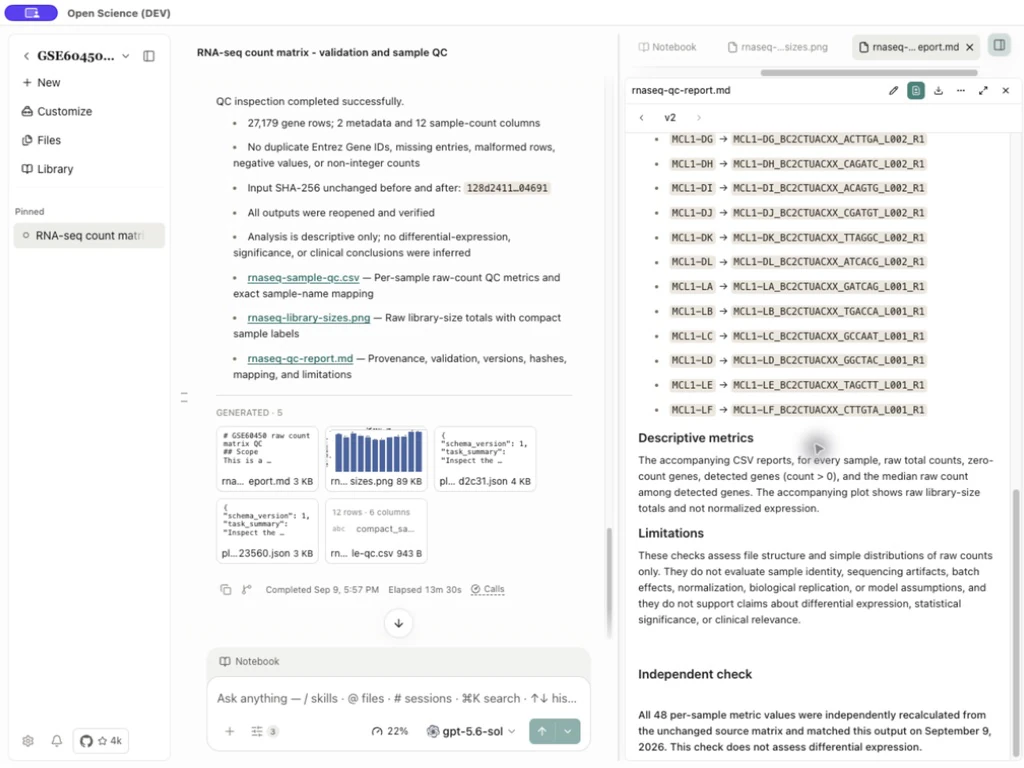
Open a supported managed text or Markdown file. The example below adds a reading note to an existing report; saving creates a new revision without changing the original input or rerunning its analysis.
- Open the managed Markdown file and select Edit rnaseq-qc-report.md.
- Edit the source field. Keep the existing method and provenance text.
- Select Save changes. The header advances from v1 to v2.
- Select Compare … with its source version. Added text appears in the difference view.
- Use Stop comparing to return to the rendered report.
- Select Previous file version to inspect v1, then Next file version to return to v2.
| Editing control/state | What to do |
|---|---|
| Save changes disabled | Make a valid change; unchanged text has nothing to save |
| Cancel | Discard the current edit draft |
| Version arrows disabled | No older/newer version exists in that direction |
| Compare disabled | No supported source-version comparison is available |
| Save conflict | Reload the current version and reconcile your change; do not assume your draft overwrote another writer |
| Edit absent | This file type or source is not editable in that viewer; do not expect binary files or the CSV table to become spreadsheet editors |
Supported managed text/code and Markdown files can expose editing. The demonstrated CSV remained a read-only table; images and other binary formats do not acquire text editing through this feature. A manual edit creates a file revision; it does not rerun the Notebook or create a model review. Refer to Notebook evidence before citing a version's production history.
Resolve a save conflict without losing either edit
If another writer saves the report while your editor remains open, Save changes can return This file has a newer version. View latest version. Your draft has not replaced that newer version.
- Preserve your unsaved text before changing views.
- Select View latest version. If Discard unsaved changes? appears, cancel until you have retained the changes you need.
- Open the latest saved report and inspect the other writer’s additions.
- Select Edit, reapply your changes to that latest text and save.
- Reopen the result and use the version arrows to inspect earlier revisions.
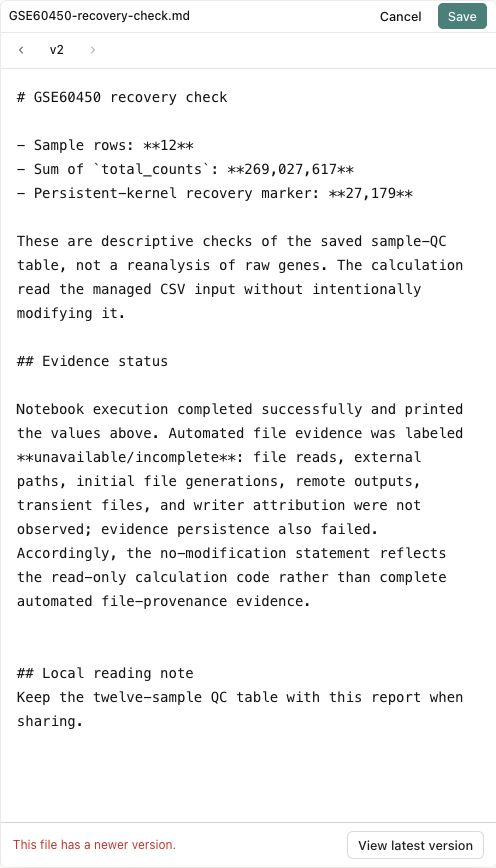
After saving, confirm that the latest revision contains both the other writer’s change and your retained draft. Earlier file revisions remain available through the version controls; these are separate from conversation-message revisions.
To rerun a captured result and compare its output, use Reproducibility. For a portable copy of the conversation branches, files and evidence, use a .science research package.
Export without losing the research record
Use the file's Download to save one result. Session Download all artifacts saves the chosen files to a folder; project Download artifacts… creates a ZIP with separate generated and uploads paths. Both expose selection controls. Read its scope, filenames and destination before confirming. Conversation Export is a transcript operation, distinct from downloading research files. See Sessions for the exercised selections and reopened downloads. A downloaded copy does not carry the complete live application state, credentials or external inputs.
Keep the original count matrix, the CSV, figure and methods report together for reuse. The data workflow provides the tested files and exact acceptance values. If a download fails, check destination permission and free disk space, then retry; a partial external file does not change the saved managed version.
Open a downloaded report
Select the report version and choose Download. Open the saved .md file in a text editor and check its headings, paragraphs and data. Return to the app preview for the formatted report.
Open the downloaded .md file in Notepad. Notepad displays Markdown source: heading markers such as ## and backticks are formatting characters. Check the headings, paragraphs and table contents. Return to the app preview to read the formatted report.
Preserve the selected file through copies and exports
When copying a message with managed references, paste it into the intended conversation and inspect each resulting attachment/reference before sending. A readable filename is not sufficient: open the reference and confirm its current owner and version.
Before exporting selected artifacts or a bundle, confirm the complete selection, wait for the outcome and reopen the downloaded files. If an edit, refresh or export fails, preserve the draft and source version while checking the actual saved result. A failed refresh does not establish that a preceding save failed.
Implementation references: copied references, complete export selections and preview edits. If an attachment reports Managed file or its Session is deleted, reattach the intended current input through the app and inspect its ownership; see Troubleshooting.
Sources: project file library, local file actions.
Keep an authorized local file as an artifact
Open a file from an authorized folder under This computer. In its preview, use … → Save as artifact and wait for completion. Open the resulting conversation artifact and check its contents. Open-Science keeps an immutable managed copy; later edits to the original local file do not update that copy. Merely previewing a folder file does not import it.