Appearance and notifications
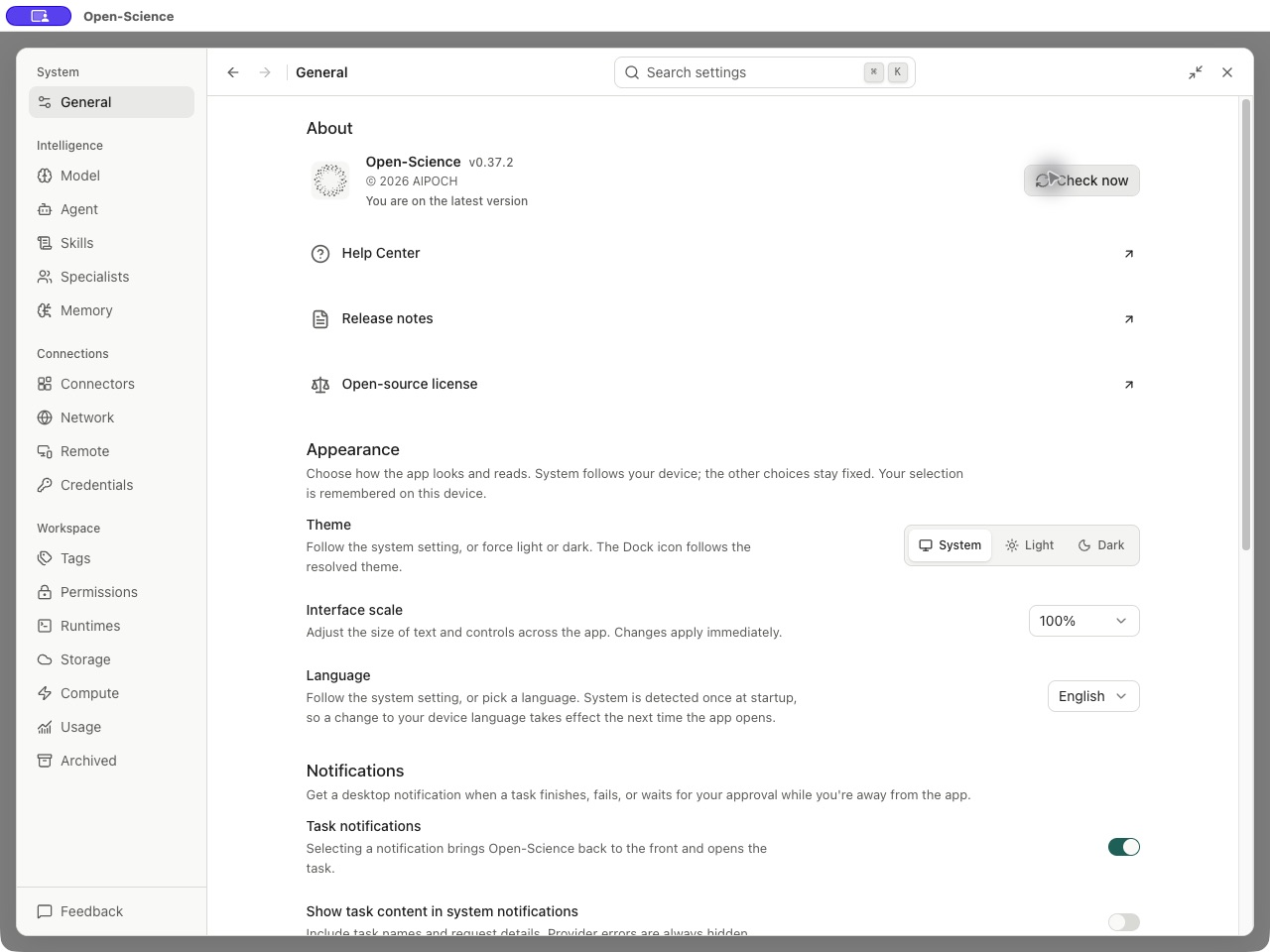
Choose a comfortable theme, set your interface language and receive task alerts while you work in another app. Open Settings → General to adjust these preferences. Open-Science remembers your appearance choices on this device.
Change theme and interface language
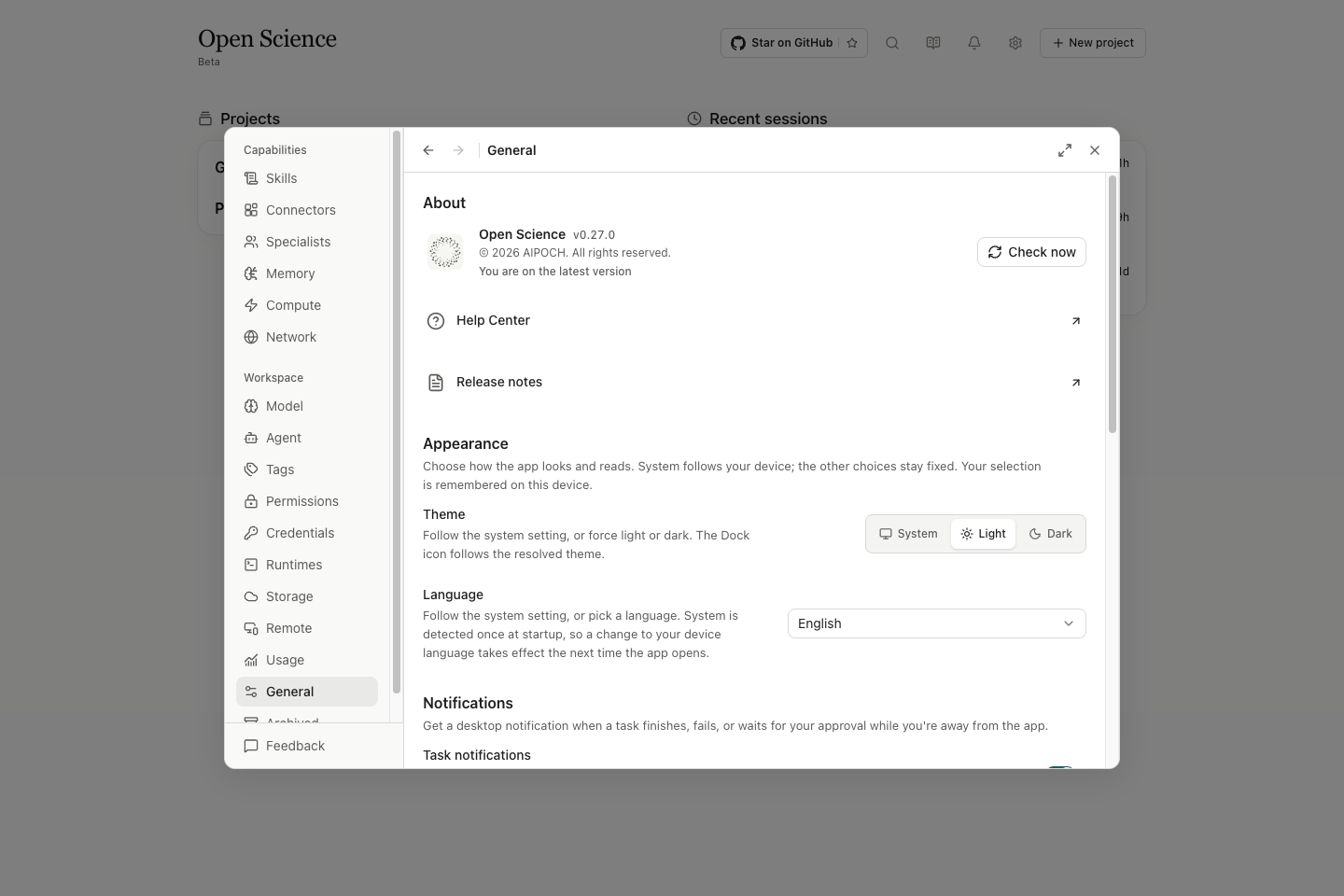
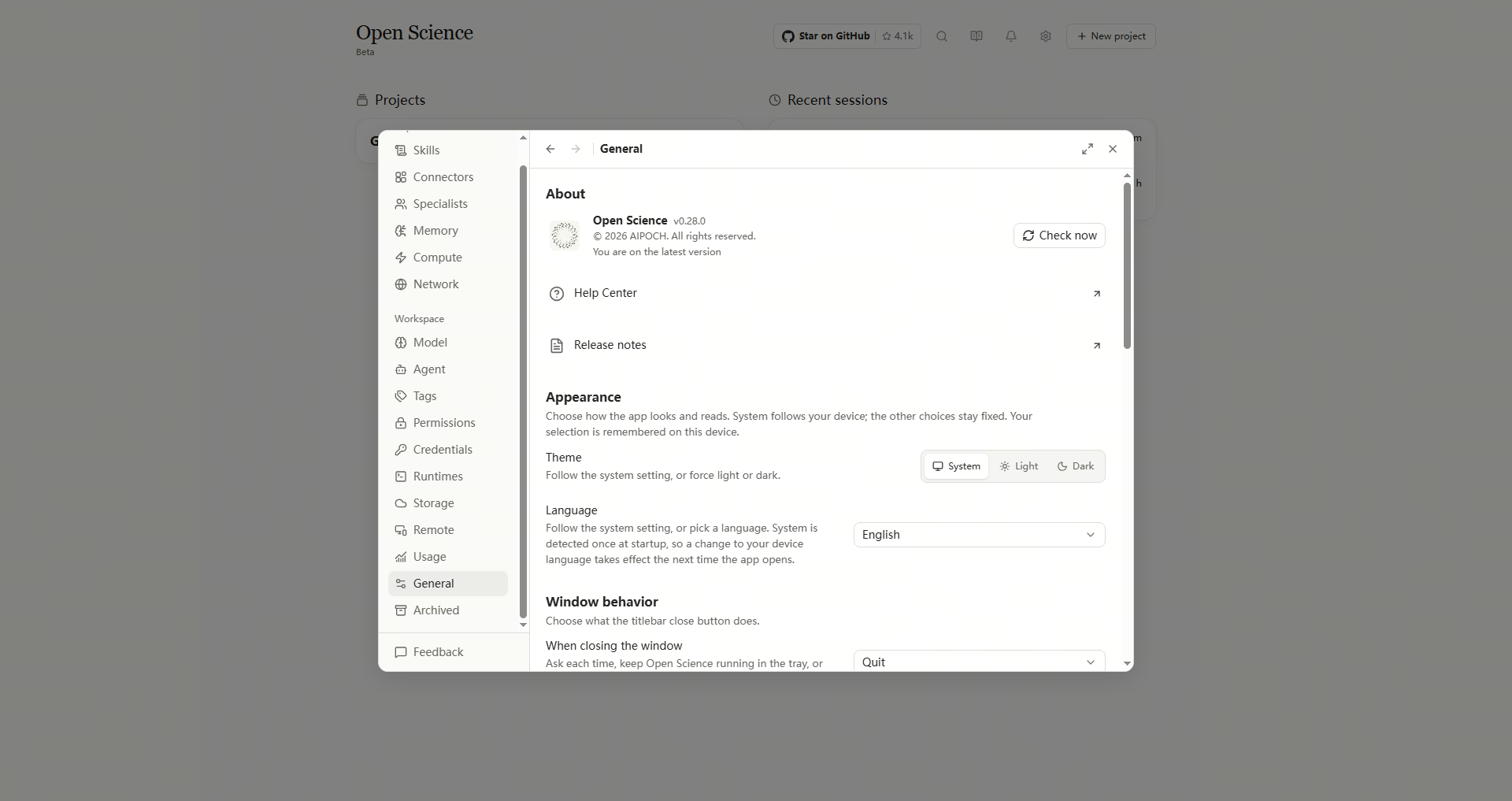
- In General → Appearance, find Theme.
- Choose System to follow your device, or select Light or Dark to keep a fixed appearance. You can switch back at any time.
- Under Language, choose your preferred interface language, or System to use the device language.
| Choice | What changes |
|---|---|
| Theme → System | The app follows the device's light/dark setting. |
| Theme → Light / Dark | The selected theme stays fixed when the system theme changes. |
| Language → System | The app reads the device language at startup. After changing the system language, reopen the app to apply it. |
| A specific language | The app uses that interface language. Saved prompts, source files and earlier model answers keep their original text. |
Language and theme preferences are in Settings → General → Appearance. The documentation website has its own language selector; changing it leaves the app's language unchanged. System file dialogs follow your operating-system settings.
To request a report in a different language, specify that in your conversation. For example: “Write the report in English and preserve the original gene identifiers.”
Adjust display scaling in Windows
- Open Windows Settings → System → Display and find Scale and layout. Note the current scale so you can restore it.
- Choose a comfortable text and app size, for example 125%.
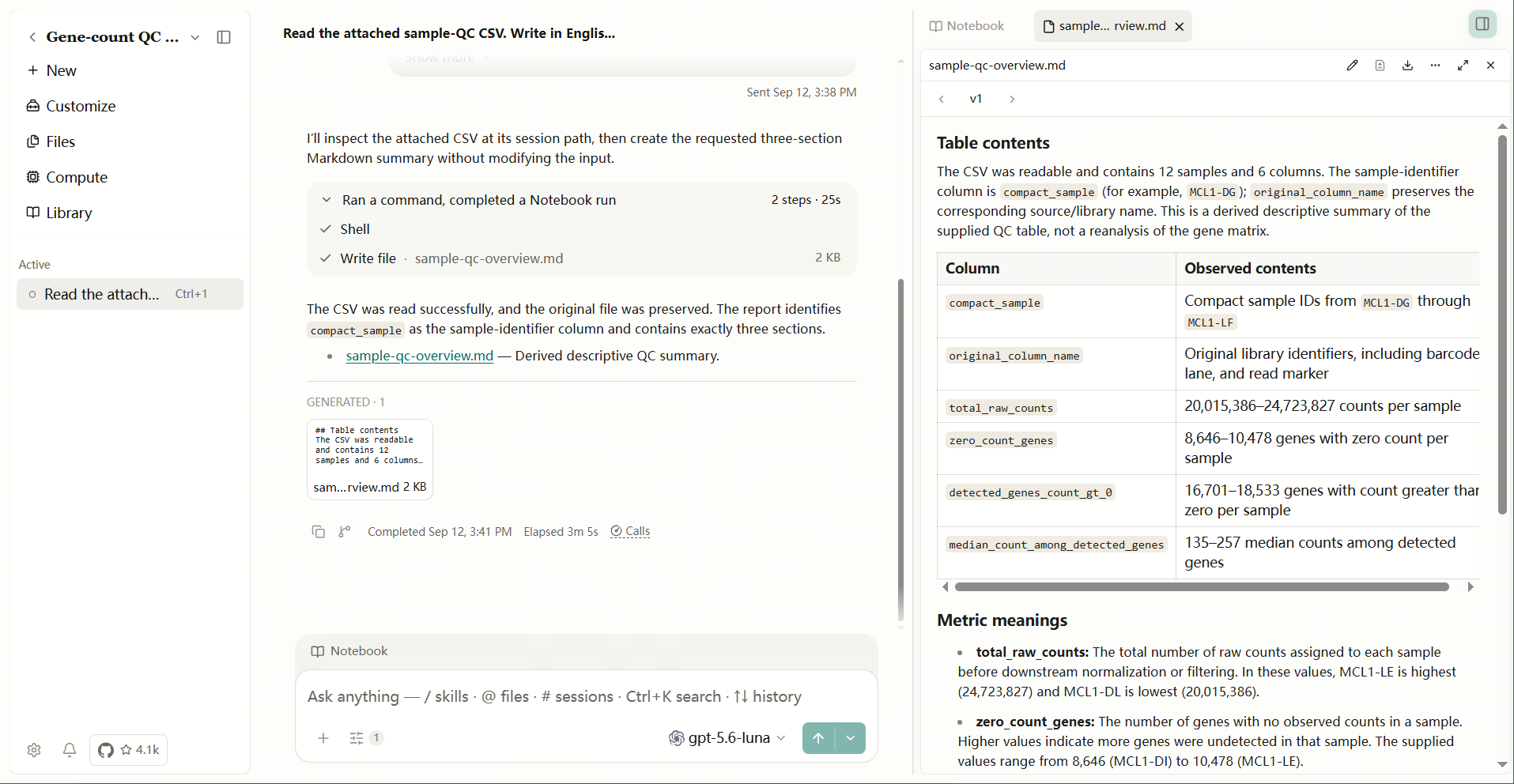
- Return to Open-Science and check the Composer and preview. A wider table may require its horizontal scrollbar; widen the preview or maximize the window when needed.
- To undo the change, return to Display settings and select the original scale. If Windows requests an app restart, save your work before reopening it.
The same report remains readable at the larger scale. Use the horizontal scrollbar to see columns outside the current table viewport; the display scale changes the view, not the saved data.
Set up task notifications
Enable alerts if you want to leave a running analysis and return when it needs attention.
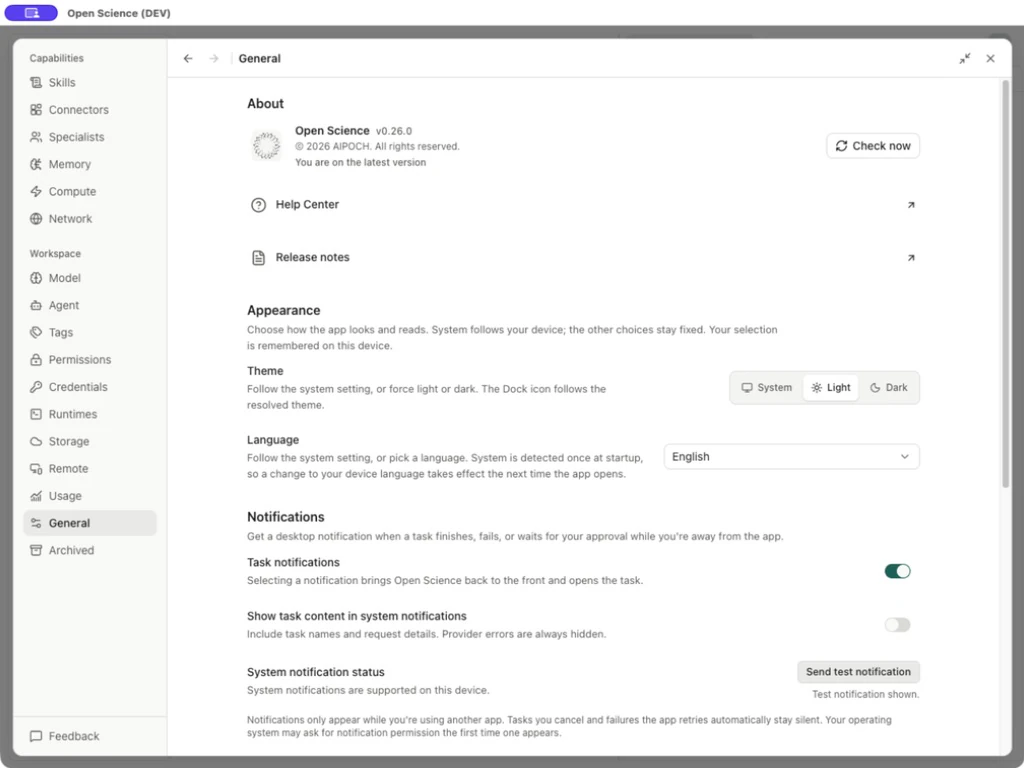
- In General → Notifications, turn on Task notifications.
- Choose whether to enable Show task content in system notifications. Leave it off if task names or request details should stay out of system alerts.
- Read System notification status, then select Send test notification if available. Allow notifications in the operating system when prompted.
- Check the returned test status and your system's notification surface. For task alerts, switch to another app while the task runs.
| Control | Effect |
|---|---|
| Task notifications | Enables alerts for task completion, failure or an approval request while you are using another app. Turn it off to stop these task alerts. |
| Show task content in system notifications | Includes task names and request details when enabled. Provider errors remain hidden. This control is disabled when Task notifications is off. |
| System notification status | Indicates whether this device supports system notifications. |
| Send test notification | Sends a test request. The button shows Sending test… during the request and is disabled while sending or when system notifications are unavailable. |
| A delivered task notification | Select it to bring Open-Science forward and open the associated task. |
Canceled tasks and failures that the app retries automatically stay silent. Messages in Home or the workspace is an in-app entry; OS notification permission is managed separately.
Return to a task from a system alert
Select a completion or approval alert to return to its conversation. If you missed the banner, find Open-Science in macOS Notification Center. Expand a grouped stack first, then select the specific alert. An approval alert opens the task; read and resolve the request inside the app.
- Enable Task notifications and use a test notification to check system permission.
- Send a task, then switch to another app. Select its Task completed or Approval needed alert when it arrives.
- Back in Open-Science, check the conversation and original request. A completion alert should lead to its final result; an approval alert opens the pending request, where you still need to choose Allow or Deny. Selecting the notification does not approve execution.
If you missed the banner, find the alert in Windows Notification Center. If no alert appears, check Windows banner and Do not disturb settings. If you return to Home, open the original conversation through Recent sessions. Notification text does not replace inspection of the actual result.

Turn Show task content in system notifications off to use generic alerts. Select a completion or approval alert to reopen its conversation; respond to approvals inside the app.
If a notification does not appear
Start with the test result, then check the condition that applies.
| Result or symptom | What to check next |
|---|---|
| Test notification shown. | The app reports that the test appeared. Check the OS notification surface; a test alert is separate from a real task event. |
| Test notification sent, but display could not be confirmed. | Check system notification permission and whether the OS suppresses banners. Delivery has not been confirmed. |
| Test notification failed. | Check the app's notification permission in system settings, then retry the test. If it still fails, collect the error through Troubleshooting. |
| System notifications are unavailable on this device. | The test control is unavailable. Monitor the task in the workspace. |
| Test works, but a task sends no alert | Confirm Task notifications is on, you are using another app, and the event is completion, failure or an approval request. Cancellations and automatic retries do not alert. |
| No alert while recording, sharing or mirroring | Check whether the system allows alerts during recording or sharing, and check Focus or Do not disturb. Enable this only when you intend alerts to be visible; they may appear in the recording. |
| Alert arrives without task details | Check Show task content in system notifications. Keep it off if you prefer to hide those details. |
Return from the tray after closing the window
With General → Close button behaviour → Ask every time, closing the window opens Minimize or quit? Choose Minimize to tray to hide the window, then use the Open-Science icon in the Windows tray to return. Select Don’t ask again only if you want to retain that choice; change it later in General. Minimizing does not quit the app.
Open Help Center
Open Settings → General → About → Help Center to read setup and troubleshooting guidance in your browser. The link follows the app's current language: English opens the documentation root, while other supported languages open their own edition. You can also search Settings for Help Center using its translated label in your interface. Use Release notes for the application's release history.
Find related settings
| You want to… | Where to go |
|---|---|
| Check for an app update | General → About → Check now; follow Installation and updates. |
| Read version changes or get help | About → Release notes / Help Center opens the corresponding external page. This wiki also has a Changelog. |
| Locate or open the diagnostic log | General → Diagnostics → Reveal / Open; see Troubleshooting. Logs stay local until you share them. |
| Install the command-line entry | General → Install command; see CLI reference. Desktop use does not require this command. |
| Manage data location or archived work | Storage and archived work. |
Notification settings in the operating system
Notification delivery also depends on the operating system's permissions, Focus mode and screen-sharing settings. Use the checks above on the device where you work.
Source: General settings.
Adjust the app's interface size
- Open Settings → General → Appearance → Interface scale.
- Choose 90%, 100%, 110% or 125%. Text and controls resize immediately, and the choice is remembered on this device.
- Choose 100% or press ⌘0 (macOS) / Ctrl+0 (Windows/Linux) to reset. Use ⌘+ / Ctrl++ to increase and ⌘− / Ctrl+− to decrease the scale.
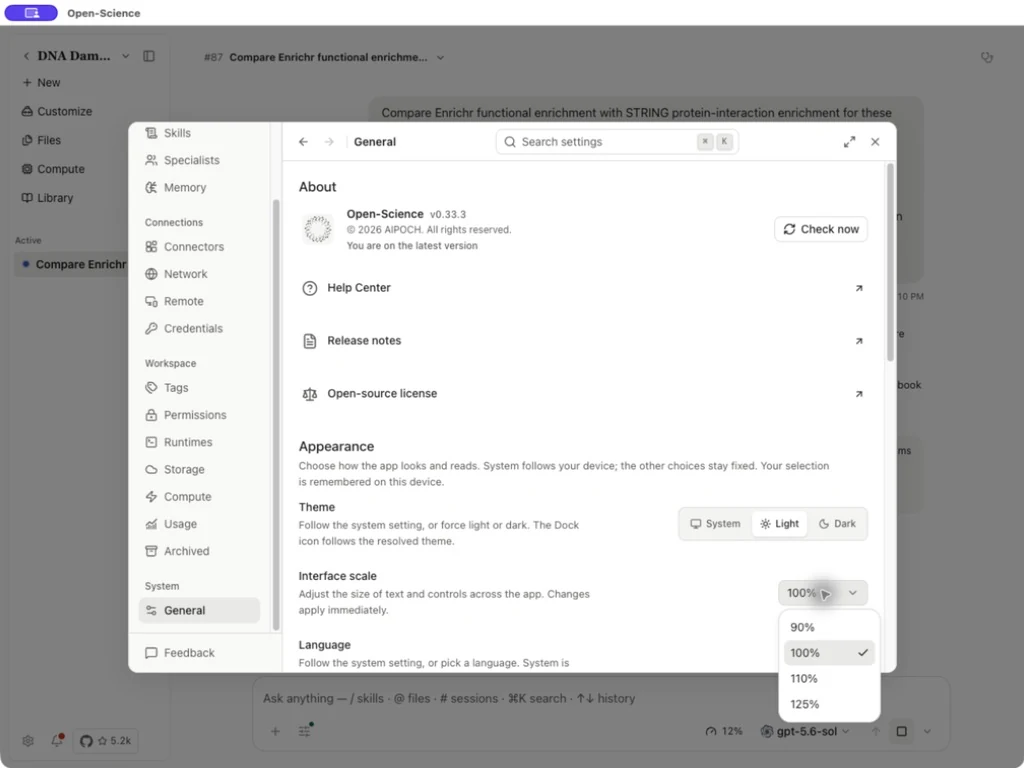
This controls the desktop app's interface. Image or PDF preview zoom affects only that file's view. When accessing Open-Science in a browser, use the browser's zoom. Windows display scaling also affects other apps; use the control above when you only want to resize Open-Science.
The tray menu also opens running, pinned and recent sessions directly; see tray navigation.