PDF annotations and document notes
Use PDF notes to record questions beside a passage, mark a figure for a group meeting, or collect comments on a whole paper. Annotations belong to the managed file version, so reopening that version brings its notes back. They do not send a message to the agent or change the original PDF bytes.
Choose the right reading tool
| Tool | What it keeps | Where to find it |
|---|---|---|
| PDF Notes & Annotations | Highlights, area marks, page notes and document notes for a managed PDF version | The PDF's notes view or sidebar; notes and quoted text are also searchable under Library |
| For me bookmark | A private reading location and optional note belonging to a session | That session's Bookmarks list; see Private reading bookmarks |
| To Agent annotation | Material prepared for a question or instruction | The intended message draft; review it before sending |
Mark a passage and keep a question
Worked example Prepare reading notes for a single-atom catalysis group meeting
This example uses Lang et al., Non defect-stabilized thermally stable single-atom catalyst, an open-access paper used in the group-meeting workflow. Obtain its PDF from the publisher and import it into Library. Open the PDF attachment from its reference row. The example asks how the paper supports its stabilization mechanism; highlighting an abstract is not an independent verification of that mechanism.
- In Original PDF, locate the passage and check the page number. Use zoom if the text is too small.
- Select Annotate selected text, then drag across the text. Mark style chooses the text-marking style. In this example, the first part of the page-one abstract is highlighted.
- Open Annotation note, write a question or reading reminder, and choose Save. The example note asks the reader to compare defect stabilization with the proposed covalent metal-support interaction and check the supporting experiments.
- Choose Show notes sidebar to keep the saved note beside the PDF. Add an existing tag with Add tag; this example uses Favorites.
- Return to Select when finished marking text. Use Undo annotation change and Redo annotation change for recent annotation edits, rather than changing the source PDF.
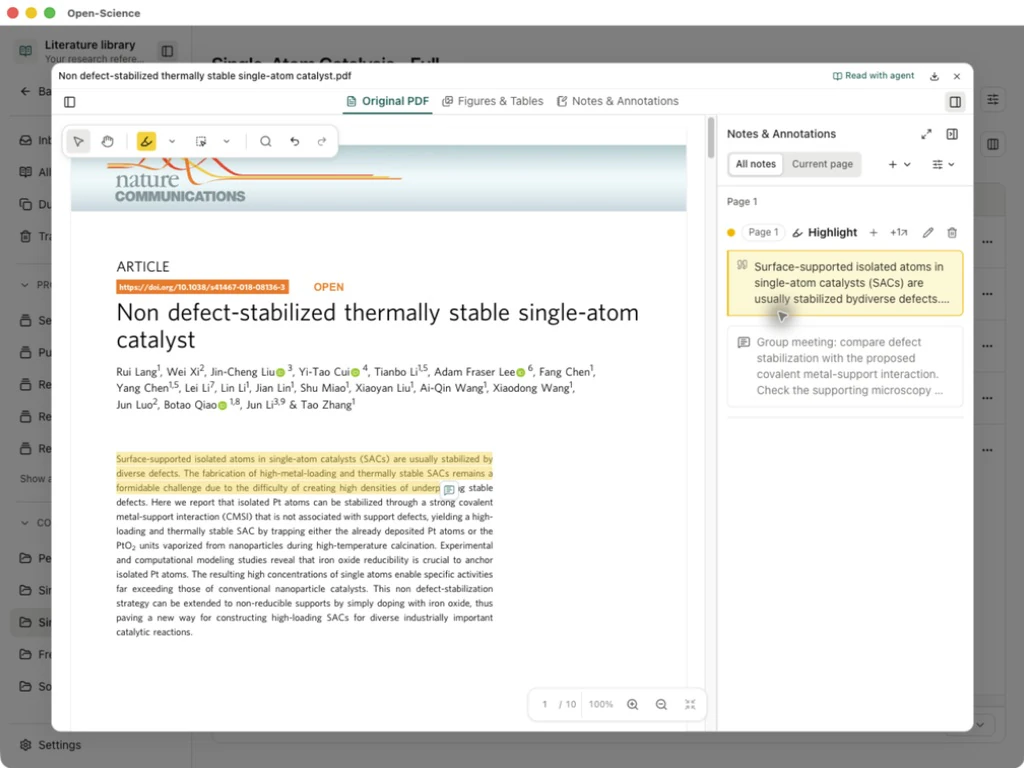
For a figure or scanned page, use Select area to annotate and mark the intended region. A region mark identifies an area; it does not extract its text or verify the figure. If text cannot be selected, an area mark can still preserve the location you need to revisit.
Collect page and document notes
- Open Notes & Annotations, or choose Open full notes view from the sidebar.
- Use Add note → Add document note for a question about the whole paper. Use Add page note for a specific page, and check its page field before saving.
- Enter the note and choose Save. Here, the document note asks what microscopy, spectroscopy and catalytic measurements distinguish isolated atoms from nanoparticles after heating.
- Use Search & filter to find notes by their text, type or tags. In the sidebar, All notes and Current page change which annotations are shown.
- Select Show annotation source on a passage or region note to return to its saved location. Edit annotation note changes the comment; Delete annotation removes that annotation, not the PDF.
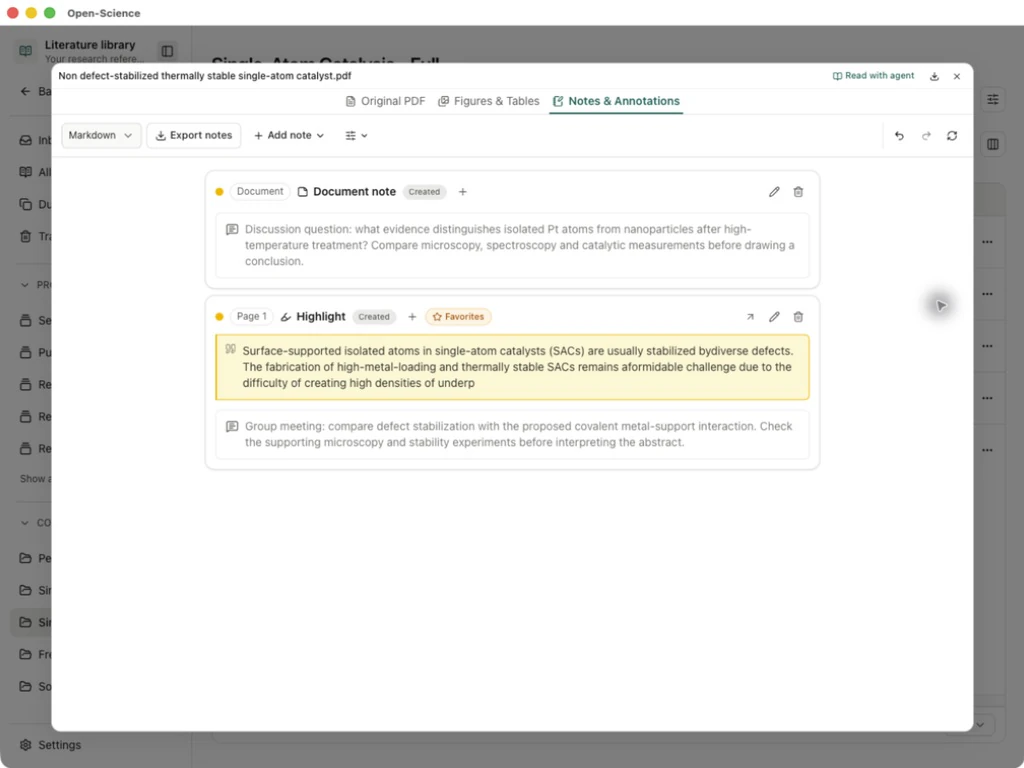
Find a note from another view
Open global search with Cmd/Ctrl+K, enter a phrase from your note and select Library. This example searches for covalent metal-support. Select the result to read Notes separately from Quoted text, then choose Show annotation source to open the PDF at its marked passage.
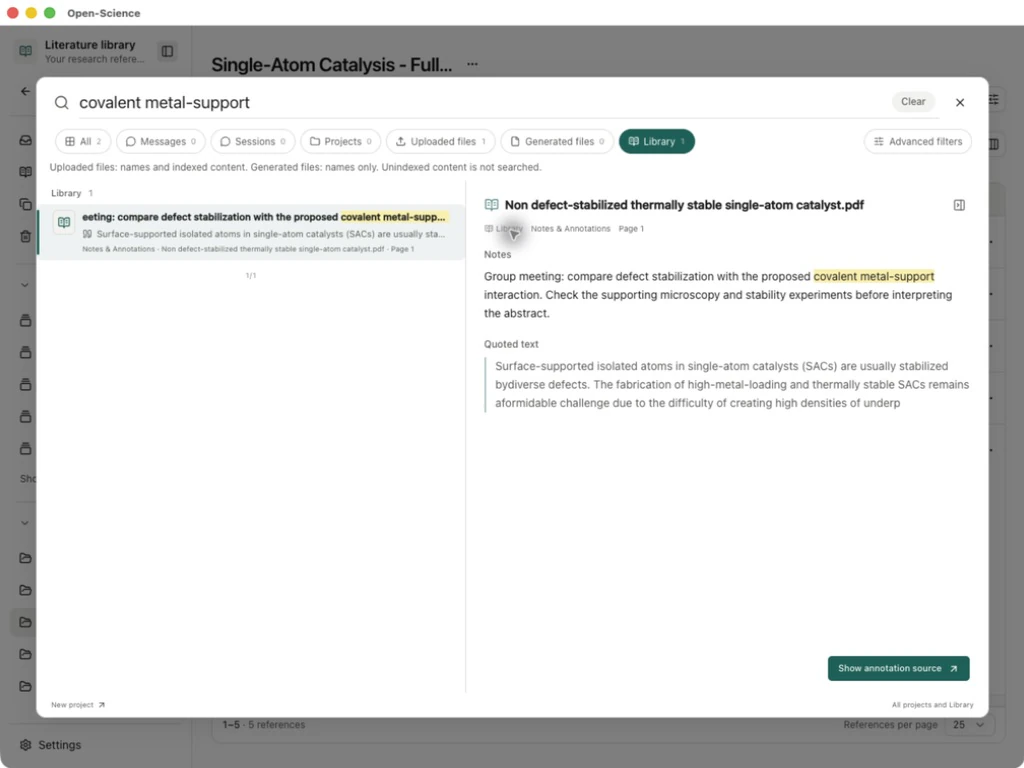
Check the filename, file version and page when revisiting a note. A PDF note is not automatically a new message or instruction for Main. Use To Agent and inspect the draft when you want to ask the agent about the material.
Export notes or a reading copy
| Output | Steps | What to check |
|---|---|---|
| Markdown or CSV notes | In Notes & Annotations, choose Markdown or CSV, then Export notes | Open the saved file and check the quote, comment, page and tags. With a subset filter, Export filtered notes exports that subset. Clear filters when you need every note. |
| PDF with annotations | Open the PDF's download menu and choose Download PDF with annotations | Save a separate file and reopen it in a PDF reader. Check the highlight and note contents, not just that a file exists. |
| Original PDF | Choose Download original PDF | This saves the source bytes without adding the document notebook's marks. |
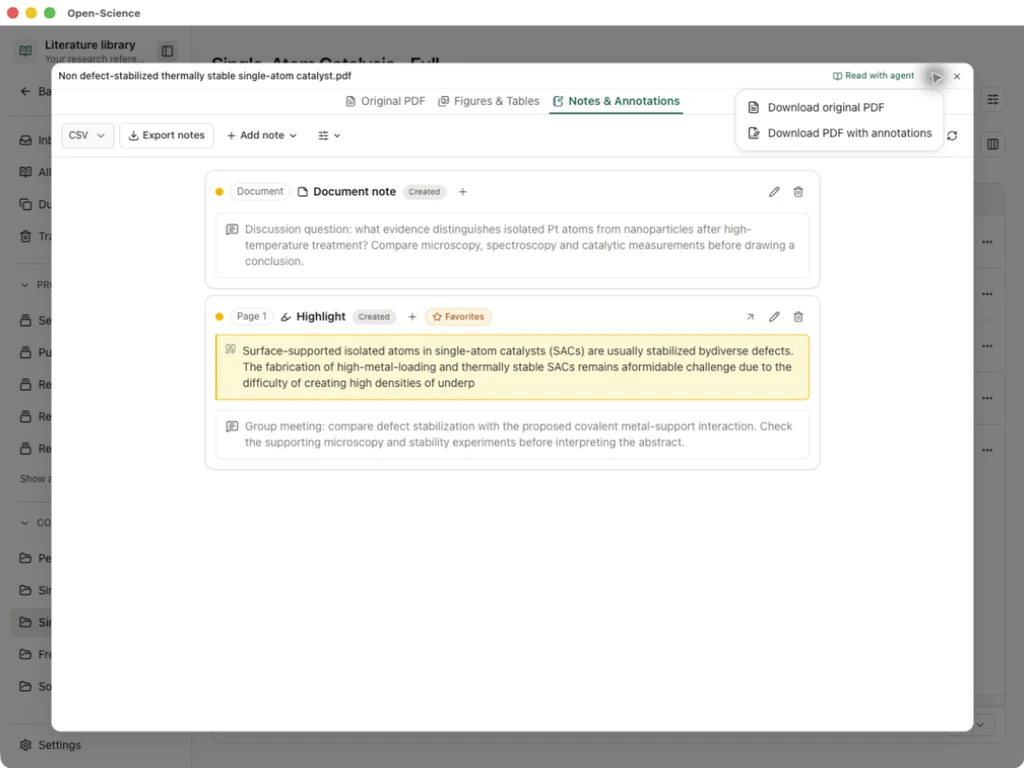
The example saves two notes: one highlight with a comment and one document note. Both appear in the Markdown export and CSV export. The annotated PDF preserves the paper's ten pages and adds the highlight and note; the original download remains separate. Paper excerpts are from Lang et al. under the paper's CC BY 4.0 license; the comments are reading questions for this example.
Where notes are shared
From v0.35.1, managed file versions verified as the same PDF content can share one document notebook across projects and sessions, including Library attachments, uploads and artifacts. Verification uses the file checksum and size, not its name or DOI. Identical filenames alone do not establish shared notes; changed bytes in a revised paper should not be assumed to inherit the old marks.
Open the same PDF in another project, inspect Notes & Annotations, then use Show annotation source to check the saved page and passage. If notes are absent, confirm that you opened the same content version and that its managed file is still readable.
These notes are stored locally and do not synchronize across machines. For a handover, export the notes or an annotated PDF and check what the recipient will receive. This does not change private session bookmarks or make every reading note part of a .science research package.
Reveal a note without covering the page
In v1.0.0, a saved annotation's Annotation note button appears when its mark is selected, hovered or focused. Select the highlight or region, then open the note button to read or edit the comment. A hidden button does not mean the note was deleted. Use Show notes sidebar or Notes & Annotations to browse the complete list, and Show annotation source to return to the marked location.
Ask the Agent to annotate a linked PDF
In a Reading session, the Agent can list annotations, locate a passage or region, and create a persistent highlight, area mark or note. Link the intended PDF first and state what you want saved; a summary in the conversation is not a saved annotation.
- Open the PDF and choose Read with agent, or add it through the Composer's Reading selector. Use an editable session; imported research records must be forked before continuing work.
- Ask for a specific passage, page or document-level note. Explain what the note should say and ask the Agent to check existing annotations before adding another.
- Expand the Reading tool results. Check the located quotation and page, then the result of the save operation. Finding a target alone does not mean that anything was saved.
- Open Notes & Annotations in the same PDF. Confirm that the new entry exists, follow it to the source location and read the note. Correct inaccurate comments through the annotation controls.
- If the reply is interrupted or the operation reports an error, reopen the annotation list before retrying. If no entry exists, use the manual highlight or note controls described above and paste the intended comment.
Example A request for a source-linked reading reminder
In the linked PDF, find the sentence on page 2 explaining that the reporting
checklist is not a quality assessment instrument. Check existing annotations
first, then highlight the sentence and add an English reminder to assess
reporting completeness and methodological quality separately. Reopen the
annotation list and tell me whether the entry was saved.
The Agent's annotation tools add entries; they do not edit or delete existing notes or change the source PDF. Several marks are separate writes, so an interrupted request can leave some entries saved. Check the list rather than repeating the whole request blindly. An annotation attached to the same managed PDF version is shared wherever that PDF is opened; see shared annotations.