Journal datasets and reference attributes
Use Library → Journals to import a journal directory, metrics or classifications and display them beside matching references. A dataset keeps its Source and Metric year. Open-Science does not supply a subscription to a commercial ranking database; import data you are entitled to use and retain its provenance. Journal attributes describe the journal, not the quality or findings of an individual paper.
Prepare a small dataset
Worked example Add publisher information to existing papers
Download the three-journal CSV. It contains Nature Communications, PLOS Medicine and The BMJ, with their electronic ISSNs, publishers and website addresses. The sources are Nature Communications, PLOS Medicine and The BMJ's subscriber information. This is a publisher-directory snapshot for 2026, with text attributes rather than invented impact factors or quartiles.
For a matching reference, use Ju et al.'s paper Understanding activity and selectivity of metal-nitrogen-doped carbon catalysts for electrochemical reduction of CO₂, DOI 10.1038/s41467-017-01035-z. If it is not already in your Library, add its bibliographic record and check the journal and ISSN against the source. You do not need its full text to display journal attributes.
CSV, TSV, XLSX and journal bundles are supported, up to 32 MB. Download template provides a starting layout. Keep identity columns separate from attributes; preserve ISSNs as text, including hyphens and any final X.
Import and map the columns
- Open Library → Journals → Import attributes, or click the upload area. If datasets already exist, open the Journal dataset selector and choose New dataset. Select the CSV.
- Check Header row and Preview. This file uses row 1 as column names. Use Transpose only when your source has journals arranged across columns.
- Set Source to
Publisher websitesand Metric year to2026. Review suggested values: a year-like number elsewhere in the file can be mistaken for a year. For a real metric dataset, use the year its values describe, which may differ from the file's publication year. - Map the four columns as below. Give each saved attribute a distinct name; Skip leaves a column out.
- Select Review import, check each row, then Import attributes. This example shows 3 ready; 0 need attention, followed by Journal attributes imported.
| Original column | Import as | Value type |
|---|---|---|
| Journal name | Journal name | Identity field |
| ISSN | ISSN | Identity field |
| Publisher | Journal attribute | Text |
| Journal website | Journal attribute | Text |
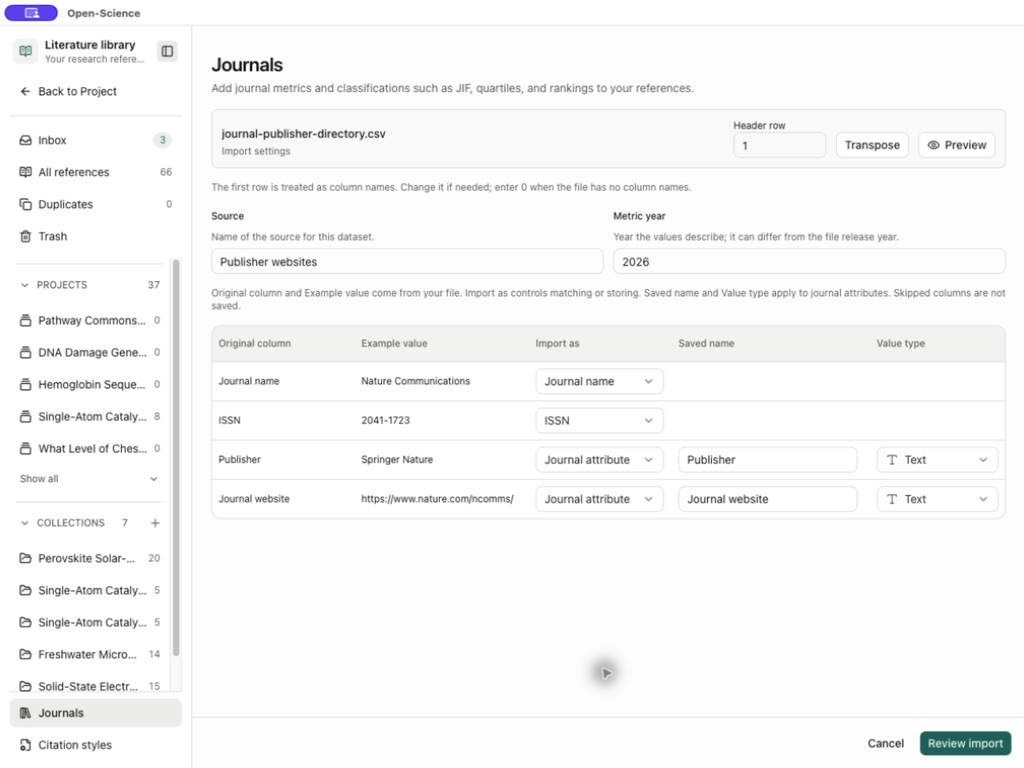
Abbreviation and External journal ID are additional identity options. An external ID needs its namespace; identifiers from different catalogs are not interchangeable. Attribute types include Text, Number, Single choice and Multiple choices. Use Number for numeric metrics, not for ISSNs or categorical quartiles.
Rows can be Matched, New, Ambiguous match, Invalid or Duplicate. Check conflicting identifiers and repeated rows before import. Return to Edit mapping to fix column roles; export problem rows or explicitly skip rows needing attention when offered. A row marked New creates a journal entry, not a new paper in your bibliography.
Display attributes on a reference
- Confirm the selected dataset is Publisher websites 2026 and Show in literature is on.
- Return to All references and search for
Understanding activity. - Open the paper. Under Journal attributes, check Publisher → Springer Nature and the journal website. Select an attribute's information control to inspect its source/year.
- Compare the reference's ISSN 2041-1723 with the imported journal. The paper's publication year 2017 remains separate from the dataset's 2026 snapshot.
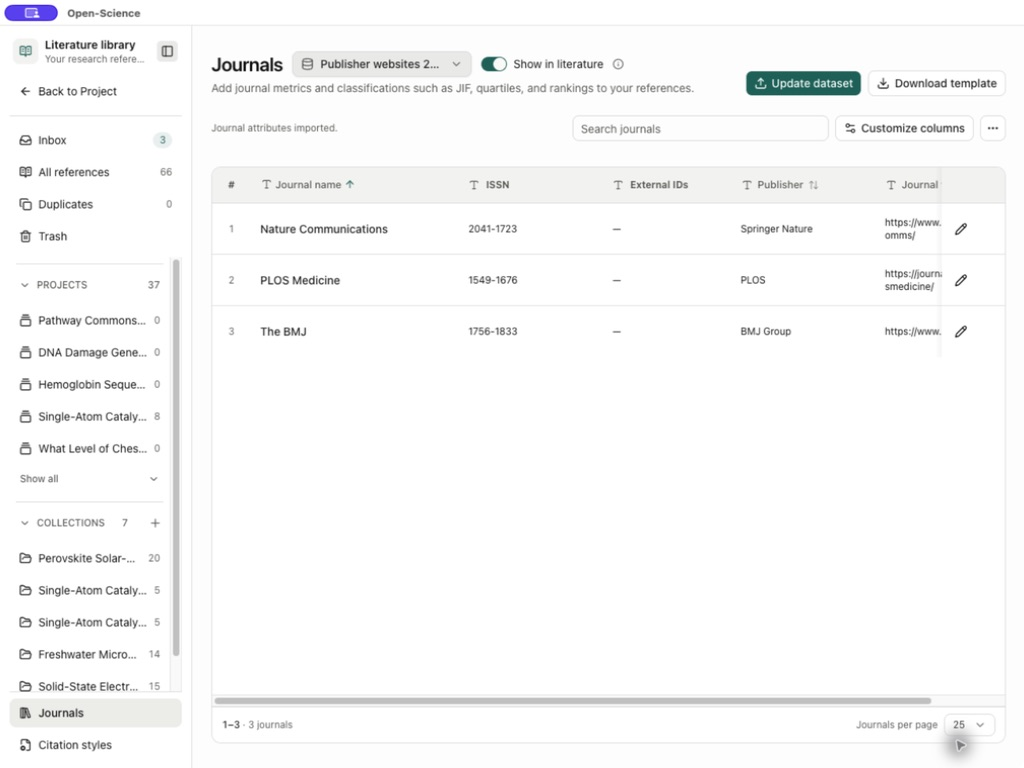
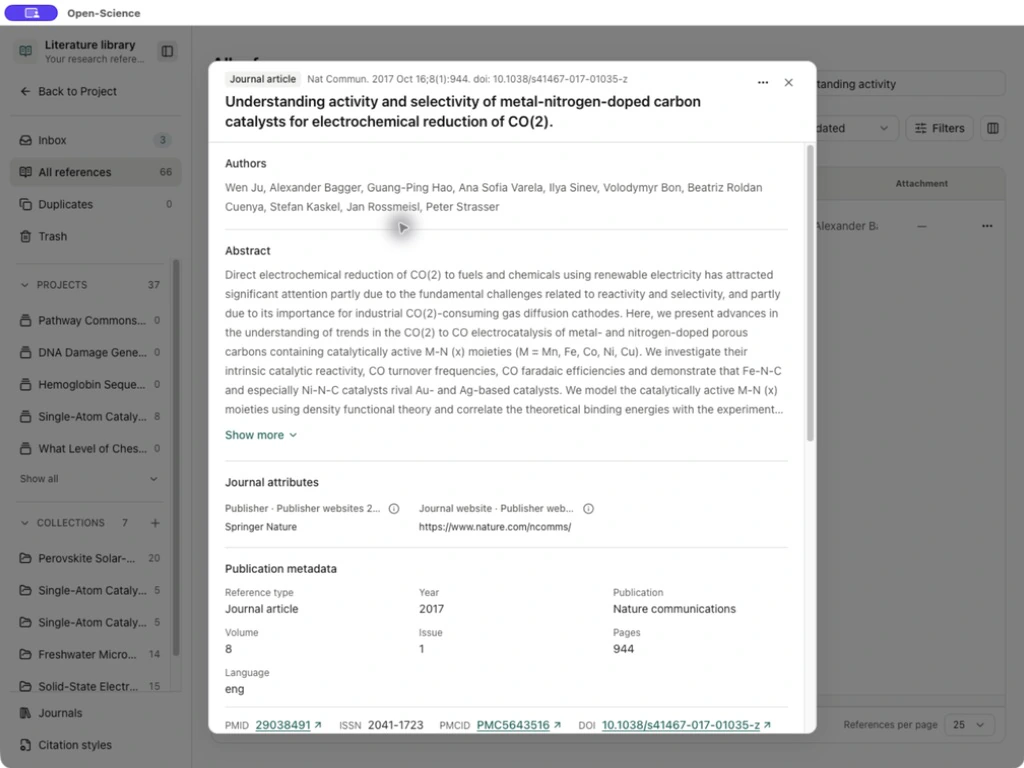
Show in literature applies across the shared Library, project views, collections and reference details. Only one year per source is displayed at a time; enabling another year from the same source replaces the previously displayed year. Missing attributes are not filled with values from a different year. In a reference table, use Customize to choose which available journal columns to display.
Resolve a journal match and maintain the dataset
Use the Journals More actions → Journal alignment entry and Check library / Recheck library to inspect matched, unmatched and ambiguous records. This check reads the Library; it does not silently rewrite reference metadata. Confirm journal names and ISSNs against the original publication before resolving a mismatch.
When offered, Find journal candidates → Choose journal → Confirm journal association links the selected reference to the intended journal. It applies to that reference, not every paper with a similar title. Removing the confirmation returns it to automatic matching; changing the reference's journal identity can invalidate the association.
Select the intended dataset before using Update dataset. Review its source, year and mapping again, then check affected references after import. Keep another year's data as a separate dataset rather than overwriting its meaning. Use dataset actions to edit its name/source/year or export a journal bundle, which retains data and column settings. Keep a copy of the original source file and its access terms.