Generate and edit images
Create an illustration from a prompt, then refine a selected image while retaining earlier versions. Use this for explanatory diagrams or presentation artwork. A generated image is not experimental evidence; verify scientific labels, structures and visual claims before sharing it.
Configure an image service
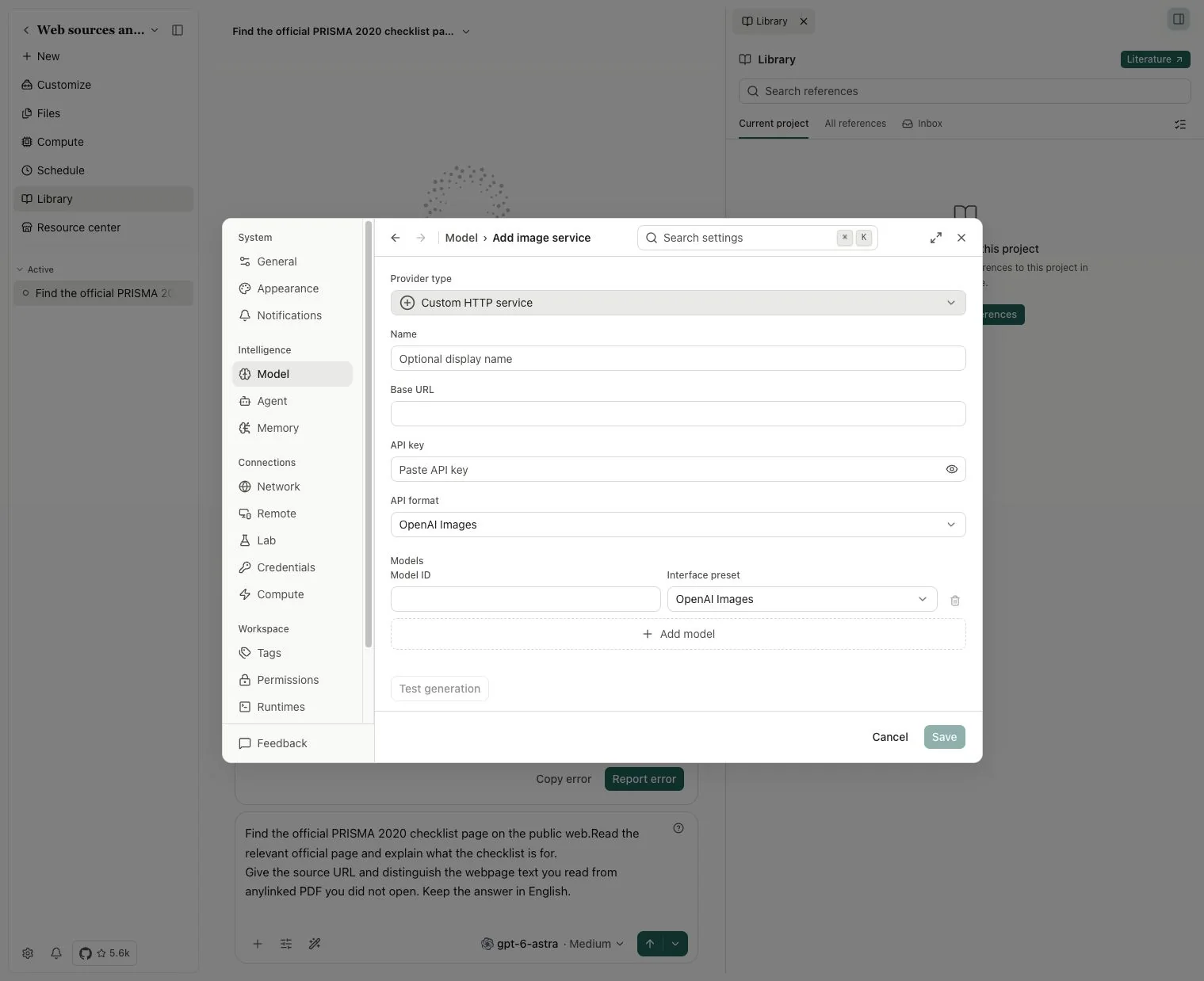
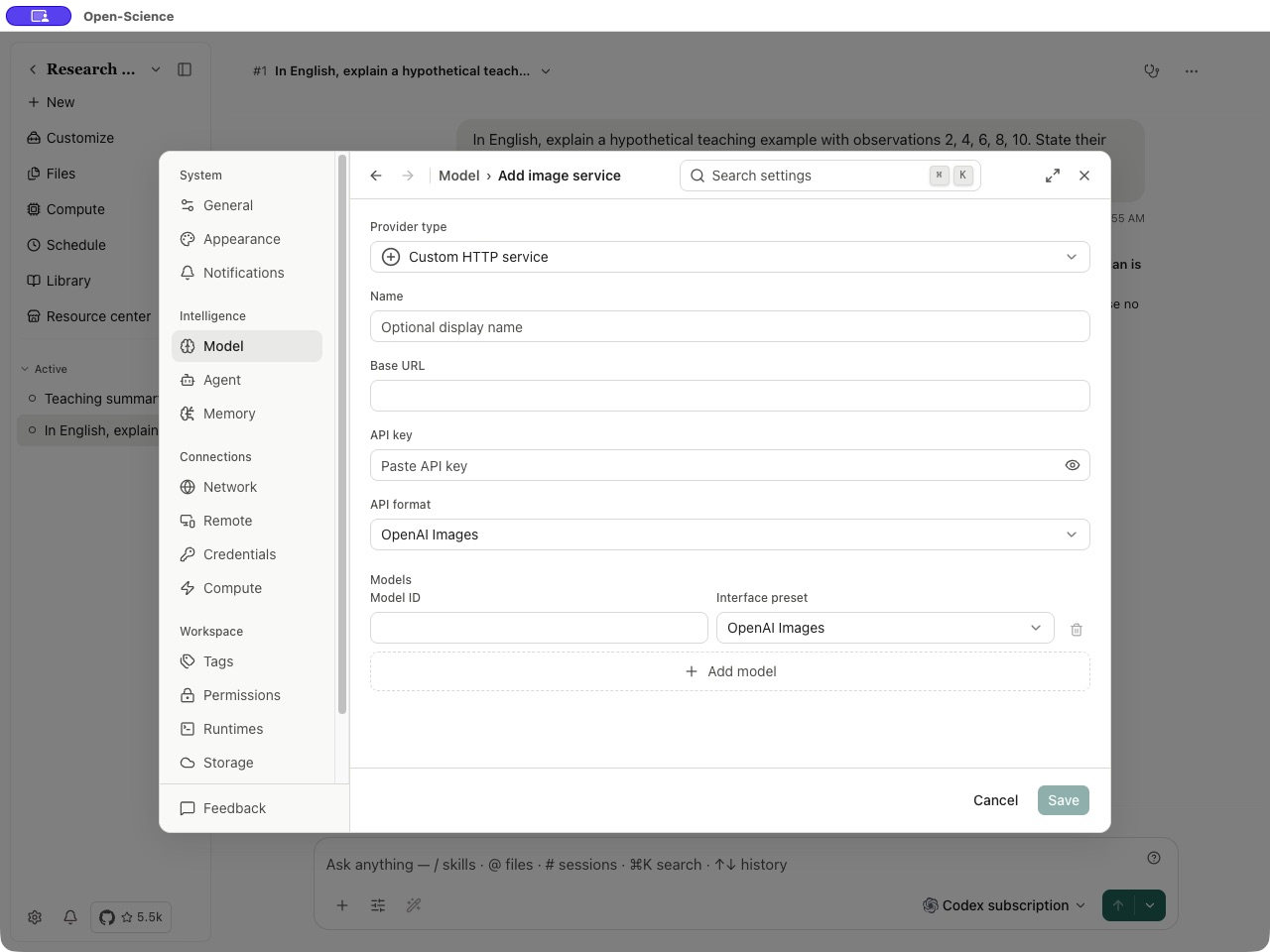
- Open Settings → Model and find Image generation. Open Image services → Add image service.
- Choose Provider type. For Custom HTTP service, enter Name, Base URL and API key, then add the exact Model ID and Interface preset supported by the service. For a custom endpoint, match its API format to the service's image API.
- Save the service, then choose it under Image generation model. Not configured means image generation is not ready.
- Start with one small image request and inspect the returned image. New image settings apply from the next turn.
Main, Vision and Image generation have different jobs. Main directs the conversation; Vision reads images; Image generation creates or edits them. A Codex subscription for Main does not automatically provide an image-generation API or its billing allowance. Keep your working Main model selected while configuring the image service separately.
Generate the first image
In a project conversation, describe the image's purpose, content, layout and any labels. Ask for a saved image. The image-generation tool card shows the request and its progress; wait for a completed output before opening it in the preview.
Example Request a conceptual workflow illustration
Create an English illustration for a lab meeting slide showing:
research question → literature search → evidence review → reproducible analysis.
Use four clearly separated steps, a light background and readable labels.
This is a conceptual workflow, not a plot of experimental results.
Save the image so I can review it in the project.
Inspect the actual labels, order and arrow direction. If a request fails, check the image service, model and error rather than changing Main to an unrelated provider. Prompts and source images used for generation or editing are sent to the selected image service. Cancelling cannot retract data already sent.
Edit, compare and reuse
Open the image's editing action, select the source version and describe a focused change. Use the available region and parameter controls only when the selected service supports them. Submit the edit and wait for its new output. Editing creates a new version so earlier variants remain available.
Compare the candidate with the source: check the requested region and the parts that should stay unchanged. Use the image history to revisit a version or continue editing from it. Download the intended final version and reopen the file before placing it in a presentation. Keep an accurate caption identifying illustrative content.
For existing plots that need numerical checking, use Notebook and Provenance. For slide text and formatting, see presentation editing.
Test an image service before saving
In v1.3.1, the image-service form offers Test generation after the required fields and a model are filled. Review the confirmation: it generates one image and the provider may charge for the request. A passed test applies to that exact configuration; changing the model, endpoint or credential requires a new test. You can also save without running it.
After saving a new service, its first model becomes the default only when no Image generation model is already selected. Inspect that selection before your first request. Main remains separately configured.