Edit a PowerPoint presentation
Use the desktop app to open a .pptx in the project preview to revise slide text and its formatting without leaving Open-Science. Keep the original and review the saved result before sharing it. Legacy .ppt files are not routed to the PPTX editor.
Open and select slide content
- Attach a
.pptxto the conversation and send the message, or open an existing presentation from the project files. Browser access offers a download when the desktop Office preview is unavailable. - Select a slide in the preview. Read the existing title and content before editing.
- Click the pencil Edit action. Double-click the text element you want to change. Text that is part of a flattened image is not an editable text box.
Edit text and save a version
Change the text and use the font-size, bold, italic, underline, link and color controls. Choose Apply, inspect the entire slide for overflow, clipped text and changed line breaks, then choose Save (the Save changes action). Saving creates a new file version. The editor preserves the presentation's OOXML structure; this does not guarantee that every advanced PowerPoint effect will render identically.
Worked example Clarify a QC presentation title
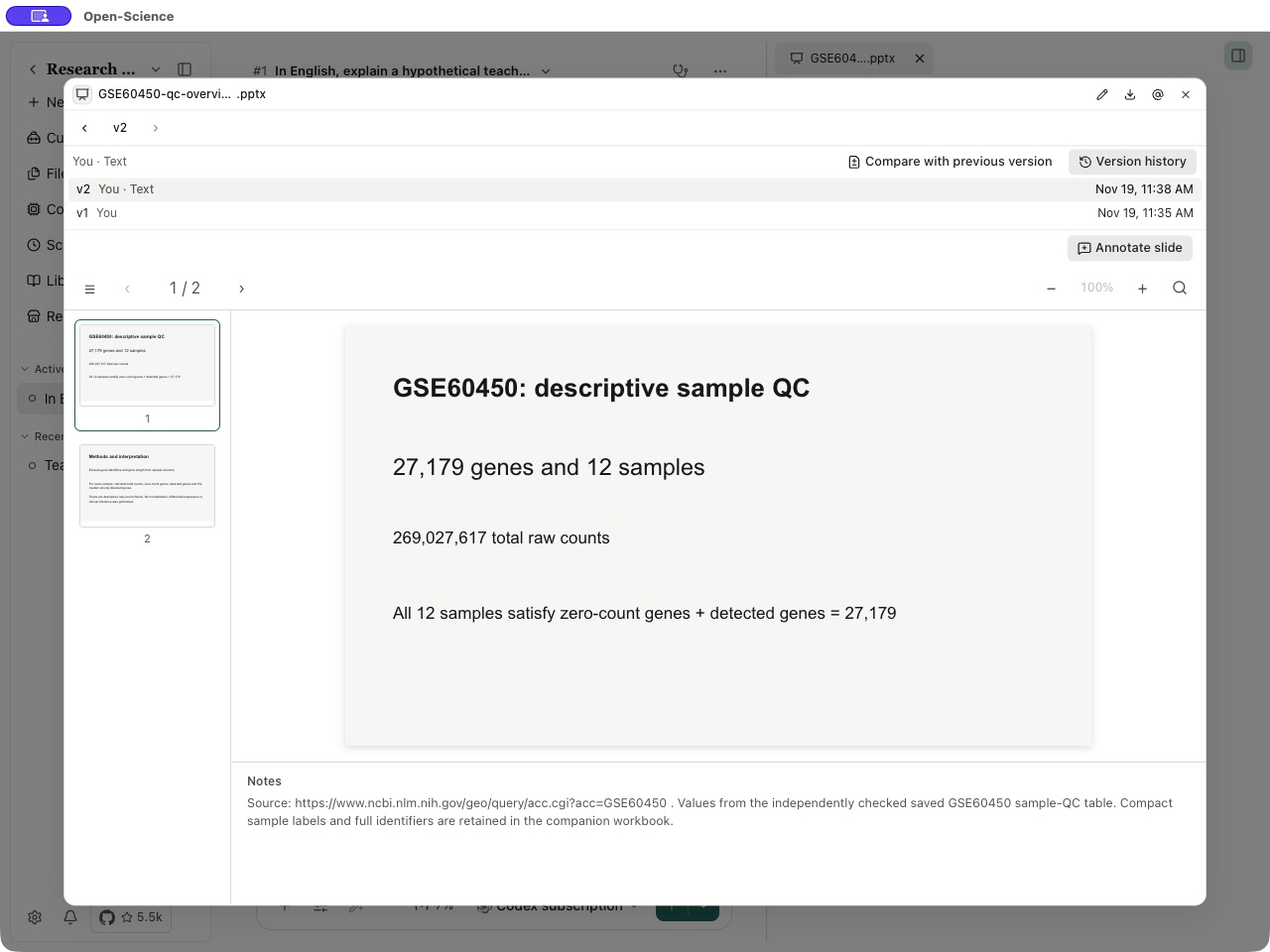
Open the GSE60450 QC presentation. Change its first-slide title from GSE60450 sample QC to GSE60450: descriptive sample QC, then apply and save. This edit changes the title, not the underlying analysis.
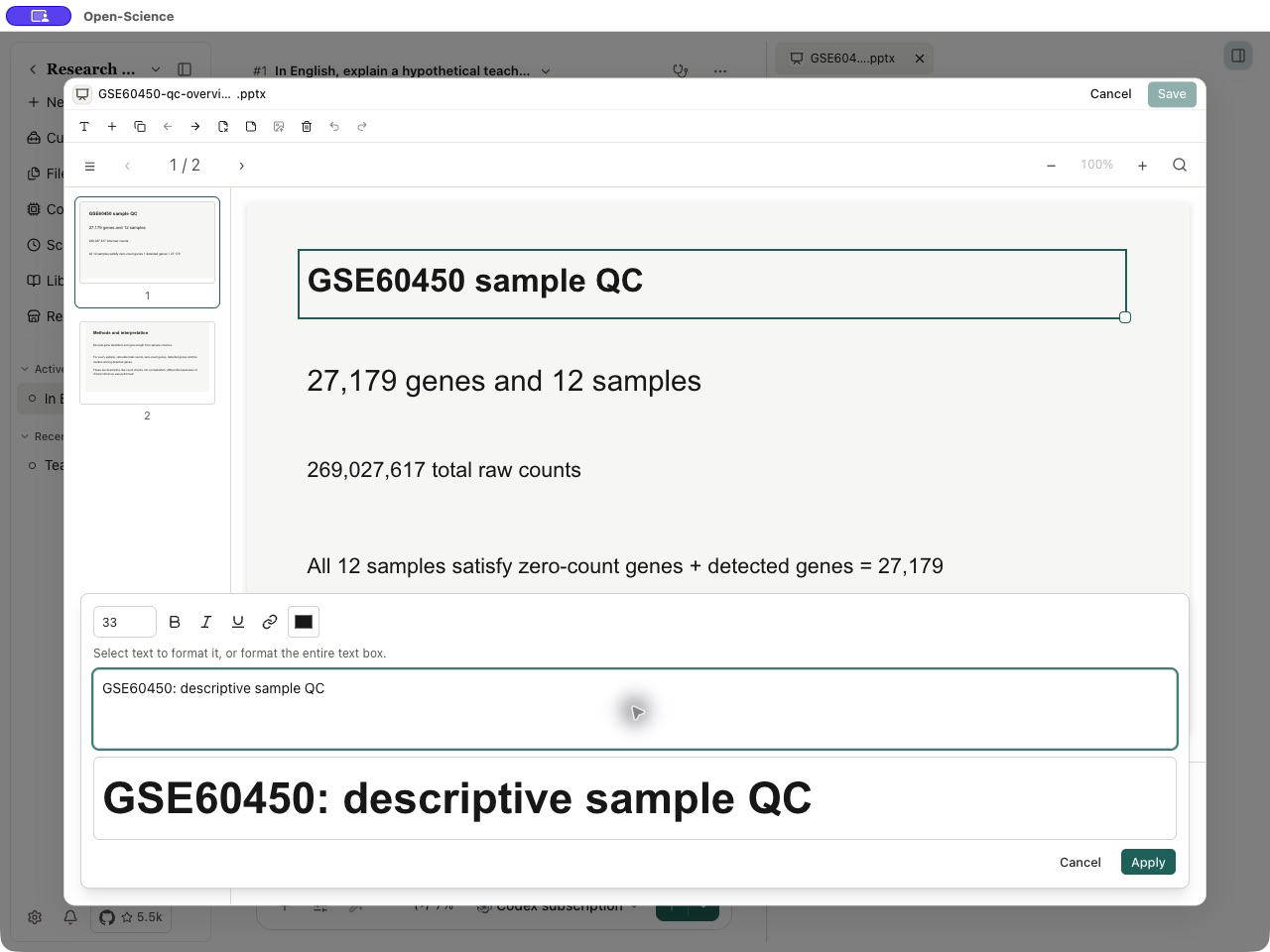
Use Undo or Redo for an unintended local edit. The editing surface also exposes slide and shape controls such as Add text box, Add slide, Duplicate slide, Move slide earlier, Move slide later and Edit speaker notes. Check the selected slide before a structural change.
If the Agent proposes a presentation change, open Review edits, inspect the comparison, then choose Accept or Reject. An AI suggested edits draft is not an accepted version. If the source changed meanwhile, reload and review against the current source before applying the proposal.
Compare and export
Open the version history to inspect saved changes and compare the intended versions. Download the presentation you want to share, then open it in your presentation software. Check slide order, speaker notes, fonts, figure placement and data labels. Keep the underlying research package when colleagues need the evidence behind the slides.
For other formats, see file previews. To create an illustrative image for a slide, see image generation.