Schedule a research task
Use a schedule for work that should run at a known time: review recently added papers, summarize project changes, or rerun a prepared script. Each run has a record you can open and inspect. Keep Open-Science running on the computer that owns the schedule.
Prepare a task that can run unattended
First complete the intended action once in the project. Check the inputs, model connection, runtime, output location and required permissions. A schedule does not repair missing credentials or install every dependency for you. Runs do not wait for a new human confirmation; unresolved interactions can stop the work. For a new conversation, select a usable Main model in Settings → Model, or set the project’s new-conversation defaults. Importing a subscription alone does not select a model. Model-based tasks consume the selected provider's quota.
Create the schedule
- Open the project, go to Schedule, and choose New task. Start from an example can fill in a draft for a daily experiment summary or weekly literature review.
- Enter a recognizable Name. Choose Action → Send a message or Run a script.
- For a message, write the task under Instructions. Under How to run, choose Continue an existing conversation or New conversation for each run. Select Target conversation when continuing one.
- For a script, choose an existing conversation and its Language: Python, R or Shell. Enter the complete Script. Avoid relying on temporary variables from an earlier kernel; load the required inputs explicitly.
- Set Repeat to Once, Fixed interval, Daily or Weekly. Check the start time, interval or weekdays as applicable, then confirm Time zone and Next run.
- Review Execution permissions. Use only the access the task needs. An existing conversation can follow its conversation permissions; a schedule's permission setting does not supply credentials or bypass Strict network rules.
- Under Advanced, optionally set an end time or maximum run count. For scripts, review the execution timeout. Choose Create and check the saved task and next run.
Example Prepare a weekly literature digest
Use Send a message, choose Friday and your own local time, and adapt this instruction to a project containing papers and notes:
Review papers and reading notes added to this project in the last seven days.
For each paper, summarize its main finding and link to its source or project file.
Distinguish abstract-only records from papers whose full text is available.
If nothing was added, say so. Keep the digest in English.
This task reviews the project's existing material. To search for newly published papers, explicitly request a search and configure the required literature connectors first.
Run a one-time teaching summary
Worked example Schedule a five-number summary
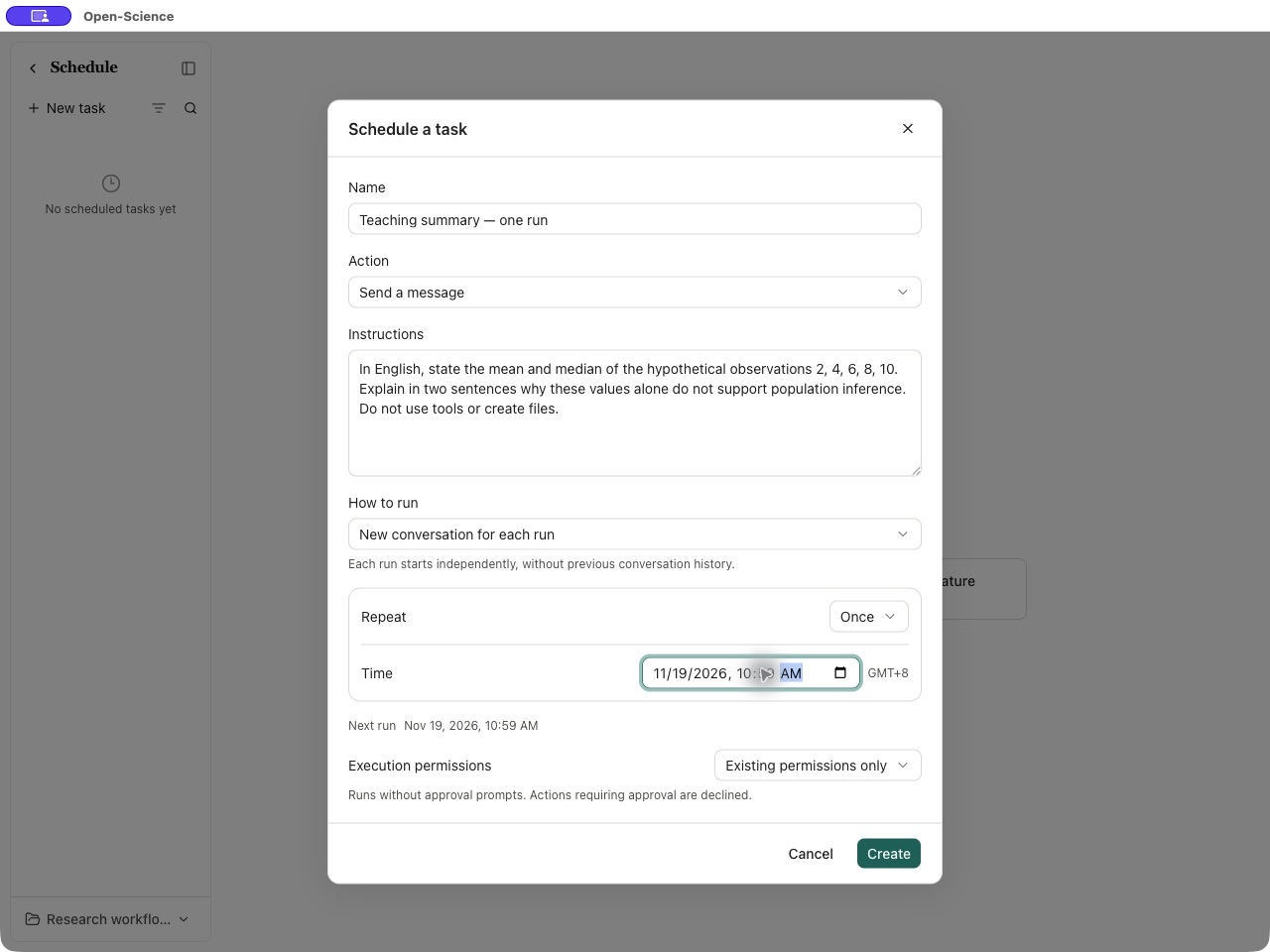
Use Send a message, name the task Teaching summary — one run, and enter:
In English, state the mean and median of the hypothetical observations 2, 4, 6, 8, 10.
Explain in two sentences why these values alone do not support population inference.
Do not use tools or create files.
Choose New conversation for each run, Repeat → Once, and a future time. Use Existing permissions only: this task needs no tools. Select Create and keep the app running.
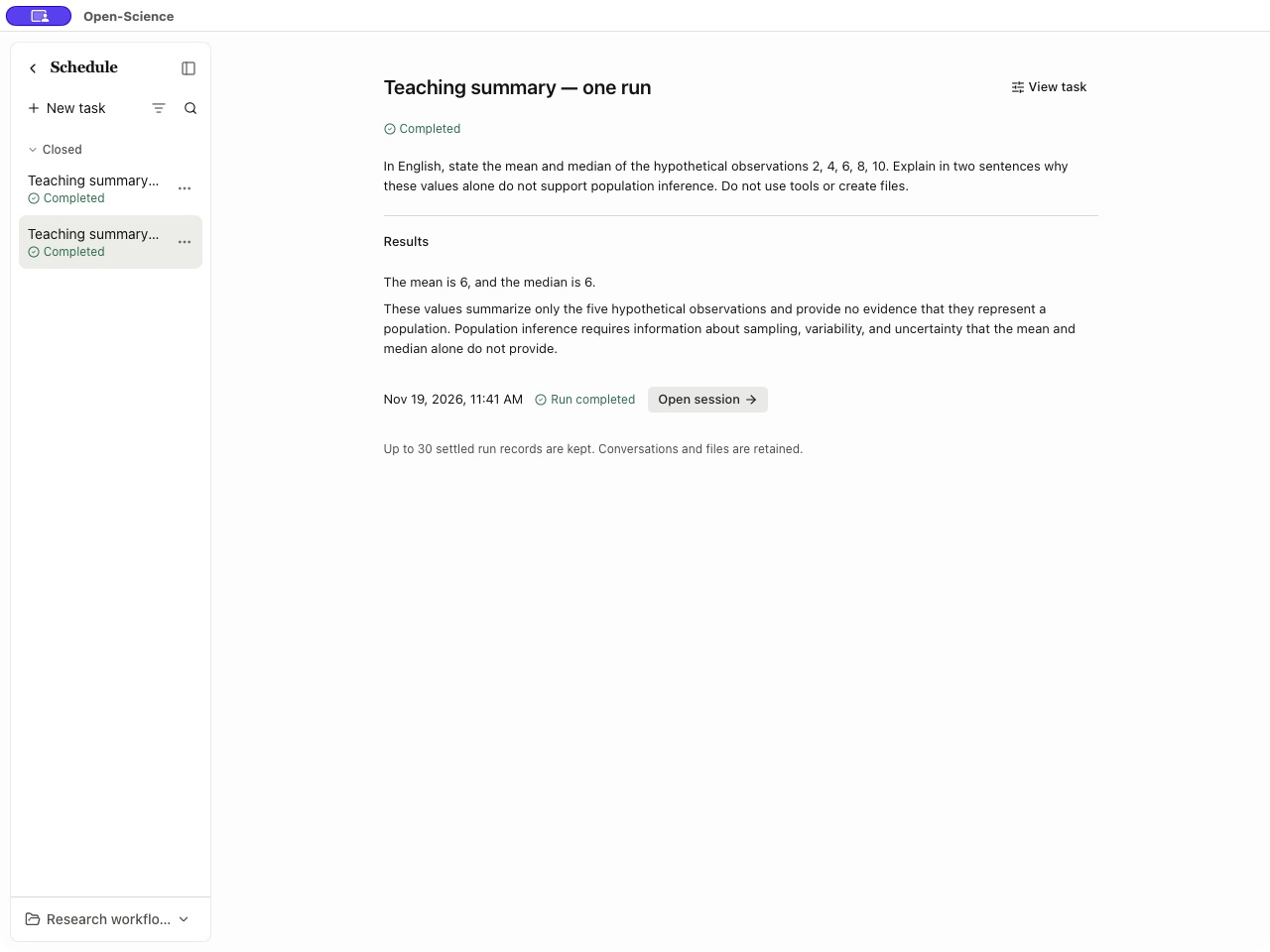
At the scheduled time, open the task and inspect Results. This example returned a mean and median of 6, and explained why five hypothetical values do not establish a population conclusion. Open session opens the conversation; the one-time task moves to Completed. Check the result itself before reusing it.
Inspect a run and change the schedule
Open the task's run history and select an occurrence. Inspect its status, destination conversation and result. Run completed records completion of that run; inspect the actual answer or script output before using it as research evidence. Failed, Interrupted and Skipped require reading the associated reason, not assuming a result was produced.
Use Pause to stop future occurrences temporarily and Resume when ready. Review the next run after editing the timing. Close ends the task; a finished or closed task can be read-only, in which case create a new task instead. Check the run history before manually repeating work, especially after reconnecting or restarting the app.
For execution records and runtime recovery, see Notebook. For access boundaries, see approval modes and network rules.